


Hi! I’ve just emailed the 20 lucky winners of the giveaway 34k subs. Check out if you got an email from articial corner today (besides this one). Thanks all for participanting!
Nowadays everyone wants to get some data from you, so to create a new account, participate in a giveaway, or get a free e-book you need to fill in your information in a form.
This isn’t a big deal if you do this only once, but things get tedious when you have to repeat the same steps over and over again, so the best solution is to automate it with Python.
Let’s automate filling in web forms with Python. First, we’ll see how to fill in a form with data we create in a Python list, and then I’ll show you how to generate fake data to fill in multiple forms.
You can follow this tutorial by watching my YouTube video (this project starts at 31:23 on the video) or following the guide below.
How to Automate Filling in Web Forms with Python
To automate web forms with Python, we’re going to use a library called Selenium. Follow the instructions below to install it.
1. Install selenium
To install Selenium, open up a terminal and run the following command.
pip install seleniumThat will install Selenium 4, which is the version we’re going to use for this tutorial.
Then we need to download chromedriver:
Check your Google Chrome version (on Chrome click on three dots, click on “help” and then select “about Google Chrome”)
Download the right Chromedriver here (after any Chrome update you need to download the Chromedriver file again)
Unzip the driver and copy the path where you’re leaving the Chromedriver file.
Filling in Google Forms
Let’s import the libraries we’ll use for this automation.
from selenium import webdriver
from selenium.webdriver.chrome.service import Service
import time
Then we create a path where our chromedriver file is located, the website we’re going to automate and a driver that will helps us interact with the website through Selenium.
Website: For this simple demonstration, we’re going to use a basic template called “Contact Information” from Google Form that you can find here. Copy the link.
In case the link stops working, go to Google Forms and select the template below to generate the form and get your own link.
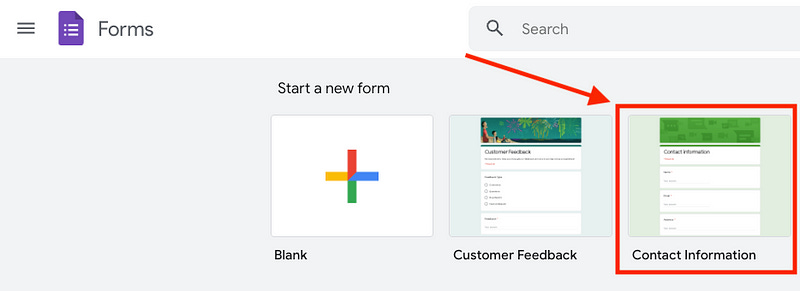
Note: If you create your own form, make sure you turn off the “Limit to 1 response” option inside Settings, so we can fill in as many forms as we want.
Here are the variables we create to start working with Selenium.
path = '/Users/.../chromedriver' # paste your path here
service = Service(executable_path=path)
website = 'https://forms.gle/GRgxTrG8FfXUCLE99' # paste your link
driver = webdriver.Chrome(service=service)
After this, we open the website with Selenium by using the driver.get()
driver.get(website)Also, we add a wait, so we let the website load all the information. To do so, we import the time module.
import time
time.sleep(3)
At this point, the code should look like this:
from selenium import webdriver
from selenium.webdriver.chrome.service import Service
import time
import pandas as pd

path = '/Users/.../chromedriver'  # your path
service = Service(executable_path=path)
website =  # your link
driver = webdriver.Chrome(service=service)

driver.get(website)
time.sleep(3)
Now to fill in information with Selenium we need to inspect the website. Let’s inspect the “Name” field. To do so, right-click on any blank section in the first block and click on “Inspect”.
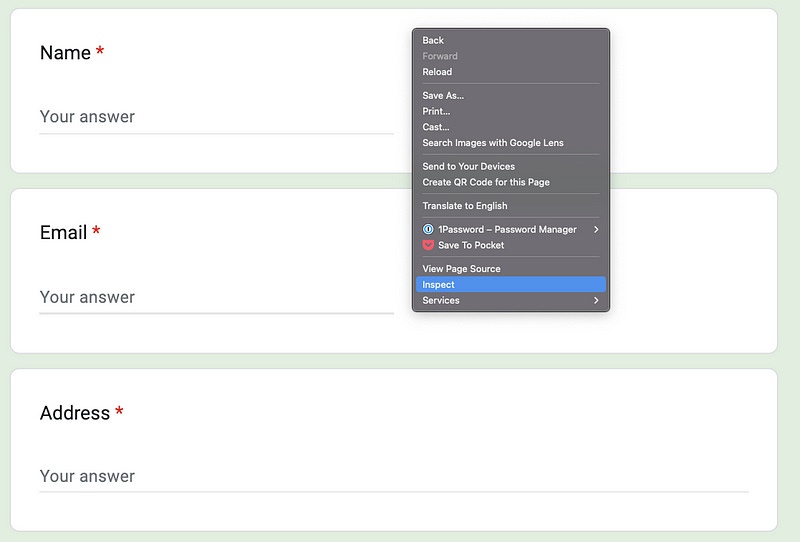
Developer tools will open with the HTML document of the website.
Regardless of what element is highlighted on your computer, we’re going to use the one that has the data-params attribute name because inside it’s the name of the field (e.g., Name, Email, Address, Phone number, Comments).

Now let’s create the XPath of the “Name” field. Here’s the syntax of an XPath:

In addition to that, we also use the contains() function, so our XPath will be:
//div[contains(@data-params, "Name")]Now we have to inspect the field where the placeholder “Your answer” is located.
Unlike most websites, Google Form follows an inconsistent pattern some fields like “Email” has the <input> tag, while other fields like “Address” has the <textarea> tag.
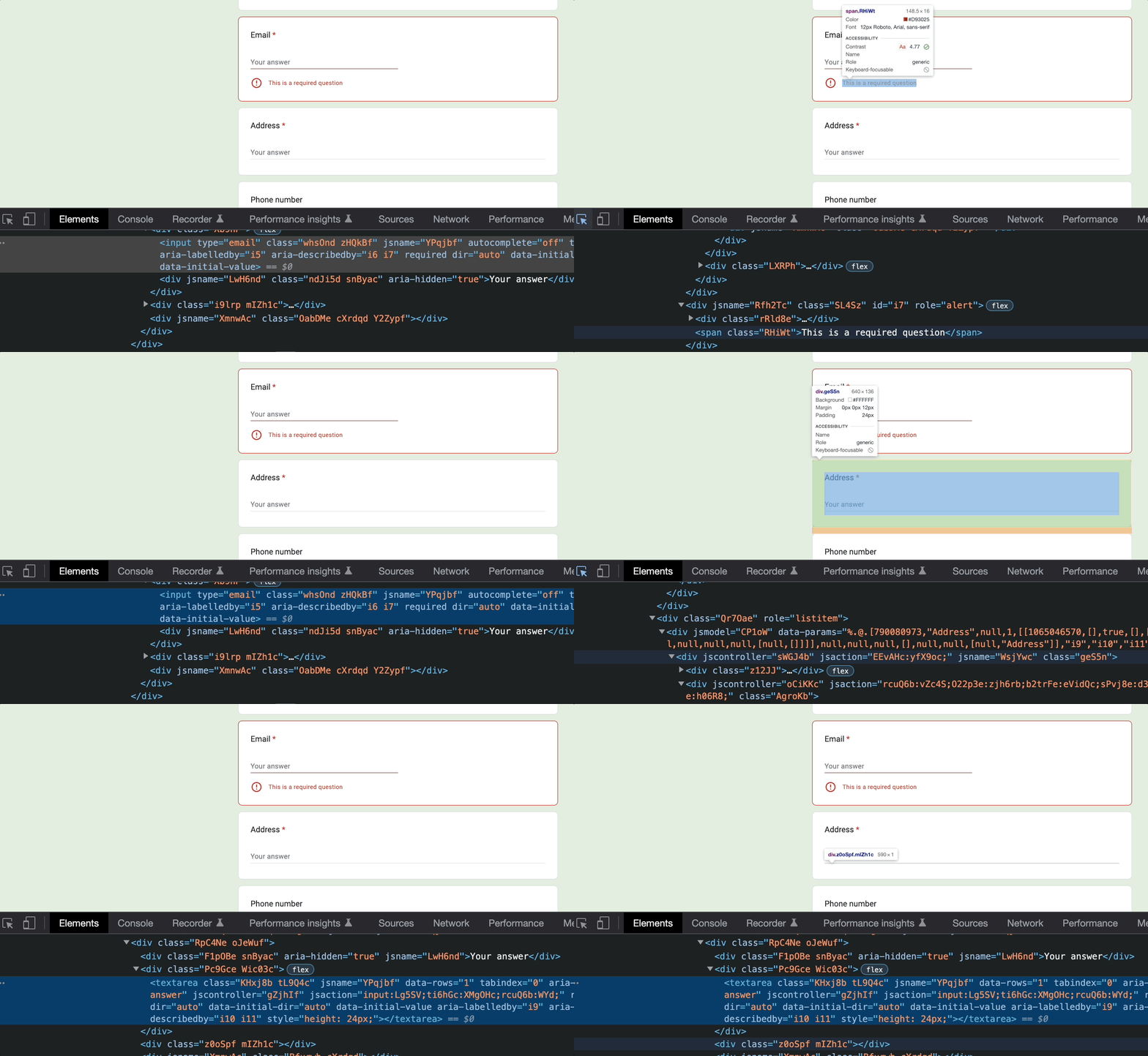
The final XPath of the field with the “Your answer” placeholder will vary for those with the <input> and <textarea> tag.
//div[contains(@data-params, "Name")]//textarea //div[contains(@data-params, "Name")]//inputTo put them together we use the “or” conditional |
//div[contains(@data-params, "Name")]//textarea | //div[contains(@data-params, "Name")]//inputNow we use .find_element and .send_keys to fill in data (copy/paste the code to your code editor in case the code below isn’t readable on this page)
text_input = driver.find_element(by='xpath',
                                 value='//div[contains(@data-params, "Name")]//textarea | '
                                       '//div[contains(@data-params, "Name")]//input')

text_input.send_keys("Write your text here")
Create a list with data and fill in all the fields
There are different Python libraries like faker that can help us generate fake data for us (I’ll show you how faker works at the end), but to keep this simple, let’s generate data in a list ourselves and then put them into a dictionary.
fields = ['Name', 'Email', 'Address', 'Phone number', 'Comments']
data = ['Frank', 'frank@example.com', '123 St', '987654321', 'Hello World']

my_form = dict(zip(fields, data))
Now to fill this data in all the fields of our form we put the .find_element and .send_keys inside a for loop (copy/paste the code to your code editor in case the code below isn’t readable on this page)
for field, data in my_form.items():
    text_input = driver.find_element(by='xpath',
                                     value=f'//div[contains(@data-params, "{field}")]//textarea | '
                                           f'//div[contains(@data-params, "{field}")]//input')
    text_input.send_keys(data)
Submit the form
Finally, we have to click on the “Submit” button.
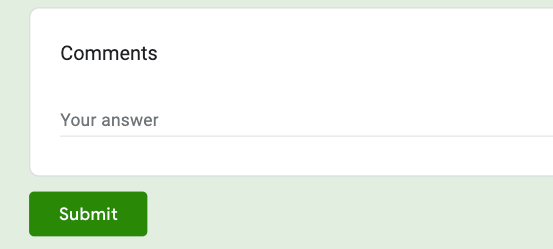
To click on “Submit” with Selenium, we inspect the button to create its XPath and then use the .click method to click on it.
submit_button = driver.find_element(by='xpath',
                                    value='//div[@role="button"]//span[text()="Submit"]')
submit_button.click()
Note: If you have your browser in another language, probably the value inside the text() attribute would be in that language. For example, my browser is in Spanish so I have to change part of the XPath to //span[text()=”Enviar”].
Here’s the code we’ve written so far.
from selenium import webdriver
from selenium.webdriver.chrome.service import Service
import time

path = '/Users/.../chromedriver'  # your path goes here
service = Service(executable_path=path)
website =  # your link goes here
driver = webdriver.Chrome(service=service)

fields = ['Name', 'Email', 'Address', 'Phone number', 'Comments']
data = ['Frank', 'frank@example.com', '123 St', '987654321', 'Hello World']
my_form = dict(zip(fields, data))

driver.get(website)
time.sleep(3)

for field, data in my_form.items():
    text_input = driver.find_element(by='xpath',
                                     value=f'//div[contains(@data-params, "{field}")]//textarea | '
                                           f'//div[contains(@data-params, "{field}")]//input')
    text_input.send_keys(data)

submit_button = driver.find_element(by='xpath', value='//div[@role="button"]//span[text()="Submit"]')
submit_button.click()

time.sleep(1)
driver.quit()
Congratulations! Now you know how to fill in web forms. Now you can take this to the next level by sending hundreds of forms with fake data.
Create fake data and submit hundreds of forms
Now that you know the basics you can jump to the minute 44:52 of my video below to learn how to generate fake data and submit hundreds of forms with Python.