

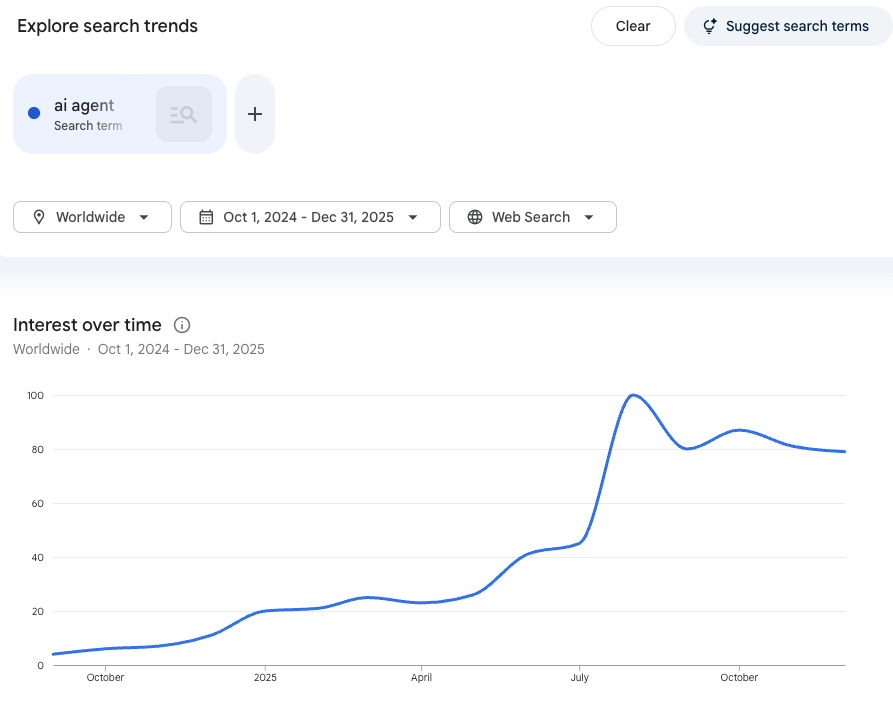
2025 was the year AI agents took off
A quick search on Google Trends reveals how the worldwide interest in AI agents skyrocketed in 2025.
You can’t ignore AI agents in 2026!
But what exactly are AI agents?
To put it simply, an AI agent can autonomously perform tasks on your behalf.
Say you need to create a presentation. Instead of having AI create text for the slides, you can now give an AI agent a goal, and it’ll do online research (read sites, copy text, organize info, etc) and then create the slides with text, images, design, and other elements.
Many AI agents were released in 2025, but only a few people know about them or how to get real value from them. In this guide, I’ll show you the best AI agents and how to make the most of them.
I created a Google Doc with my best guides (prompting, AI for professionals, etc)
P.S. Anyone can access the doc link, but only paid subs can read the content behind the paywall. They also get other welcome gifts. Subscribe today 👇
#1 Claude in Chrome: Web Automation
Claude is an AI chatbot just like ChatGPT or Gemini. In 2025, it released a Claude in Chrome extension that has agentic capabilities.
I’ve tried agent mode in ChatGPT and Perplexity and found Claude to be the more reliable.
This extension works directly in your browser. It can automate tasks and take actions on your behalf (clicks, scrolls, navigation, etc). Here are some tasks it can automate on your browser:
Extract information from sites (my favorite)
Organize your inbox and calendar
Fill forms and handle repetitive data entry
Run multi-step processes across multiple tabs
Record common browser workflows and let Claude handle them automatically
Anything that involves repetitive web actions can be automated with Claude.
Just click the Claude sidebar while browsing any site, describe the task, and Claude will control your browser until it completes your task. In the example below, I collect data on the top 200 tech newsletters:
If you do this manually (clicks, copy-paste, etc), it’d take you too much time. With Claude, it takes a couple of minutes.
I’ve tried different agents and dozens of tasks. Here’s what I love about Claude’s automation approach:
It starts by creating a plan on how it’ll handle your task. You can modify the plan
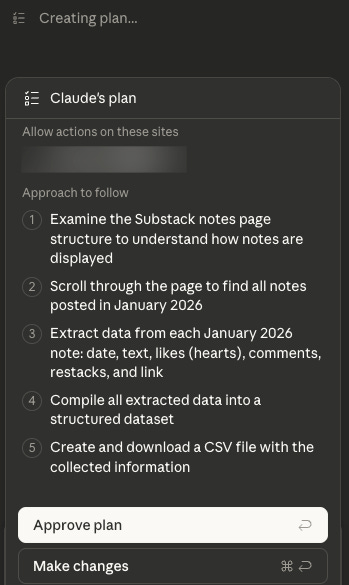
This is great because other agents just start, and when you come back to check the progress, you realize they got stuck in a step because their approach wasn’t the best
If your task involved generating a file, it’ll automatically save it to your computer

If you’ve worked with ChatGPT agent, you know that you might encounter the message “Session expired“ when trying to download a file. This rarely happens with Claude in Chrome
It’s more reliable than ChatGPT agent and Perplexity Comet
When it comes to web automation, ChatGPT agent isn’t good (we’ll see what’s good for later). It gets stuck selecting elements, clicking buttons, etc. Perplexity Comet is better, while Claude in Chrome is way better.
An important step in data collection is extracting accurate data (no hallucination, wrong data, etc). Claude is very reliable for this and other web tasks

In case your task involves irreversible actions like making a purchase, Claude will always ask for confirmation.
To try it, just install this Claude extension on Chrome and sign in (you need a paid plan).
#2 ChatGPT Agent: Slides and Report Automation
Before I said that ChatGPT is bad at web automation. That’s true, but there are other tasks it’s still good at. To see all the tasks it can do, press the + button and select “Agent Mode.“
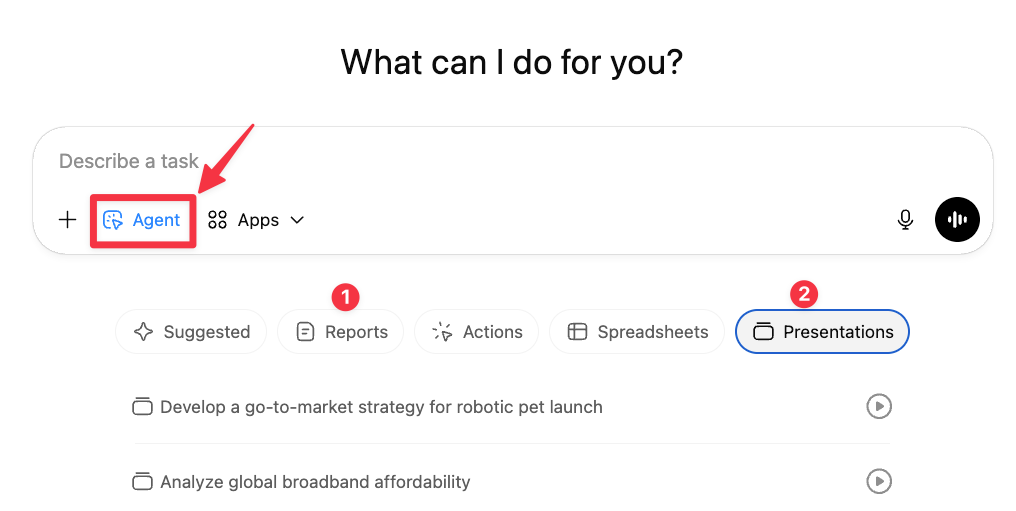
In theory, ChatGPT agent can generate reports, spreadsheets, presentations, and perform web actions. But, in my experience, it’s only good at generating reports and presentations.
Let’s say you want to build a presentation about AI implementation in a small business. You can simply give ChatGPT agent the prompt below, and it’ll do live research and then build the slides.
Build a presentation about the ROI of AI implementation in a small business. Cover at least these points:
Case studies
Market data
Costs
Projected returns
I used the same prompt on Claude in Chrome, and it’s less autonomous. It asks for permission every time it goes to a new page (and it clutters your browser with multiple tabs). In contrast, ChatGPT handles everything in its own environment, and it rarely stops until it gets the task done.
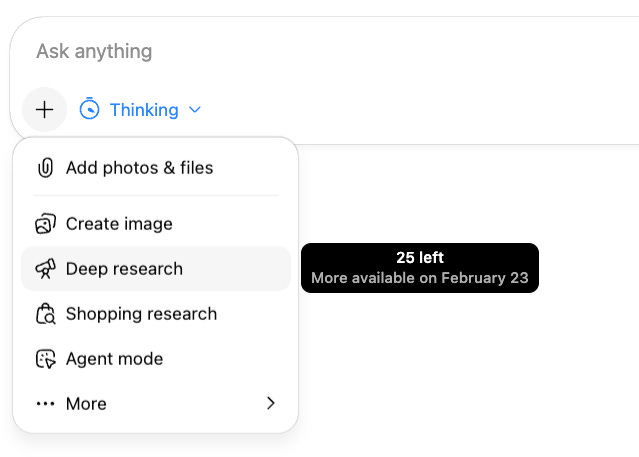
Pro tip: If you want to build a report, I’d recommend using ChatGPT’s deep research instead of ChatGPT agent.
Why? ChatGPT Plus users are limited to 40 messages/month in agent mode and 25 messages/month in deep research. Generating presentations is something exclusive to agent mode, while building reports can also be done with deep research.
#3 Claude Cowork: Automate your folders
Claude Cowork is like an agent mode inside your computer folder.
It can perform tasks on your behalf, such as organizing your downloads folder, renaming the screenshots saved on your desktop, and more!
Just download Claude for desktop (only available for macOS now), install it, open the sidebar, and select “Cowork.“ Then give access to a folder and click on one of the prompt templates.
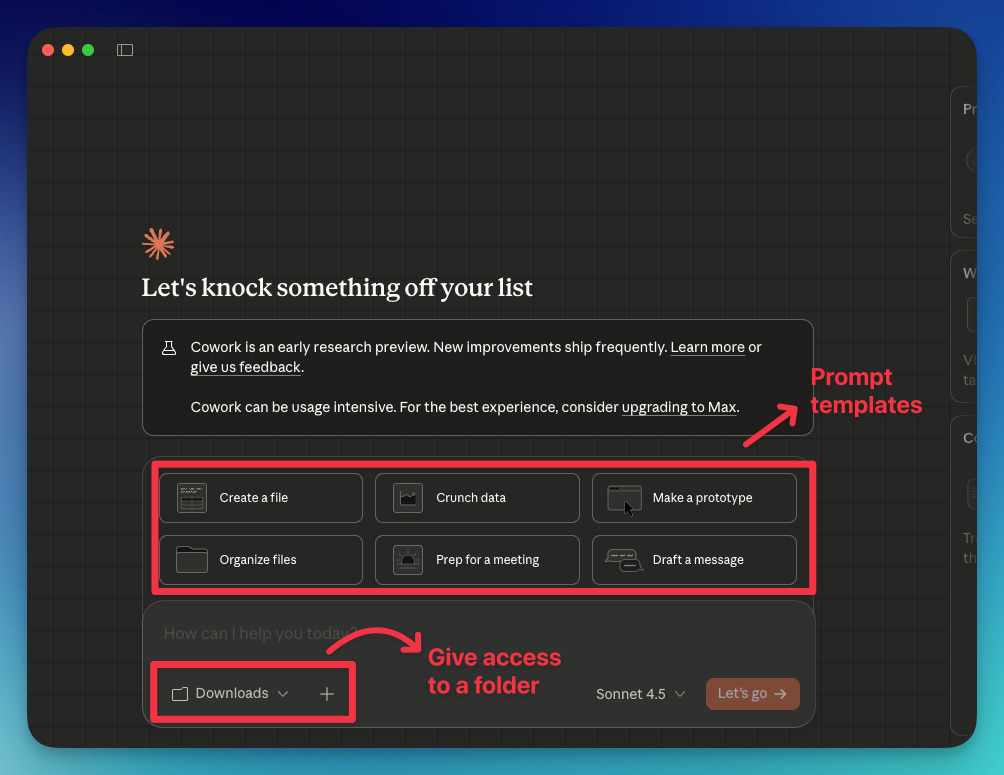
I clicked on Organize files → Download folders and got this prompt
Help me organize my Downloads folder. Scan the contents and propose a plan:
Categories/folders to create
How files should be sorted
Any naming conventions to apply
Files to flag for review or deletion
Show me the plan before making changes. Only proceed after I approve.
After approving the plan, my downloads folder was quickly organized.
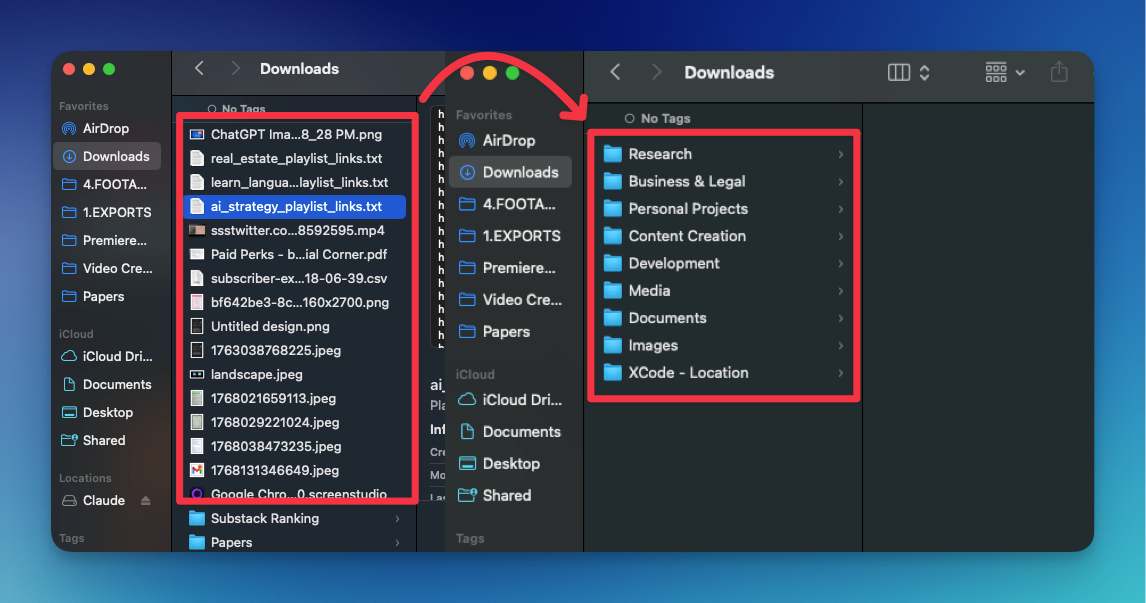
You can also type your own prompt. For example, you can rename all your screenshots using this prompt:
Rename all the screenshots in my desktop based on waht they are
Here’s a video where Cowork organizes months of receipts into a categorized spreadsheet with monthly breakdowns.
Claude was just released a few weeks ago, and it’s exclusive to paid Claude users. Let me know if you want a complete guide on how to use Claude Cowork + best use cases
#4 Clawdbot: Automate your personal assistant
Clawdbot is an open-source “personal AI assistant” you run on your own computer (or a server) that you can talk to from WhatsApp or any other chat apps.
What makes it different? It’s designed to take actions, not just chat
Here are some of its features:
Persistent memory: It remembers you, your preferences, and context
Browser control: It can browse the web, fill forms, and extract data from sites
Full system access: It can read and write files, and execute scripts
It’s private: It runs on your computer (Mac, Windows, Linux). You can choose your AI model
After you install it on your computer, you can ask it to clear your inbox, send emails, manage your calendar, check you in for flights, and more!
An X user asked Clawdbot to make a reservation for him. Clawdbot called the restaurant and completed the reservation!


Thanks for reading!
You can find my best guides clicking here
P.S. Anyone can access the link, but only paid subs can read the content behind the paywall, which is the best part of my guides. Become a paid subscriber today 👇