


Most people think they have a prompt problem.
They actually have a context problem.
Claude is smart enough to help with almost anything. But most of the time, the information it needs isn’t in the chat. It’s sitting in your emails, your calendar, your documents, your tickets, your databases, your internal tools.
So the workflow ends up looking like this:
Search for information → Copy it → Paste it into Claude → Wait for a response → Copy the response → Move it somewhere else
It works, but it doesn’t scale.
That’s where Claude connectors come in.
Connectors let Claude talk to apps like Gmail, Notion, Google Drive, and others, so it can pull info from them or take actions on your behalf, instead of you copy-pasting things into the chat.
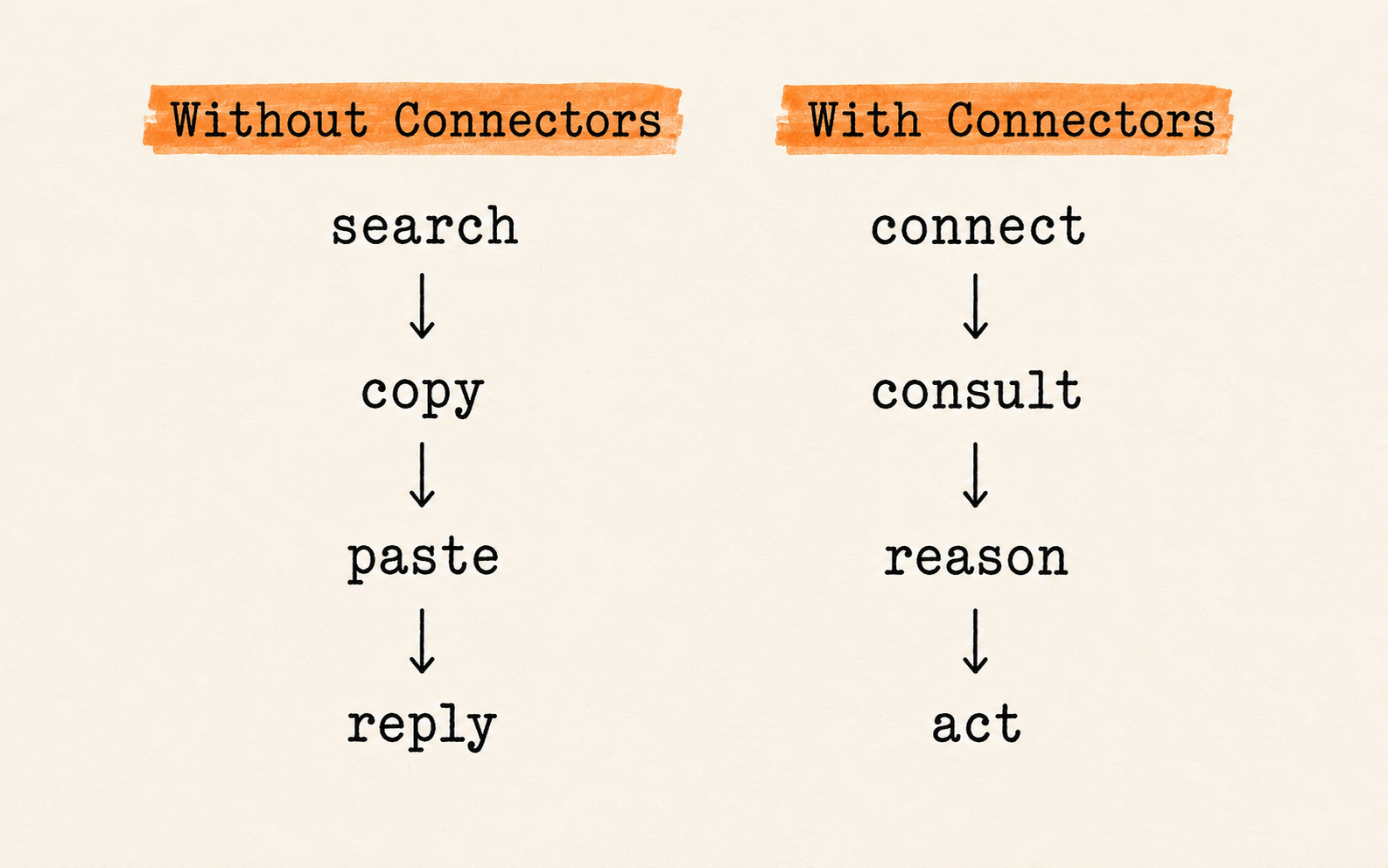
Skills tell Claude how to work. Connectors give Claude access to where the work actually lives.
In this guide, we’ll see:
The 10 best Claude connectors
Connectors for Docs & Knowledge
Connectors for Communication
Connectors for Design
Connectors for Code & Data
Connectors for Business Operations
How to quickly install a Claude connector
I’ve added a tutorial link to some connectors, in case you’d like to dig deeper.
Click here to get my FREE Claude course (20+ lessons)
The Best Claude Connectors
Claude has dozens of connectors. Here are the best we found
Connectors for Docs & Knowledge
1) Google Drive Connectors
Problem:
Your files are scattered across folders. You know the information is somewhere in Drive, but you still have to search for it, open the file, copy what you need, and paste it into Claude.
Connector:
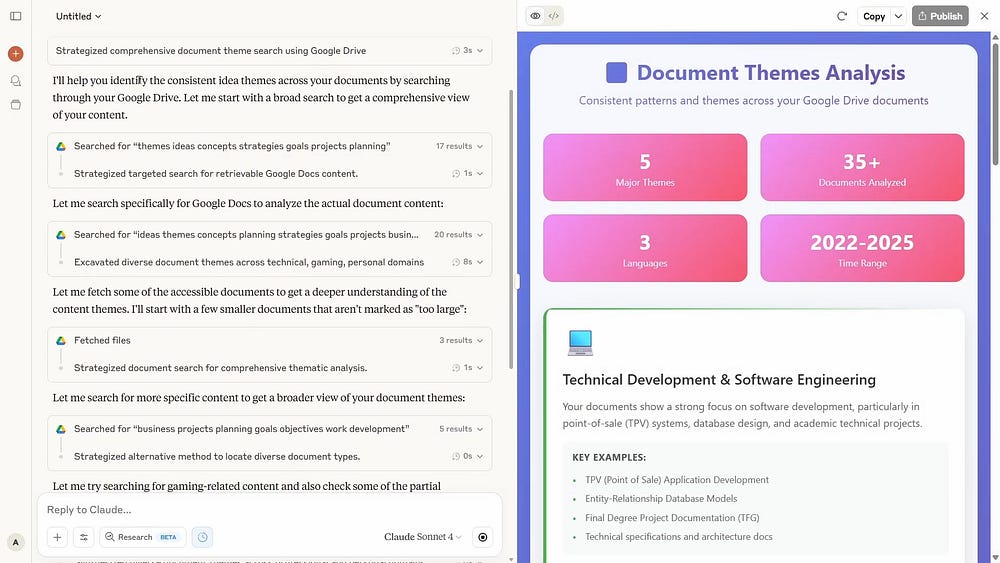
Google Drive connector lets Claude work directly with your files: search documents, summarize folders, review content, or compare files. Drive is usually where the real context lives, and this connector removes the bridge step between Claude and your documents.
Link: Watch the tutorial
2) Notion
Problem:
Notion is where good ideas go to hide.
You save project notes, content ideas, research, tasks, templates, and half-built plans. Everything is “organized.” But when you actually need something, you end up searching through pages, opening old notes, trying to remember where that one useful idea was.
Connector:
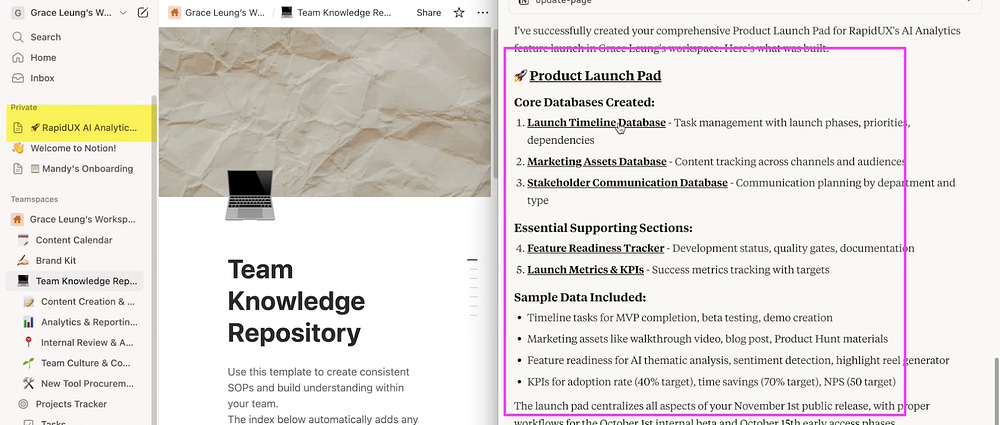
Notion connector connects Claude to your workspace so it can search pages, summarize notes, reorganize information, and turn scattered content into something usable, whether it's internal documentation, a content system, research, or a personal knowledge space.
Link: Watch the tutorial
Connectors for Communication
3) Gmail Connectors
Problem:
Your inbox knows more about your work than you do.
It has the request, attachment, deadline, follow-up, decision, and probably someone waiting on a reply.
But Claude only sees the email you pasted. So every time you want help, you have to manually reconstruct the conversation first.
Connector:
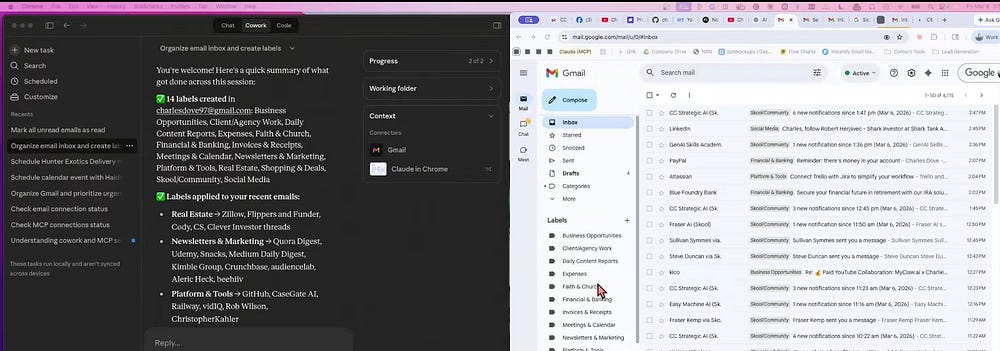
Gmail connector gives Claude access to your inbox, where every decision, request, and follow-up already lives. It can search threads, summarize conversations, find pending items, and help you prepare replies.
Link: Watch the tutorial
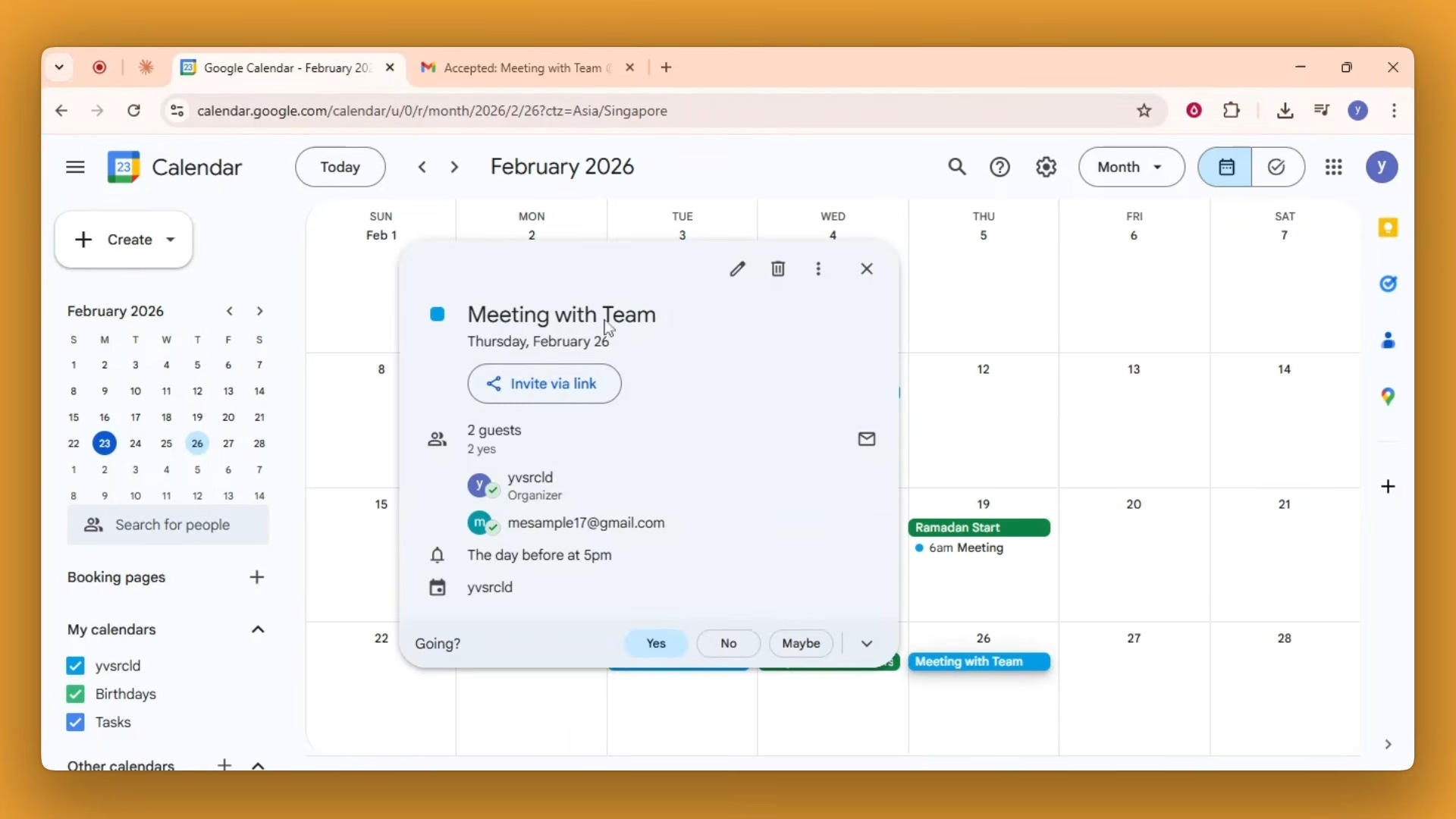
4) Google Calendar
Problem:
Claude can help you plan. But if it doesn’t know your calendar, the planning stays disconnected from what your week actually looks like.
It doesn’t know your meetings, your open blocks, your deadlines, or your focus time.
Connector:
Google Calendar connector gives Claude access to your real schedule so the planning it helps with actually fits your week. It can find open blocks, prepare agendas, detect overloaded days, or help you reorganize tasks.
Link: Watch the tutorial
5) Slack
Problem:
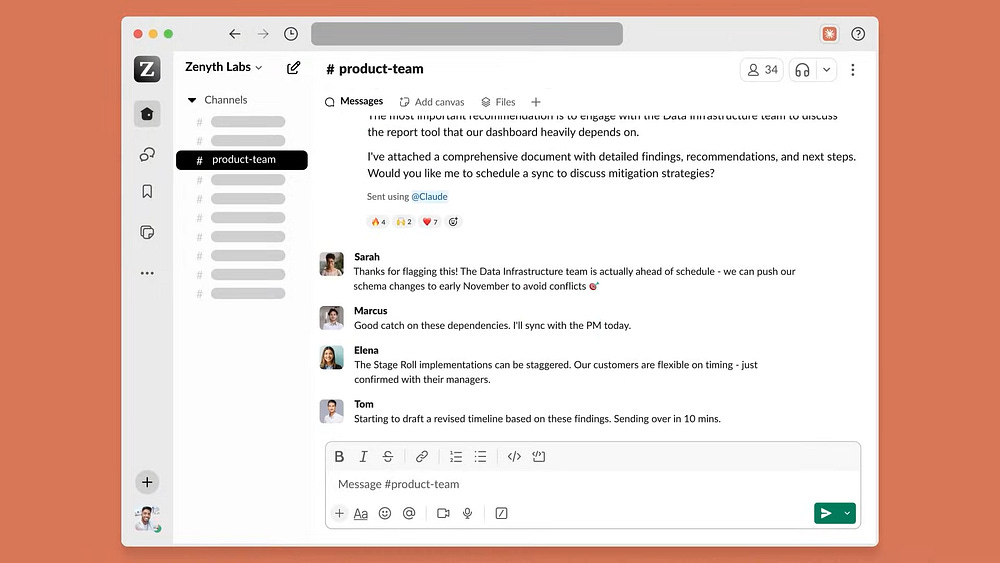
Slack is where a lot of important decisions happen. And it’s also where they get buried fast.
Between threads, replies, channels, and scattered messages, context gets lost.
Then someone asks what was decided, who was responsible, or what the next step was. And you have to search manually.
Connector:
Slack connector gives Claude access to your conversations before the context disappears. It can search threads, summarize channels, identify decisions, find blockers, and turn discussions into next steps.
Connectors for Design
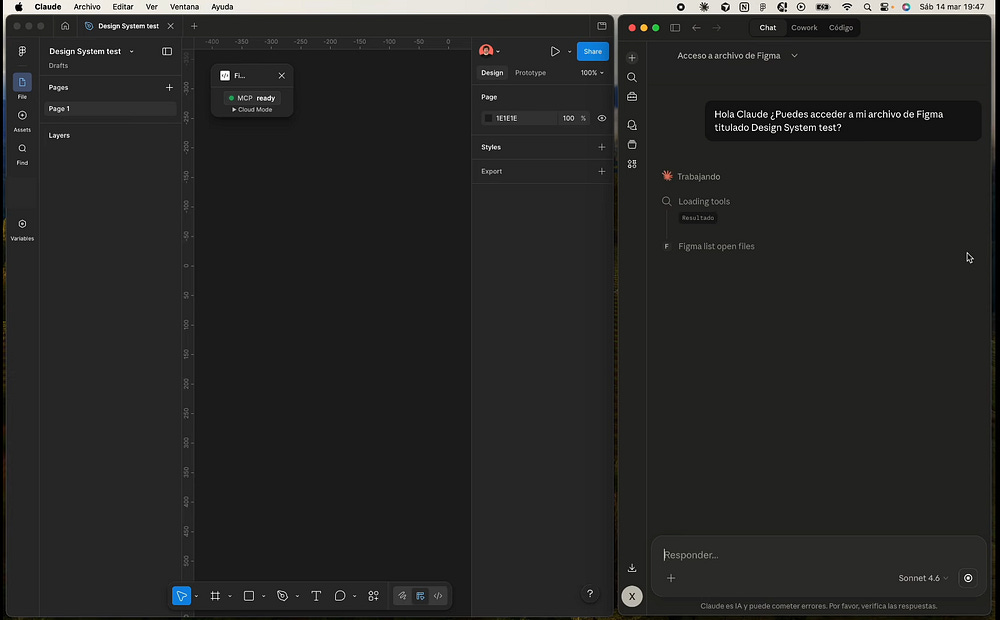
6) Figma
Problem:
Going from Figma to code seems simple until you try to match the design.
The spacing is slightly off.
The components don’t line up.
The layout works, but it doesn’t feel like the original screen.
And then someone from design notices.
Connector:
Figma connector gives Claude access to the design context: frames, layouts, components, variables, and visual structure. It can help generate code or implementation plans from the actual design intent, not from a screenshot.
7) Canva
Problem:
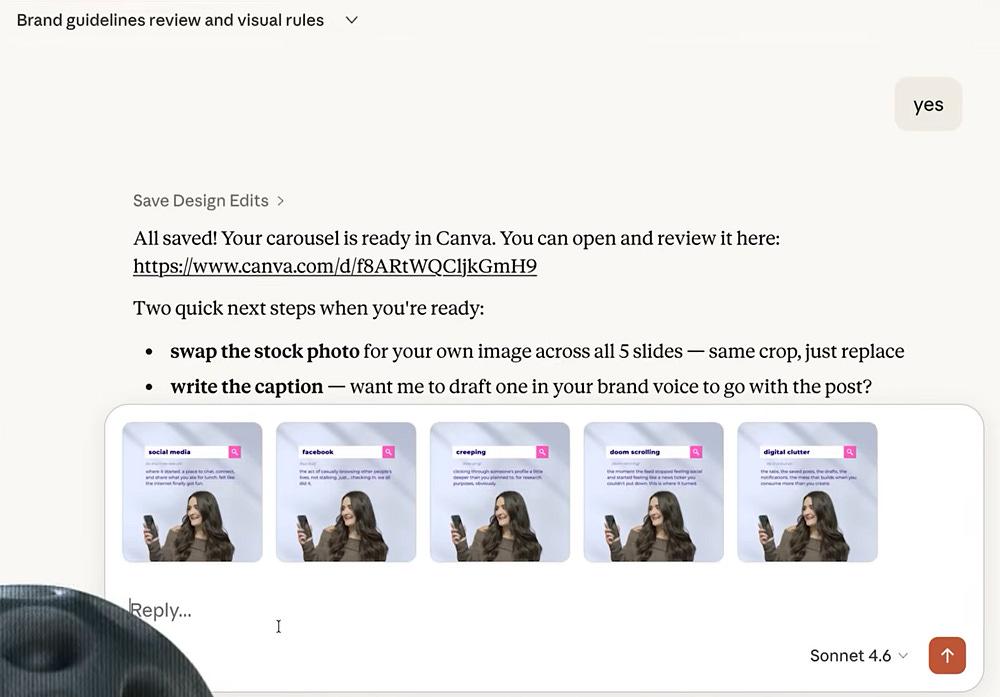
Creating visual content usually means jumping between tools.
You ask Claude for ideas → go to Canva → build the design → go back to Claude to adjust the text → go back to Canva to edit → repeat.
Connector:
Canva connector brings thinking and designing into the same workflow. It can help you go from concept to copy, to layout, to a finished asset you can keep editing. Useful for creators, marketers, and educators building presentations, newsletters, carousels, or branded content.
Link: Watch the tutorial
Connectors for Code & Data
8) GitHub
Problem:
When you ask Claude for coding help without the repository, the answer stays generic. It doesn’t know your file structure, your open issues, your branches, or how the project is actually set up.
Connector:
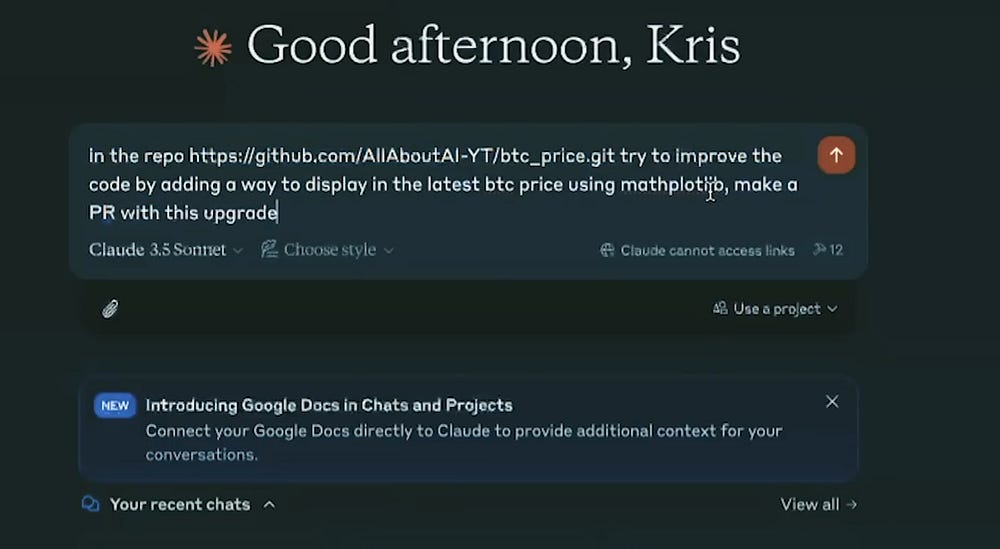
GitHub connector lets Claude work directly with your repository so its help goes from generic to specific. It can read files, review issues, check pull requests, look at branches, and help you plan or prepare an implementation.
9) BigQuery
Problem:
Data teams often store important information in data warehouses.
But asking questions about that data usually means going through dashboards, SQL, exports, or an analyst who has access.
Connector:
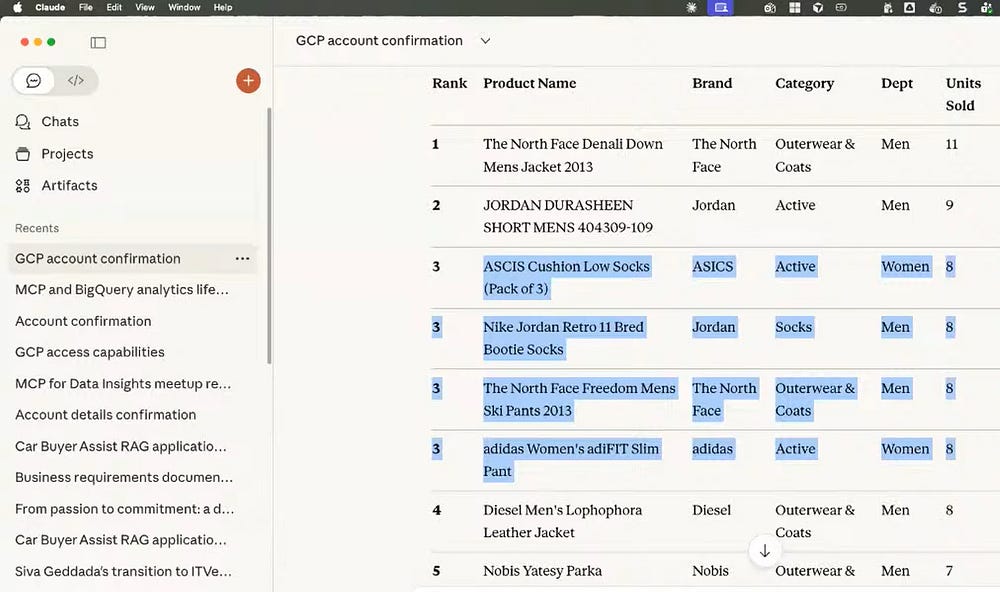
BigQuery connector lets Claude work directly with your datasets, tables, and queries: review schemas, generate SQL, run queries, and explain results. It removes the friction between the data your team already has and the answers they need.
Link: Watch the tutorial
10) Power BI
Problem:
Dashboards show answers. But they don’t always explain how those answers were built.
A metric comes from a DAX measure.
A visualization depends on relationships between tables.
A filter changes the result.
A report looks clear until someone asks: “Where does this number come from?”
Then you’re no longer looking at a dashboard.
You’re investigating the model.
Connector:
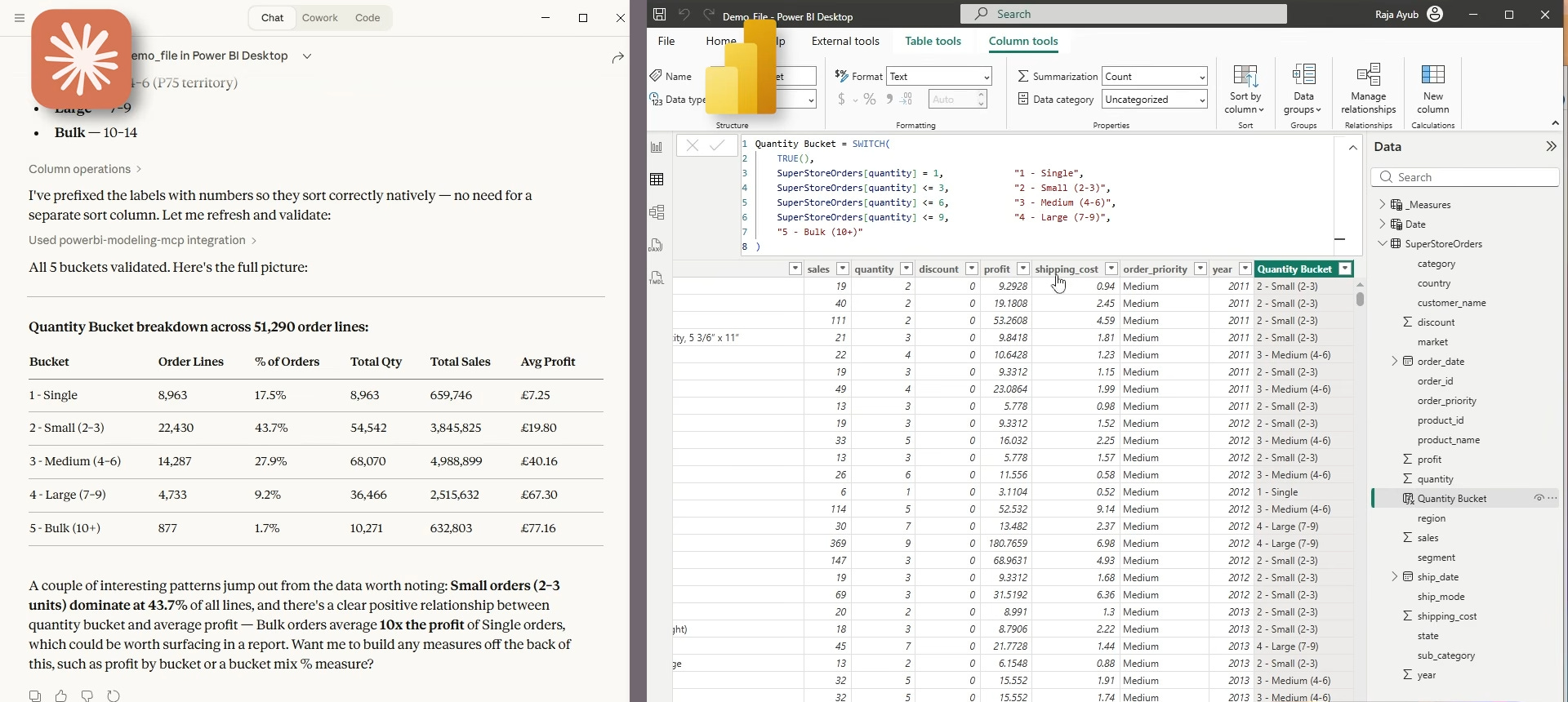
Power BI connector connects Claude with your semantic models: tables, relationships, measures, metadata, and DAX queries. It can help analysts and BI teams audit metrics, explain where a number comes from, and dig into the logic behind a report. The remote server version also lets you query models in plain language while keeping your permissions in place.
Link: Watch the tutorial
Connectors for Business Operations
11) Stripe
Problem:
Payments, subscriptions, invoices, customers, and refunds all live in Stripe.
When something goes wrong or someone has a billing question, figuring out what happened usually means digging through the dashboard manually.
Connector:
Stripe connector gives Claude direct access to your Stripe data: customers, payment history, invoices, subscriptions, and refunds. When a billing question comes up, Claude can find the context it needs without someone having to pull it manually.
Link: Watch the tutorial
How to install a connector
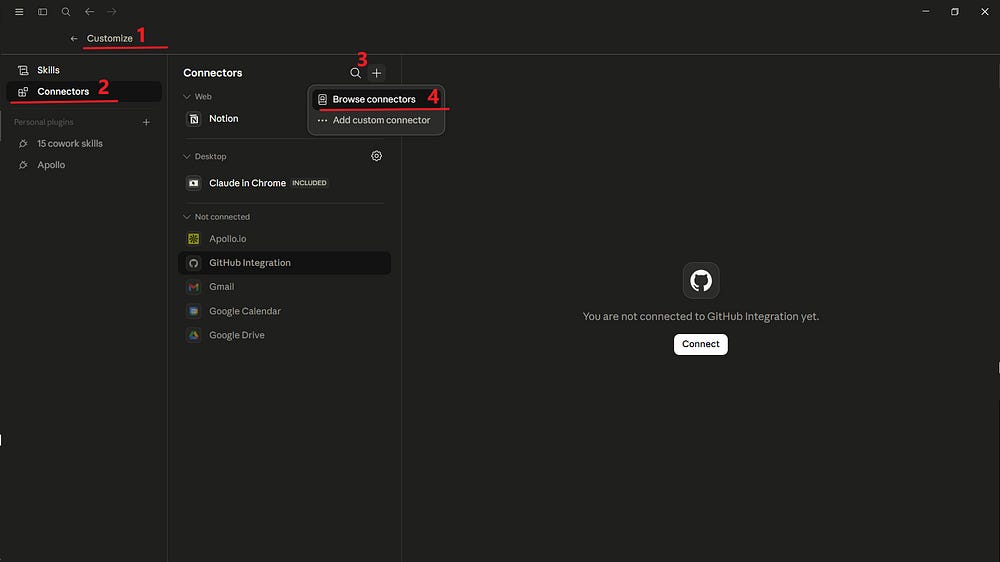
Here’s how to install connectors on Claude, Claude Cowork, and Claude Code.
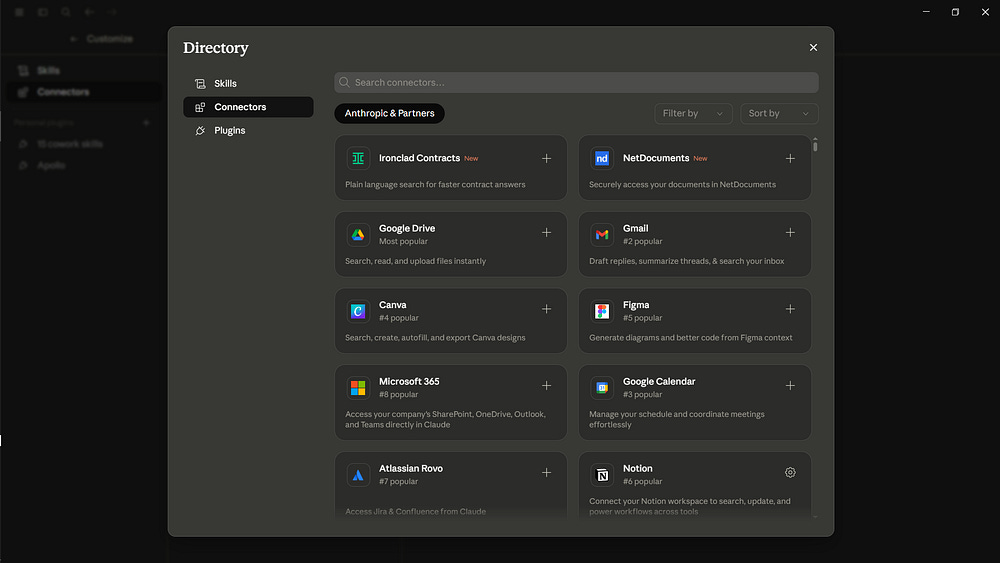
Claude Cowork or Web: Customize → Connectors → “+” → Browse connectors → Choose an Connectors
Claude Code:
Open the Claude Code terminal and run:
claude mcp add [my-mcp] -- npx -y mcp-package-nameReplace [my-mcp] with the name of the Connectors you want to install.
Then verify the installation with
/mcpIf you liked one of the connectors listed, share this guide with others!
The GitHub and Slack connectors are the two that actually change how I work. GitHub especially since it means Claude can see the actual repo context instead of pasted snippets.
The copy-paste loop has one more cost the post doesn't count: what survives the paste. Text survives. A screenshot doesn't, Claude scales images down to a long edge cap before reading them, so the pasted version of your screen is often not the screen you saw.
It's also the one slice no connector here covers. Everything on the list reads from cloud tools, nothing can see the screen itself. SlimSnap.ai does that side with a local MCP, the capture arrives as elements with positions instead of pixels alone.