

Click here to get my FREE Claude course (20+ lessons)
If you’ve asked Claude for a slide for Monday’s meeting or a cover for a report, you know how it goes. It looks nice, and it looks like everybody else’s: colours you never picked, a font your company doesn’t use, emoji nobody asked for.
Ask again next week and you get a slightly different one. A new background here, a bigger title there. Do that for a month and your slides look like they came from five different companies.
So you end up where you started, fixing a template by hand before every meeting.
Claude Design (Claude’s own design tool) fixes the generic look. You give it your brand once, and it uses your colours, your fonts and your logo. A skill makes sure it’s the same design every time, and it can make the next one on its own while you sleep.
I set this up for my own brand. Here’s how you can do the same for yours.
In this guide, you’ll learn:
How to teach Claude your brand once, so your designs start on brand
The 7 things to give Claude so it stops designing generic stuff
How to make your first design, and pick one you actually like
How to turn that design into a skill, so you never start from scratch again
How to put it on autopilot
Two things before we start:
1. Save this guide, and make one design with your own brand this week.
2. Send it to a colleague who still fixes every Canva template by hand.
PS: This newsletter grows mostly from people like you sharing it. Every share helps me keep writing guides like this one.
Teach Claude your brand once
Everything starts with the design system. It’s a brand guide Claude reads before it designs anything: your colours, your fonts, your logo, and a few designs you like. Think of it as the brief you’d give a new designer on their first day. Without it, Claude makes something that looks nice and looks like everybody else.
Claude Design used to be its own website. Anthropic recently moved it into the Claude app (the old site closes on December 14, 2026). Here’s where to find it now:
Claude app → Artifacts → Claude Design → View design systems
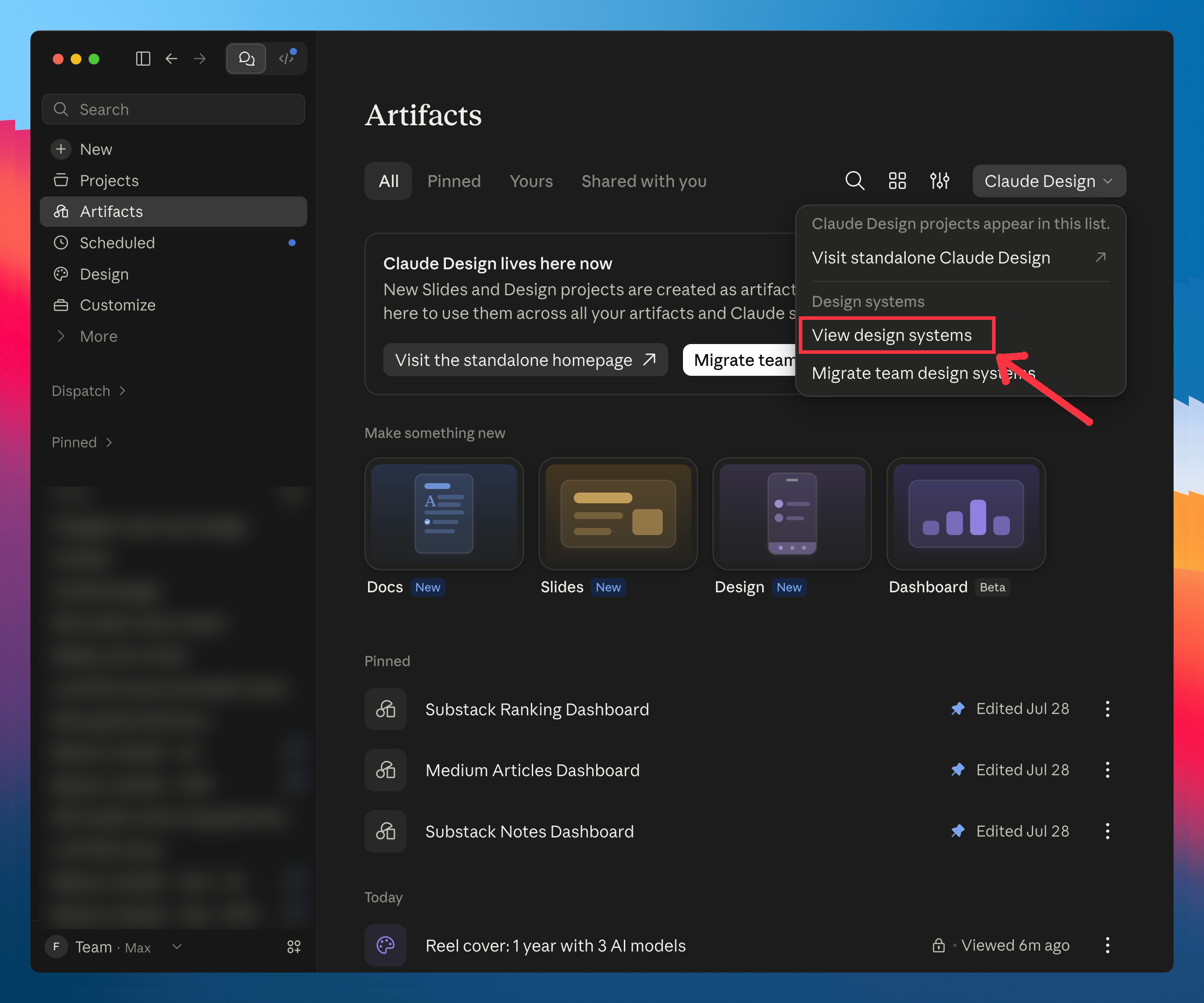
Click New design system, or open the one you already have:
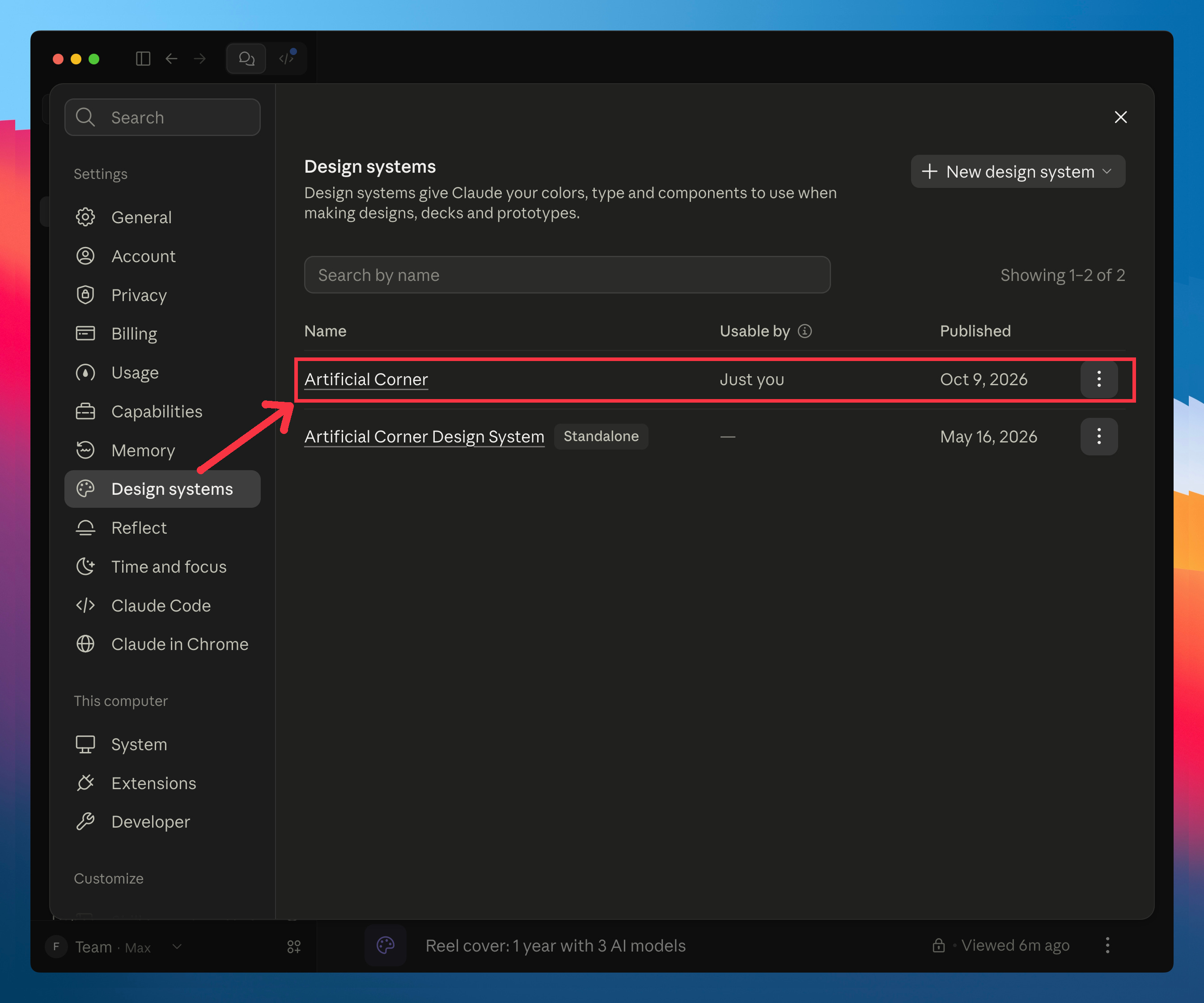
What to put in your design system
A design system is only as good as what you give it. Here’s what to put in yours:
Your colours: the main ones, and a few close shades Claude is allowed to use when the exact colour clashes with a photo or a background. I gave mine the navy of my logo plus four nearby blues.
Your fonts: one for headlines and one for body text. If your font isn’t free, name a stand-in Claude can use.
Your logo, as it is: the real file, with a line saying never to recolour or redraw it.
The logos you’ll show in your designs: if your slides or covers show other companies’ logos (a client’s, a partner’s, the tools you use), attach the real files.
3 or 4 designs you like: Claude copies examples much better than it follows descriptions.
Your photo, if you appear in your designs: one facing the camera. Claude cuts you out of the background.
Your rules, in plain sentences: “never use emoji”, “at most two text sizes”, “keep the text away from the edges”.
I asked Claude to build mine from my Substack, my logo and four designs I liked. It pulled my exact colours from the site (the navy of my logo, the blue of my subscribe button) and wrote my rules down for me.
In your case, it could be your company’s brand. Point Claude at your company website and attach the slide template everyone at work uses. Then add the rules your marketing team keeps repeating, like “no stock photos of handshakes” or “the logo always goes top left”.
From then on, the report cover you make for your manager and the slide you send a client look like they came from the same company.
Here’s a template you can fill in:
Create a design system for [your brand or company]. Take the colours and fonts from [your website], use the attached logo as it is, and use the attached designs as examples of what I like. Rules: [things you never want].
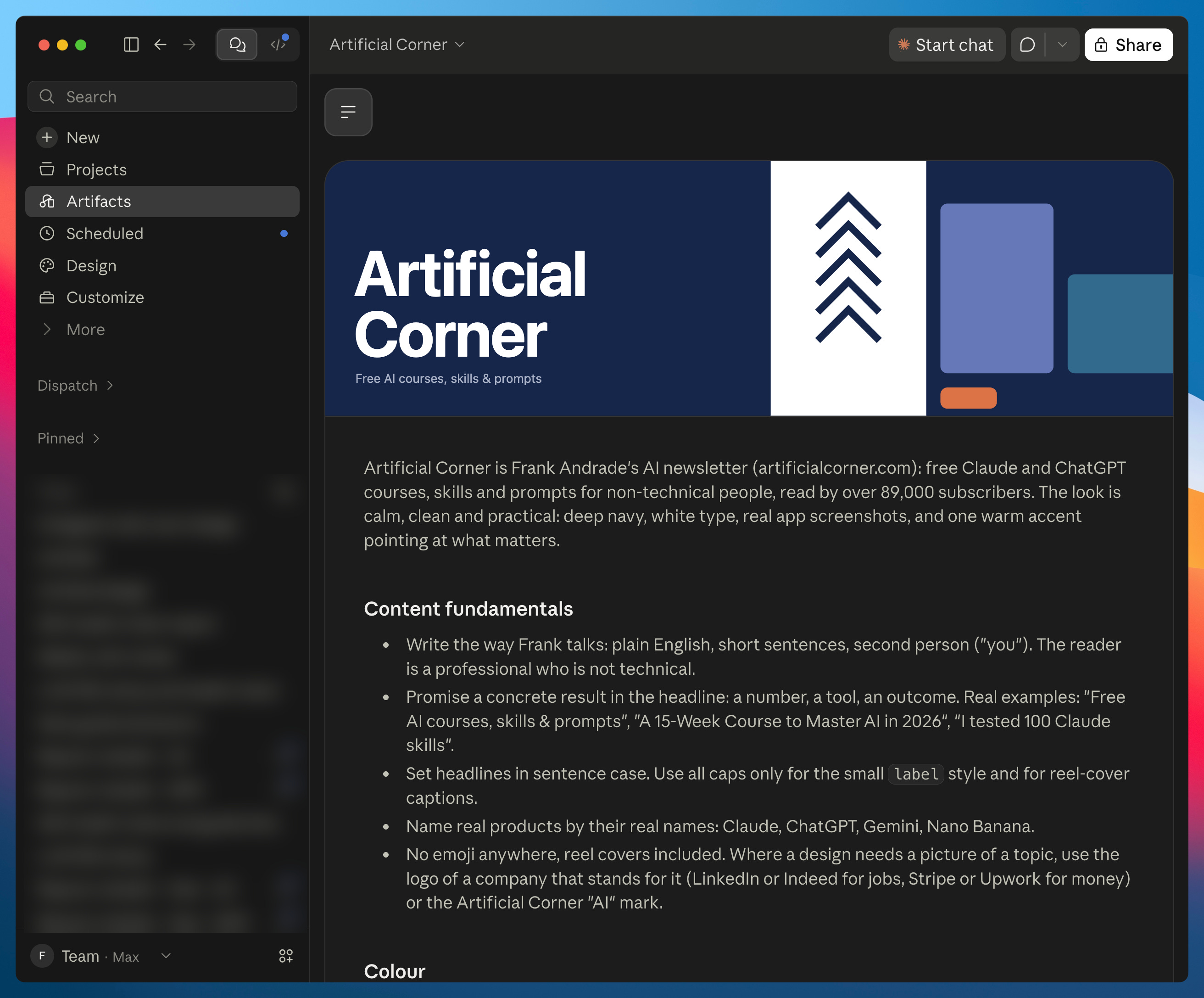
Claude turns it into a brand book you can open anytime, with your logo, colours, fonts and rules on one page:
Make your first design (and pick a winner)
Here’s how to start one:
Click the speech bubble at the top left (regular Claude).
Click Artifacts in the sidebar.
Click Design.
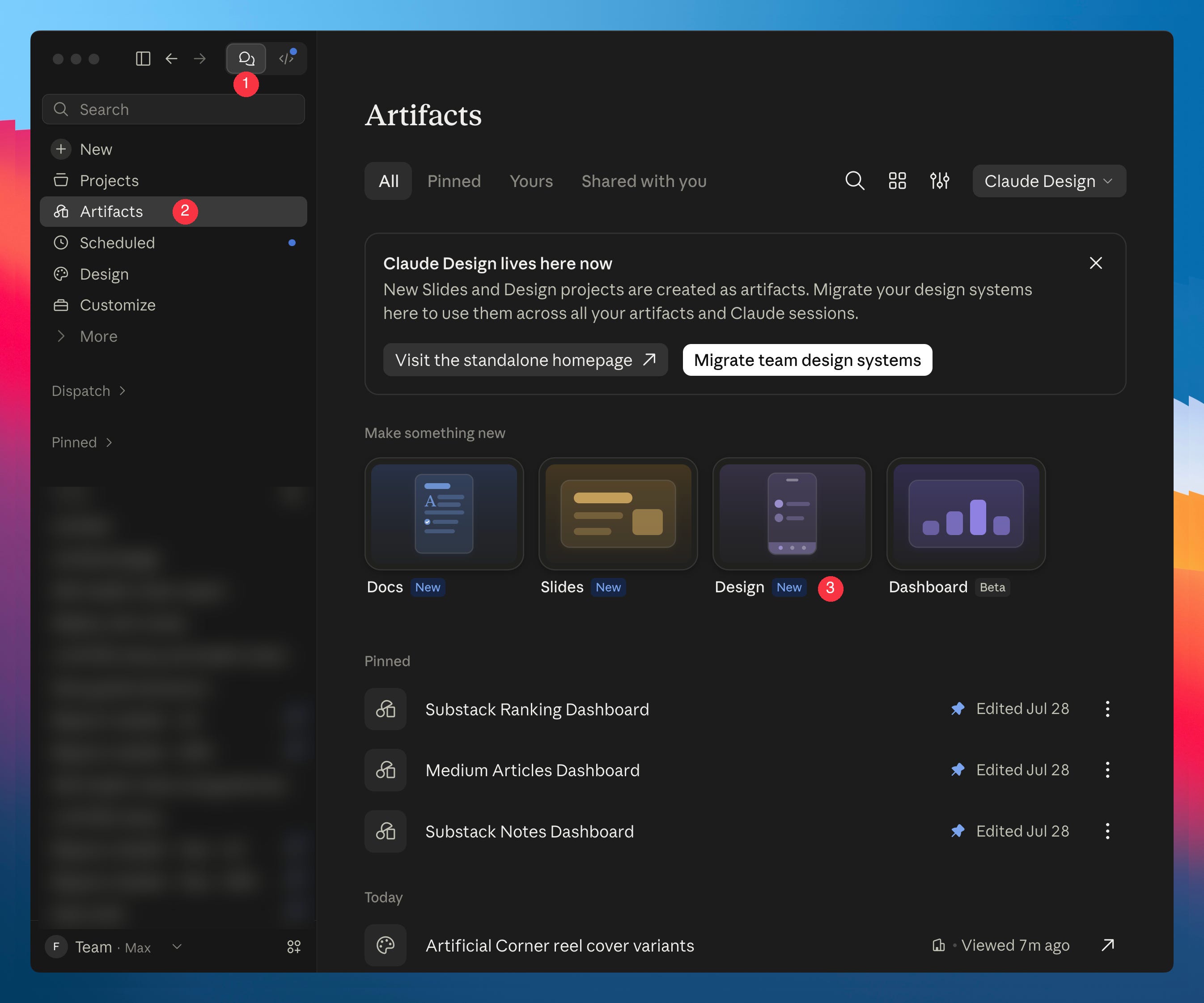
Above the message box, open the design system menu and pick your brand:
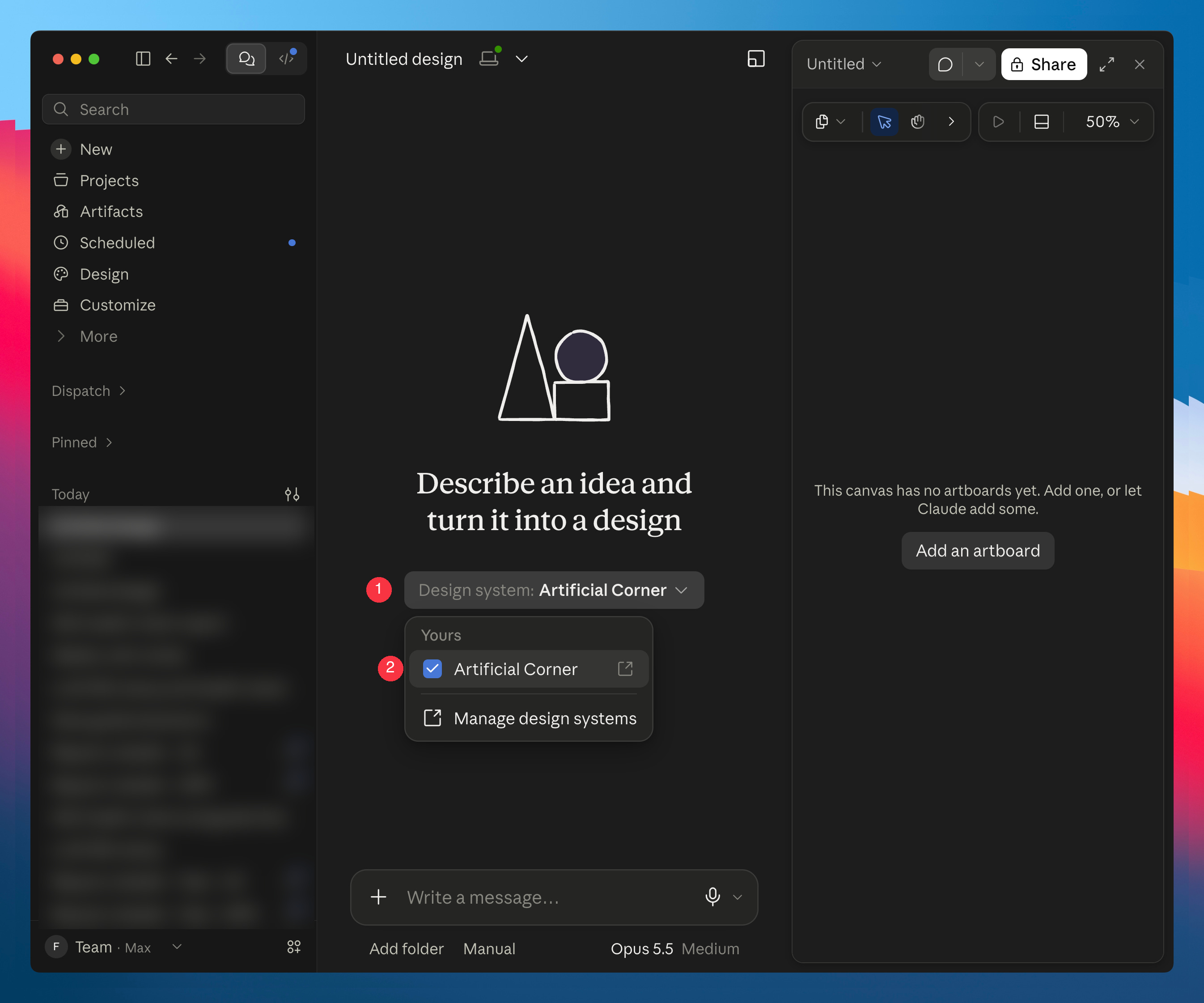
Then describe what you want, attach anything Claude should use (a photo of you, a logo, a design you want to copy), and ask for three variants. Variants are the trick here. One design is a guess. Three side by side let you pick.
Here’s a template you can fill in:
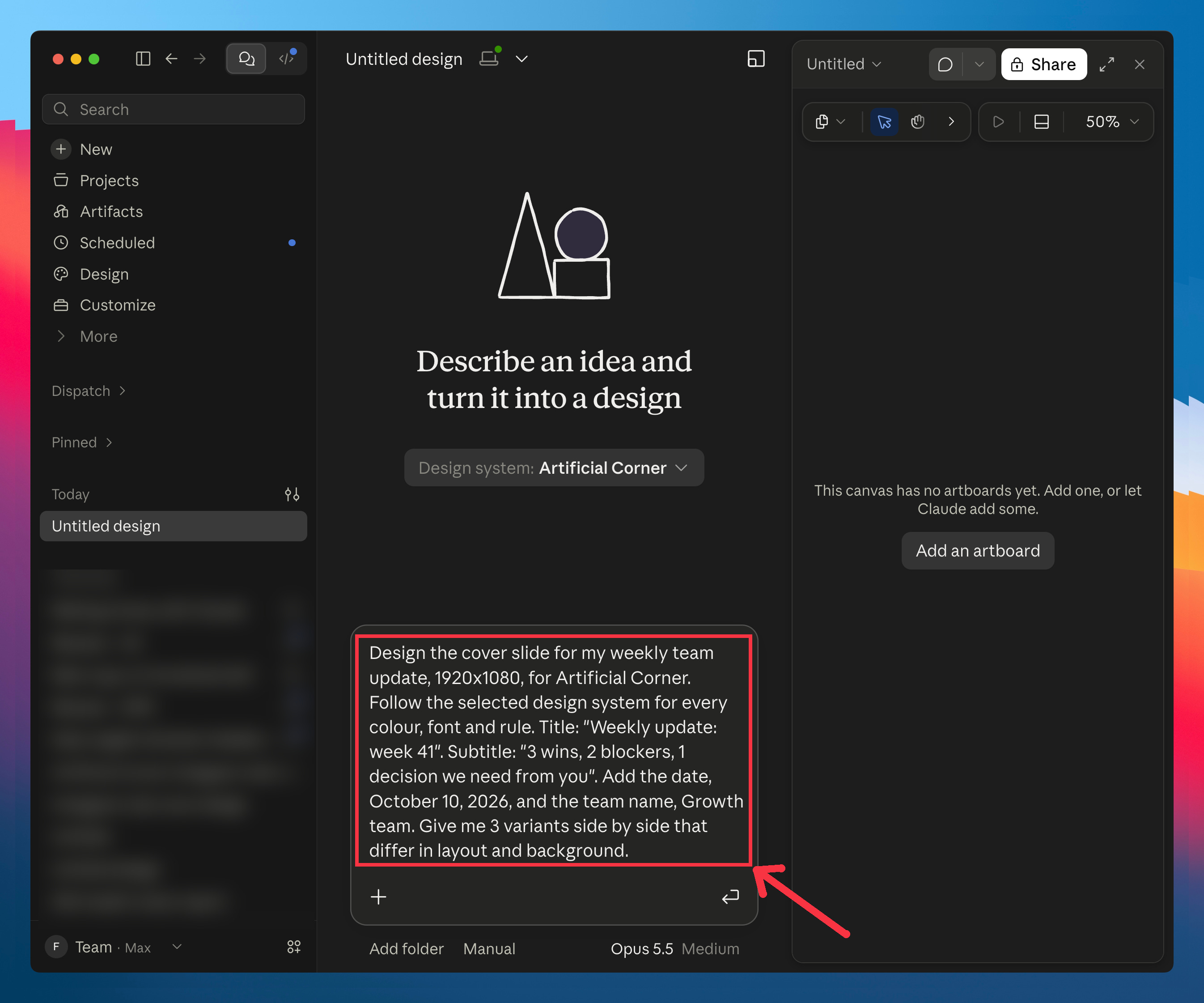
Design a [type of design], [size, like 1080x1920], for [your brand]. Follow the selected design system for every colour, font and rule. Keep the layout of [the attached design you like], and change only [what should change]. Text on it: [the exact words, like the title and subtitle]. Give me 3 variants side by side that differ in [background, colours, layout].
Here’s what I sent for the cover slide of a weekly team update:
Claude came back with three slides on the canvas:
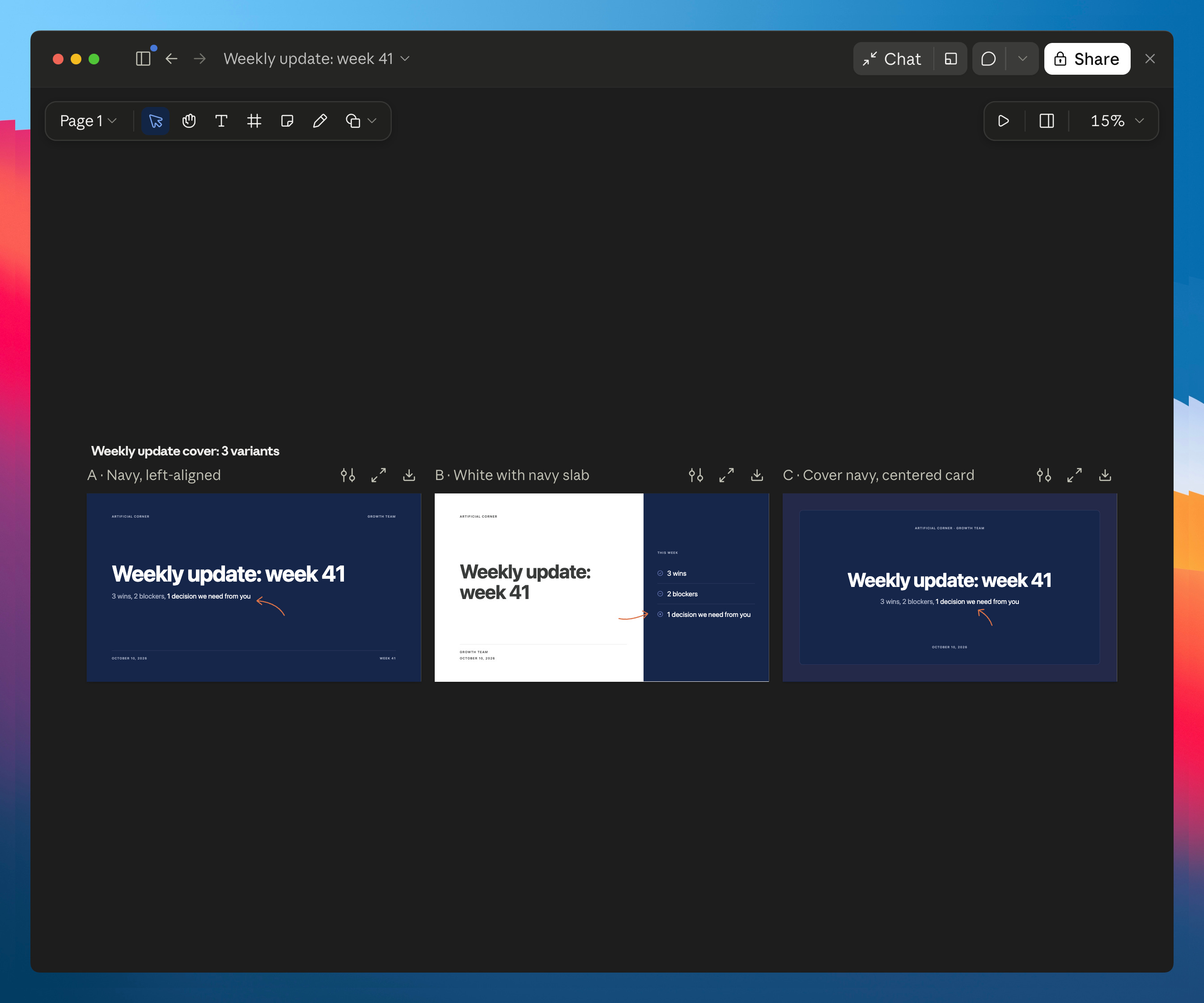
With the team update, I liked C best. A cover alone isn’t a presentation, though, so I asked Claude to design the rest of the deck in the same style:
C is the winner. Now design the rest of the deck in the same style as C: an agenda slide, a section divider, a slide with a title and 3 bullet points, a slide with a big screenshot and a one-line caption, a slide with one big number, a two-column comparison, and a closing “Questions?” slide.
Claude came back with 8 slides that look like they came from the same company:
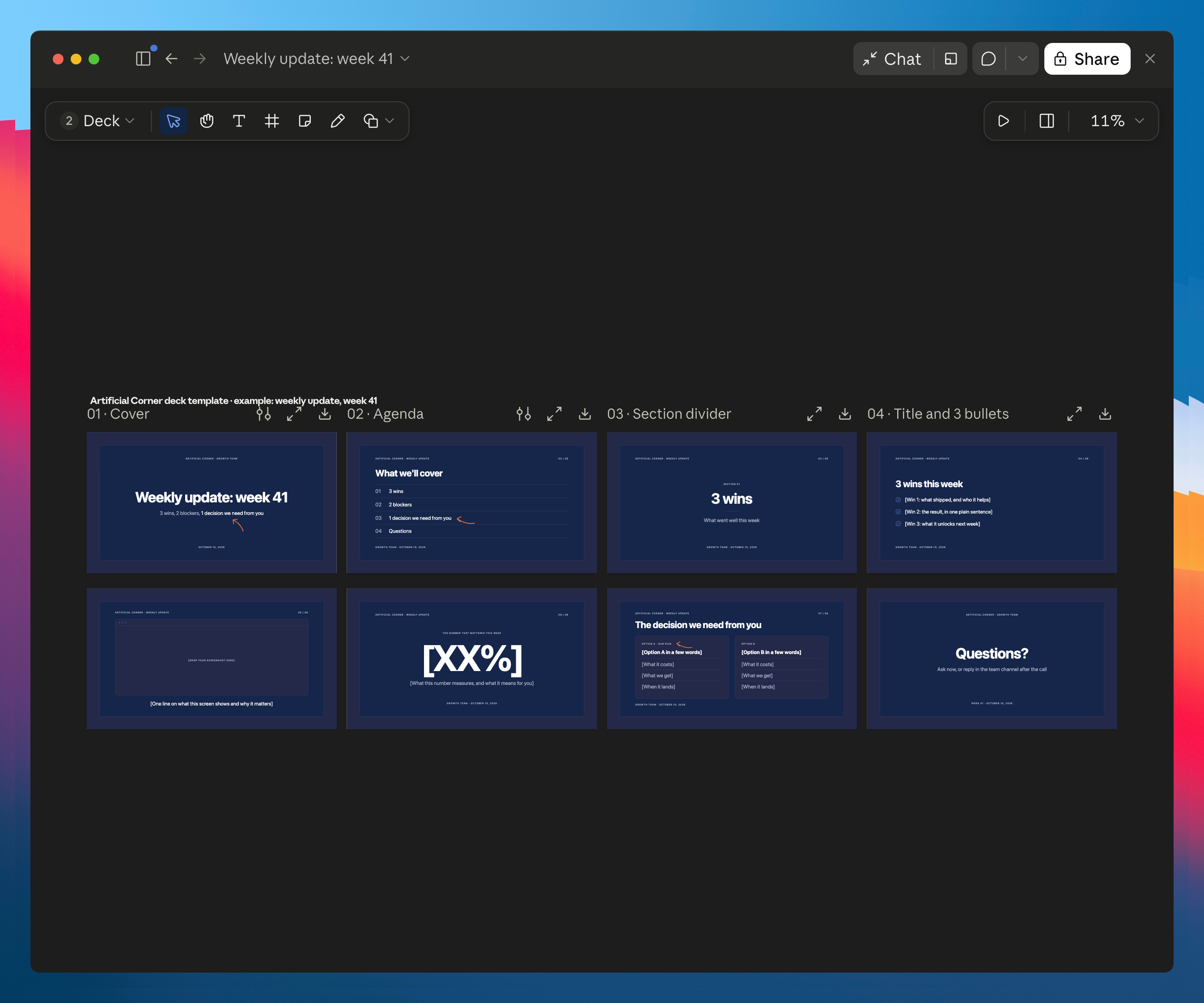
Make one for the deck you build most often, like your team’s weekly update, a training for new hires, or a client’s quarterly review. Pick the slide types you actually use, and leave out the rest.
Turn the winner into a skill
Your design system keeps the colours and fonts, but it doesn’t save the deck you picked.
I asked for the same deck again in a new design, and half the slides came out white where mine are navy. And every week, you’re the one opening Claude Design, typing the prompt and fixing what moved.
The fix is a skill. A skill is a set of instructions Claude saves and reuses, like a recipe card. This one says “make this exact design, with new content”, and it can run on a schedule.
The rest of this guide is for paid subscribers. It’s the setup that makes every deck come out in my design, and lets me use my brand in any other AI tool.
Below the line:
How to get every deck in the same design, without redoing it: the prompt that turns your favourite deck into a skill. Paste an outline, and get a PowerPoint in that design.
Your brand outside Claude Design: I made a brand guide template. Claude fills it in for you, and you get one file you can take to any AI, skill or chat.
Put it on autopilot: how Claude makes your next designs while you sleep, so next week’s deck is ready before you ask.
Past this line, every step is waiting: