


Click here to get my FREE Claude course (20+ lessons)
We run a business on Claude Code and Cowork.
Gencay started using Claude Code when the preview shipped in February 2025. I started using Cowork the day it launched.
There is a difference between using Claude and running a business on Claude. The first one forgives everything. The second one only holds up if the boring parts underneath it are right.
These are the lessons we learned running real work on top of them. Every one of these lessons is something dull we ignored for months, until it cost us a week, and then became the rule we never broke again.
If you’re new to Claude, check out my free Claude course
For more guides like this, support us by becoming a paid subscriber 👇
Before you start: Claude Cowork or Code?
Both tools earn their place. This is not a question of which is better, but which one you are ready for.
I like to see it this way: Cowork is the first step. Claude Code is the last one.
If you are new to Claude, start with Cowork. You will get most of what people show off with Claude Code, with no terminal and zero code knowledge. I ran my entire publishing system on Cowork for months, and it held.
Claude Code is the full-power version. In Cowork, each job is its own island. In Claude Code, they are files sitting next to each other, so you (and Claude) can easily search them, reuse them, and fix all of them at once.
We learned 12 lessons after using them both. They come in two halves.
Lessons 1–6: For all Claude users
Separate the work from the system
Name folders, skills and tasks for what they hold
If you’ll edit it later, make it a variable
If you have many scheduled tasks, build a calendar
Give every job the same report shape
Tell Claude to delete what it removed
Lessons 7–12: For Claude Code users
Every line in your CLAUDE.md gets billed forever
A rule in CLAUDE.md is a suggestion — a hook is a guarantee
Learn just enough git
Delete half your MCP servers
Your best model should judge, not type
You are running one Claude. Run twelve.
Gencay helped me with the Claude Code lessons. He writes LearnAIWithMe, a newsletter focused on practical AI tutorials for people who’d rather replace than be replaced by AI.
Part 1: For all Claude users
#1 Separate the work from the system
When working with AI, you usually have two kinds of folders.
The first kind is the work. The docs, the images, the videos, the spreadsheet you track them in. Things a person opens, reads and uses. I call this content, and it is what I share with my team.
The second kind is the system: the skills, the scheduled tasks, the prompts. Nobody reads those for pleasure (but Claude). They are the instructions that produce the work, and they behave far more like code than like content — edited constantly, broken by one wrong character, and worth nothing unless you can see exactly what changed and go back.
When I started using Claude, I kept both in the same space for months. It was the first thing I fixed, because the two need opposite things: content wants to be easy for people to browse and reorganise, and the system wants to be left alone and versioned.
So now I have two workspaces:
Content workspace: the files Claude generates that I share with my team
System workspace: sits on my own machine with version history (more about this in lesson 9)
I want to start easy, so everything in this lesson is about the content side, because that is the side you and your team actually open.
Here are the good practices I follow to organize the content workspace:
Start by numbering every folder in it using the format NN-name
01-clients
02-invoices
03-archive
Why? The order stops being alphabetical and starts being the order you actually work in.
The number can carry more than order. Low numbers for what I touch daily, higher ones for what I open occasionally:
01-clients          I open this daily
02-invoices         I open this weekly
03-archive          I open this a few times a month
Now the folder your team shares holds only the things your team opens.
Keep folders you might never open out using 99-<name>
My workspace/
  01-content/          what the team opens: clients, invoices, archive
  99-vault/            records kept. I almost never open this
Same numbering trick, one level up. The split means someone reorganising the content folder physically cannot reach those files.
The same trick names the steps of a job:
01-drafts
02-review
03-done
Now the position of a file is its status. Moving a file into the next folder becomes the act of approving it.
Skills, scheduled tasks, prompts are closer to code than to content. That’s why they live in one folder outside of this workspace, with version history, and we’ll see later why that matters more than it sounds.
#2 Name folders, skills and tasks for what they hold
I had a folder called claude. Everything AI touched lived in it. It made sense at the time and it was wrong, because the name described the tool instead of the contents.
Tools change. You might use Claude today and something else next year, or both at once. The moment you do, the folder called claude is full of things that have nothing to do with Claude, and you either rename it or live with a lie.
Name things for what they hold.
Bad:   claude/          chatgpt-stuff/       ai-output/
Good:  system/          clients/             drafts/
In the case of jobs (skills, scheduled tasks, etc), the names should say what they do: what goes in and/or what comes out, or the action itself if there's no clean input/output. The ones that rot describe when it runs or what version number it happened to be.
Rots fast:   step-2-processing/      monday-batch/       new-system-v2/
Ages well:   invoice-check/          leads-to-crm/       backup-database/
"Monday batch" stops being true the first time you move it to Tuesday. "Step 2" stops being true the first time you add a step.
I learned this from a task named after two kinds of work it handled. One was retired within a month, and the name outlived the thing it described, which is the worst outcome, a name nobody trusts and nobody dares change.
Two things follow from this.
Use the same name everywhere: In Claude, a single job usually has three names: the skill that holds the instructions, the scheduled task that runs it, and the label you see in the app. I used to have different names for the same job. Every time I opened the app, I translated between three names for one job. Now I give the skill, the task, and the label the exact same name. If I ever need to find something, I only have to remember it once.
Rename when the name is actively misleading, not when it is merely not your favourite: Misleading is maintenance. When you do rename, rename everything at once (so nothing breaks).
#3 If you’ll edit it later, use variables
This one is about scheduled tasks. They run on their own, at a time you pick, without you there.
They’re great, but have one problem. Cowork isn’t a flawless product.
Anthropic ships updates almost every week, which is good, but that also makes Cowork unstable. One day, Claude updates a scheduled task with no issue. The next day, it tells you it doesn’t have permission to touch the task. Then you open another chat and it works again.
Now imagine your task is one long paragraph with every value (the folder, the time, the account, etc) written inside the sentences. Every time you want to change one, you are editing prose while fighting the app.
Here is what that looks like:
<more instructions>
-----
Schedule my posts from the "done" folder to artificialcorner.com at 5:00 and 21:00,
look 4 days back, and use the Chrome profile <xyz>.
-----
<more instructions>
Every value that task needs is buried in that sentence, somewhere in dozens of lines.
The fix is to move every value that could change in the future into a block at the top:
SOURCE_FOLDER   = 03-done
POSTING_TIMES   = 05:00, 21:00
DAYS_BACK       = 4
Everything below refers to those names instead of repeating the values. Now changing where something lands is a one-line edit at the top. No new chat, no permissions dance, nothing rewritten.
Don’t do this by hand.
Run the scheduled task you want to fix, stop it and paste this prompt:
Turn the hardcoded values in this scheduled task into variables at the top. Show me the best candidates and wait for me to pick which ones actually go in.
Claude might suggest more candidates than you need. Pick only the ones that you’ll actually change over time. The rest stay in the prompt.
Note: Do not turn the whole thing into placeholders. This is the opposite mistake, and I made it straight after learning the first one. Once every detail is a variable name, the instructions read like an empty form, and the results might get worse because the model has nothing concrete to anchor on.
#4 If you have many scheduled tasks, build a calendar
Once scheduled tasks start working, you add another one. Then another.
I have 20+ running right now.
And that’s where the Scheduled screen stops helping you. It shows cards sorted by next run, and each card gives you one line: “Weekdays at ~6:00 AM.” That’s enough at three tasks. At twenty, you’re guessing.
But losing track is the small problem. Here’s the expensive one: usage
Claude doesn’t only limit you by week. It limits you in rolling 5-hour windows. So if six tasks fire between 6:00 and 8:00 AM, they don’t just run. They land in the same window and eat it together. Then you sit down at 9, ready to work, and your window is already spent (on tasks that could have run at any time).
Here’s how to see your real schedule (so your usage limit lasts longer).
Open Cowork and paste this:
Read all my scheduled tasks and build me a one-day calendar as an inline visualization.
Layout: 24 hourly slots in a grid, 4 per row. Skip paused tasks. Tag weekly tasks with the days they run (Mon, Thu) and monthly ones with the day of the month (day 1, days 13-18). Mark empty hours as empty.
Color-code by category.
Here’s part of my calendar created by Cowork:
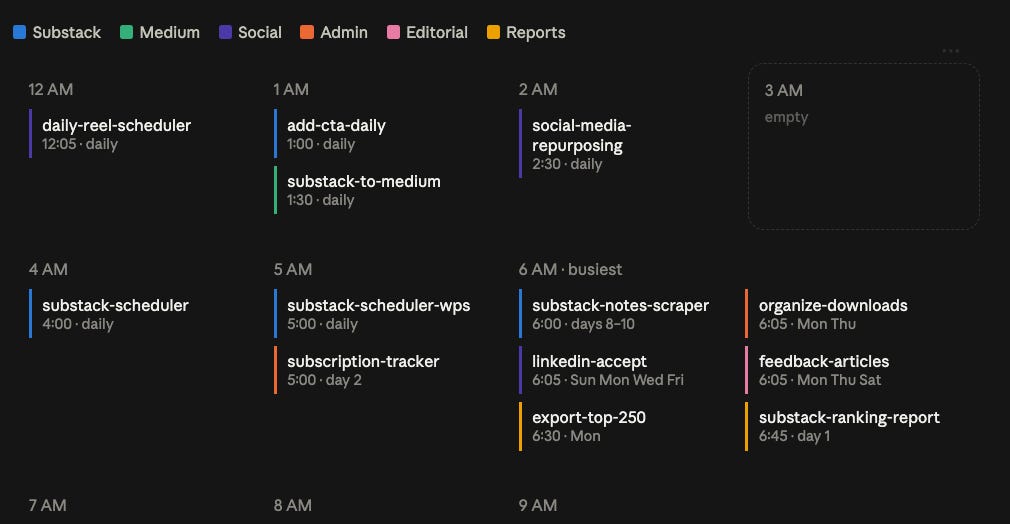
Most of my scheduled tasks run while I sleep. I stack the small ones at 6 AM on purpose, because they barely touch the limit.
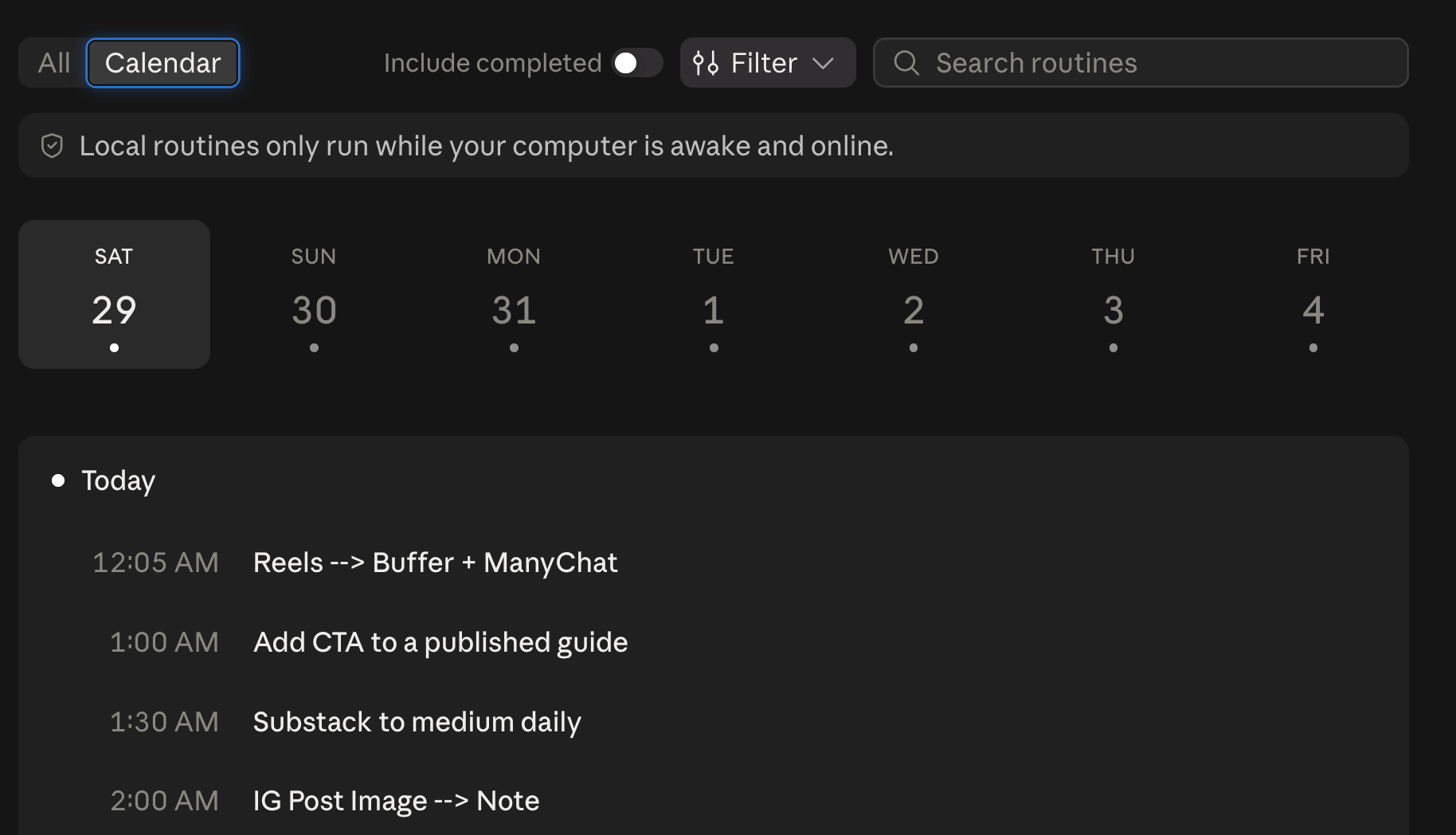
If you’re on Claude Code, you don’t need to do this. Just go to Routines → Calendar.
#5 Make related jobs report the same way
I have dozens of jobs running overnight and fifteen different ways of telling me what happened. Every morning I used to read fifteen shapes and hunted for the one line that mattered in a different place each time.
Now they all end the same way:
✅ DONE — <task>
2 of 3 reports built
Made
| Item | Where | When |
| Q3 summary | /reports/q3 | Fri 08:00 |
| Cost breakdown | /reports/costs | Fri 08:04 |
Held back
...what did not go out, and why
⚠️ Needs you
...the one thing only I can doThree states at the top, and only three: done, failed, nothing to do. Then what it made, in real names. Then what needs me, always last (so I can always quickly find it at the same place)
A section only appears when it has something in it. A line that shows up every single day has stopped carrying information, so I let its absence say it instead.
Here the prompt that sets this up:
Create a skill called report-format that defines how my scheduled jobs end
their run. It should say:
- Open with two lines: a state (done, failed, nothing to do) and the job
name on the first, one short clause saying the outcome on the second.
The state emoji is the first character of the report.
- Then “Made”: a table, one row per thing produced, with real names, links
or times. What it made, never how it made it. When one item went to
several places, give that item its own small table with its name in bold
above it, rather than one big table with a repeated name column.
- Then “Held back”: anything that could have gone out and did not. Two
columns, Item and Why.
- Then “Needs you”, always last: one specific action I can take in one reply.
- A section appears only when there is something in it. A clean run has no
heading at all, and never the word “nothing”: its absence is the answer.
I read these on my phone, in a column about forty characters wide. That is
the only width this format has to survive, and two rules follow from it that
outrank everything else in the skill:
- Never wrap the report in a code block. A fenced block renders monospace
and does not reflow, so every line wraps in the middle of a fact. Fences
are for a literal command or a path, never for the report itself.
- Never align anything with spaces. Columns built out of padding hold only
at full terminal width. Structure comes from markdown, which reflows.
Keep the tables inside that width: at most three columns, headers of one or
two short words, short cells. Trim the type prefix off a folder name. Dates
as “Sat Sep 12 21:00”, counts as “5/12”. A long quoted title never goes in a
cell - put it under the table or leave it out. If an item needs a fourth
fact, that fact goes in a sentence under the table, not in another column.
Not everything is a table. The explanation on a failed run is prose. So is
anything the table cannot carry. And a “smells” section, if you add one, is
bullets - a smell is a sentence, and a sentence in a cell wraps badly.
After you create the skill, add this section to the target jobs:
## Reporting
Report with the “report-format” skill.
Note what it is doing: the format goes in one place, and each job points at it. Do not paste the format into every job, or you’ll be editing fifteen files every time you change your mind.
The shape is for jobs that belong together. A one-off task you run by hand has nothing to be consistent with, and forcing it into the same template just adds ceremony.
A note on smells: Jobs notice things that are worth knowing but are not actions. Give them their own section, and give it a threshold in the same sentence you ask for it: "Flag it only if it could make this report wrong, or it will change a future night. Never flag a decision I made on purpose." Keep smells out of the verdict, too. A job can flag them and still have done its work perfectly.
#6 Tell Claude to delete what it removed
This one is entirely a Claude habit, and it took me a while to see it.
When Claude removes something from a skill or task, it likes to leave a tombstone: “option 3 — removed”, “renamed from monday-batch”, “we no longer split these two”. It is being helpful, in the way a changelog is helpful.
In an instruction file, it is not as helpful, though.
Claude reads the whole file as instructions. A line saying “we no longer use option 3” still puts option 3 in front of it. Mine reached for a deleted option twice in one month — the option only existed as a note explaining that it did not exist.
To fix this, use this prompt when you have Claude Cowork edit a skill or task:
When you remove something from an instruction file, delete it completely.
Never leave a note saying what it used to be, what it was renamed from, or
that it was retired.

The file states only what is true now.
In Claude Code, that line goes in claude.md.
That stops new ones. For the ones already in your files, do a one-time sweep:
Read my instruction files and list every line that describes what something
used to be or no longer does. For each one, show me the line and the file, and tell me whether anything still references it.

Do not delete anything yet.
After that, drop anything that is no longer useful.
Click here to get my FREE Claude course (20+ lessons)
Part 2: For Claude Code users
#7 Every line in your CLAUDE.md gets billed forever
CLAUDE.md is the file Claude reads before it reads anything else.
But most people stop there. They never look at how the file should be written.
You can type the following command to create claude.md inside your Claude project.
/init
I did it.
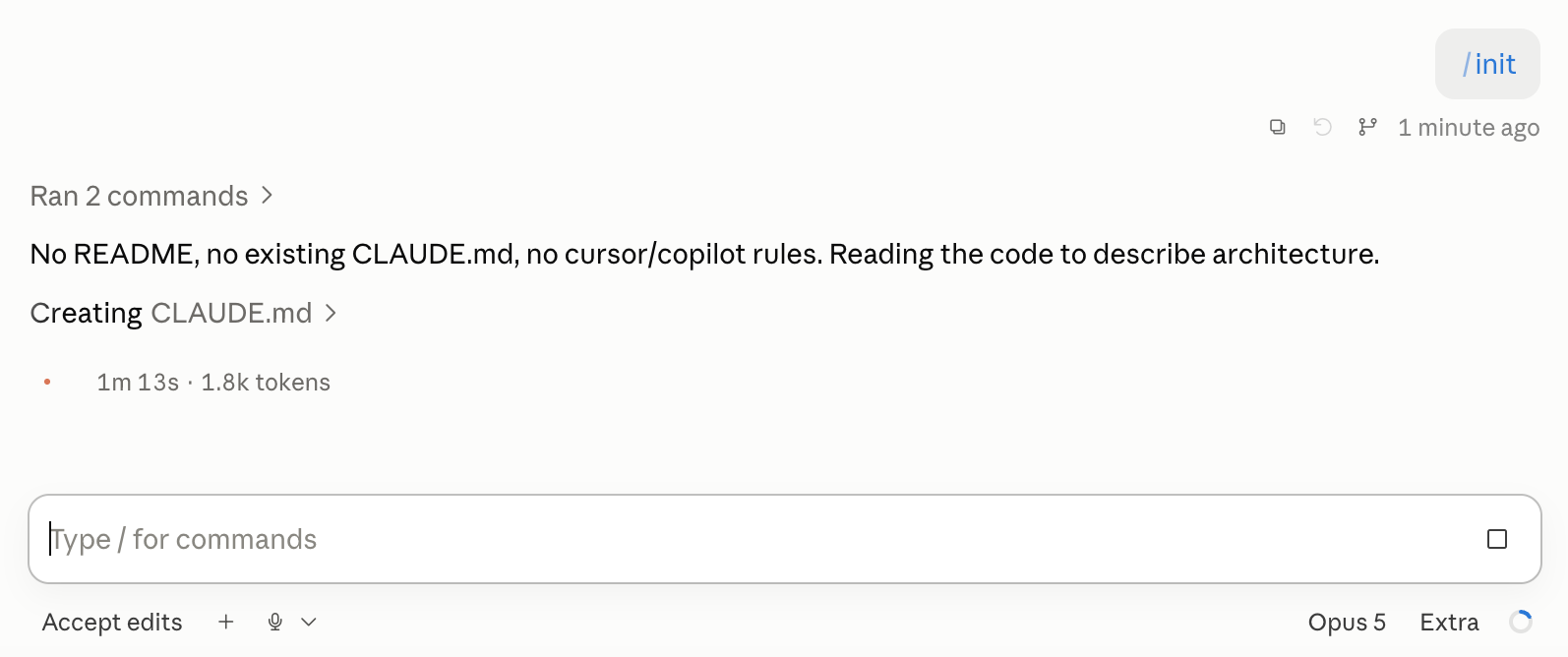
The claude.md is ready.
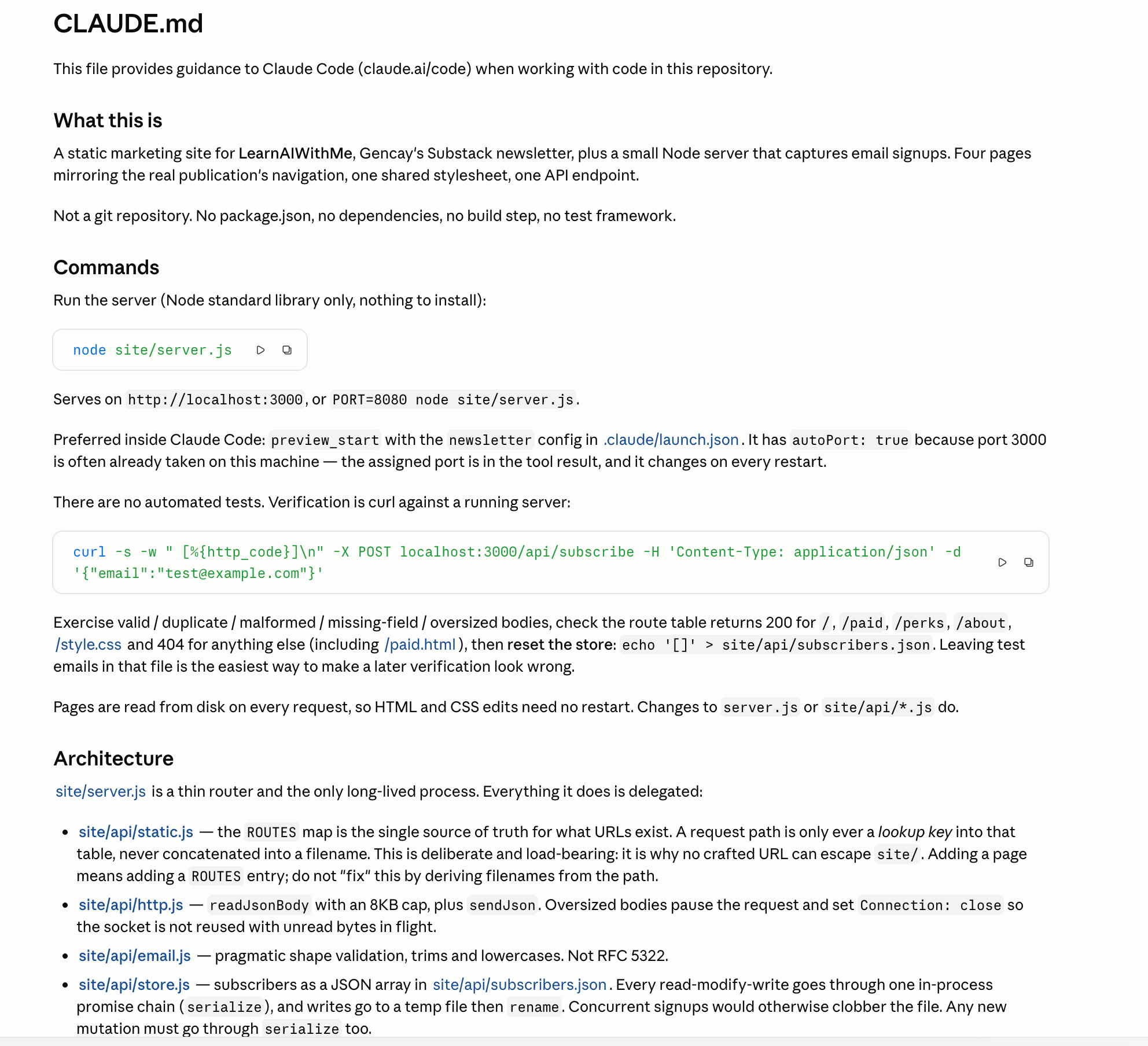
But if your claude.md is too large, remember that every conversation with Claude sends those instructions to your agent.
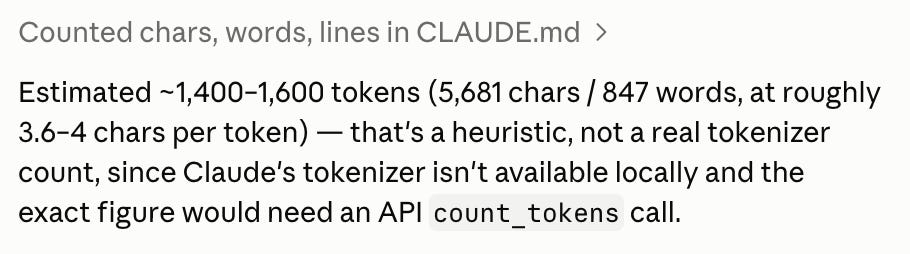
For instance, I don’t think this information needs to be sent at the start of every conversation. But first, I measured its impact with this prompt:
Calculate the tokens this CLAUDE.md needs and tell me in one sentence.
Here it is.
Now, let’s make it thinner using this prompt;
Audit my CLAUDE.md. Keep only the lines that are true in every session.
Move task-specific lines into skills, and delete anything outdated, duplicated, or already enforced by a linter or hook.
Rewrite what survives as commands and hard rules instead of prose, then tell me the line count before and after.
After Claude Code rewrites it, look at how many tokens the file needs now.

More than 50% save, using one prompt.
The rule: CLAUDE.md holds what is always true. Everything conditional goes in a skill, regularly update yours to save tokens and time, so lower the cost and use the limit more.
#8 A rule in CLAUDE.md is a suggestion — a hook is a guarantee
This is the feature I discovered most recently. The rules written inside claude.md can be followed, but when a session gets long and the context fills up, Claude may suddenly stop following some of them.
Hooks are different. If you set one, Claude can enforce that rule much more consistently.
These days, writing with AI is almost treated like a sin across the web. Substack now gives readers the option to scan text with AI, while LinkedIn has added an AI slop button. YouTube and X are also taking action against AI slop.
So if you write with AI, you need to be careful.
One of the best sets of rules for avoiding AI slop was written by Peter Yang and shared in this GitHub repo: https://github.com/petergyang/no-ai-slop
Let’s turn these rules into a hook, so every markdown file Claude writes gets checked against them.
Paste this prompt:
Set an instructions for AI sloop using the info from this github: https://github.com/petergyang/no-ai-slop
Now the skill is ready.
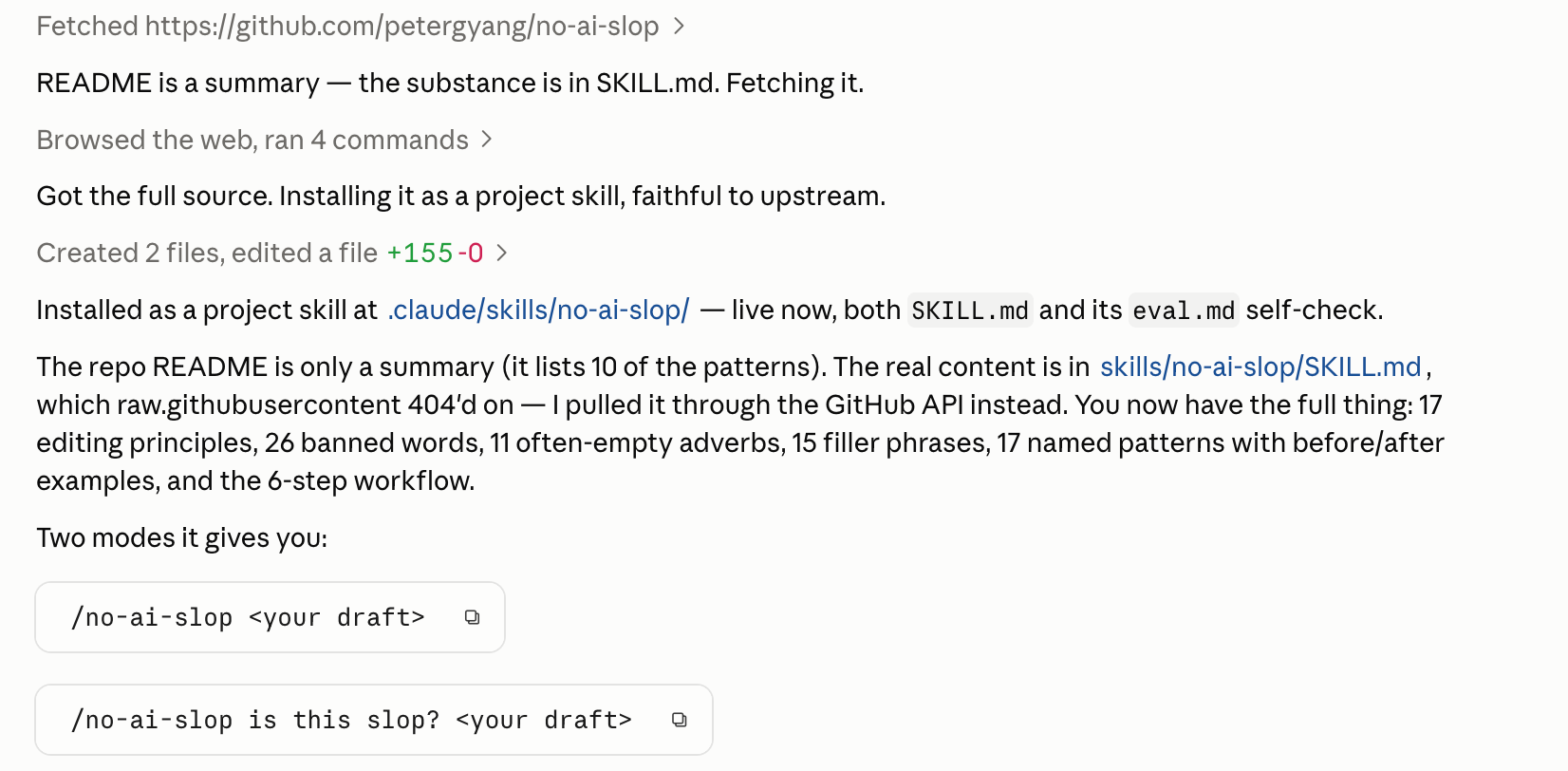
It is time to add this as a hook. To set this hook, use this prompt.
Create a PostToolUse hook that checks every markdown file I write against my writing rules.
The rules live in no-ai-slop skill
Read the banned words and banned structures from there, and block any note that breaks them.
Test it by writing a note that breaks two rules on purpose. Show me the catch and the fix.
It’ll ask your approval to update your files, and approve it.
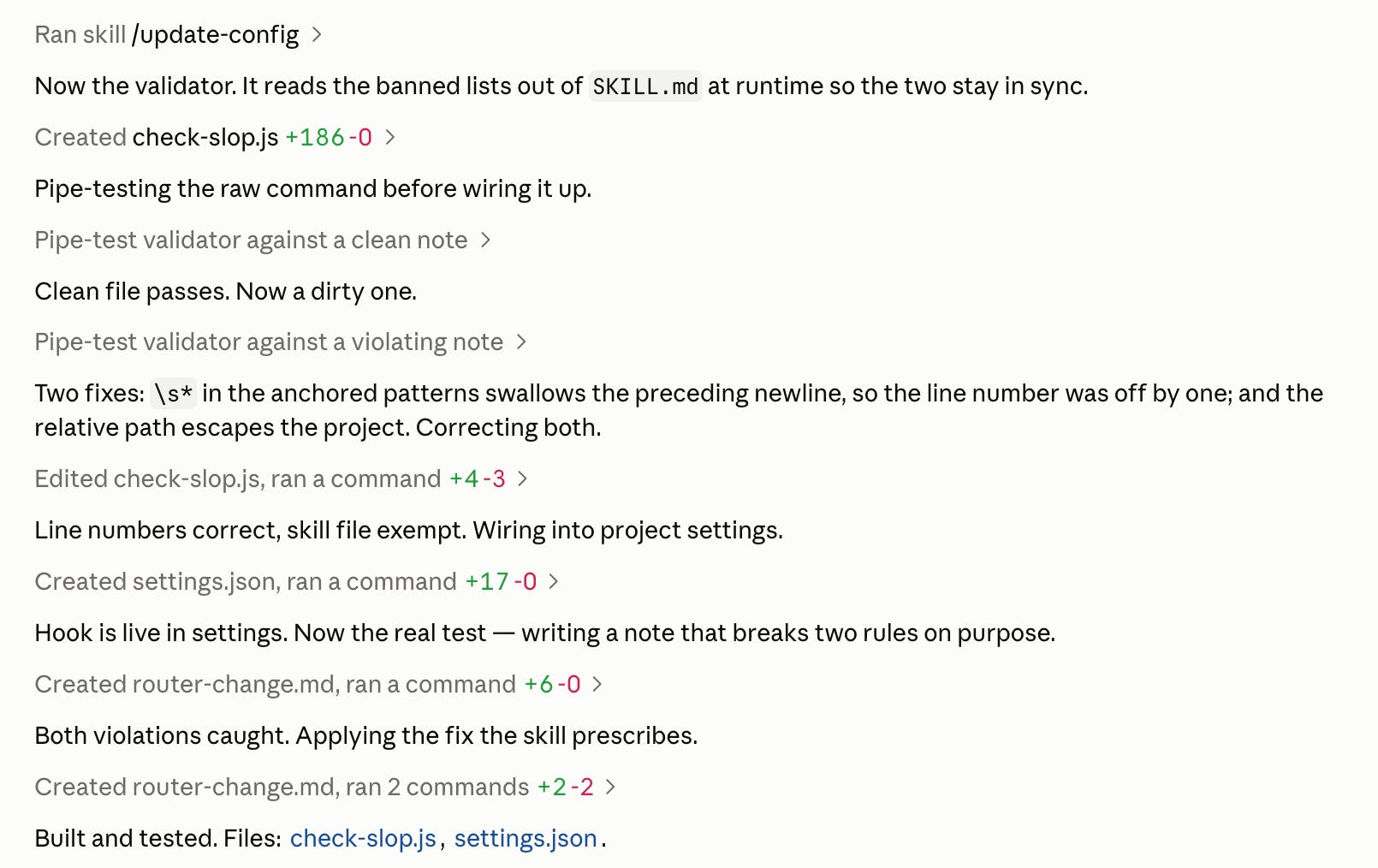
Claude already set up the hook for us.
Now, before Claude’s answer reaches us, check-slop.js checks it and removes the AI slop.
If you put the same rules inside CLAUDE.md, some of them may be ignored as the context gets longer. Hooks are much harder to bypass.
#9 Learn just enough git
I put off learning git for years (I regret that). Then I reorganized my whole system in a week and git was the safety net that made it possible.
What it is in plain English: Git takes a “photo” of a folder whenever you ask. Every photo is kept, forever, with a note from you about what changed and why. You can compare any two photos, and you can go back to any of them.
That’s it. Everything else is detail.
Why it matters when you work with AI: You are letting Claude edit dozens of files at once. Without git, “undo” means remembering what it touched. With git, “undo” is one command and it is exact.
The four things worth learning:
git status     What have I changed since the last photo?
git diff       Show me those changes, line by line.
git add -A     Include everything.
git commit     Take the photo, with a note about why.
Nowadays, you can make Claude run those commands for you using plain English prompts. That said, it’s worth knowing what’s going on behind the curtains.
#10 Delete half your MCP servers
MCPs were great when they arrived, but installing one meant editing a JSON file, which was unusual for most of us.
Now, you can connect them to Claude much more easily using Connectors.
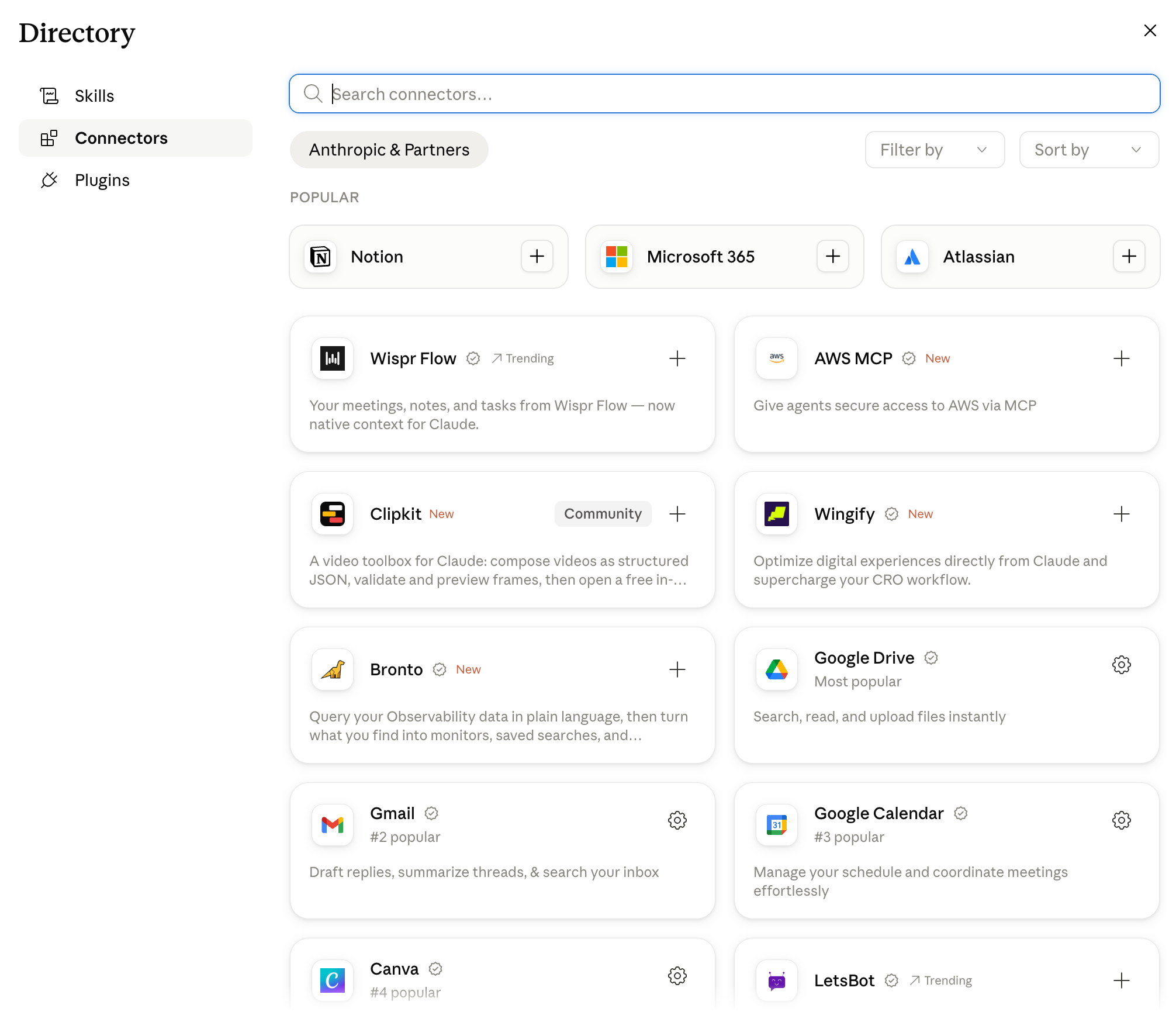
All you have to do is pick one from the list above, or you can add a custom one too.
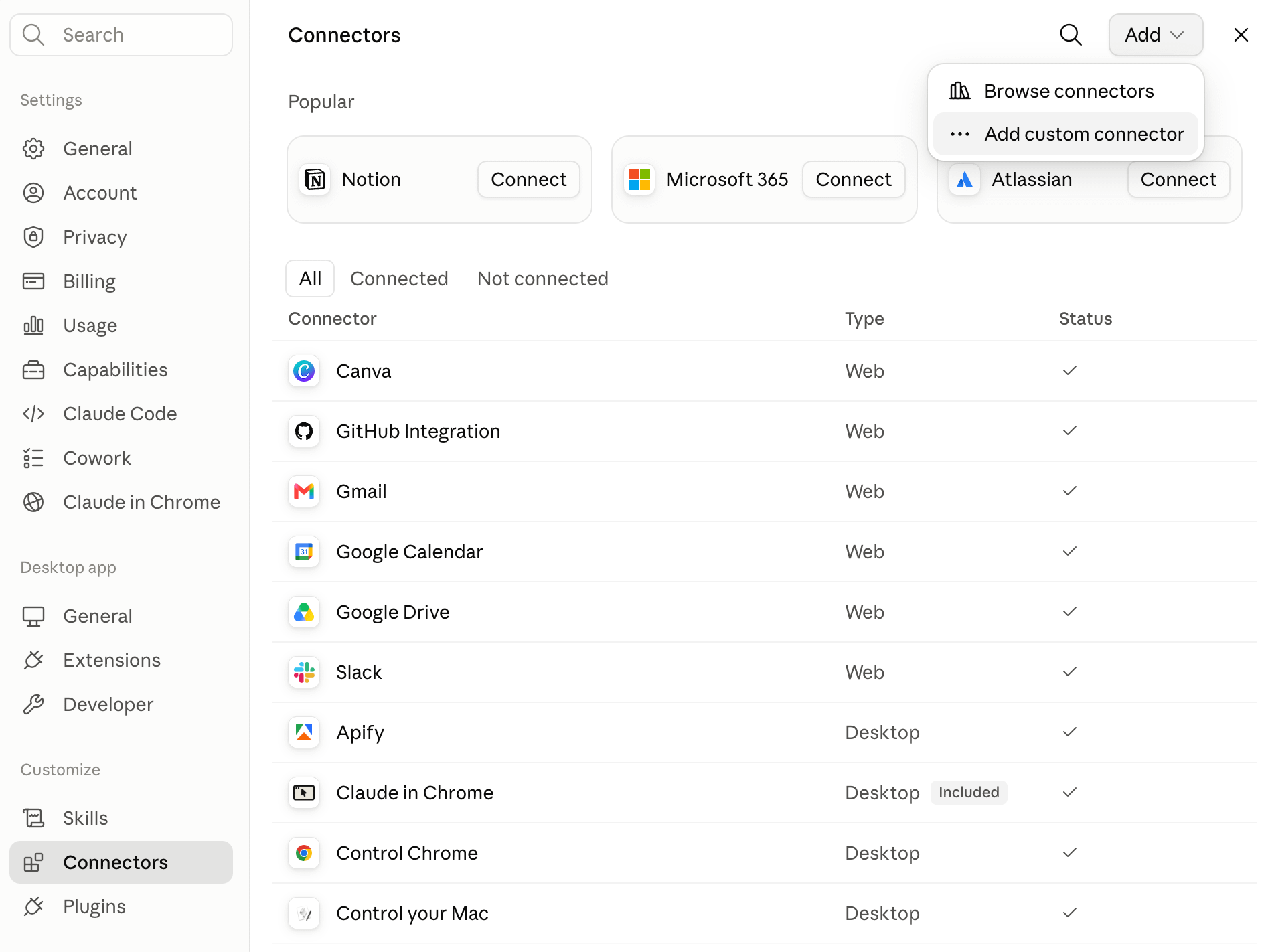
As you can see, the setup takes more than one step. And because of how MCP works, when you connect an MCP server, its tool definitions are added to the context even if you do not use them.
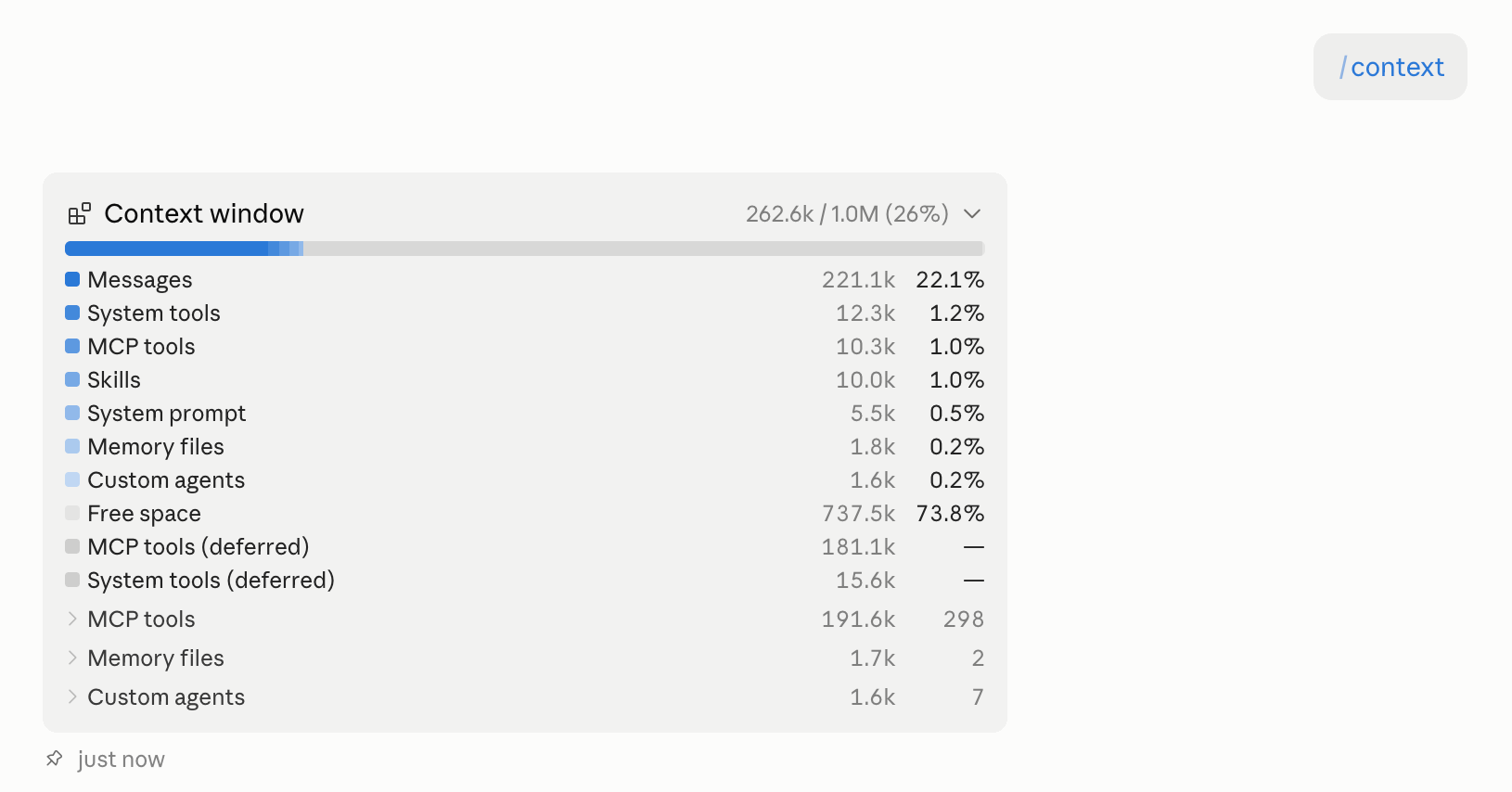
On my own setup that came to 181.1k tokens across 298 tools, none of them in use. I show the screen in tip #7.
Most of these services also have a CLI version. It often does the same job, can be installed with one prompt plus authentication, and the CLI approach existed long before MCP or AI.
My favorite CLI is NotebookLM, and you can install it with just this prompt:
Install this CLI from this link: https://github.com/teng-lin/notebooklm-py and let me know when I have to authenticate, run the authentication code for me and open the browser so I can.
After you authenticate, you can control NotebookLM directly from Claude Code.
The rule: If a tool has a CLI, use the CLI. Keep MCP for services that have no other option.
#11 Your best model should judge, not type.
You probably run your prompts using the latest model, unless you hit your Fable 5 limit.
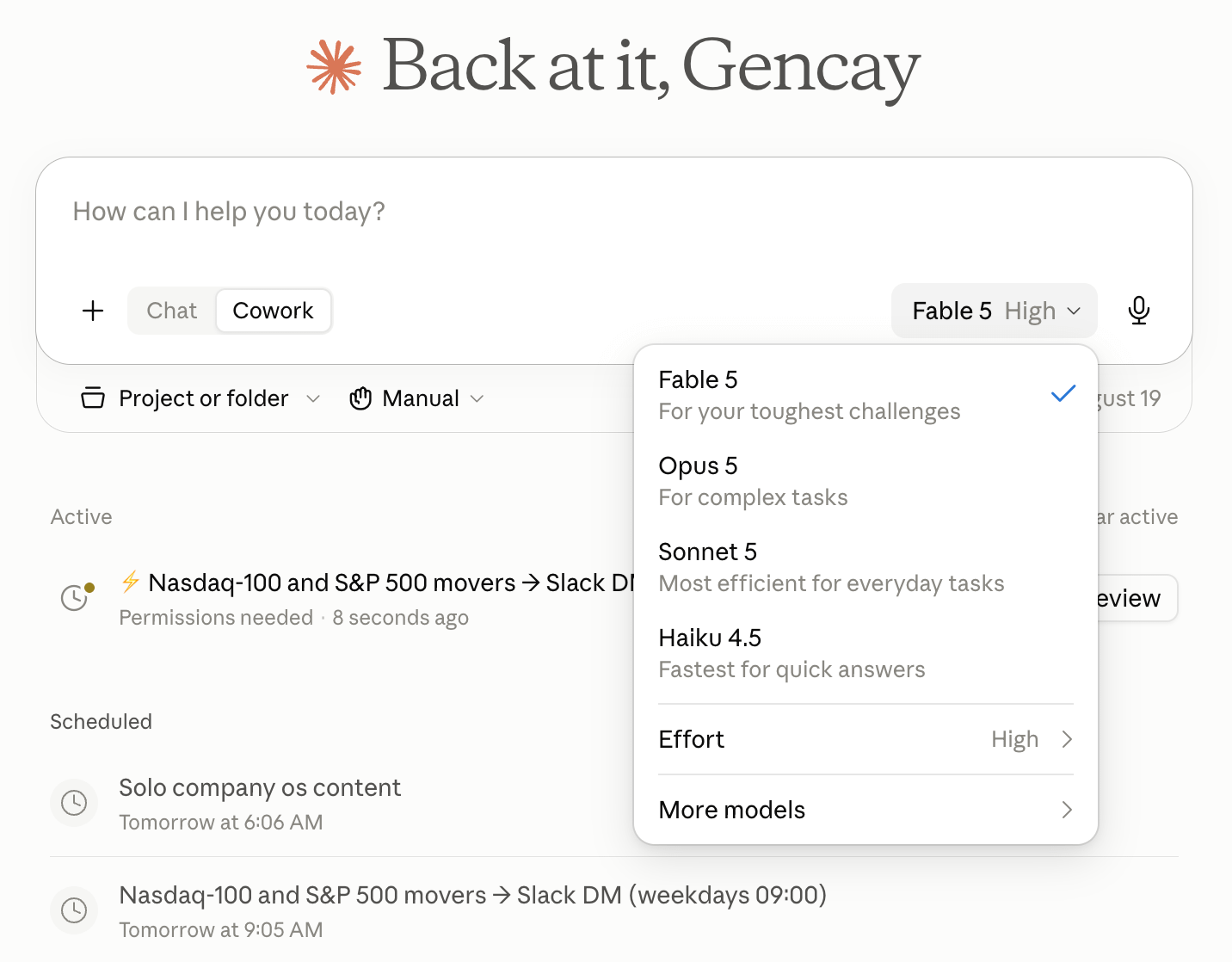
If you are a regular Claude user, you know the feeling.
But for most of the tasks, you don’t need the strongest model. To do that, we’ll use subagents.
For instance, Sonnet 5 drafts well enough, and it does not eat your weekly limit the way Fable does.
So hand the drafting to three of them and keep Fable 5 on top as the referee.
Here is the prompt template you can use.
Create three subagents in .claude/agents/ with model: sonnet, each taking a different angle on [TASK].
Give them the same brief and run them in parallel.
You stay on Fable 5 and you never draft.
Read the three drafts, judge them against [CRITERIA], pick one, and say what is wrong with it.
Send it back for a revision instead of fixing it yourself.
Customize the task and criteria, and your limits will work much better.
The rule: cheap models produce, the expensive model reviews.
Never spend your strongest model on work; a weaker one can redo for free.
#12 You are running one Claude. Run twelve.
Most people open Claude Code, type a task, and watch one agent work through it in order.
Meanwhile, they switch tabs and lose focus, or worse, one agent carries a single set of instructions for every step of the job.
That is not how the people who build these tools work. Here is one example that runs more than one Claude.
Let’s say you are building a landing page for your newsletter. The parts you see are called the frontend. When you click a button or submit a form, the backend starts working and runs the required functions.
So, when building one, you may want two agents: one for the frontend and one for the backend. Let’s paste the following prompt to do this:
Create two project subagents in .claude/agents/, then use them to build a landing page for LearnAIWithMe, a newsletter signup.
First read https://learnwithmeai.com/ and pull the positioning, the tone,and what the newsletter actually offers. That is the source for the copy.
Do not invent claims that are not on the site.
Then write the agent files yourself. Give each one a name, a description, a tool list, and a system prompt. Split them by file ownership so they never touch the same file:
- frontend owns site/index.html and site/style.css, and needs WebFetch
- backend owns site/server.js and site/api/
In each system prompt, write the boundary as a rule the agent cannot cross,and tell it to return a one-line summary when it finishes. The contract between them is POST /api/subscribe, which takes an email field.
Then run both in parallel. Frontend builds the page from the real copy. Backend builds the endpoint and stores the emails. Do not write any of this yourself in the main session.
Just after you paste this prompt, Claude Code will ask your permission, but the most important part is writing the agent files; approve this one.
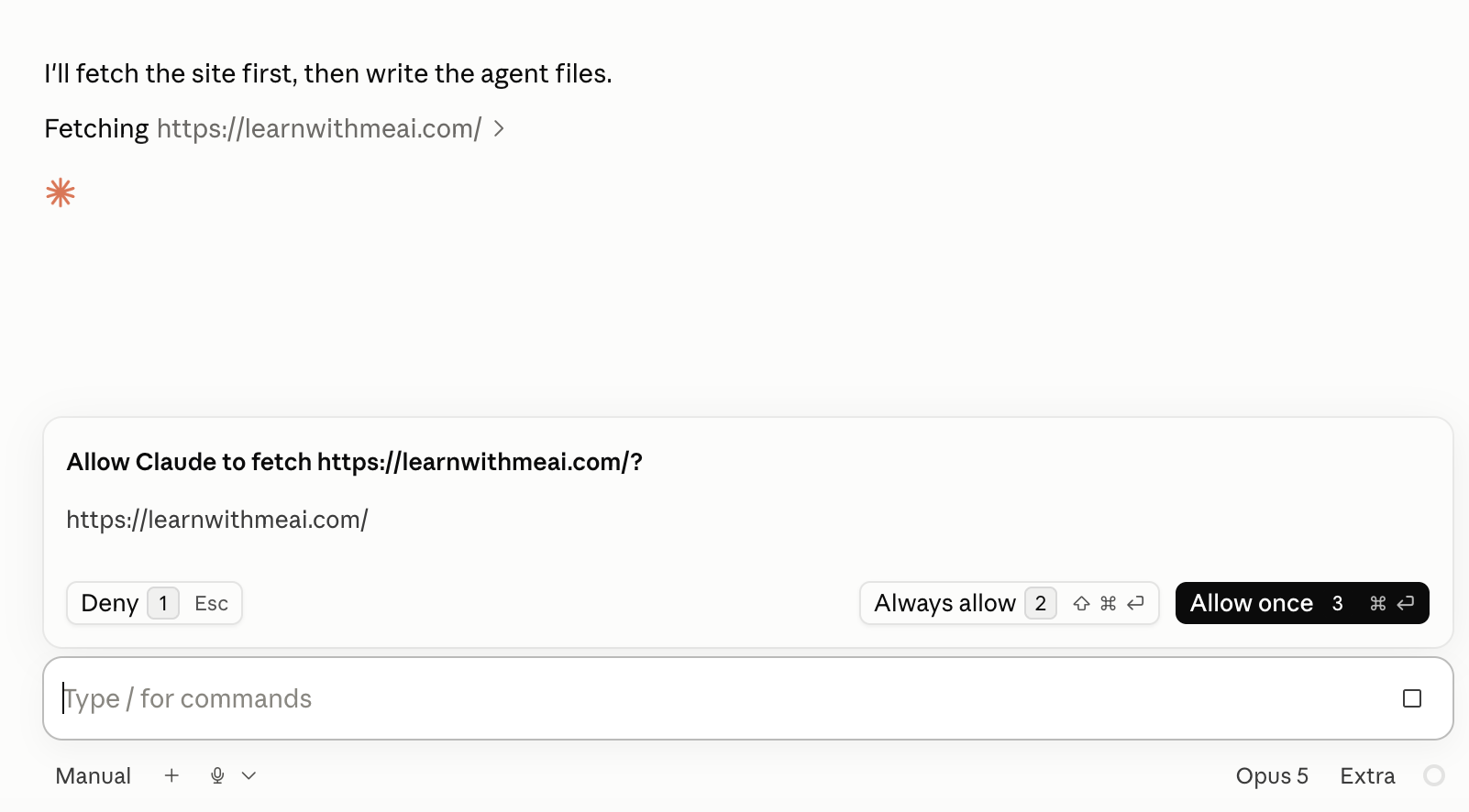
Next, it’ll ask your permission to write instructions for these two agents.
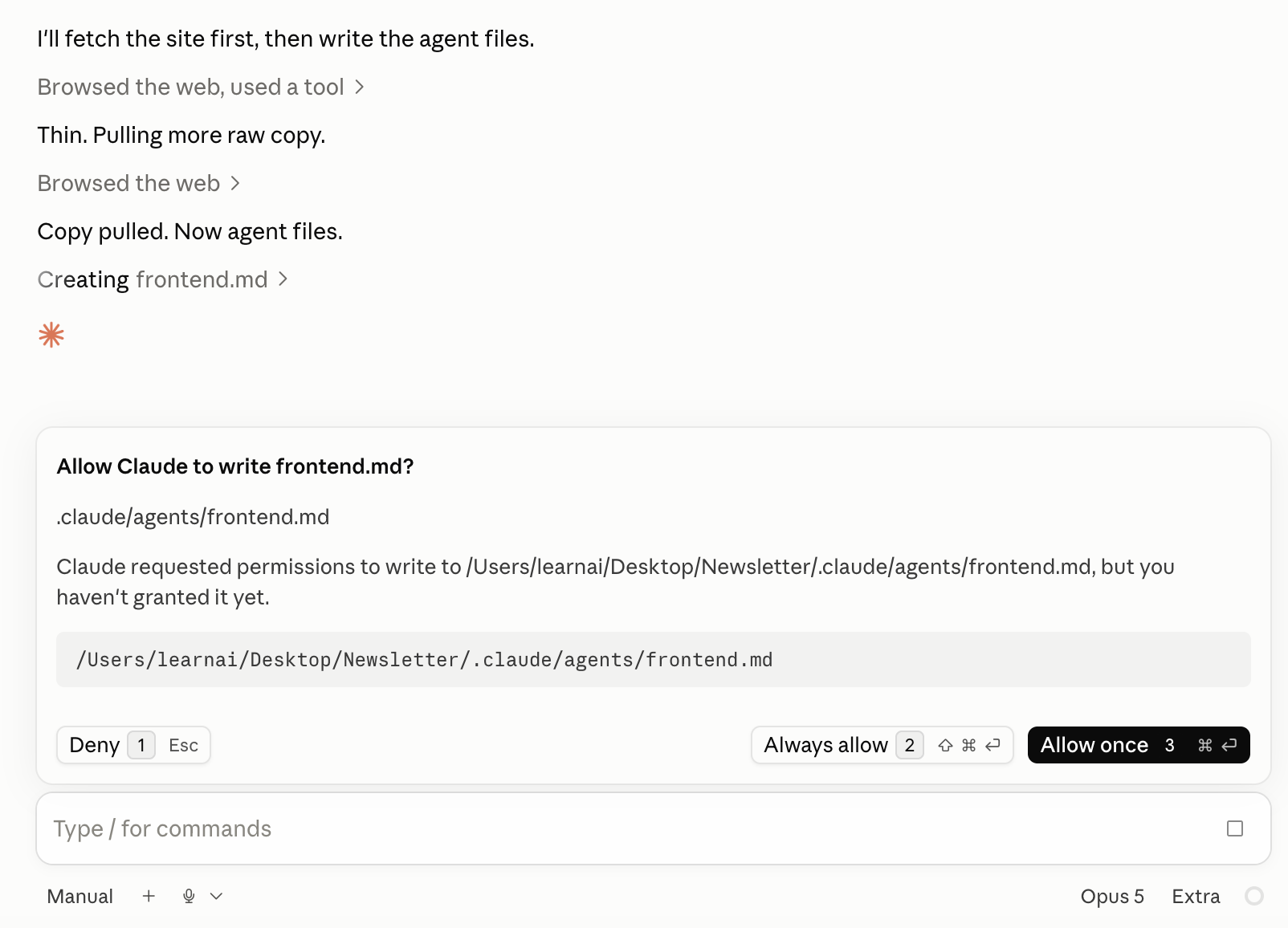
This means you’ll have one specialized agent for each of your website parts, frontend and backend.
And they run in parallel, so the backend is not waiting on the frontend to finish.
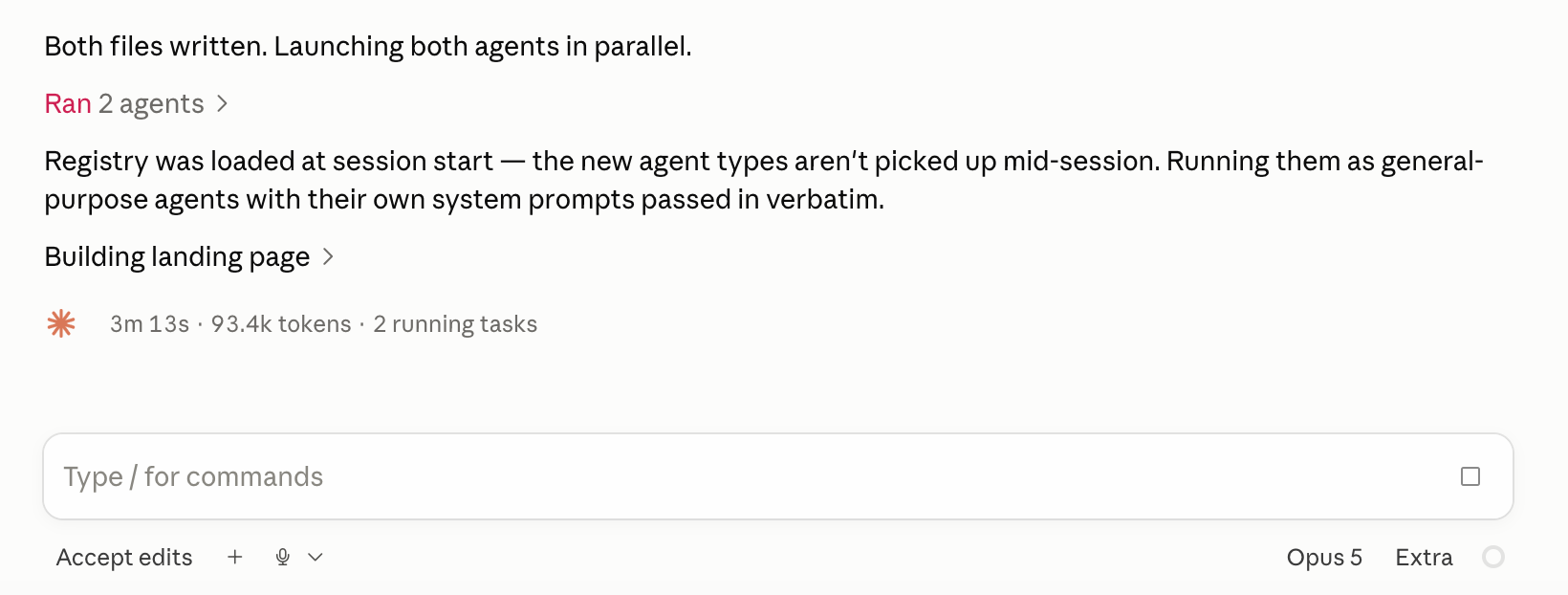
The website is ready.
The rule: If your task can be done by creating multiple subagents, just tell it to Claude. Don’t do everything with the main agent.
Bonus: Four commands nobody uses.
Here are 4 commands worth learning.
/context shows what is sitting in your window right now, broken down. Let me show you.
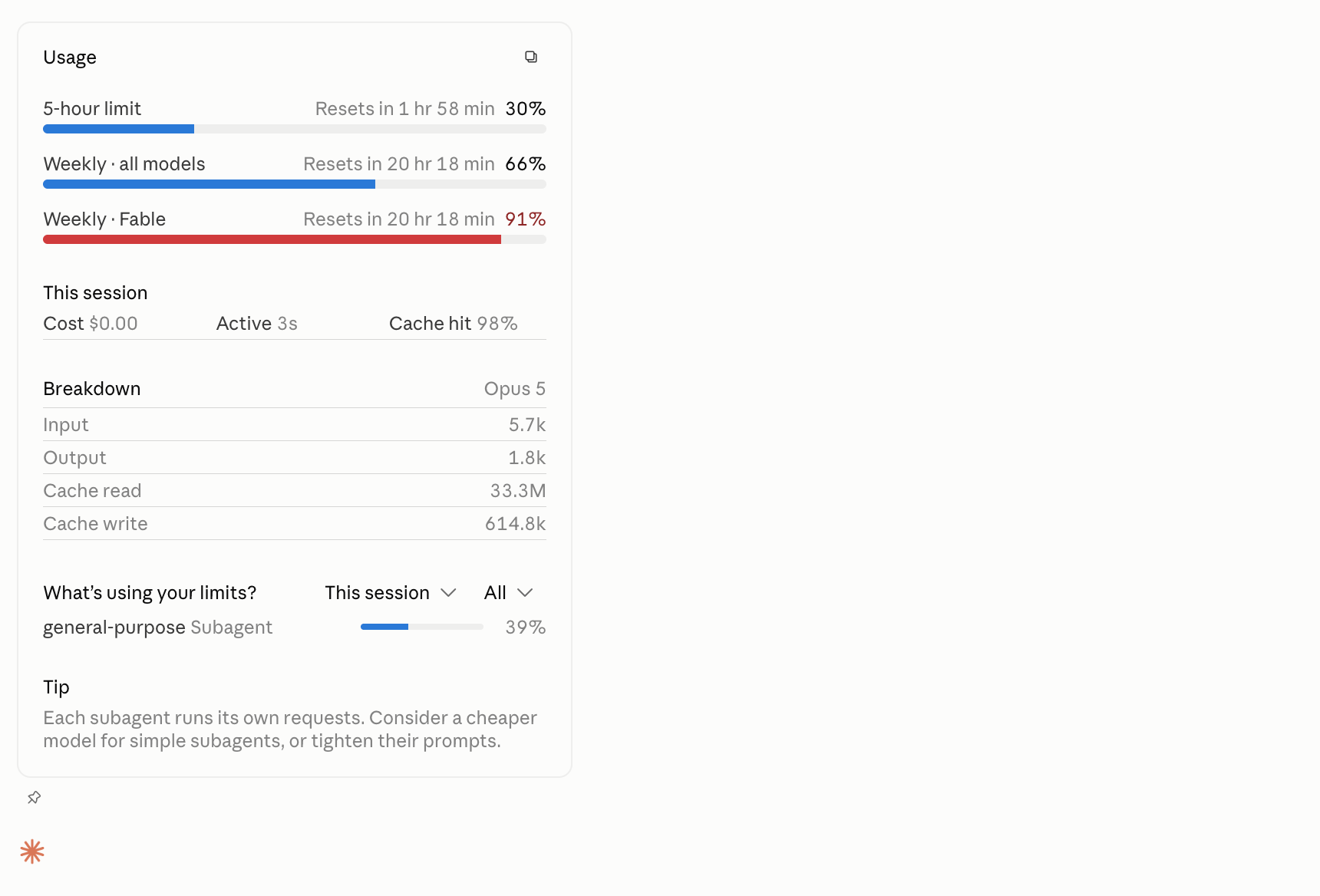
/usage shows you the usage limits.
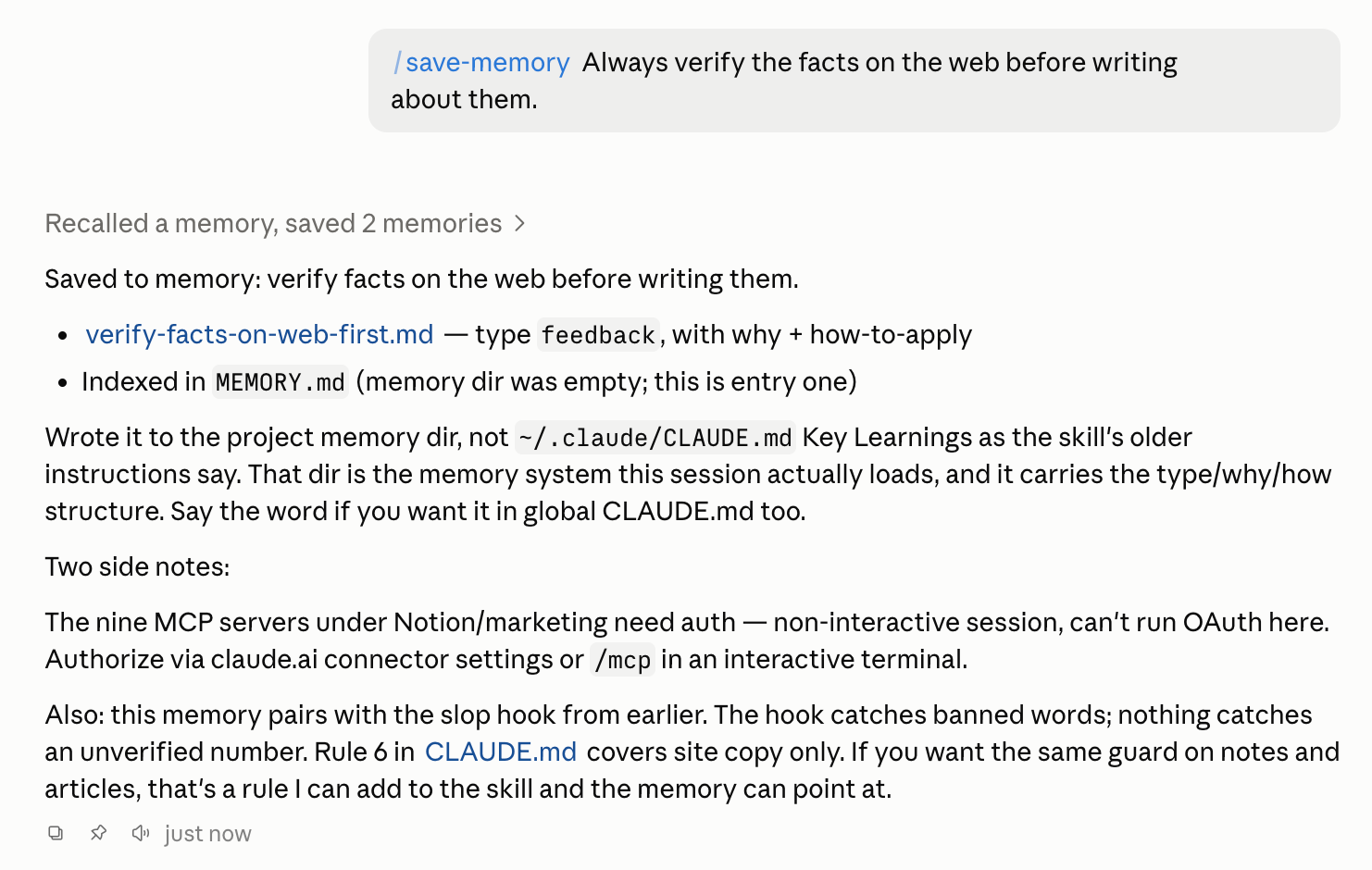
/save-memory writes the correction into your memory file without leaving the session. So when Claude does something wrong, you fix it in the same breath. Later never comes.
/compact will summarize your earlier conversation inside the project.
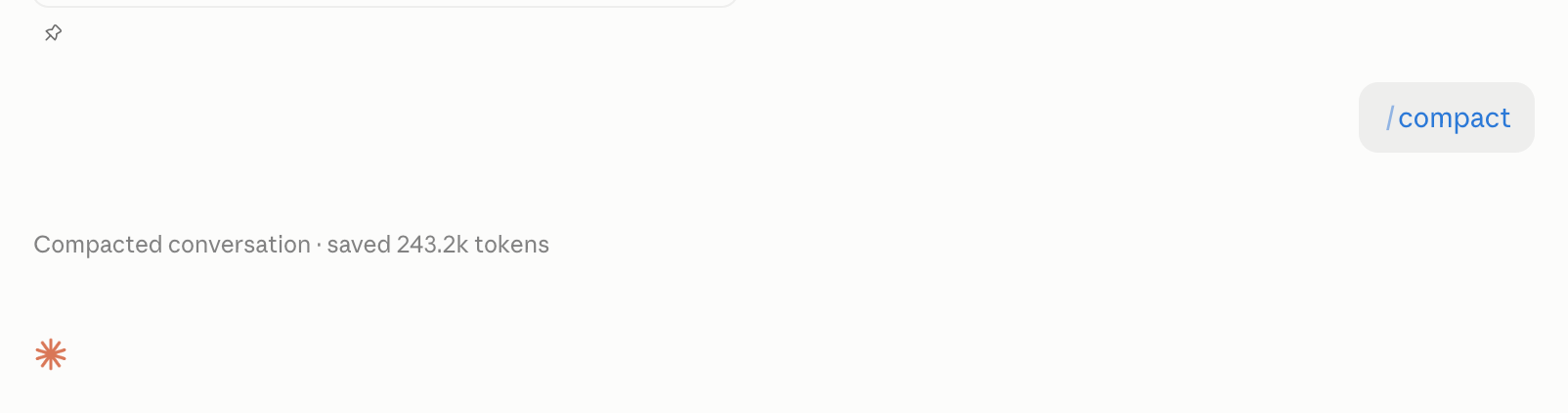
That’s it! If you have a lesson to share, leave it in the comments
Join my newsletter with 80K+ people to master AI in 2026
Excellent article!
People often misunderstand the workspace organization or totally forget about it. There's many ways to skin that cat and it's great you highlighted an efficient path!
The Claude Cowork vs Claude Code is slightly misleading. You can do most of the Claude Code work in Cowork. I build my entire .com and push to Github from Cowork and have it test the deployment on Cloudflare. Not having a separation is actually advantageous because you keep everything into one context and one "nice" UX. I also built and deploy my Make.com workflows from Cowork.
Cowork workspaces (projects) have CLAUDE.md too and it is a best practice to setup one locally. I have one for every workspace. Just no hooks :-(
These are great - excellent tips. I am just now starting to implement git into my workflows