


Click here to get my FREE Claude course (20+ lessons)
If you've ever asked Claude to create a presentation and got back something that looks like a school project from 2010, you're not alone.

That's what happens when you use Claude without Skills.
Skills is a feature that lets you create reusable instructions so Claude follows your standards — your brand colors, your formatting, your way of doing things (no more generic AI outputs).
Here’s what I got when I tried the same prompt, but using a skill that follows Anthropic's brand guidelines. It nailed the colors, the design, everything!
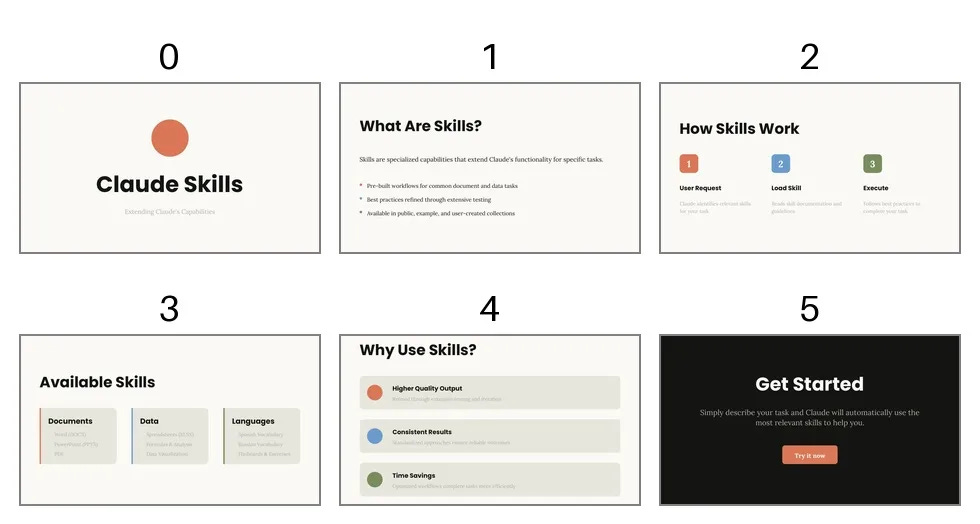
That’s the difference Skills make.
Just like that, you can use skills to create custom workflows, save hours on repetitive tasks, generate content that follows your company’s brand guidelines, chart styles, font choices, visual design principles, and more.
We’ve searched all over the internet to find the best Claude Skills (so you don’t have to). In this guide, we’ll see:
How to use Claude Skills
The best 11 Claude Skills
Skills for Presentations & Visuals
Skills for Marketers & Business Owners
Skills for Business Operations
Skills for Building Without Code
How to quickly install the Claude skills
How to use Claude Skills
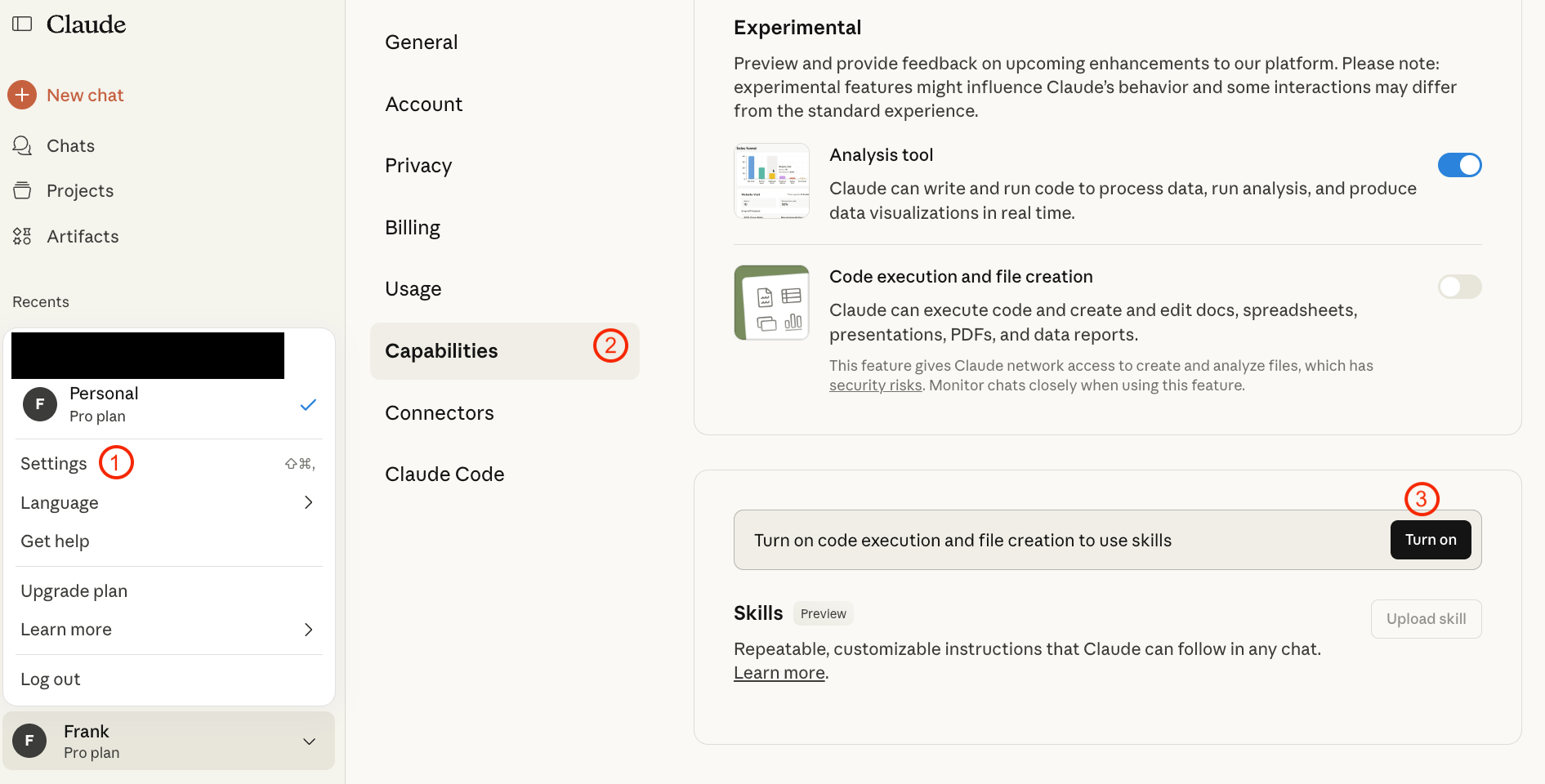
To work with Skills, first enable this feature.
Go to Settings → Capabilities → Turn on Skills
You don’t need to be technical to create a skill. Claude has a built-in skill creator that builds skills for you. Here’s how to enable the skill creator:
Go to preferences in the left sidebar
Click “Skills“
Select “skill-creator“
Toggle skill-creator on (leave it always on)
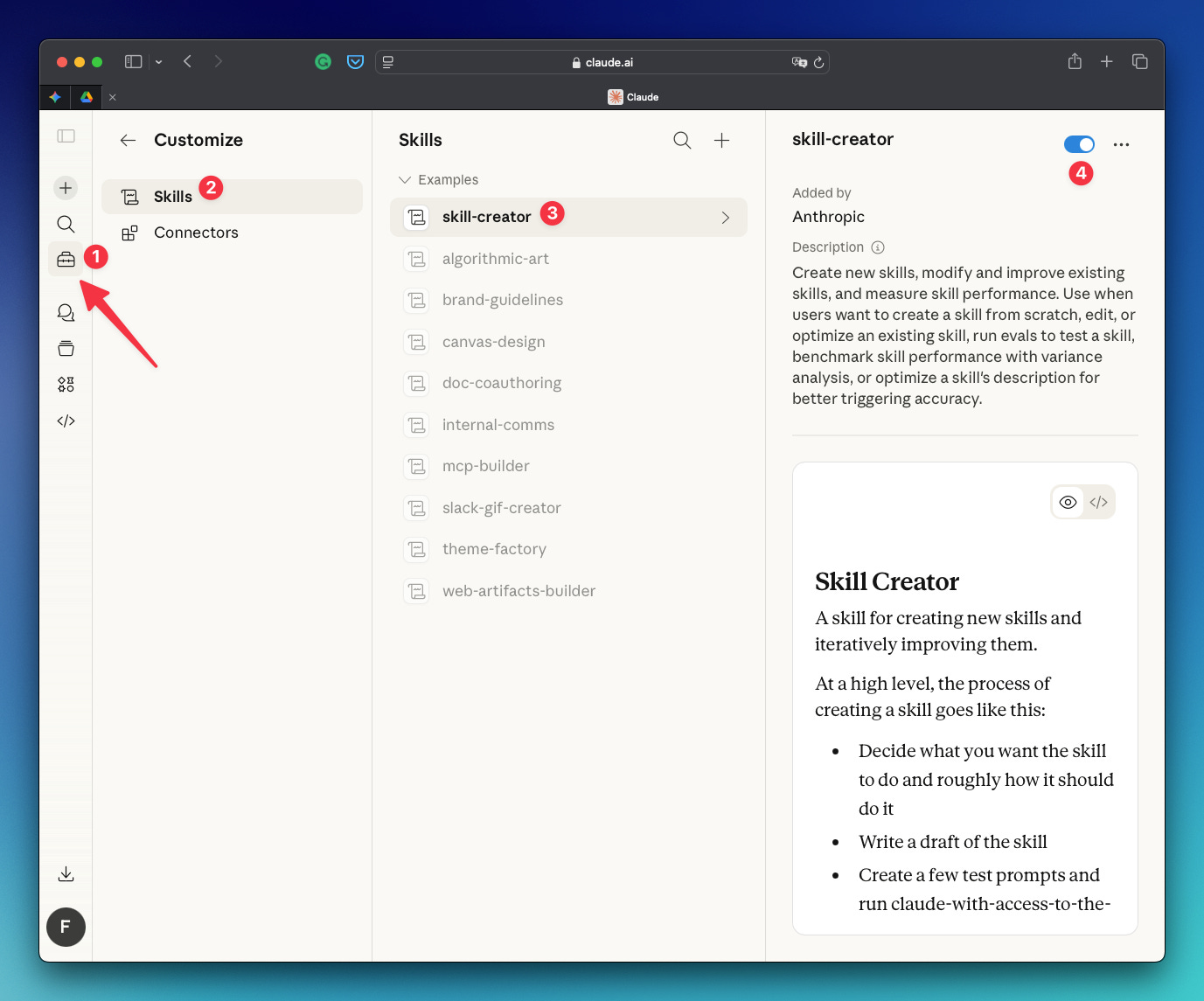
In the Skills section, you’ll see skills created by Anthropic.
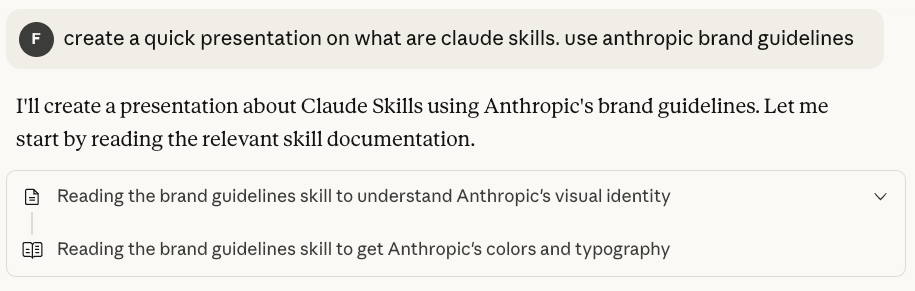
If you toggle on the skill brand-guidelines and try the prompt below, you’ll get slides with the Anthropic colors, design, etc (like the example I showed before).

create a quick presentation on claude skills. use anthropic brand guidelines
There are two ways to use a skill.
You can click on the three dots and click “Try in chat“ or simply let Claude figure out which skill to use. In my experience, Claude is quite good at matching your request to the right skill — just make sure you know what each of your installed skills does so you can phrase your prompts accordingly.
See whether Claude picked the right skill by reading the first lines of the response.
Pro tip: You can turn any Cowork chat into a reusable skill. Just click the dropdown arrow in your chat name and select "Turn into skill."
The Best Claude Skills
There are many skills out there. Here are the best we found
Skills for Presentations & Visuals
1) Slide Deck Builder
Problem:
Making a presentation takes way longer than it should.
And it’s not the design that slows you down.
It’s everything before that — figuring out what to say, in what order, what gets its own slide, what needs more context. That’s where the time goes. You sit there staring at a blank slide and somehow an hour disappears.
The Skill:
You give it a rough idea: a few sentences, a topic, whatever you have. It turns that into a full slide sequence that already makes sense, applies the visual style you set, and hands you back a real first draft.
Why it works:
It skips the two parts that kill your time: figuring out the structure and making it look like something. Instead of starting from zero, you start by improving something that already has a shape.
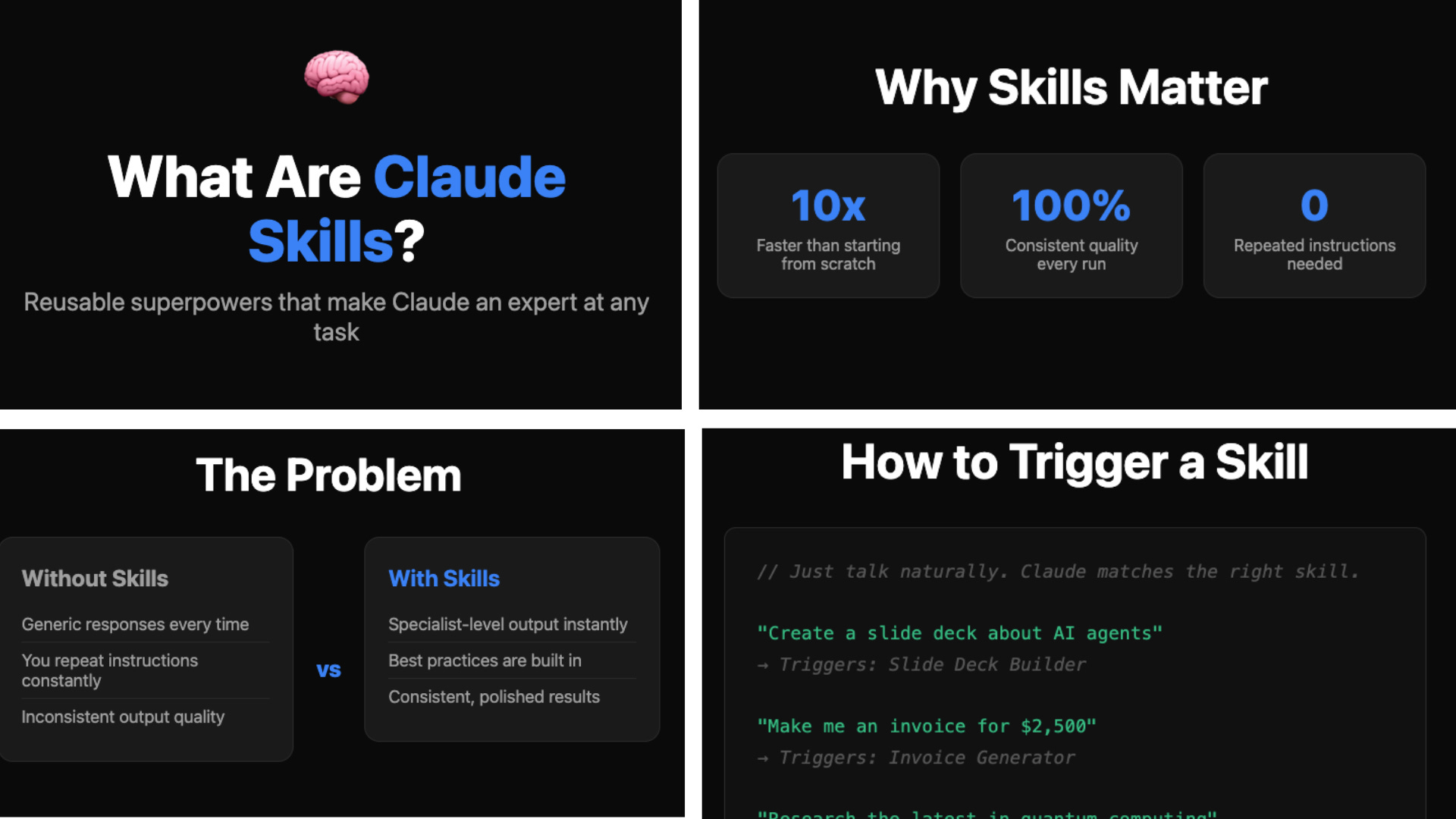
Link: Watch the tutorial | Download the skill
2) Explainer Graphic
Problem:
Some topics just don’t click when you read them.
You go through the whole explanation, you get to the end, and somehow... nothing sticks. So you read it again. Then again.
The skill:
You give it a concept — anything that feels hard to explain in words alone. It turns that into an HTML explainer with simple analogies, visual steps, and short sections that are easy to follow.
Why it works:
Switching the format — from a wall of text to a visual walkthrough — is sometimes all it takes. Same concept, completely different experience.
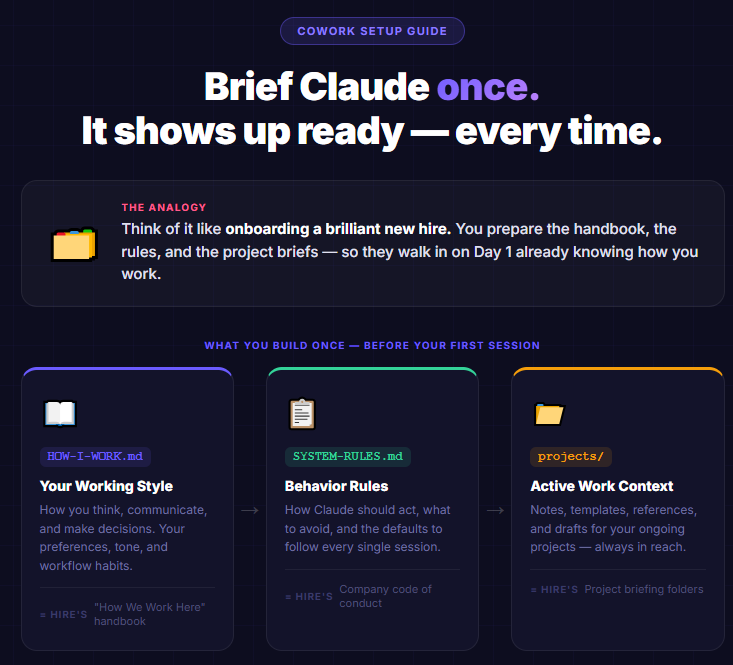
Link: Watch the tutorial | Download the skill
Skills for Marketers & Business Owners
3) Branded Carousel Generator
Problem:
Turning your ideas into social content is one thing. Turning them into content that actually looks like your brand is another.
Most people end up stuck between two bad options: reuse a generic template that doesn’t feel right, or spend way too long tweaking every post trying to make it look consistent.
The Skill:
This one takes your content and turns it into a branded carousel.
Not a generic post split into slides. A carousel shaped around your material, styled in a way that feels like something you’d actually publish — and could publish again next week without starting over.
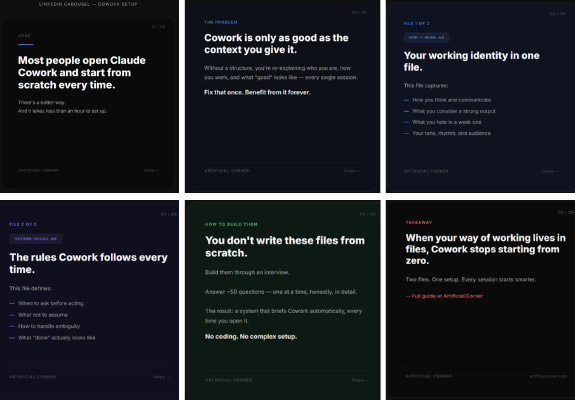
Link: Download the skill | Download the skill
4) Brand Applicator
Problem:
You finish a document and it’s technically done.
The writing is there. The structure works. But something still feels off. The branding
Wrong font. Colors that don’t match. No logo. It looks like a draft even when it isn’t one.
The Skill:
You hand it your brand rules (fonts, colors, logos) and it applies them to your document automatically.
The output looks consistent with the rest of your business assets. Not like something you threw together before a deadline.
Why it works:
Most people leave this part for the end. And then they rush it, skip it, or send something that doesn’t look as polished as the work inside it.
This handles the last-mile step for you. Not the thinking. Not the writing. Just the part that makes something feel like a real deliverable instead of a working draft.
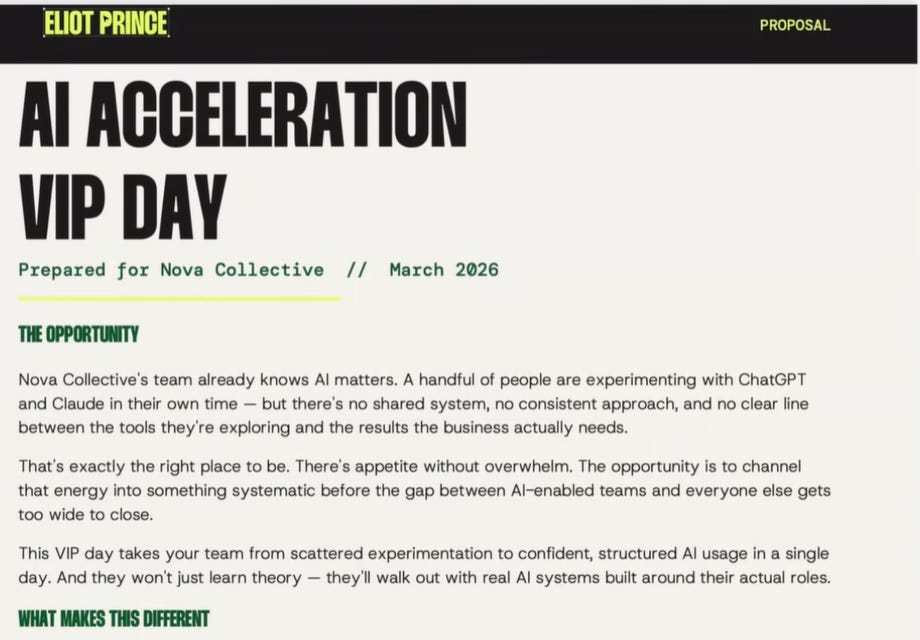
Link: Watch the tutorial | Read the guide | Download the skill
5) Market Competitors
Problem:
Competitor research usually ends the same way.
You look at a few pages, notice a few patterns, write something down somewhere — and then move on without ever turning any of it into something you can actually use.
The research happened. The useful output didn’t.
The Skill:
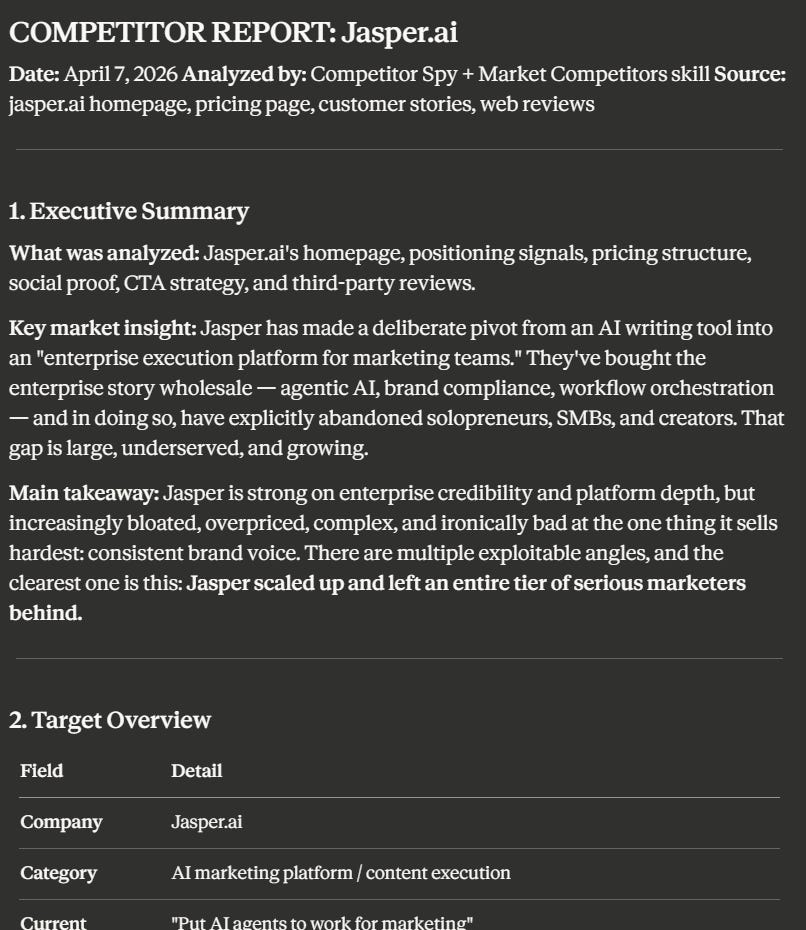
market-competitors takes a website or market input and turns it into a competitive intelligence report.
Not scattered notes. A structured deliverable — the kind you can actually reference when you’re making positioning decisions.
Why it works:
Competitive analysis is only useful if it leads somewhere.
Most of the time it doesn’t because the research never gets a format. It stays in a tab, a doc, or your head until something more urgent takes over.
This gives it a format. And that’s what turns observation into something you can act on.
Link: Watch the tutorial | Download the skill
Skills for Business Operations
6) Workflow Visualizer
The Skill:
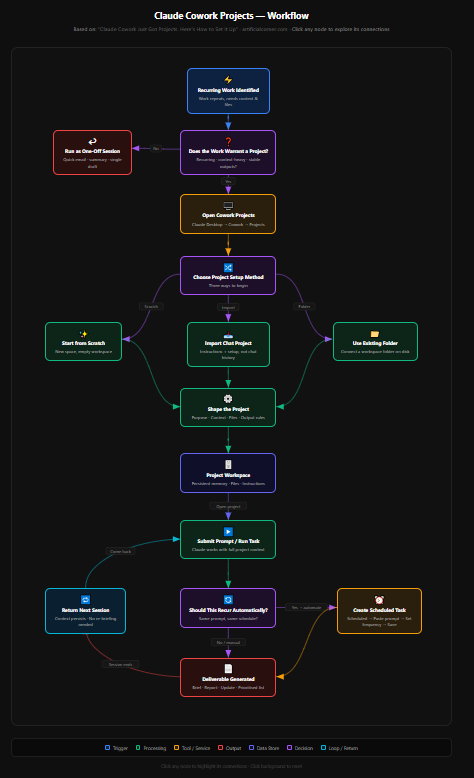
Workflow Visualizer turns a process, business system, or operating setup into an interactive visual map.
Phases, triggers, components, connected tools — all in one place, showing how they fit together instead of just listing what they are.
Why it works:
A list of steps tells you what exists. A map tells you how it works.
That difference matters when you need to explain the system to someone else, find where something is breaking, or figure out what to improve without accidentally touching something you shouldn’t.
Link: Watch the tutorial | Download the skill
7) Contract Reviewer
Problem:
Reading a contract quickly is easy. Reading it well is a different thing.
The hard part isn’t the length — it’s knowing what to look for. The clause that sounds fine until something goes wrong. The protection that should be there but isn’t. The term that’s standard until it isn’t.
The Skill:
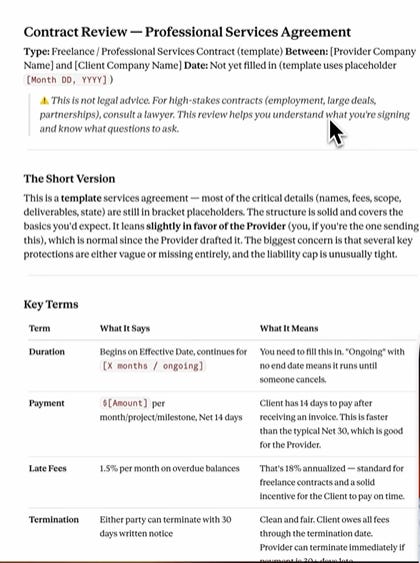
You upload the contract and it breaks it down into what actually matters.
Key terms, red flags, yellow flags, missing protections, and what you may want to push back on before signing.
Why it works:
It doesn’t replace a lawyer. It does something more useful for most people. It tells you where to pay attention first.
That alone changes how you approach the document — instead of reading every line with equal worry, you know exactly where to slow down (and where to relax).
Link: Watch the tutorial | Download the skill
8) Decision Council
Problem:
Some decisions are too important to look at from one angle only.
The real risk isn’t always making the wrong call. Sometimes it’s making a fast one — without enough pushback, without anyone asking the uncomfortable question, without real tension between perspectives.
The Skill:
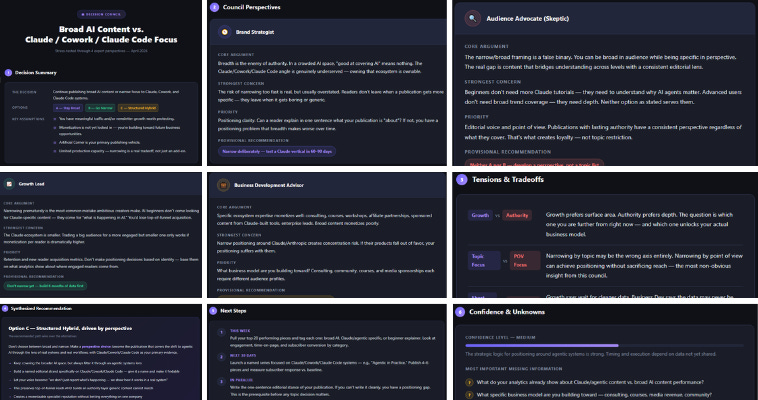
Decision Council runs multiple expert personas at the same time, each looking at your decision from a different angle. Then it brings them together into one synthesized recommendation with clear next steps.
You get a structured clash of viewpoints first and then the answer.
Link: Read the guide | Download the skill
9) Quick Research
Problem:
Research gets messy fast.
You start with one question. That leads to another source, then a different opinion, then three more pages of context you’re not even sure you need.
By the time you’re done, you have a lot of open tabs and no clear picture.
The skill:
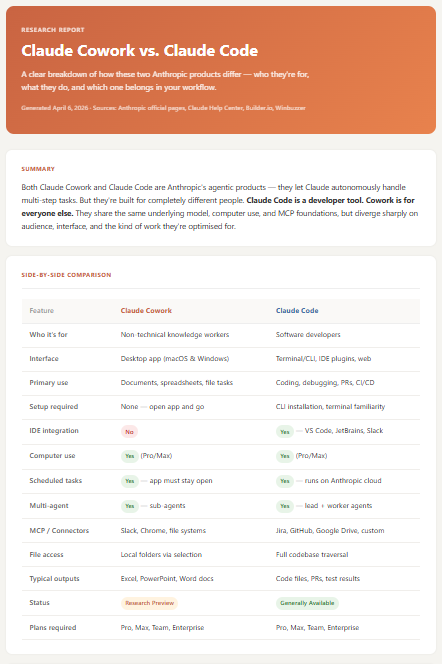
You give it a topic and it compresses everything into a structured brief.
I used it to break down a new Claude Cowork release. Summary, features, requirements, pros, cons, pricing, and the actual bottom line. All in one place, already organized.
Link: Watch the tutorial | Download the skill
Skills for Building Without Code
10) Frontend Design
Problem:
A lot of AI-generated interfaces technically work.
They just don’t look like anyone cared.
The code runs fine, but the result feels like something that was assembled in five seconds and never looked at again. Generic layout, default fonts, nothing that feels deliberate.
The Skill:
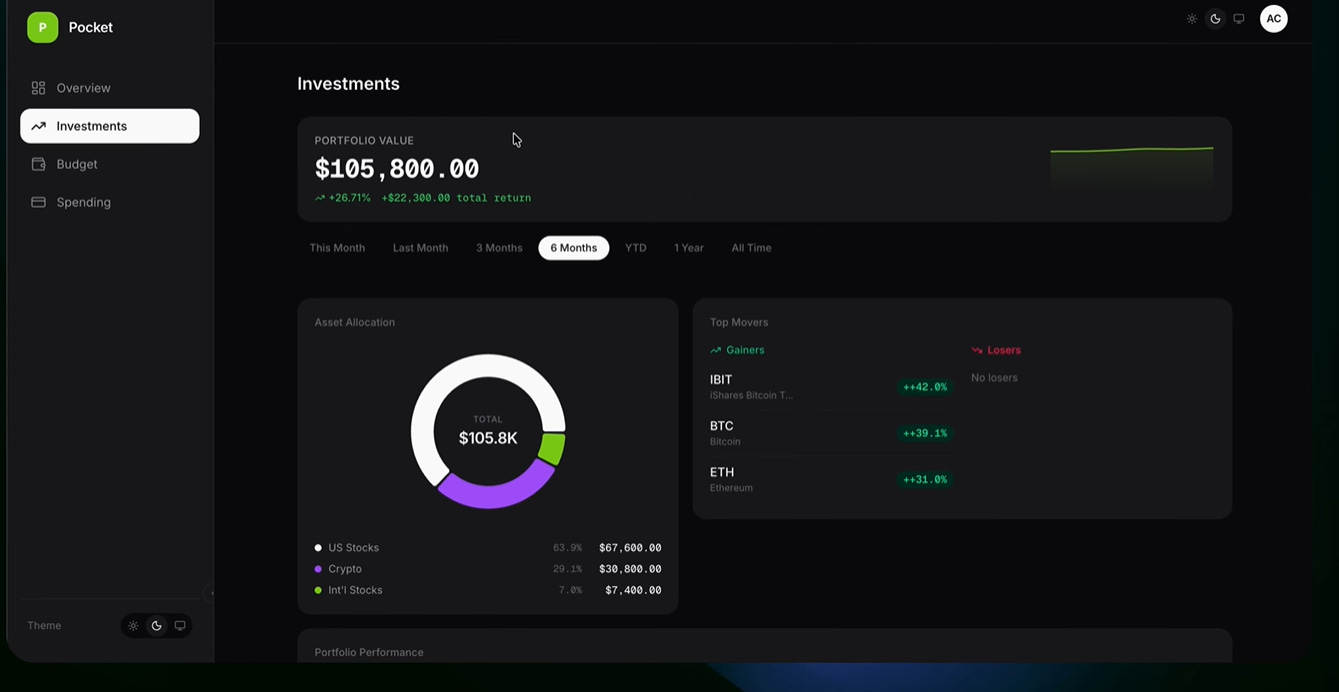
Frontend Design is an official Claude Code skill that pushes the output toward something more production-ready.
Better typography. Stronger visual decisions. UI that actually looks like someone made a choice — instead of just accepting whatever came out first.
Link: Watch the tutorial | Download the skill
11) Implement Design
Problem:
Going from Figma to code sounds simple until you actually try it.
That’s when the small mismatches start showing up. Spacing is slightly off. Components drift from the original. And the final result looks close — but anyone who worked on the design can tell it isn’t right.
The Skill:
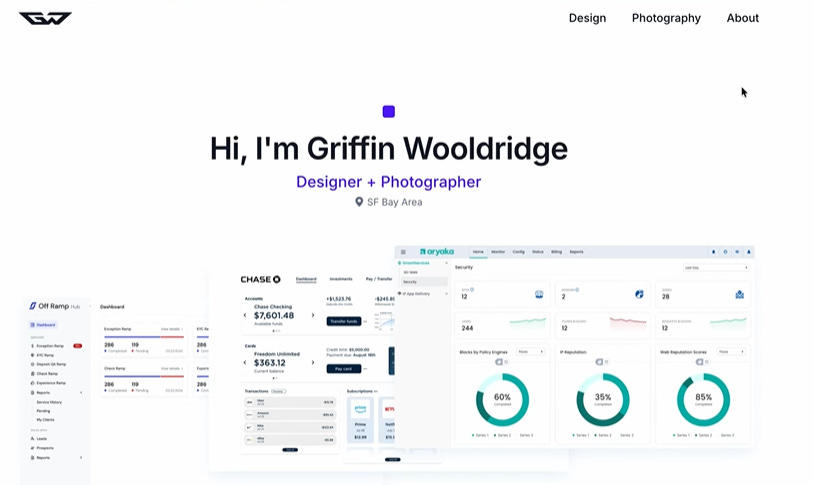
Implement Design is a public Figma skill for translating designs into production-ready code with much tighter visual fidelity.
This skill gives Claude a more structured way to move from design to implementation — so the gap between what was designed and what gets built stays as small as possible.
Link: Watch the tutorial | Download the skill
How to install the skills
Follow the steps below when you want to add one skill to Claude (.zip or skill.md file)
Customize → Skills → “+” → Create skill → Upload a skill → Upload your .zip or skill.md file
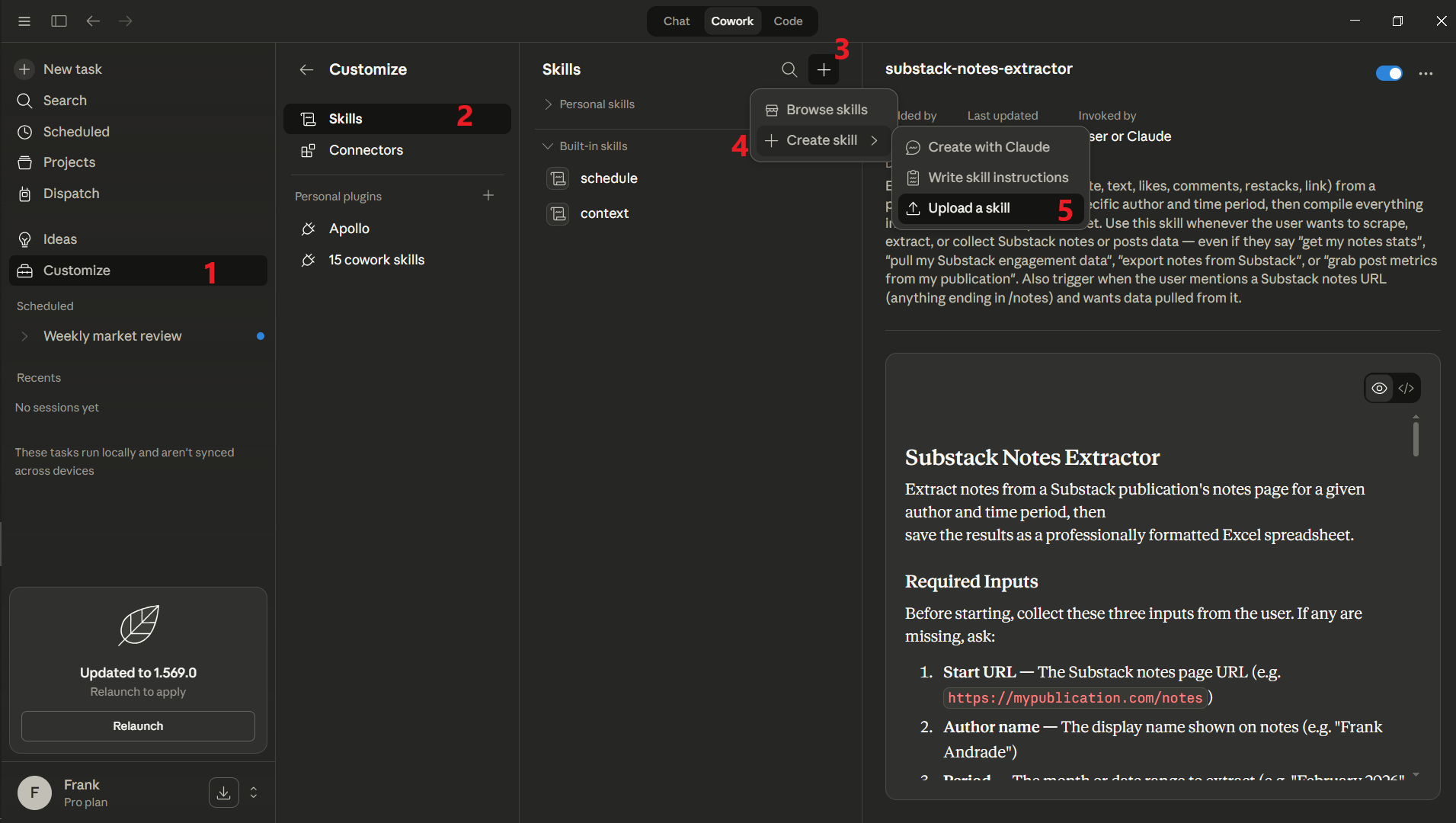
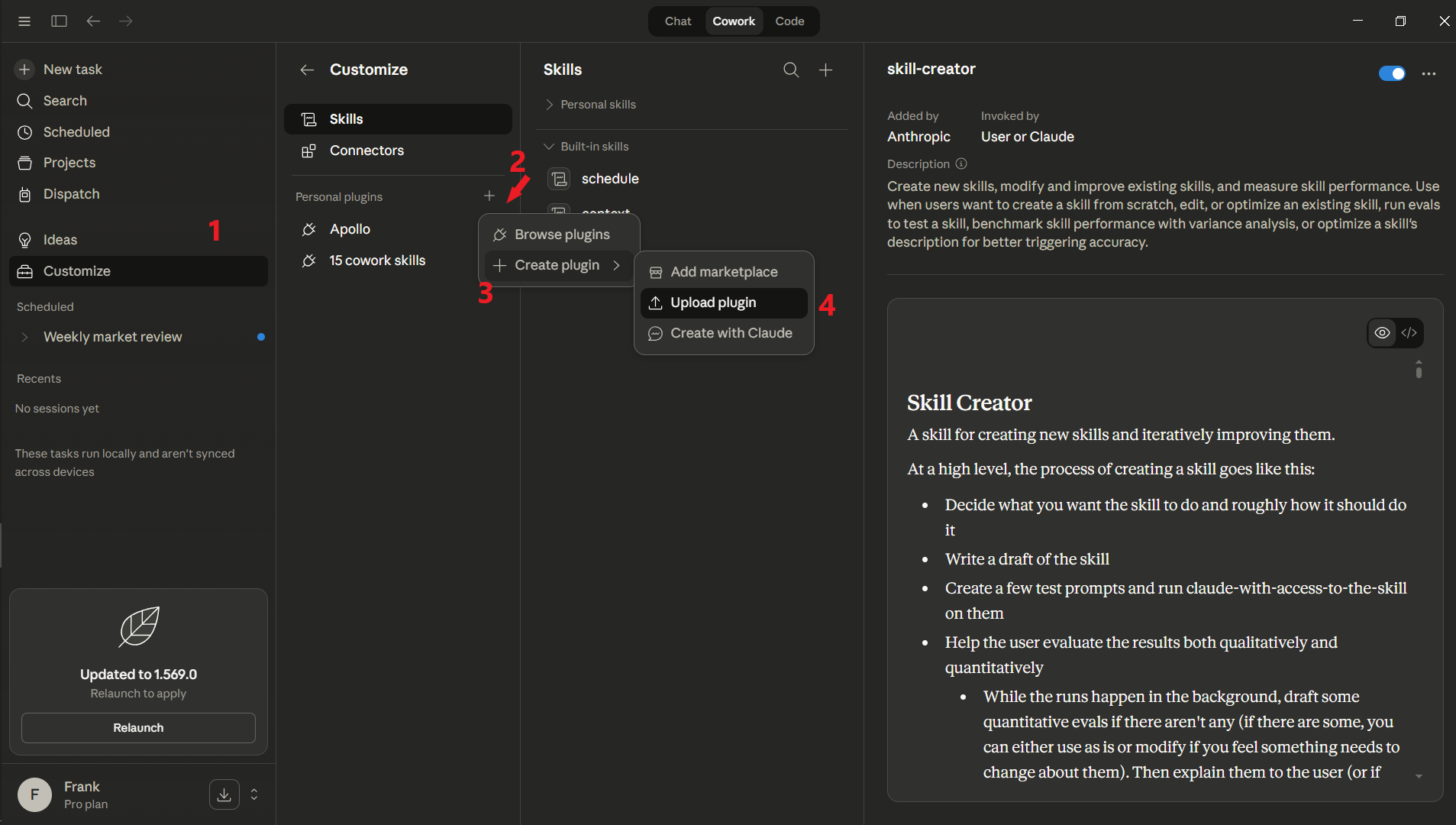
If the .zip file contains multiple skills (as in some of the files shared in this guide), you’ll have to add the .zip to plugins:
Customize → Personal plugins → “+” → Create plugin → Upload plugin → Upload your file
One more thing
You now have 11 skills that can save you hours every week.
But skills work best when you actually know how to use Claude well — the prompting, the workflows, the setup that makes everything click.
That’s what paid subscribers get:
Free access to all my video courses (over $200 in value)
A Google Doc with full access to my best Claude guides (updated every week)
A private community where you get advice from other professionals and from me
I’m adding new courses and guides constantly. Subscribe now and you lock in today’s price for everything that’s already there (and everything I add next!)
What was your favorite skill? Let me know in the comments
Subscribe to get my FREE Claude course.
20+ lessons delivered straight to your inbox 👇
Testing 100 Claude skills to find the best ones is incredibly valuable. Saved this.
feels like the drive is not accessible anymore or links are broken
would you have a new download link for these skills ?
thank you so much !!!
The webpage at https://drive.google.com/drive/folders/1PsfRPqza-QL5W52od-GE_ZOQcxTMAN1s might be temporarily down or it may have moved permanently to a new web address.