

Click here to get my FREE Claude course (20+ lessons)
Claude just released a new feature called “Record a Skill.”
A Claude skill is a set of instructions you save once. Claude then reuses them every time you need that same task done. Think of it as teaching Claude a job, then never explaining that job again.
I've created dozens of skills the old way. You'd type out every single step to teach Claude how to handle a task. That's tricky if you're not used to describing a process in writing. It's slow if you'd rather not type it all out.
Record a Skill is the easiest and fastest way to create a Claude skill.
With this new feature, you just record yourself doing a task and let Claude build the skill from what it observes.
In this guide, you’ll learn:
How to use Record a Skill
How to improve any skill
When to use it (and when the old way still wins)
First things first: Find the Right Task
Record a Skill works best for tasks you do with your hands more than your head. Anything click-heavy, repetitive, or full of small habits you'd forget to mention if you typed it out.
If you'd rather show someone than explain it, this feature is for you.
I have a few of those myself. Tasks I'd rather show than type out, which is exactly why some sat untouched for months. One of them sat on my list since March and I’ll use it as an example for this guide.
First, here’s some context:
A couple of times per week, I record myself doing some gym exercises. The videos sit on my iPhone, and when I move them to my Mac they all land with generic names (IMG_4521, IMG_4522, and so on). That’s useless to me.
Without Record a Skill, here’s what I’d have to type to create a Claude Skill:
This folder contains videos of me doing gym exercises.

The videos contain generic names. I want every file name to tell me three things:

- the exercise
- the weight I used (if visible on the video)
- the number of reps

...

[more instructions]

...

Once the files have real names, I want them grouped into folders by muscle group.

Pull-ups go in the back folder.
Squats go in the legs folder.
Tricep exercises go in the triceps folder

...

[more instructions]
This is just a simplified version. Notice I only said what I wanted, not how to get there. Sometimes Claude figures out the how on its own. Other times, you have to spell out every step.
I postponed this because it was not important enough to justify the typing. Once Record a Skill was released, I quickly created the skill by showing Claude the steps I’ve been doing manually for months.
Record a Skill
Follow these steps to use this feature:
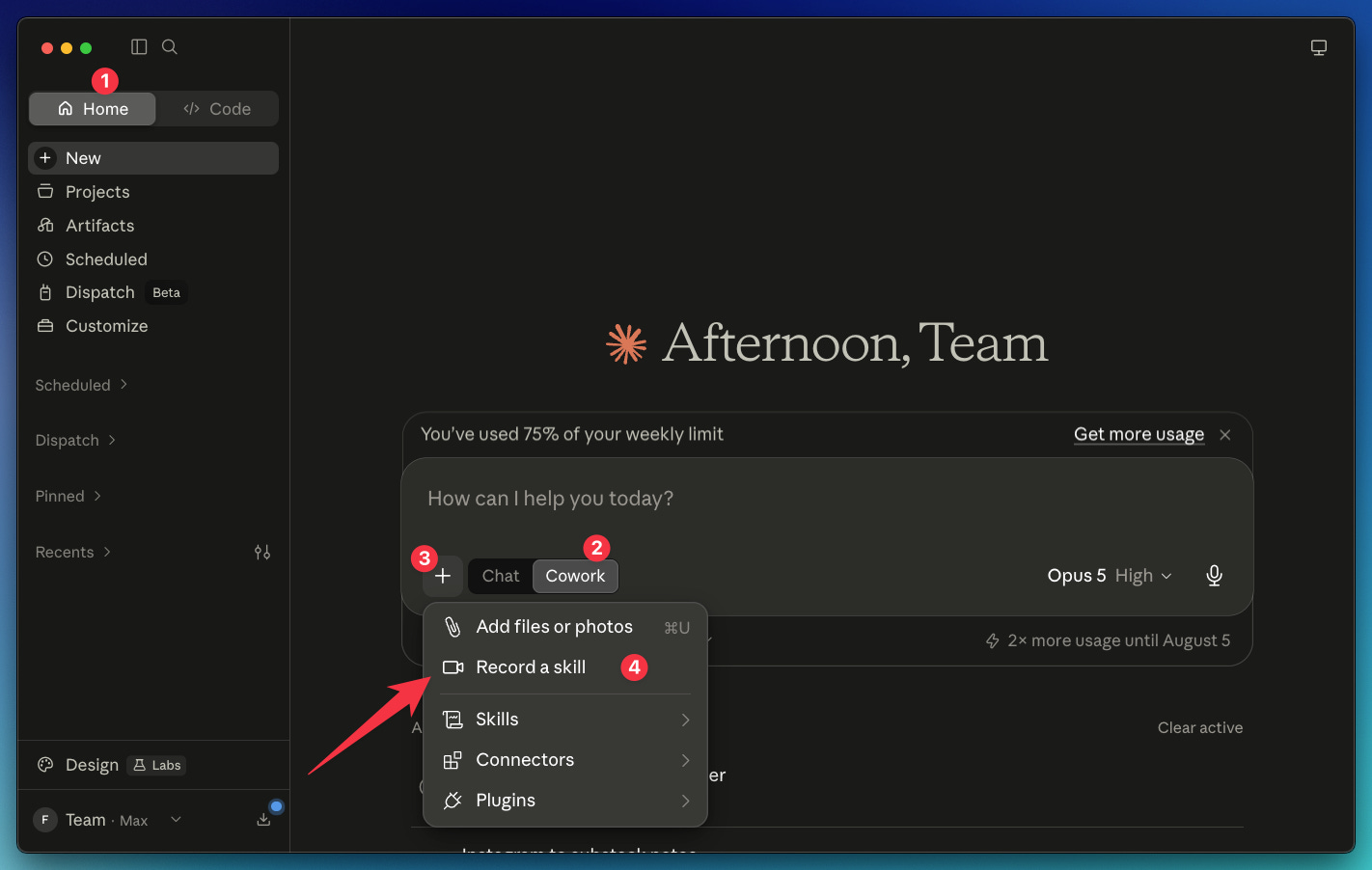
Step 1: Open the Claude desktop app → Home → Cowork → + → Record a skill
Step 2: Show Claude how you’d do the job
In the video below, I show Claude the steps I follow to rename my video files: I watch the video, identify the exercise and weight, and count the number of repetitions. This is easy to do when there’s one file, but time-consuming when you’ve recorded dozens of videos.
Keep this in mind for step 2:
Before you record, close any files, apps, or conversations you don’t want captured.
A recording can run for about 10 minutes. A countdown appears in the capture bar when you have about a minute left
Make sure your recording is clean. Any mistakes or false starts may confuse Claude
If necessary, talk through what you’re doing while you record. Narration gives Claude context it can’t get from your screen alone.
Step 3: Stop the recording and let Claude generate the skill
Once you’re done, stop the recording.
Claude will automatically generate the task, review the recording, then propose a skill.
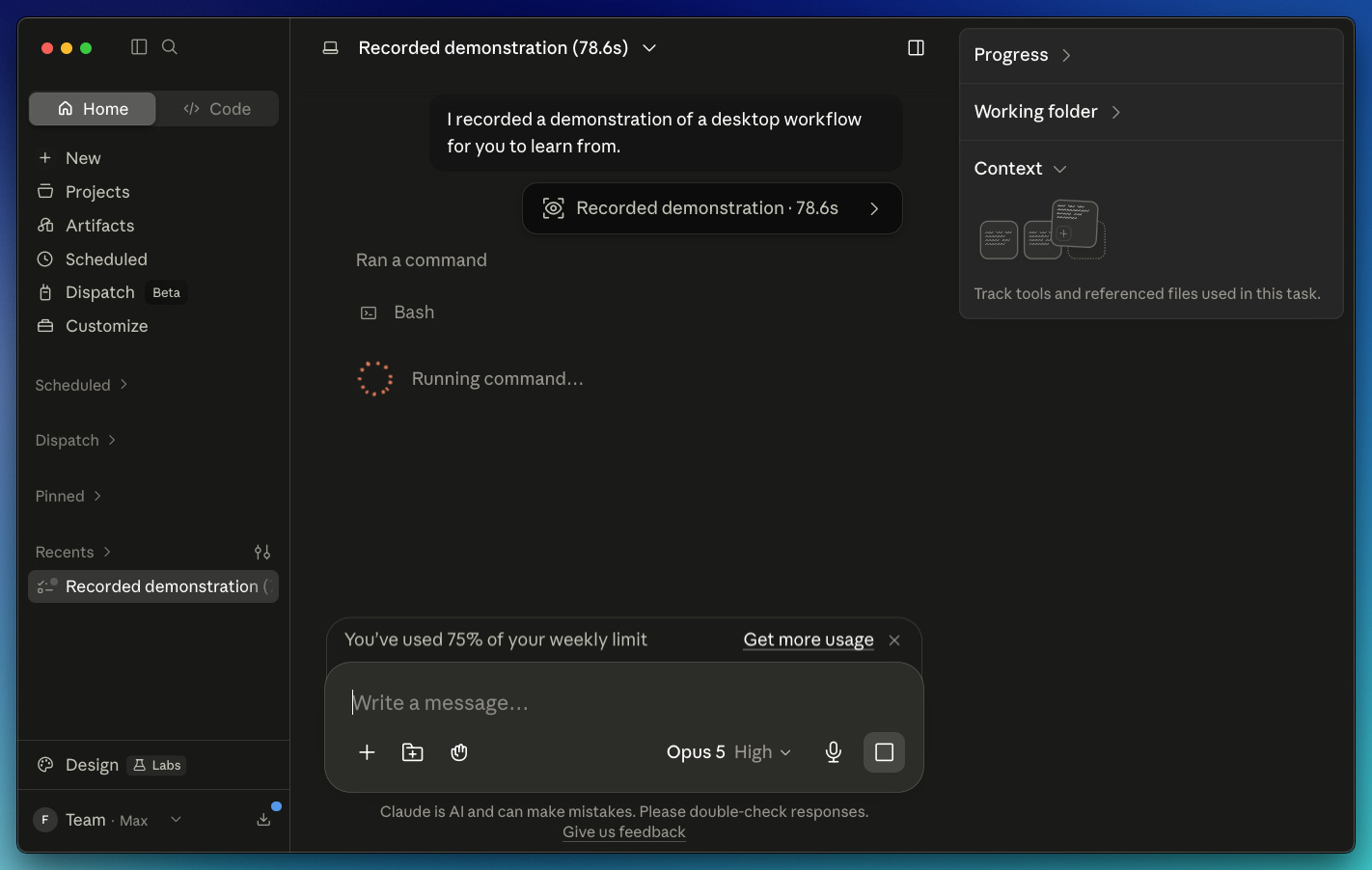
After a couple of minutes, a “save skill” box will pop up. Click Save.
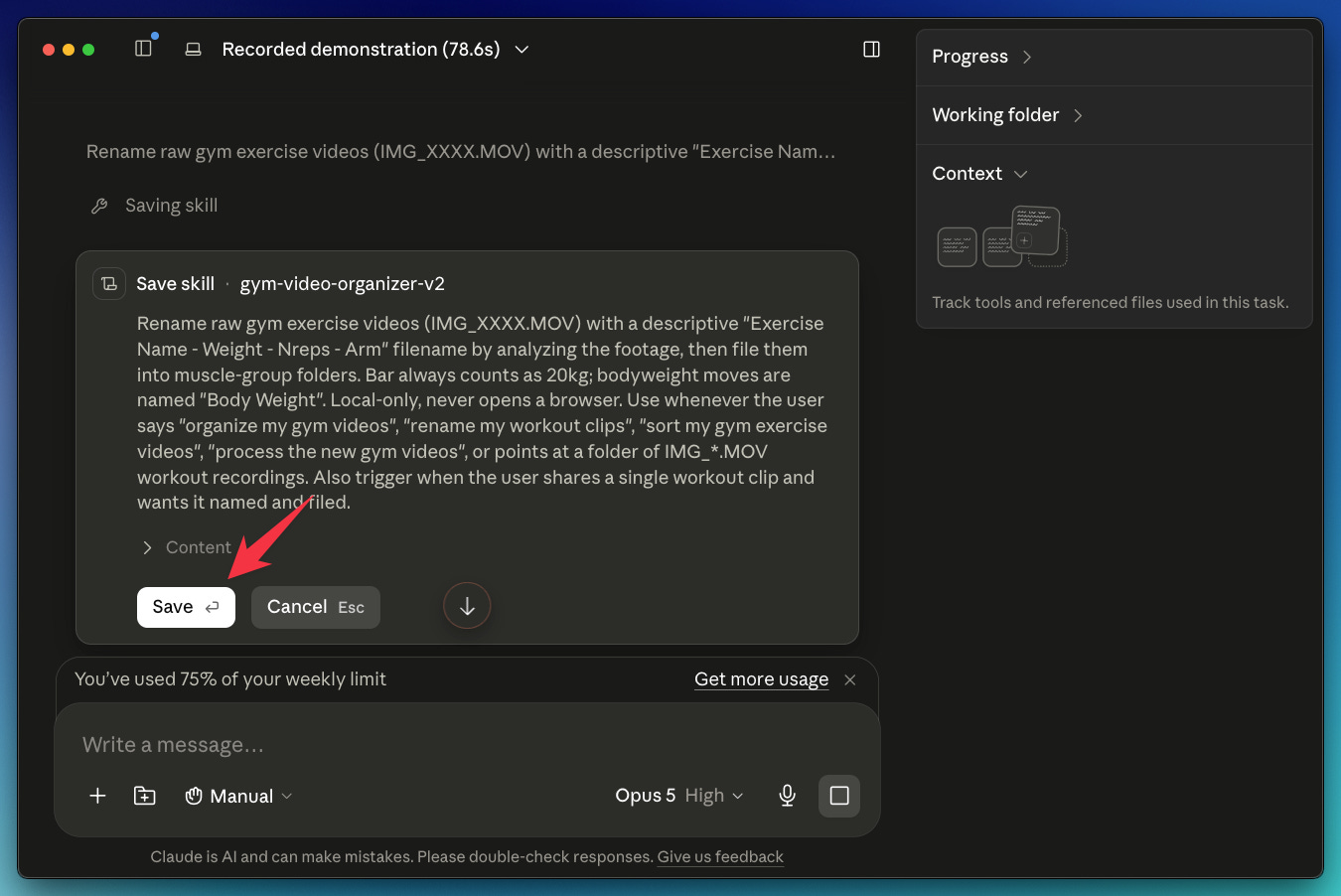
You’ve just created a new skill!
Treat this skill as version 1. If necessary, improve the skill following the instructions below.
How to improve any skill
Record a Skill gives you a nice first version.
That might not be enough, though.
After a few runs, you might find things the recording didn’t capture: exceptions you forgot to show, rules that only exist in your head, and steps where Claude guessed instead of knowing.
Here’s what happened with my gym skill. The first version renamed the videos correctly, but it got confused with two edge cases:
Exercises with a bar (the bar weighs 20kg, but the number never appears in the video)
Bodyweight exercises like pull-ups (there’s no weight at all)
The fix is simple. The improvement process for any skill has 3 steps.
Step 1: Run the skill
Once the skill is created, open a new task and run it. Type / followed by the name of the skill to call it.
The improvement happens by running the skill.
Don’t expect the first run to be perfect. Expect some back and forth:
Claude realizes things on its own when working with new samples
You give Claude feedback (”bodyweight exercises should say Body Weight instead of a number”)
You correct, Claude retries, you correct again
All of that back and forth is not wasted time. It’s the raw material for the next two steps.
Step 2: Extract the lessons and your feedback
Once the run finally ends successfully (and only then), I send these two prompts:
List the hard-earned lessons from this run.
Claude goes through everything that happened during the task: what it tried, what failed, and what it had to figure out on its own.
How about the feedback I gave you? List them too.
This catches all the corrections you typed mid-run. Without this prompt, those corrections die with the conversation. Next run, Claude makes the same mistakes again.
Why extract these lists instead of jumping straight to updating the skill? Because it lets you review them before they go in. Sometimes Claude learns the wrong lesson from a run, and this is your chance to catch it.
Step 3: Fold everything into the skill
Once you’re happy with both lists, send the final prompt:
Update the skill: fold my feedback and the hard-earned lessons into the skill.
Claude edits the skill file for you. Next run, those cases won't trip Claude up anymore
Click here to get my FREE Claude course (20+ lessons)
When to use it (and when not to)
Record a Skill isn’t replacing the traditional way of creating skills.
The traditional way: you open a task, tell Claude what you want, go back and forth until Claude handles it exactly how you like, and then ask it to turn everything into a skill.
Both roads end at the same place (a skill). The difference is where the knowledge lives.
Record it when the knowledge lives in your hands
Some tasks you do on autopilot but would struggle to write down. Try describing how you tie your shoes. Hard, right? Doing it takes 3 seconds. These tasks are perfect for recording:
Click-heavy tasks in apps and menus, especially when they jump between multiple apps
Tasks full of micro-decisions you don't even notice you make: duplicating a file before touching it, pasting as values instead of regular paste, etc. You might forget to type these, but the recording (plus your narration) catches them
Tasks you’ve been postponing for months because typing the steps felt like homework
Type it when the knowledge lives in your head
Some tasks have nothing to show on screen or are too complex. For these, the chat route wins:
Complex tasks. Some of my most useful skills came from long chats. These aren’t click sequences. Some are decision trees full of rules and checkpoints. Some are problems where clicks were never the answer (Claude created a small script to solve them). You can't record any of that. You can only talk your way there.
Workflows that don’t exist yet. You can’t record something you’ve never done. In a chat, you and Claude design the process together
Tasks with many “it depends” moments. A recording captures one successful path. In a chat, the back and forth surfaces the branches before the skill exists
Tasks where your manual way is a workaround. If you copy-paste between 4 tabs because that’s the only way a human can do it, don’t teach Claude your detour. In a chat, Claude often proposes a faster route (a quick script instead of 50 clicks)
My rule of thumb: imagine you have to explain a task to a coworker over the phone. If you’d say “it’s easier if I just show you,” use Record a Skill.
One more thing
You’ve read the whole process. Recording, running, fixing, running again.
Don’t let it stay theory.
Go automate that task you’ve been postponing since who knows when.
I wrote this guide so you can teach Claude the way you'd teach a new hire: by showing, not writing a manual. Becoming a paid subscriber gets you my full library of guides, the skills and workflows I actually use, and new ones every week.
Join my newsletter with 80K+ people to master AI in 2026
Not a useful example of something important that it could automate for you.
Not fit for use in the terminal, I guess.