

[Updated March 2026]
Since ChatGPT’s release, I’ve been using it exclusively for my main projects. However, last year I started moving some of my projects from ChatGPT to Claude.
This year, I finally switched.
This article is about why I’m choosing Claude over ChatGPT.
Reason #1: Claude Artifacts
Reason #2: Instruction following
Reason #3: Claude’s responses
Reason #4: Automate presentations, reports, docs, and more (Skills)
This is mostly what Claude chat offers that ChatGPT doesn’t. Claude chat is the equivalent of ChatGPT, but Claude also offers Claude Cowork and Claude Code (which deserve their own guides)
Here’s what makes Claude chat different.
Hi! I’m Frank (aka The Pycoach)
If you’re new here, welcome! Here on Substack, you’ll find exclusive content that you won’t find on my Medium page or YouTube channel
Here’s what you get by becoming a paid subscriber:
Free access to all my video courses
Full article access + gated prompt library and AI workflows
Access to all my guides → Click here to read all my Claude guides
Reason #1: Claude Artifacts
Claude artifacts are interactive applications created by Claude during a chat. They can be documents, websites, and diagrams that appear in a dedicated panel next to the chat.
Artifacts are great for easy viewing and editing. Claude can create and edit Word docs, PowerPoint presentations, spreadsheets, and PDFs directly.
For example, I have a prompt that proofreads my articles. I give it a draft, and it produces three files:
A) Clean copy (final, ready to publish).
B) Change log with bullets explaining notable edits (rewordings, deletions, tone shifts)
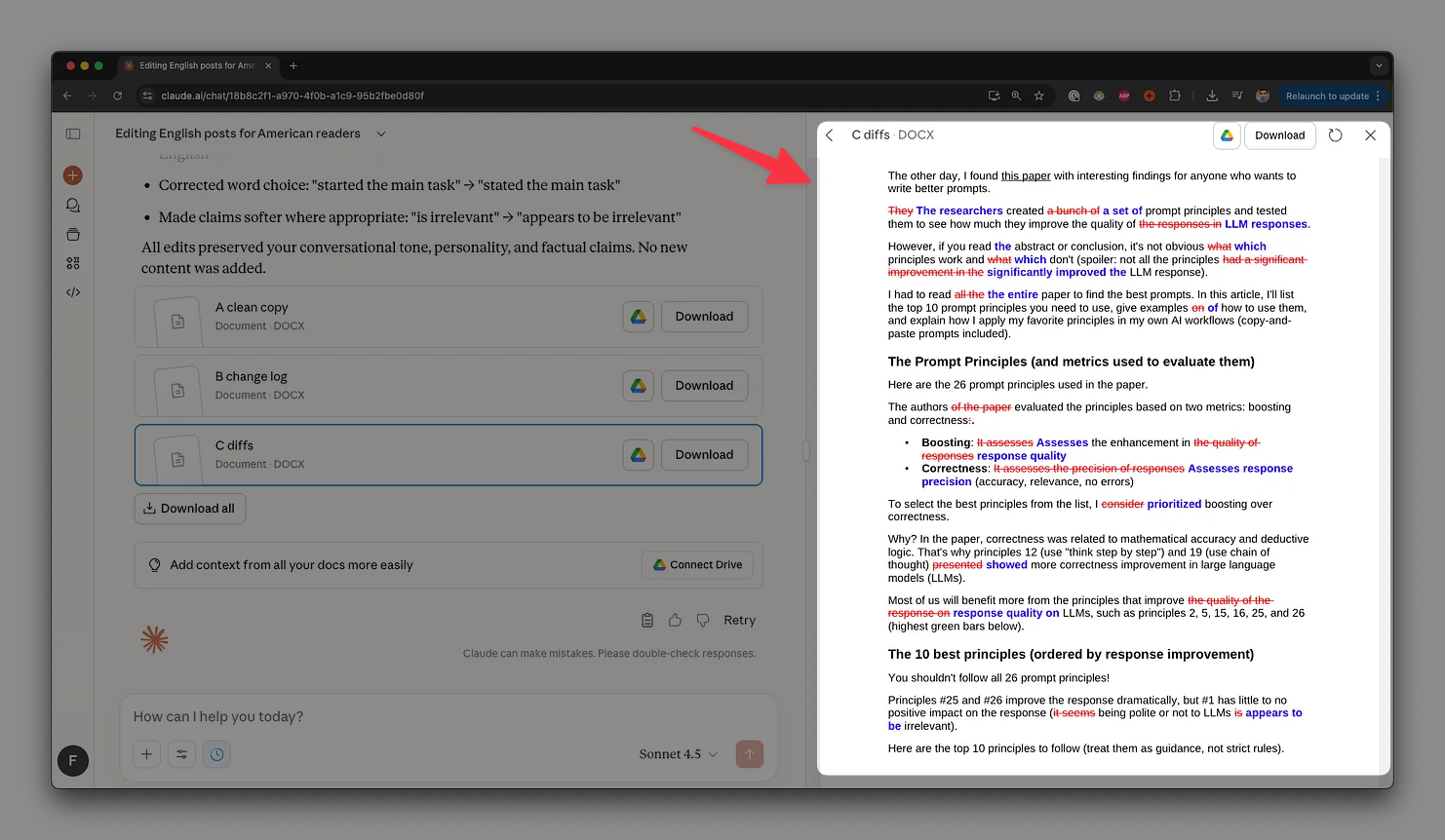
C) Diffs: Shows a diff with deletions (strikethrough) and bold insertions. Strikethrough in red and bold insertions in blue
When I run my prompt with Claude, a panel opens on the right. That’s the artifacts panel. There, I can quickly take a look at the content of the file and iterate if I’m not happy with the result.
As you can see below, the doc artifact supports strikethrough and colored bold insertions, which makes it easy for me to spot the corrections.
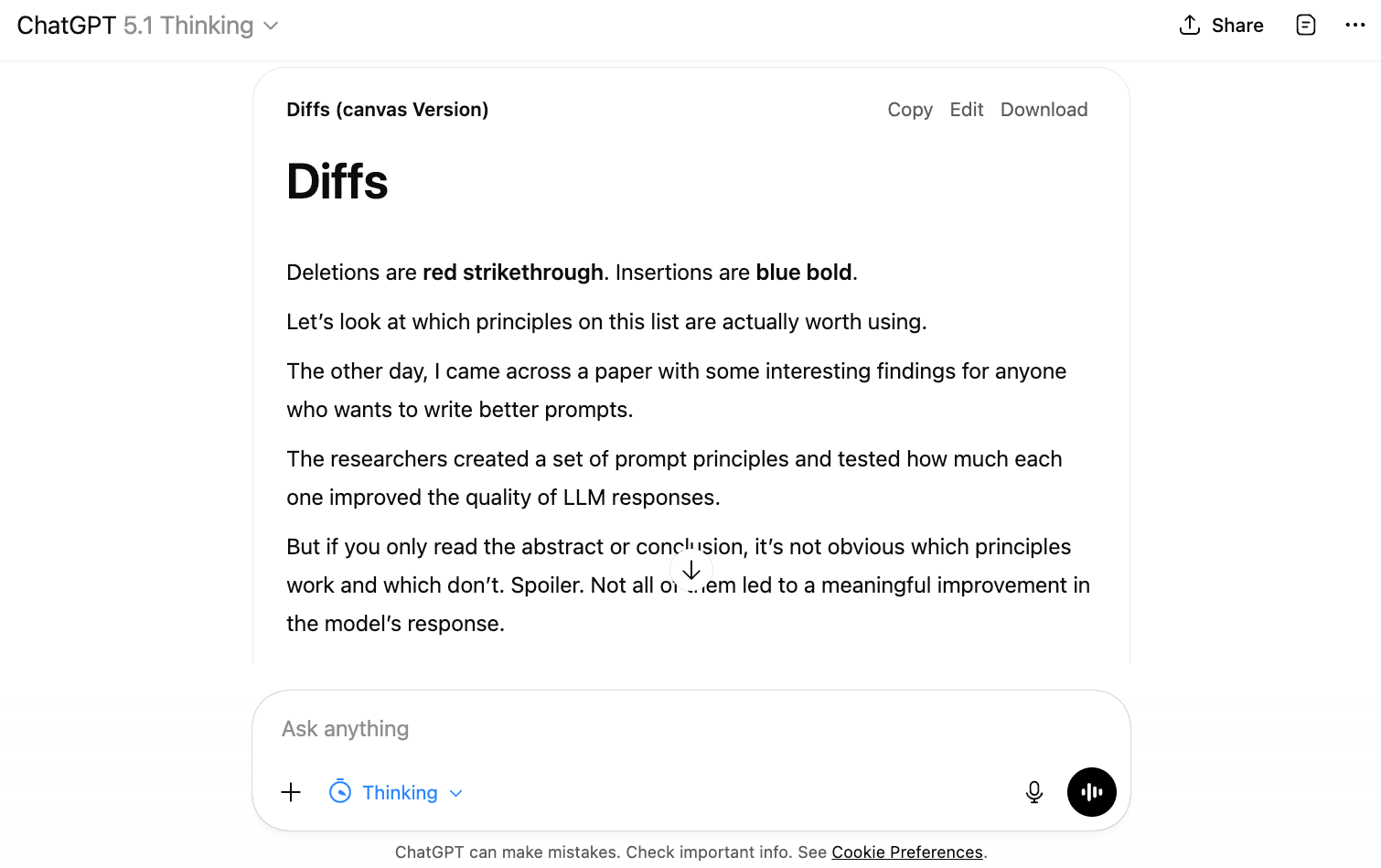
When I tried this prompt with ChatGPT, I only got a download link. When I turned on “Canvas,“ I got something similar to Claude artifacts but without any formatting, making it very hard to spot the corrections.
Claude artifacts can also help you turn ideas into interactive AI-powered apps, which is great if you want to create a dashboard, quizzes, training materials, landing pages, and anything that can be created with code (without you knowing how to code!)
If you need inspiration, there are a bunch of artifacts examples available in Claude.
Reason #2: Instruction following
After testing similar prompts on ChatGPT and Claude, I’ve noticed that Claude is slightly better at instruction following than ChatGPT.
That small edge may be irrelevant in some cases, but it can be critical in others.
Let’s consider my proofreading prompt again. Claude successfully generated three files as requested, but ChatGPT put all three files into one.

Now, this isn’t a big deal. I could ask ChatGPT to split the files into three.
Things got ugly when I opened the files ChatGPT generated, though—especially the one with the highlighted corrections.
Claude properly highlighted the deletions and text insertions, while ChatGPT colored half of the text blue and the other half red.
In my prompt, I asked for a “light edit while preserving my meaning and voice.“ Claude followed my instructions, while in some cases ChatGPT completely changed my sentences

I asked ChatGPT to fix its mistakes multiple times, but it wasn’t able to do it.
This isn’t something exclusive to this task. Claude understands my instructions more reliably when generating reports, presentations, and other documents.
Reason #3: Claude’s responses
If you ever found ChatGPT’s responses robotic, long, and overwhelming, you might like Claude’s more.
Claude usually goes straight to the point and avoids recycled filler phrases
By default, Claude’s responses sound more human and less robotic
Claude can copy your writing style (it’s not perfect, but it’s better than ChatGPT)
To create a writing style on Claude, follow these steps:
Search and tools → Use style → Create & edit styles → Add writing samples
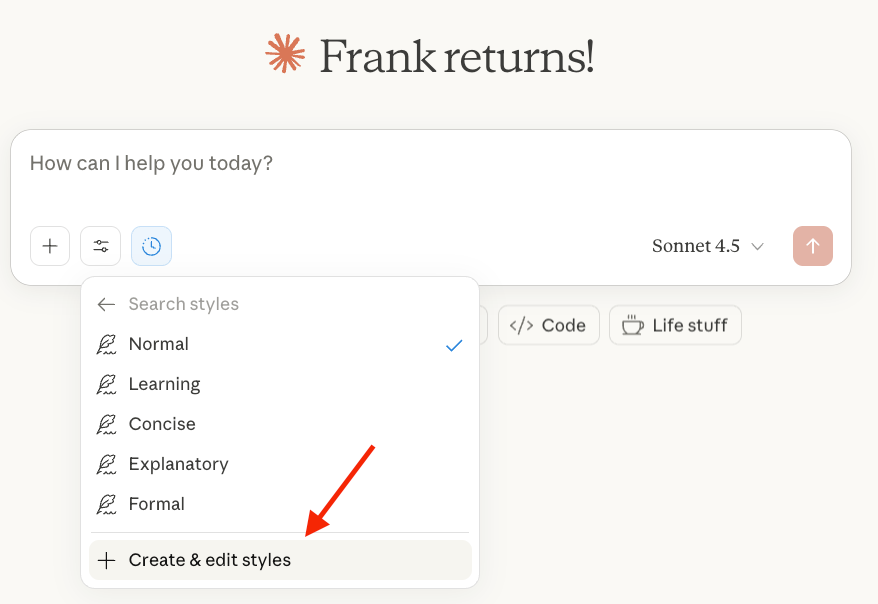
Provide writing samples to help Claude copy your writing style.
Note: That’s a basic way to make Claude copy your writing style. There’s a more robust method that generates a file with instructions that teach Claude how you write (like cloning your voice).
For more details, read the guide below 👇
📚 How to Make Claude Write Like You
Reason #4: Claude Skills (Automation)
If you’ve ever struggled to get tasks done quickly using custom GPTs or projects (whether for yourself or your team), you should try Claude Skills.
Claude Skills is a paid feature that lets you generate reusable instructions to help it perform specialized tasks.
You can create a skill to follow your company’s standards more reliably
Let’s see an example
I asked Claude to create a quick presentation about Claude Skills (no skills enabled). I got very generic slides

Here’s what I got when using a skill that copies Anthropic brand guidelines (it nailed the colors, design, etc)
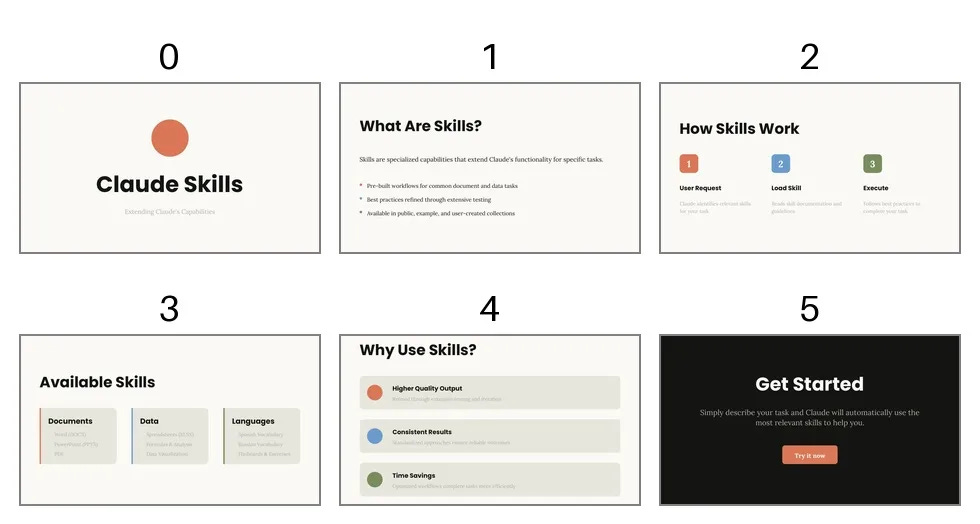
There are many skills you can create (or download … more on that later).
Here’s another skill I used to turn a dataset into a report with insights and visualizations
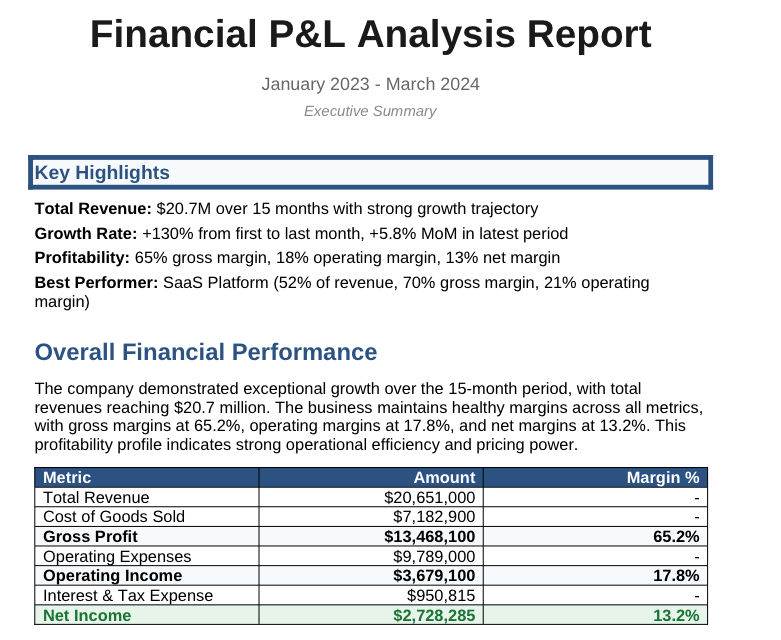
Just like that, you can use skills to:
Create custom workflows
Save hours on repetitive tasks (creating reports, docs, etc)
Generate content that follows your company’s brand guidelines, chart styles, font choices, visual design principles, and more
How to use Claude skills
To work with Skills, first you have to enable this feature. Go to Settings → Capabilities → Turn on Skills
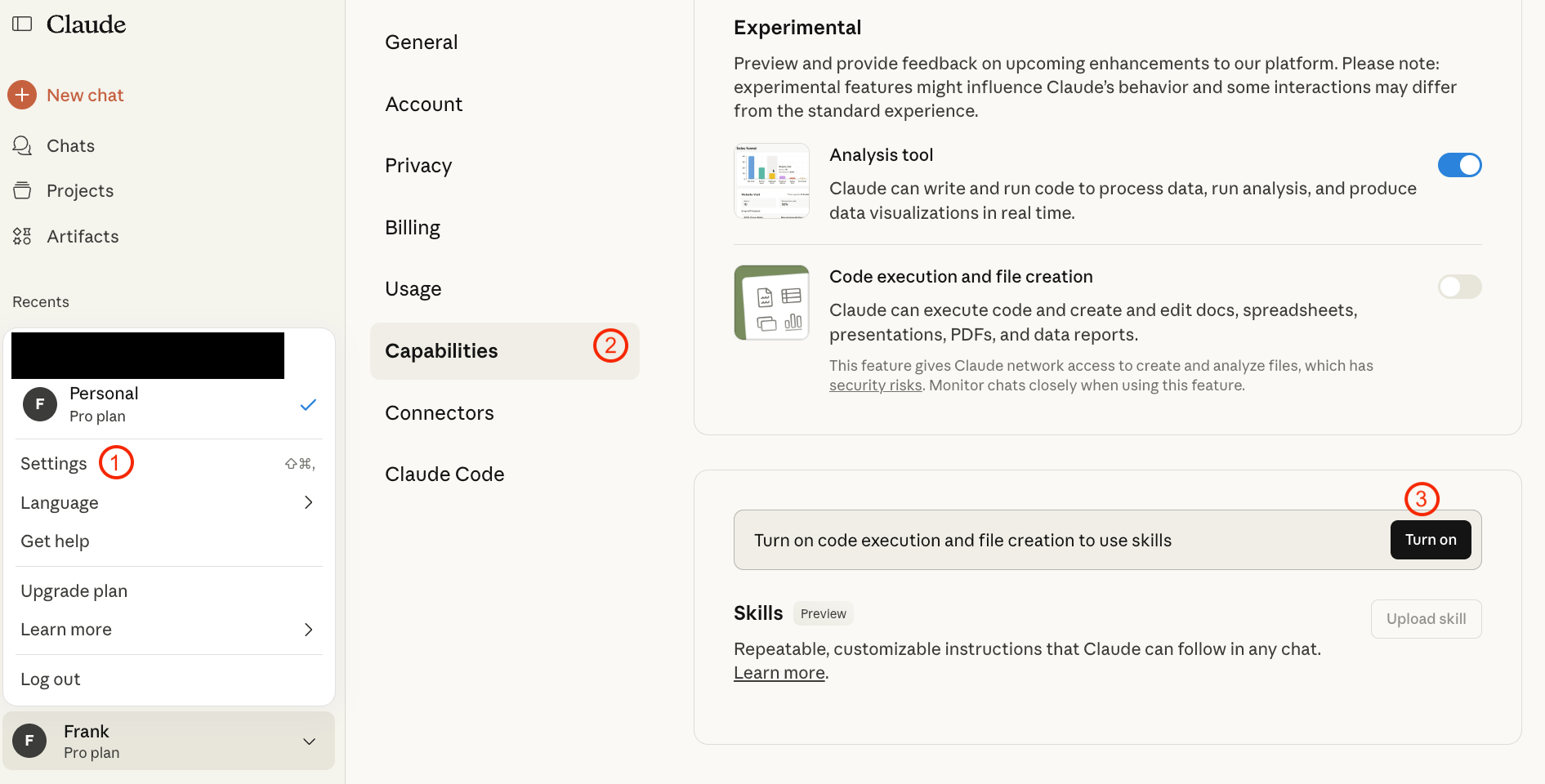
In the Skills section, you’ll see skills created by Anthropic. To enable one, just toggle the switch on.
There are two ways to use skills. You can click on the three dots and click “Try in chat“ or simply let Claude decide when to use it based on your prompts. In my experience, Claude does a good job recognizing when to use a particular skill, but if you want to be sure it uses one, click “Try in chat.“

Then you have to type a prompt.
For the previous example, I used this simple prompt.
create a quick presentation on claude skills. use anthropic brand guidelines
After prompting, you can see whether Claude picked the right skill by reading the first lines of the response.
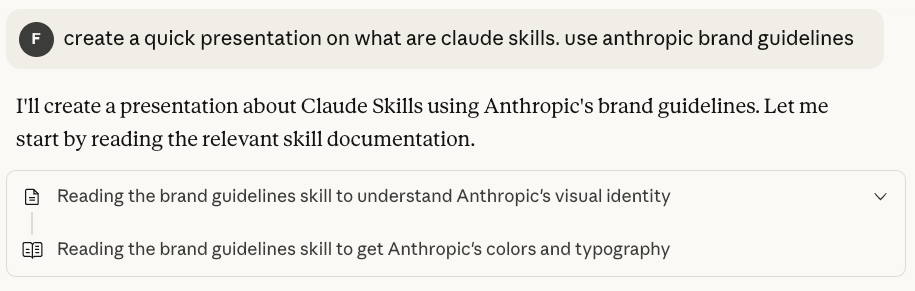
You can enable/disable any skill, but I highly recommend that you always have the skill-creator skill on. It’ll come in handy for creating skills.

How to create a Claude Skill
Creating a skill is as simple as describing to Claude what skill you want to build. Here’s the prompt I used to create a Google brand guidelines skill.
Help me create a skill that applies Google’s official brand colors and typography to any sort of artifact that may benefit from having Google’s look-and-feel. It should be used when brand colors or style guidelines, visual formatting, or company design standards apply
When creating a skill, you should always get a zip file at the end of the response.

What does the zip file contain? A SKILL.md file, which is a markdown document with instructions on how to handle a task. It might also contain extra resources like examples, templates, and even executable code.
In this case, the zip file contains two .md files that you can edit to adapt them to your company’s brand guidelines.

Click here to download this skill
How to add a new skill to Claude? Go to Settings → Capabilities → Skills. There, you can click on Upload Skill or simply drag the file.
Once a skill is added, open a new chat and write your prompt in plain English
create a quick presentation on claude skills. use google brand guidelines
That’s it! Claude will use the new skill to create the presentation.
I used this skill to recreate the presentation we’ve seen before, but now in Google’s style.
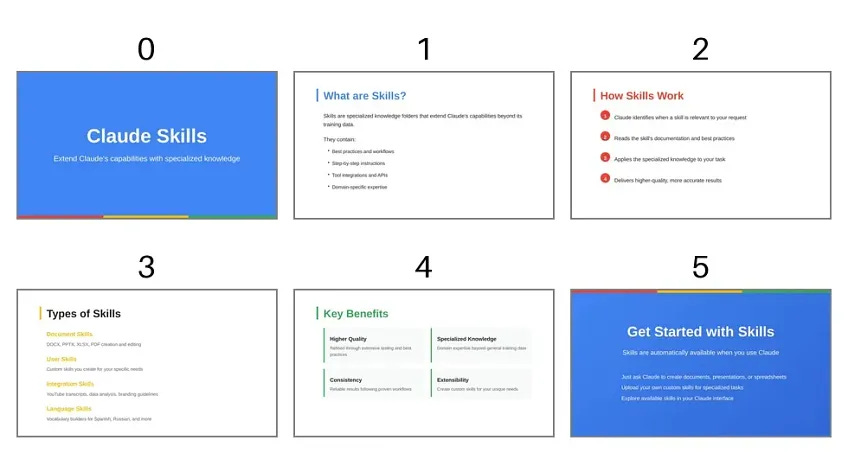
If you open the .md files, you can see what instructions have been considered to create a skill. If you’re not happy with the results, feel free to change what’s inside the files or ask Claude to change it.
Here are two important things to know:
When I first tried creating this skill, I had the skill-creator skill turned off. The result? I got errors when uploading the zip file to Claude. I could only get a working zip file after enabling skill-creator.
You don’t need a complex prompt to create a skill—most of mine started as one-liners. That said, the more detail you include, the more tailored the skill will be.
When prompts are simple, Claude asks follow-up questions to build a better skill.
I created a skill to help a language teacher create presentations for his lessons. The prompt I used was as simple as:
help me create a skill for learning foreign languages
Before creating the skill, Claude asked whether I wanted to target a specific language, proficiency level, and more. I narrowed it to Spanish vocabulary for beginners.
Skills Repository
Here are a couple of skills I found useful:
CSV Data Summarizer: Analyzes CSV files and generates comprehensive insights with visualizations (I used this skill to create the report shown before)
Meeting Intelligence: Prepares meeting materials by gathering context from Notion, enriching with Claude research, and creating both an internal pre-read and external agenda saved to Notion
Here you can find more skills (some might need Claude Code knowledge). Still, I think the beauty of skills is in creating one that fits your particular needs.
Skills can be as simple as a few lines of instructions or as complex as multi-file packages with extra resources and executable code. If you want to properly work with multi-file packages, read this guide by Anthropic.
Limitations of Claude skills
Finally, here are some downsides and limitations of Claude skills:
It’s a paid feature: This feature isn’t available to free subscribers. It needs a Pro, Max or Team subscription
This isn’t a one-shot solution: Occasionally, you’ll get inconsistent and unexpected results. The more refined the instructions in the ZIP file, the more likely you are to get the results you want.
A skill can be used at any time (even when you don’t want it to). While that’s convenient, you might trigger a skill when you don’t need it. To reduce this, only keep the skills you use often enabled
Great insights…. And practical!
I do legal research and writing, publications. Chatgpt helps in some basic research and my word structures. Looking at options. Any suggestions welcomed.