


Click here to get my FREE Claude course (20+ lessons)
Most people use NotebookLM and Claude Cowork separately.
NotebookLM to do research or get answers grounded in their documents. Cowork for building a report, infographic, dashboard, and apps without coding.
Connect them, and you get something unique. Tools built on your own data. The research layer and the build layer finally talk to each other.
Nobody does this. Everyone should.
In this guide, you’ll learn:
How to connect NotebookLM to Claude Cowork
Use Case 1: Turn spreadsheets into infographics your CEO will read
Use Case 2: Build a personal language tutor app before your next trip abroad
Use Case 3: Spy on competitor content and extract what’s working
This guide was written in collaboration with Gencay.
Gencay writes LearnAIWithMe, a newsletter focused on practical AI tutorials for people who’d rather replace than be replaced by AI.

What does connecting NotebookLM and Claude Cowork solve?
Two things.
One. Your data becomes the source of truth.
NotebookLM grounds every answer in the sources you upload. Every claim traces back to a citation you can click.
Cowork normally runs on training data. Useful, but can be generic. Connect it to NotebookLM and Cowork now reasons from your sources. Your internal docs or your research.
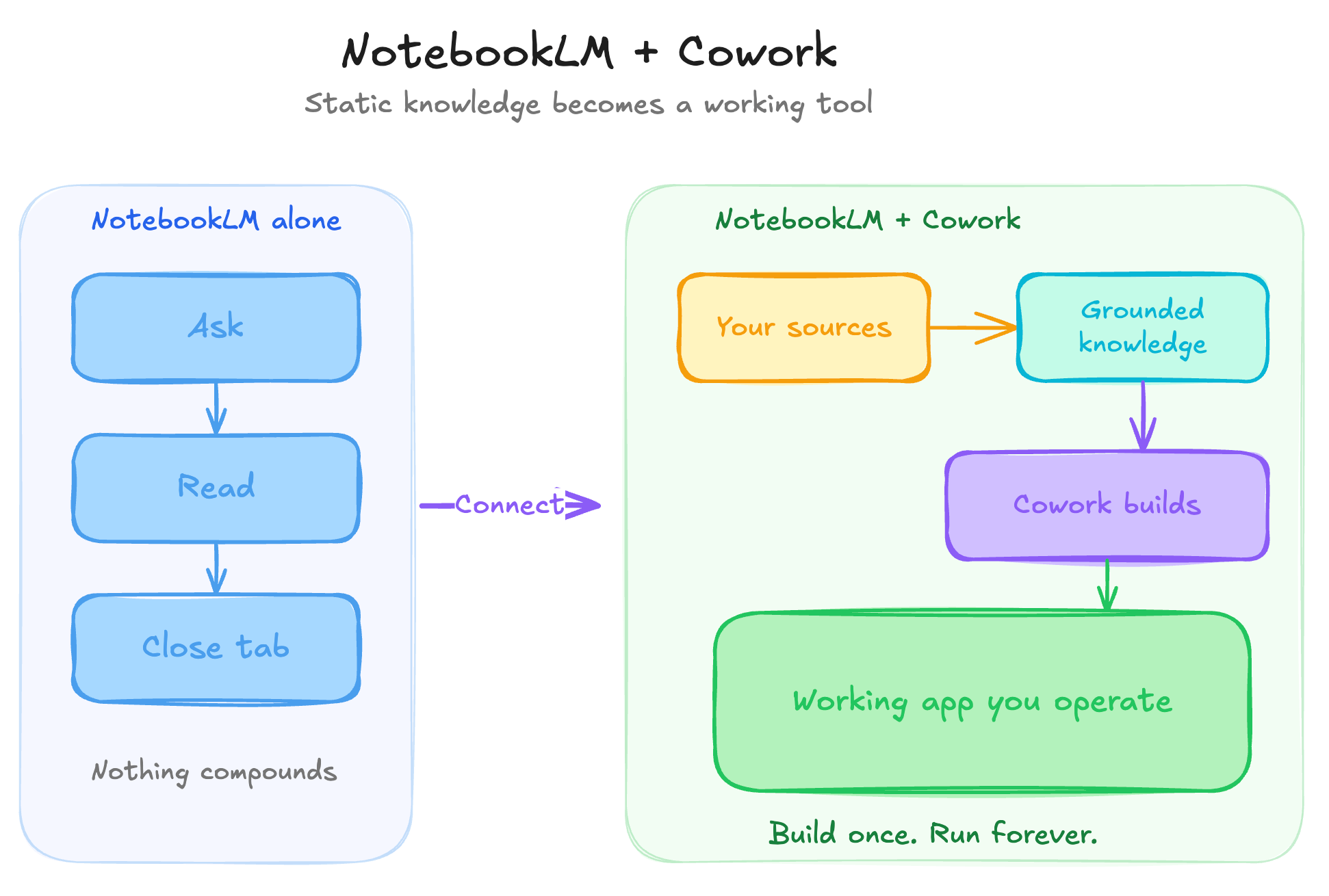
Two. Static knowledge becomes a working tool.
NotebookLM alone stays “ask and read.” You open it, type a question, read the answer, and close the tab.
Cowork turns that same knowledge into an app you operate. An artifact or infographic creator. Something you use every week, not a tab you forget.
Build once. Run forever.
How to connect NotebookLM and Claude Cowork
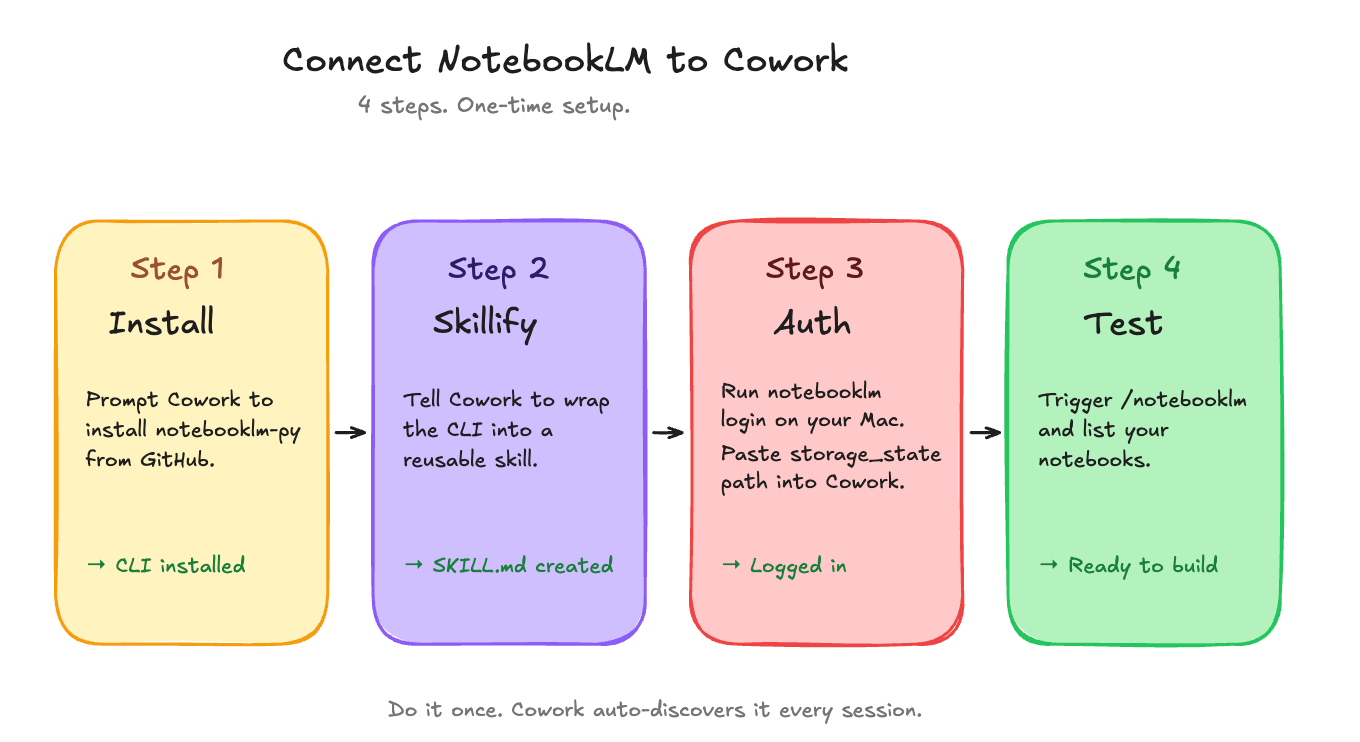
There is no official connector.
What works is this repo: github.com/teng-lin/notebooklm-py.
Unofficial, but powerful.
Step 1: Install NotebookLM-py
Run this prompt in Cowork:
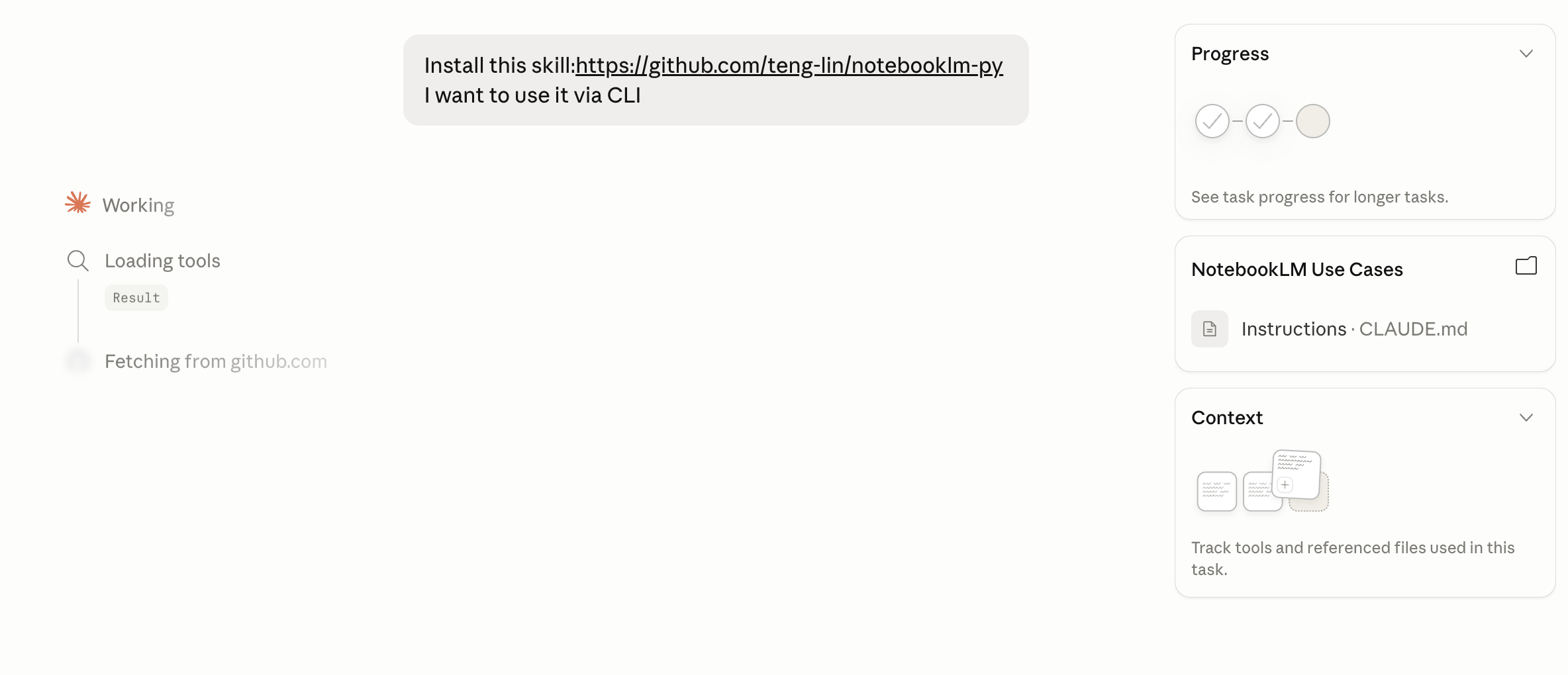
Install this skill :https://github.com/teng-lin/notebooklm-py
I want to use it via CLI
Let it work. The progress bar shows up in the top right.
Step 2: Turn it into a Skill
Next prompt:
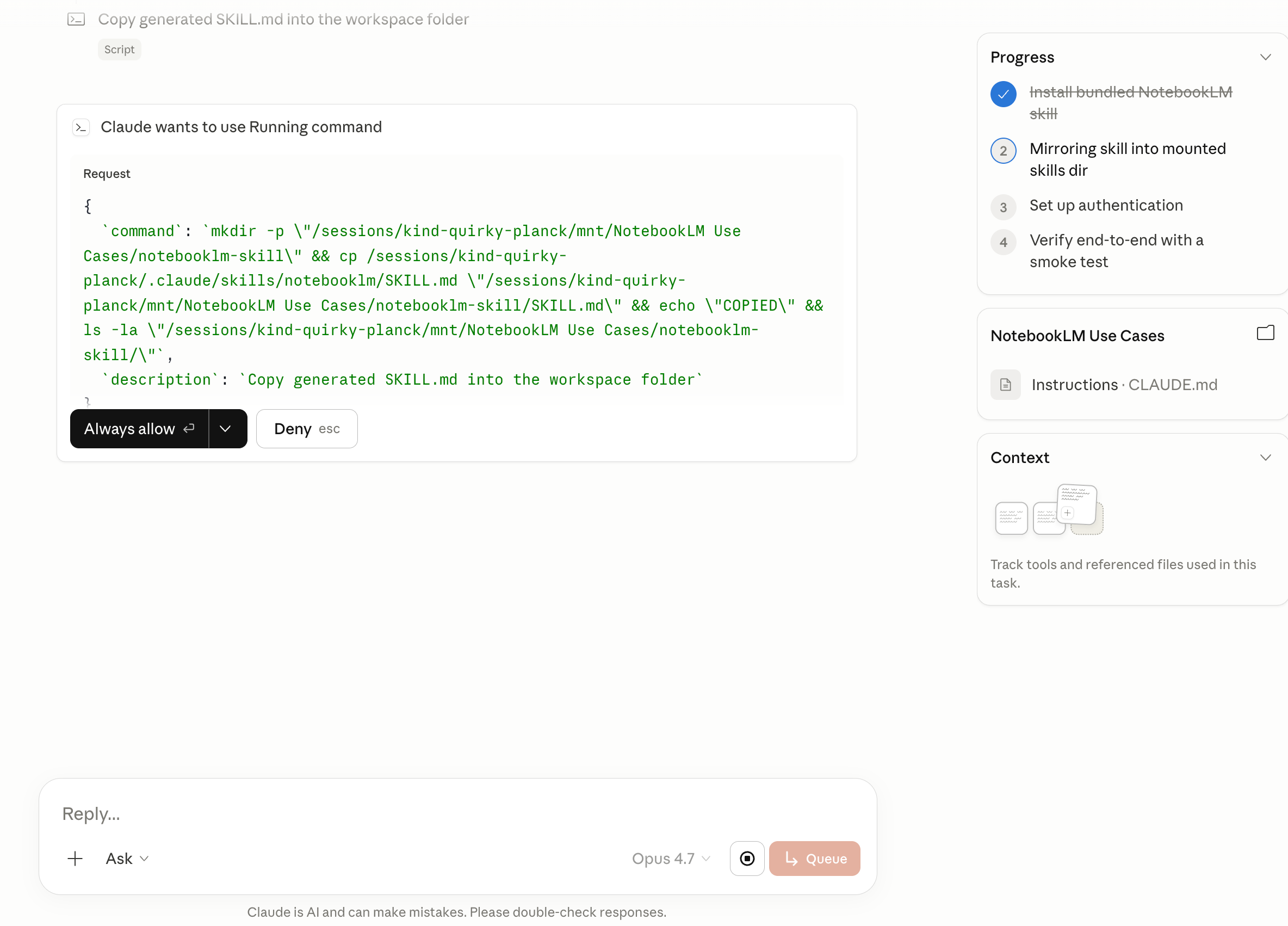
I want to drive this on Claude Cowork because I’ll turn it into a skill and do whatever is needed.
Cowork starts building.
Watch the progress bar on the top right, walk through the checklist.
Step 3: Auth
Cowork cannot log into Google from the sandbox.
You log in on your Mac and hand the session back.
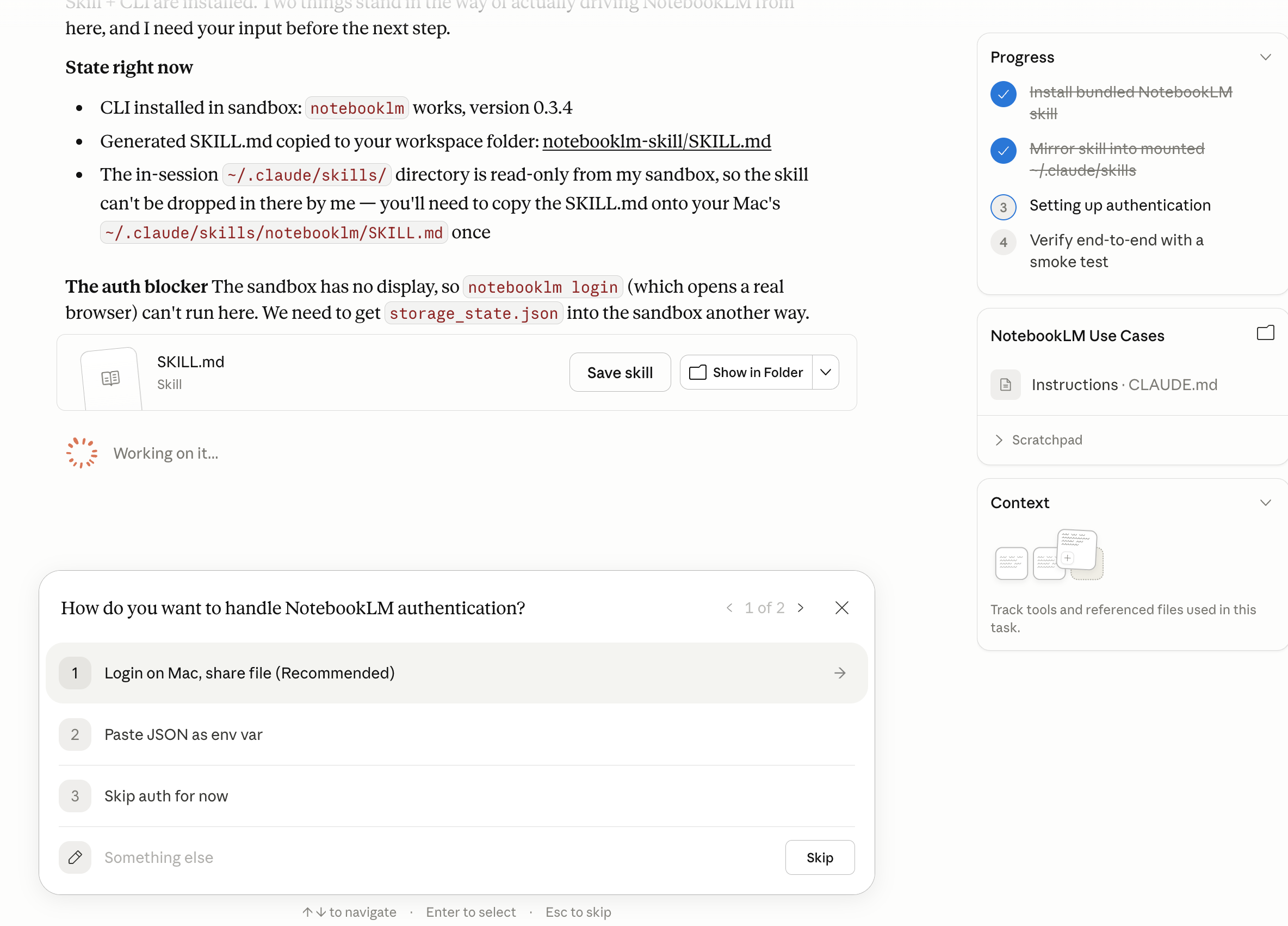
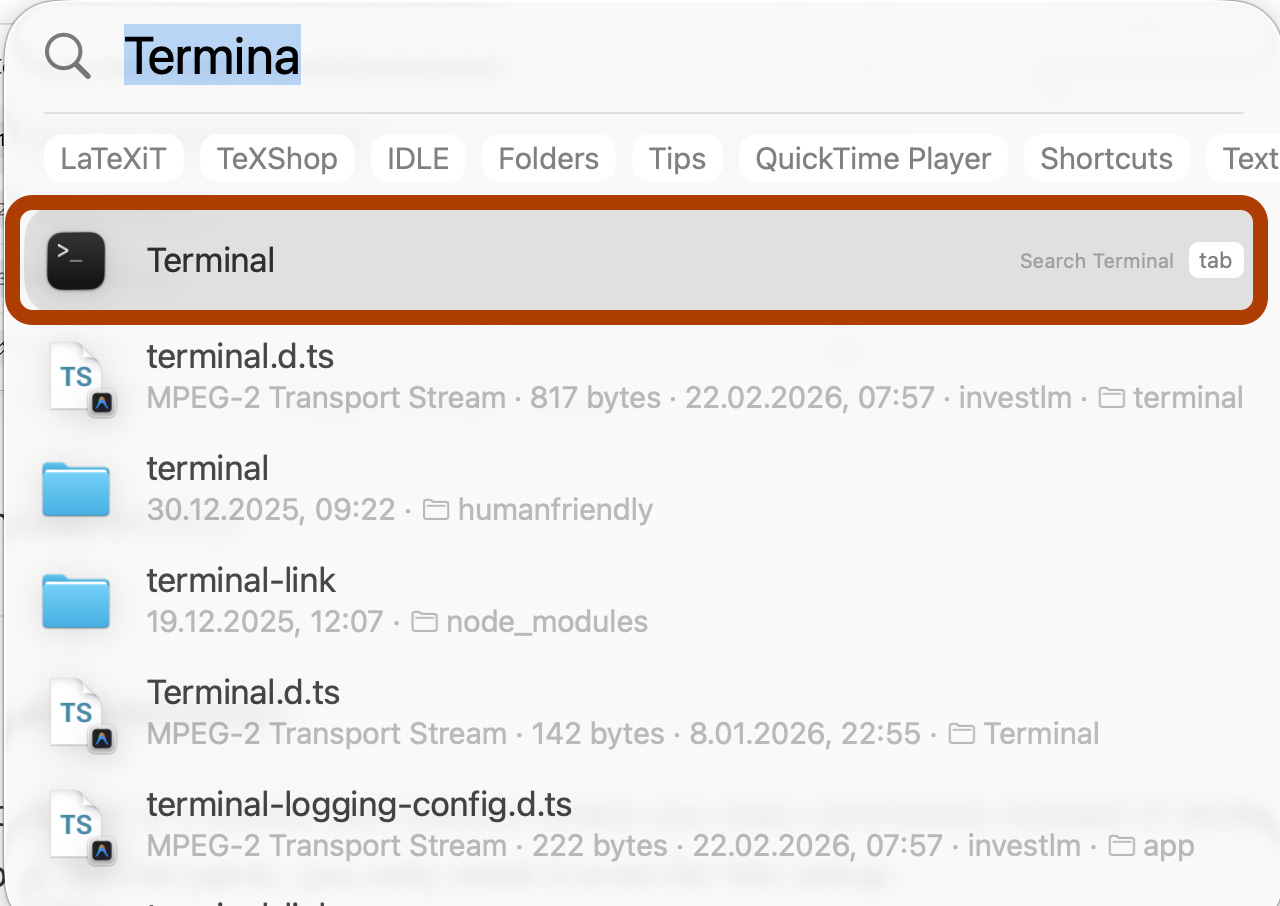
Open your terminal.
New to the terminal?
The terminal is a simple text window where you type commands instead of clicking buttons. Do not panic, you only need it once for this setup.
On Mac: Press Cmd + Space, type Terminal, hit Enter.
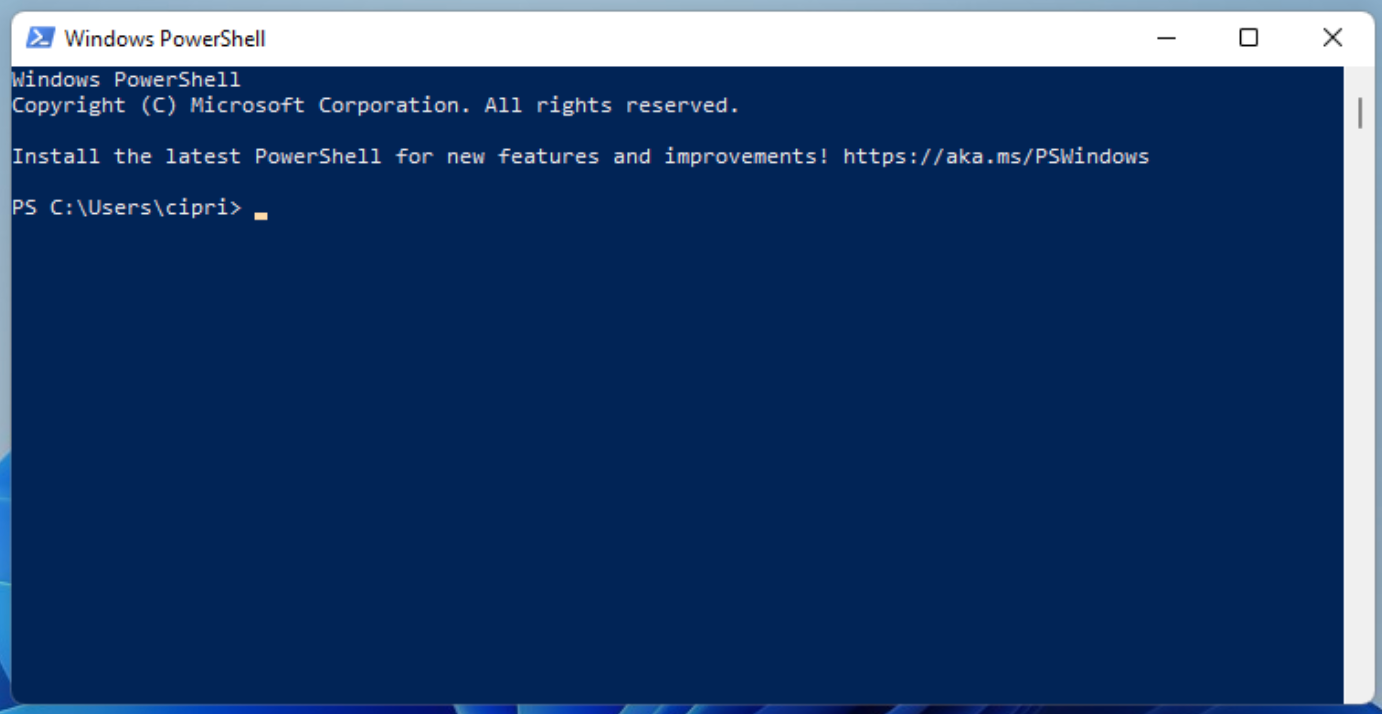
On Windows: Press the Windows key, type PowerShell, hit Enter.
A black or white window opens. That’s it.
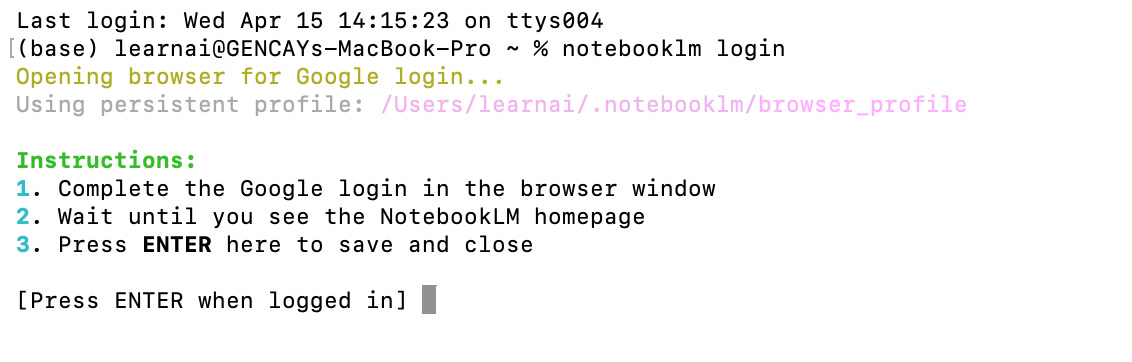
Paste the command below:
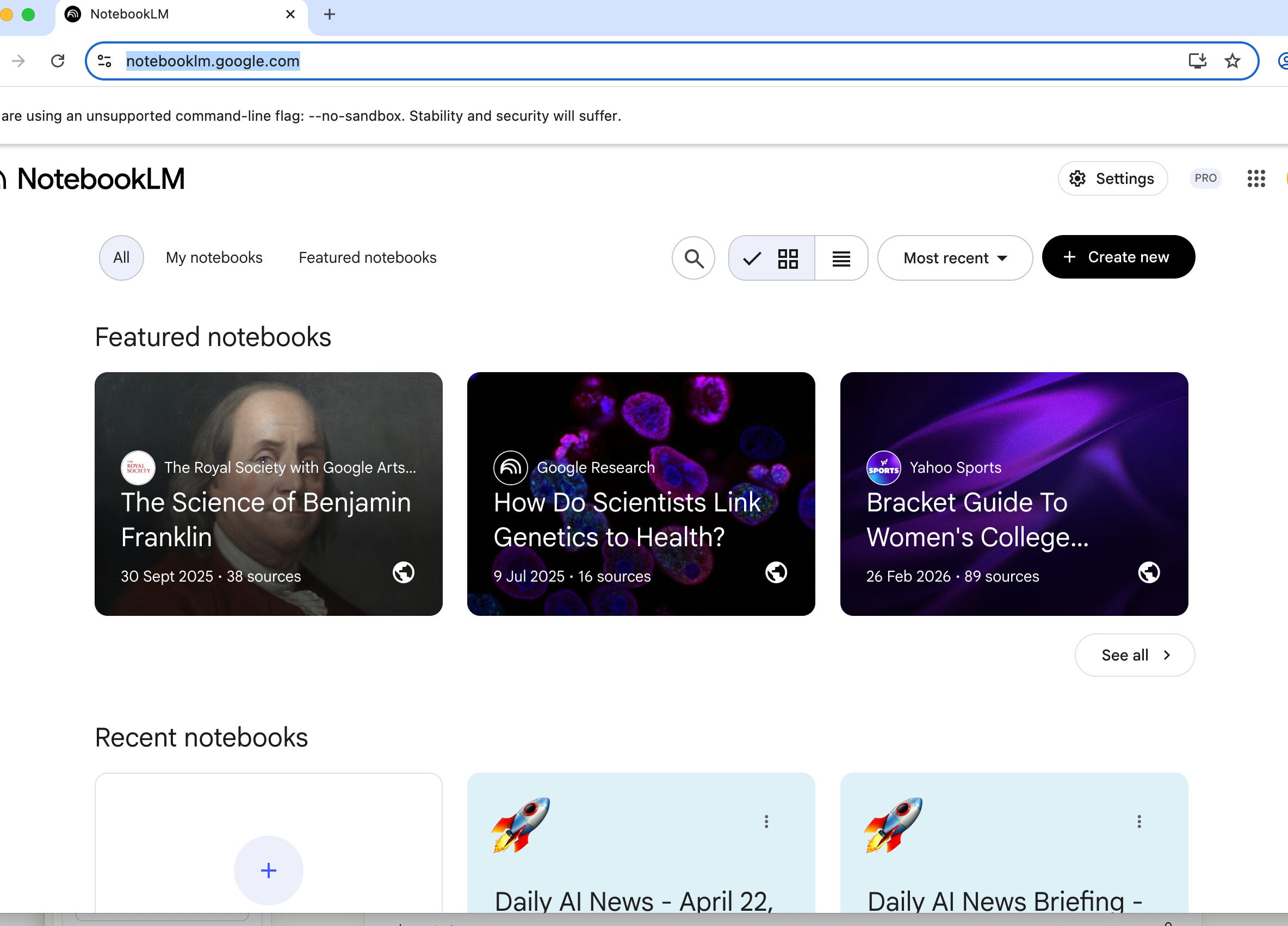
notebooklm loginA browser window opens. Log in with your Google account.
Wait until the NotebookLM homepage loads.
Go back to the terminal.
Press Enter.
The terminal prints the path to your storage_state.json.
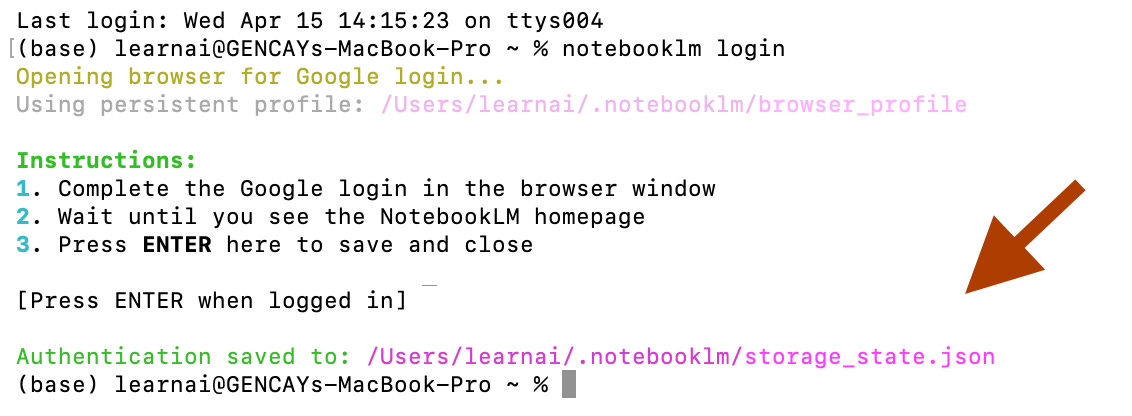
Copy it. Paste it back into Cowork:
Authentication saved to: /Users/learnai/.notebooklm/storage_state.jsonDone! Cowork now has your credentials.
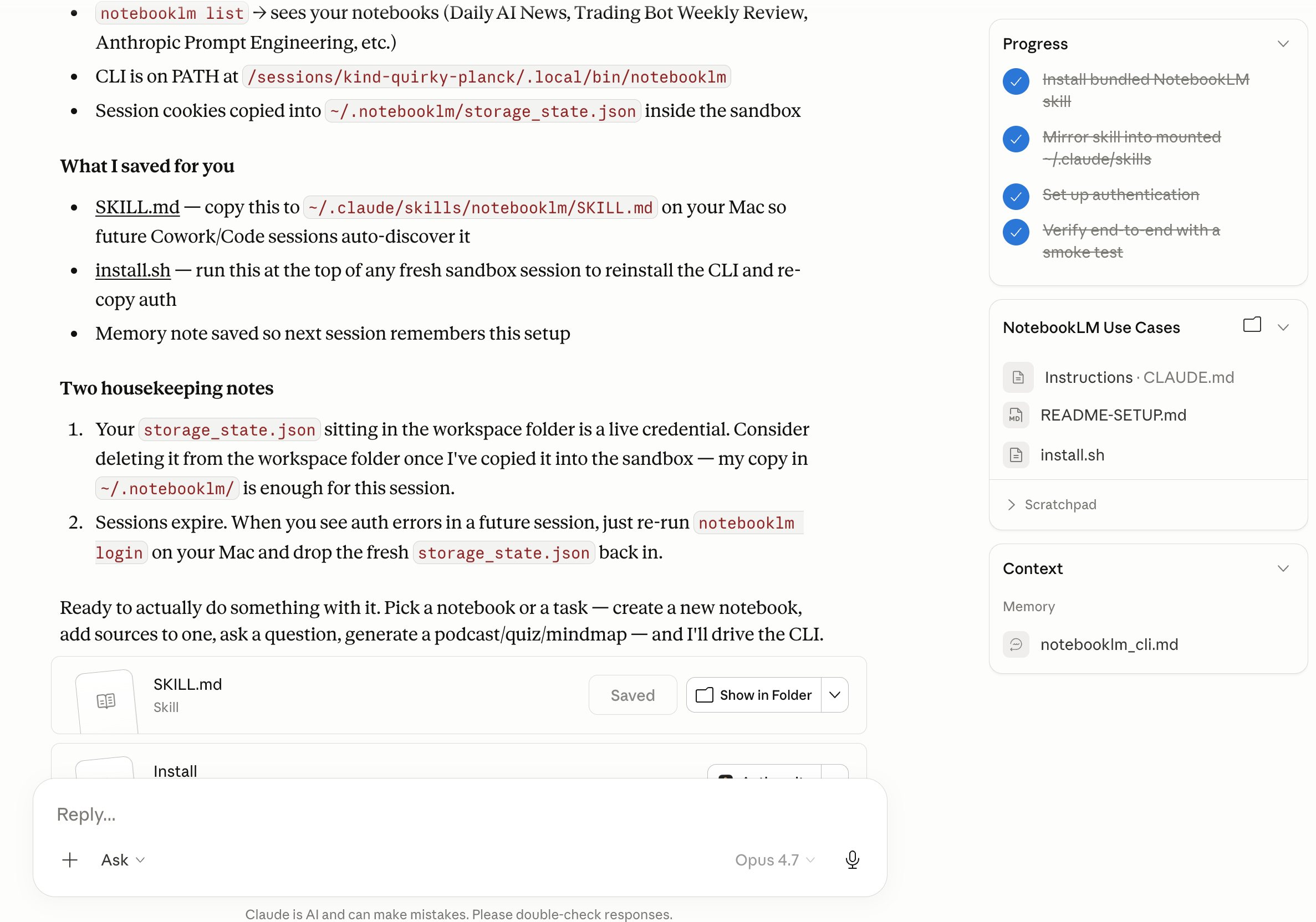
Note: If Cowork cannot reach the file, ask Claude Code to copy-paste the auth file into your working folder.
Step 4: Testing
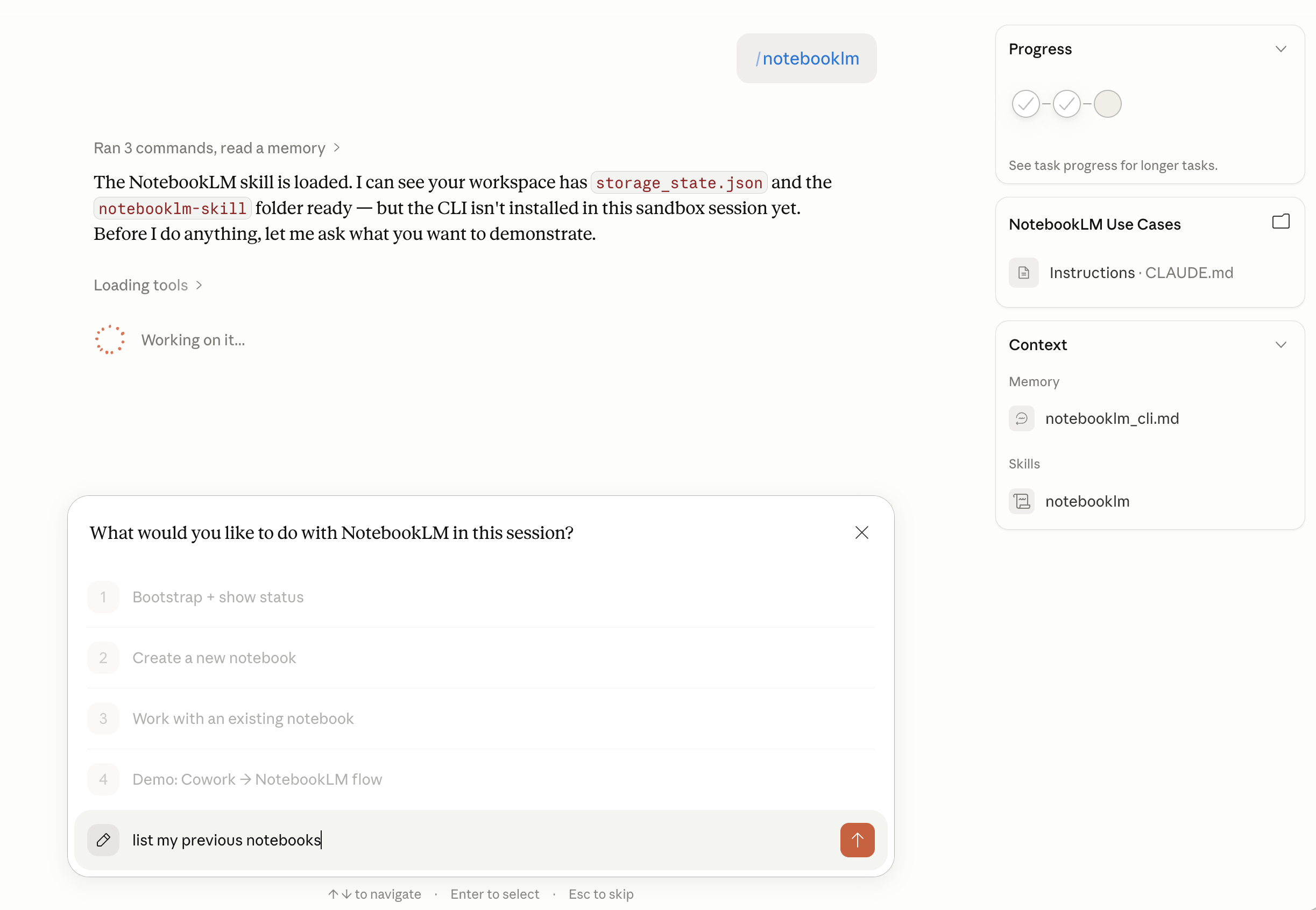
Time to test the skill. Type /notebooklm
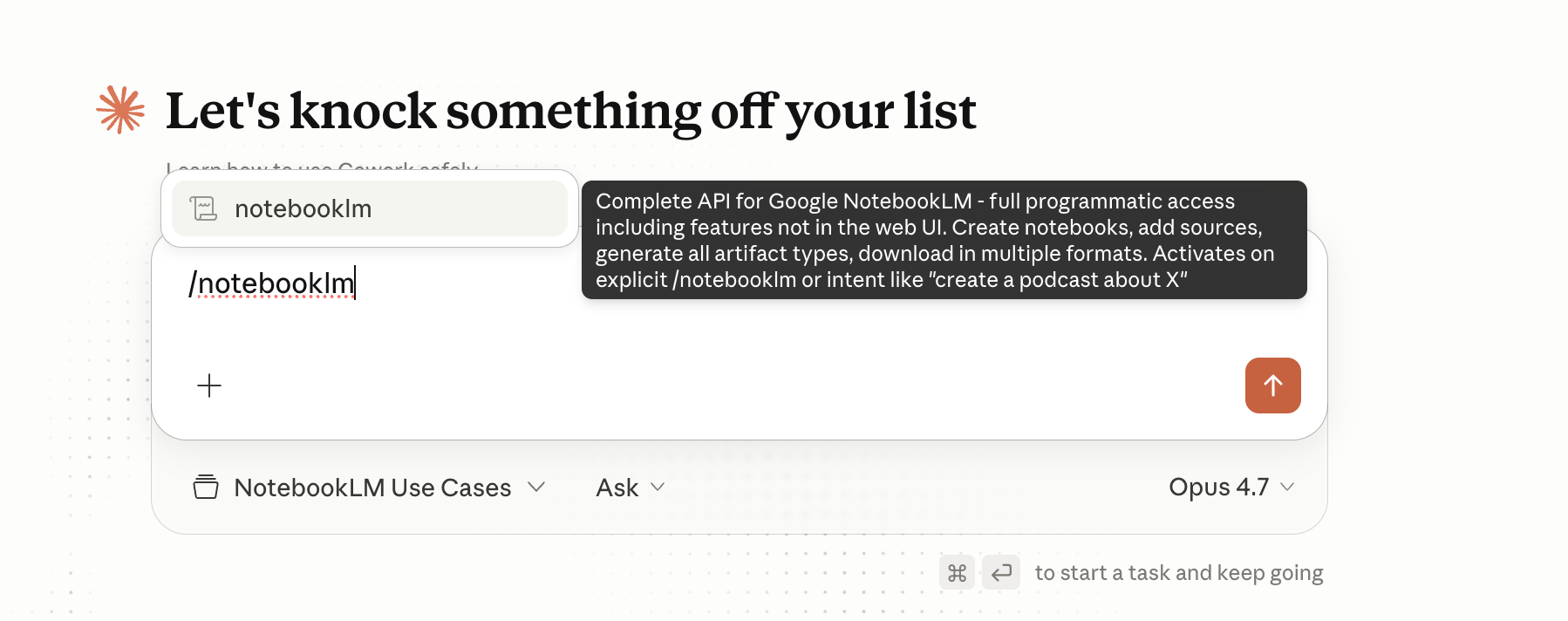
Ask it to list your previous notebooks.
Mine pulled 120 notebooks from October 2024 through today.
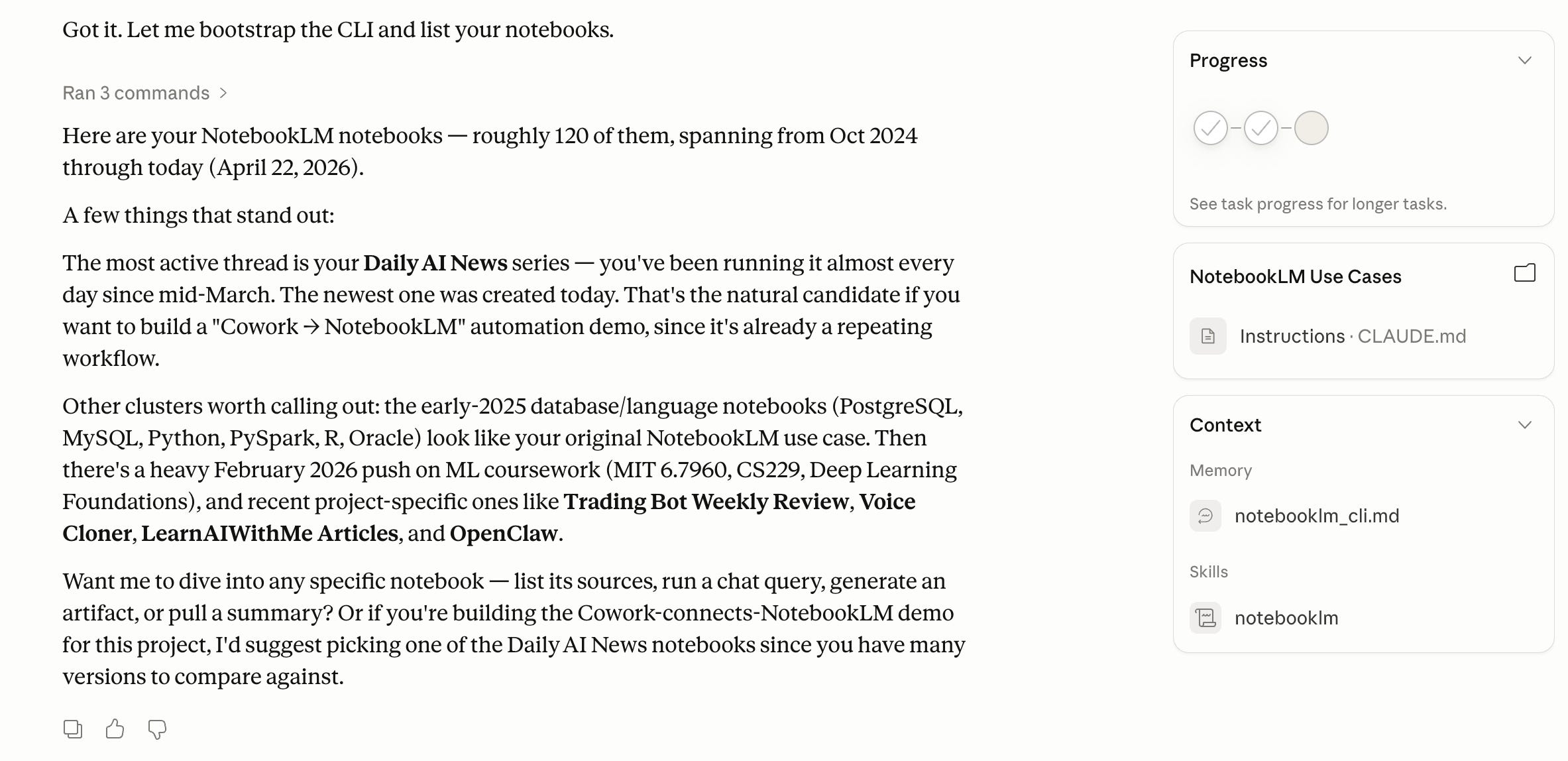
Fair warning, I am a pretty heavy NotebookLM user.
Let’s see my favorite use cases:
Use Case 1: Turn Ugly Spreadsheets Into Infographics Your CEO Will Actually Read
You know the drill.
You have a messy CSV.
Three different date formats in one column. Somebody’s initials in row 857 for no reason.
Your CEO drops a message: “Give me a summary by Friday.”
You spend three hours in Excel building pivot tables. Another hour picking a chart template that does not look like 2008. You created an infographic. Your CEO opens it, scrolls for four seconds, and closes it.
Nobody reads it.
Here is the version that works.
Step 1. Upload the spreadsheet to NotebookLM
Drop the CSV in as a source. NotebookLM parses the data, finds the patterns, and flags the anomalies.
You did not write a single formula.
Takes under a minute.
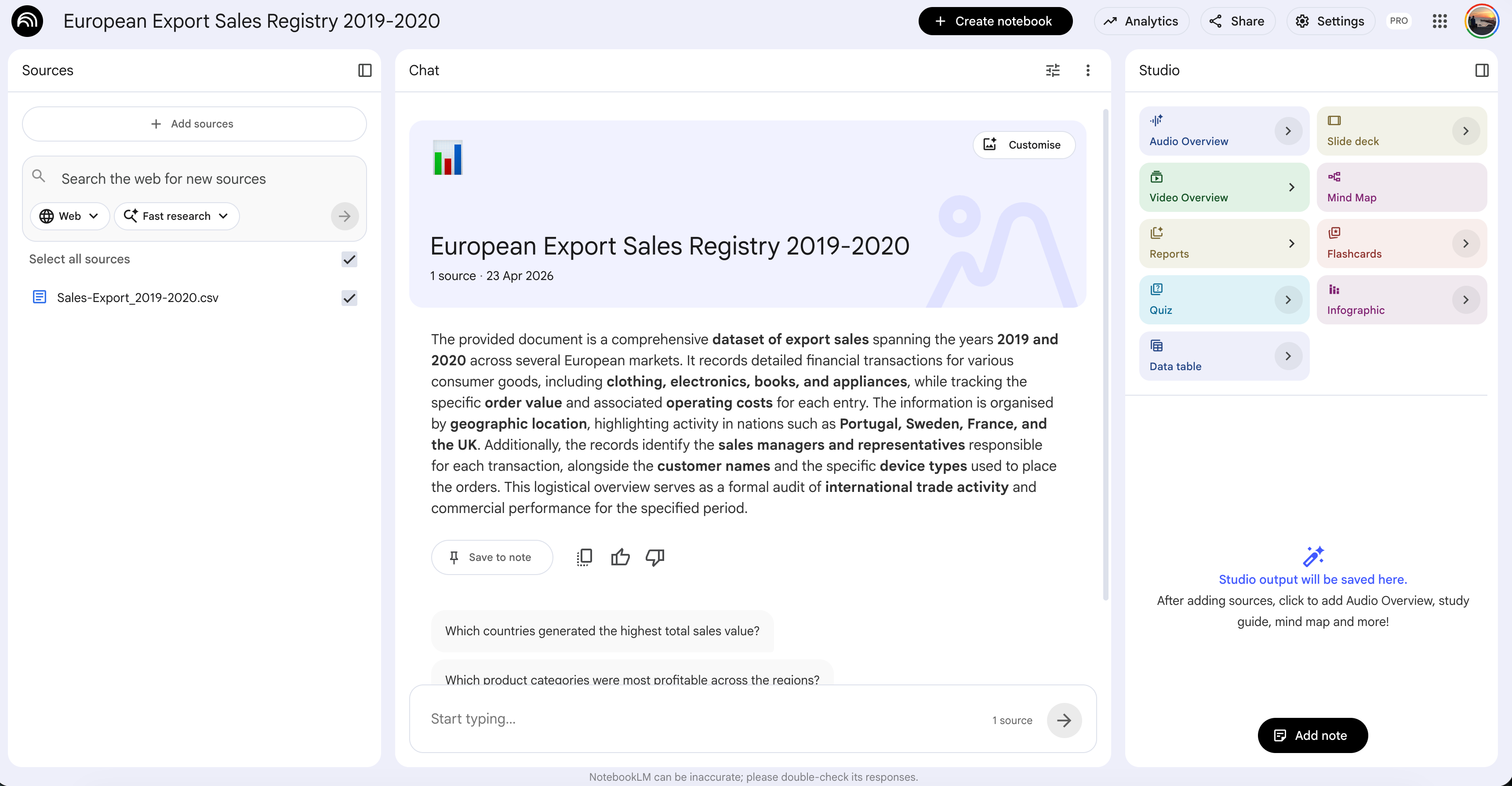
I’m using this data as an example, retail sales data from an online store.
Here is how my NotebookLM looks after uploading this data.
Step 2. Ask NotebookLM what matters
Paste this:
What are the five most important insights in this data?
Ignore noise. Focus on what a non-technical executive would care about.
Each insight should be one sentence.
NotebookLM returns grounded answers.
Every insight traces back to specific rows. Click the citation, and see exactly where the number came from.
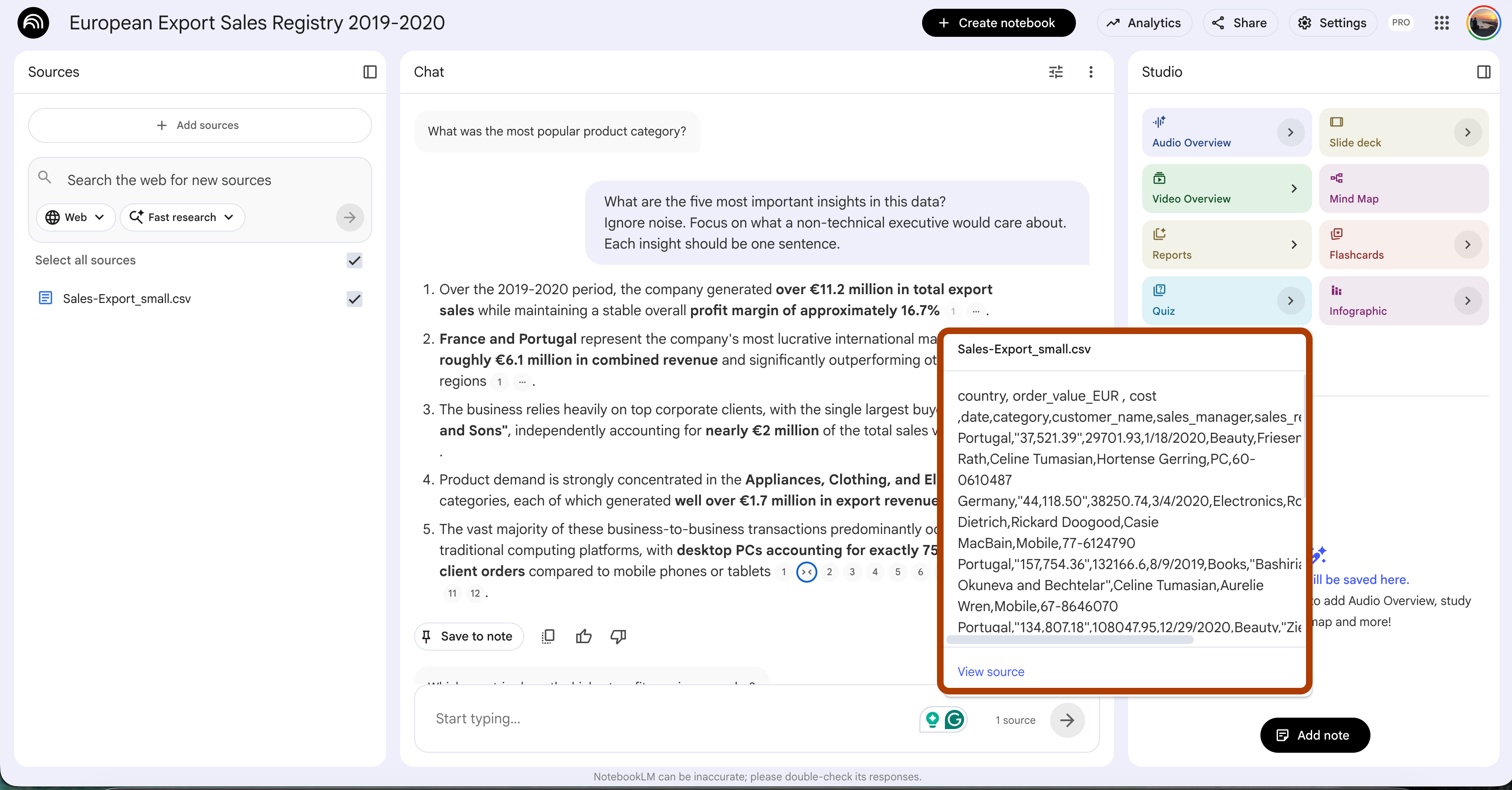
You now have the story before you have touched a design tool.
Step 3. Trigger the NotebookLM skill in Cowork
Open a new Cowork session. Trigger the skill:
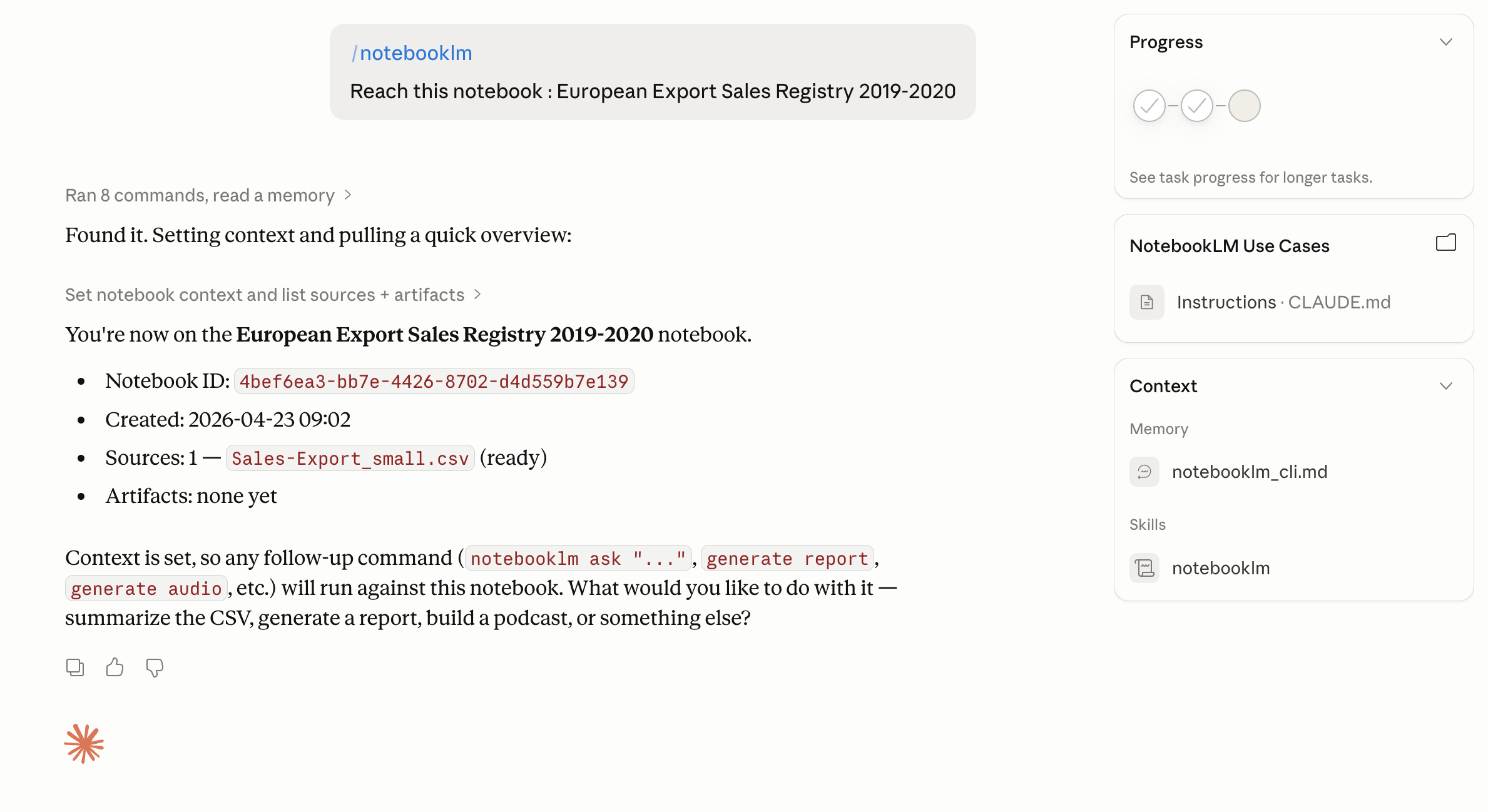
/notebooklm Reach this notebook: European Export Sales Registry 2019-2020Cowork now has read access to every source and every insight NotebookLM found.
Step 4. Give Cowork the build command
Paste this:
Build a web app that pulls the top five insights from the notebook
and renders each one as a visual element.

Let the user pick a style: minimal, corporate, or playful.
Each style should have its own color palette, typography, and layout.

Add a PNG export button.
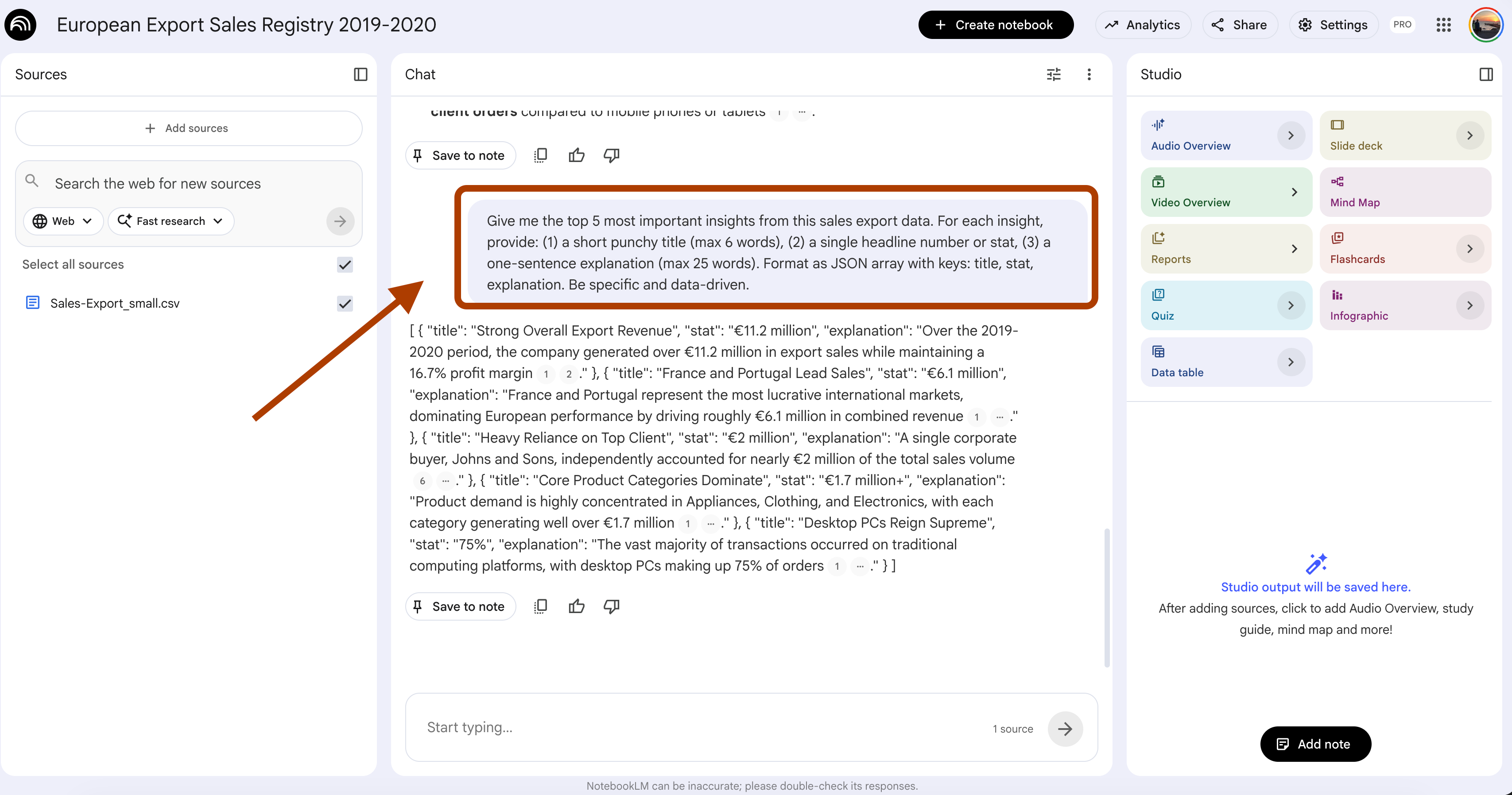
After pasting, it started talking with the notebookLM.

You can see the conversation from the NotebookLM.
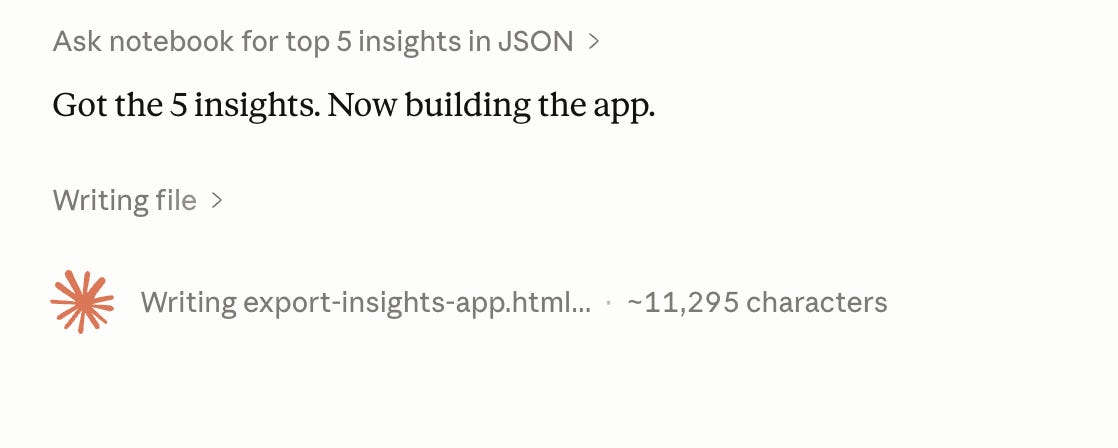
After getting the insights, it is now building the app.
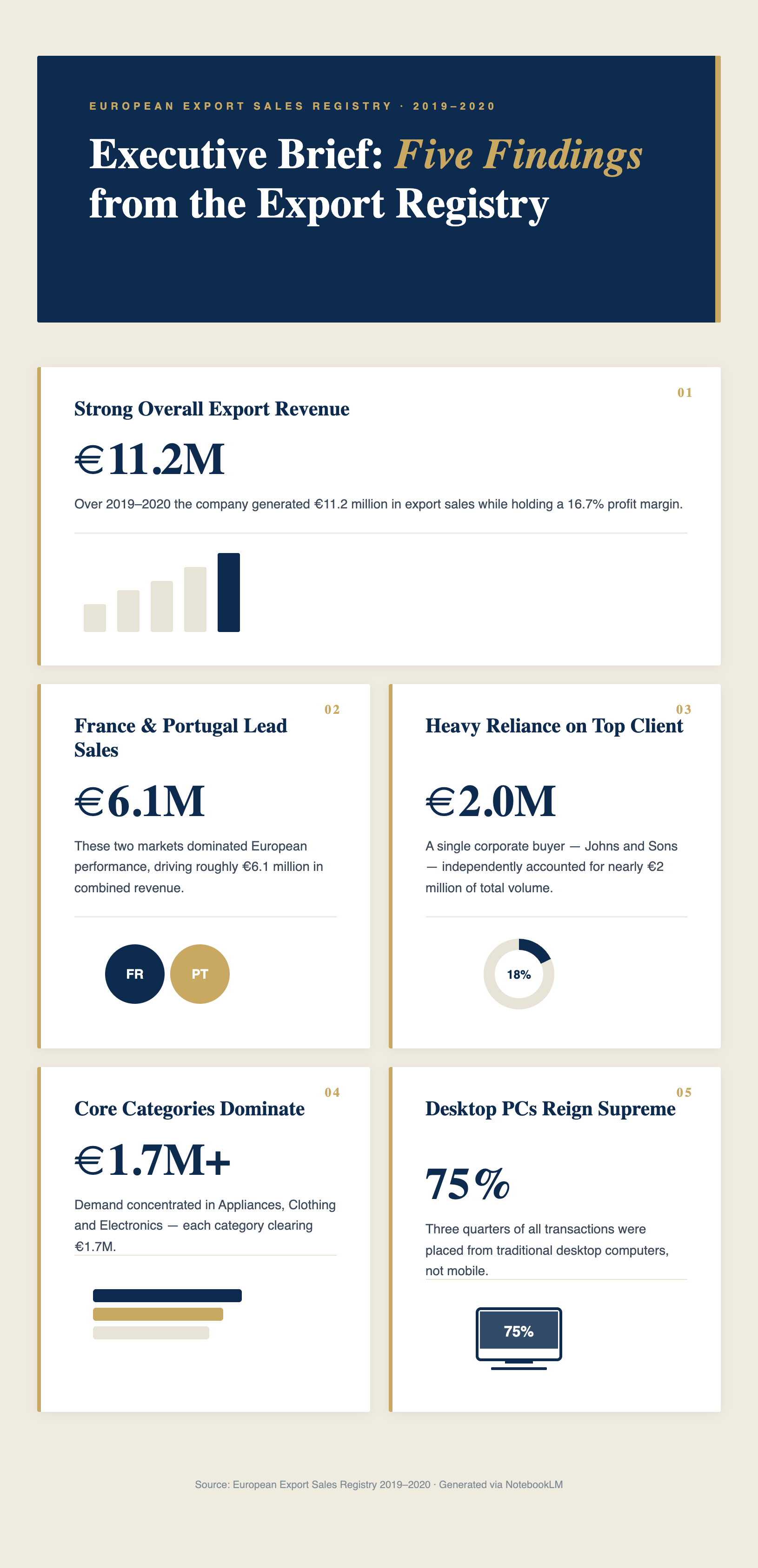
And it is done.

Step 5. Export and ship
Click “corporate.”
Your five insights render as a clean one-page infographic
Or minimal.
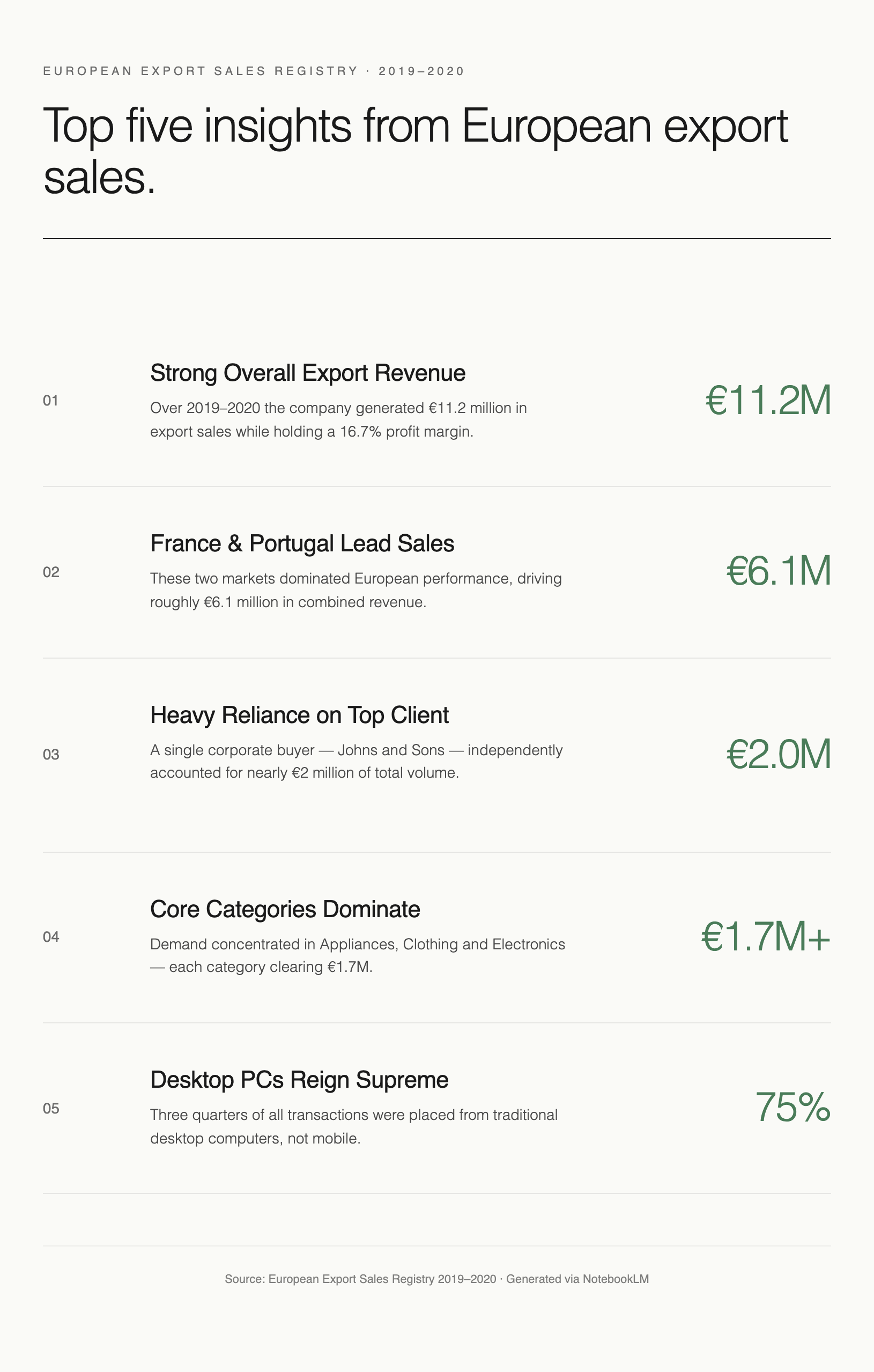
Or playful.
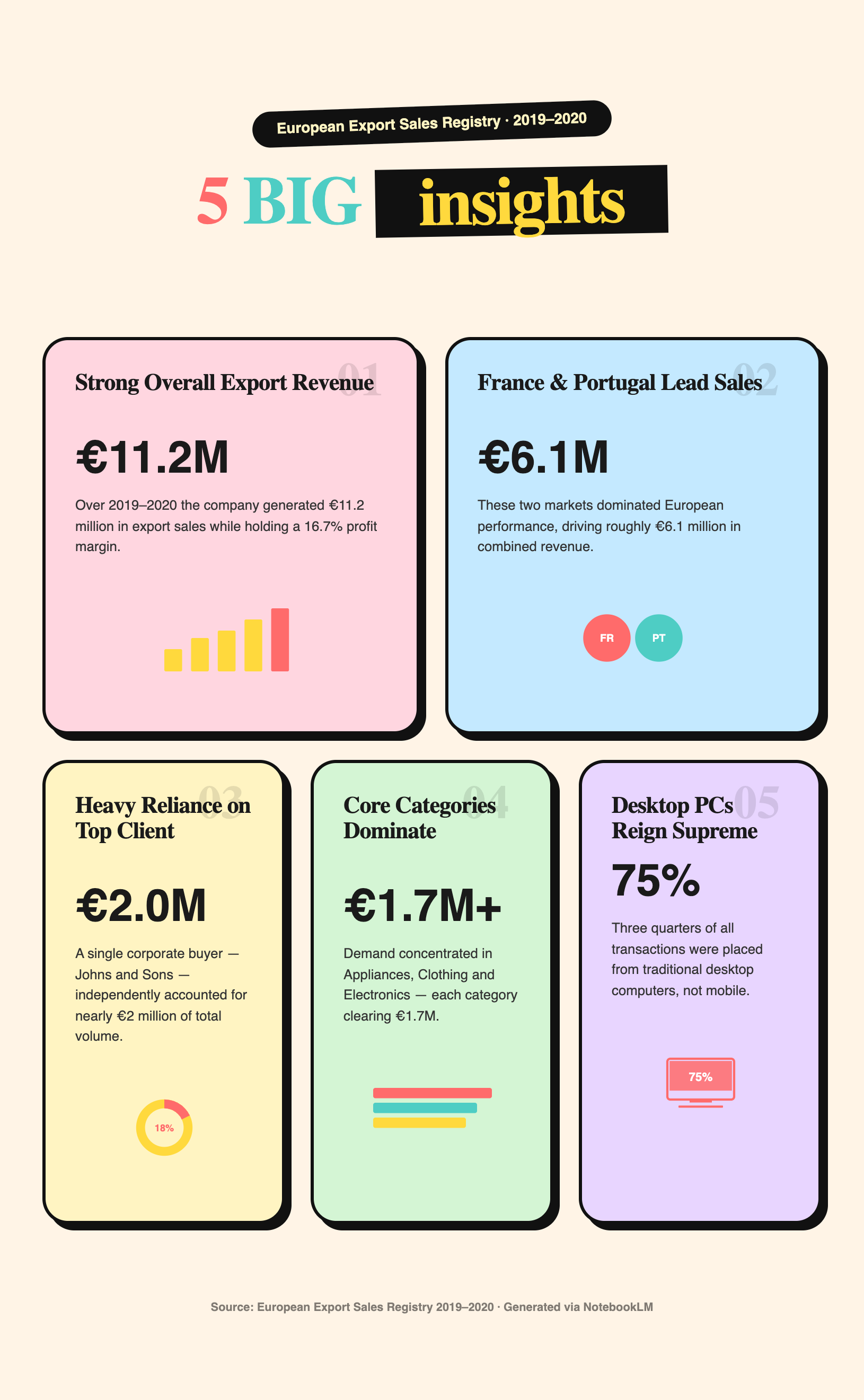
Use Case 2: Build a Personal Language Tutor App Before Your Next Trip Abroad
You booked a flight to Barcelona. Three weeks out. You know ten Spanish words. Five of them are food.
Duolingo teaches you sentences nobody says. Google Translate is fine at the airport, but useless at dinner.
You don’t need another language app. You need a tutor who knows your trip: The neighborhood you are staying in, the phrases locals actually use, etc.
We’ll build a tutor with NotebookLM and Cowork.
Step 1. Let NotebookLM research your trip
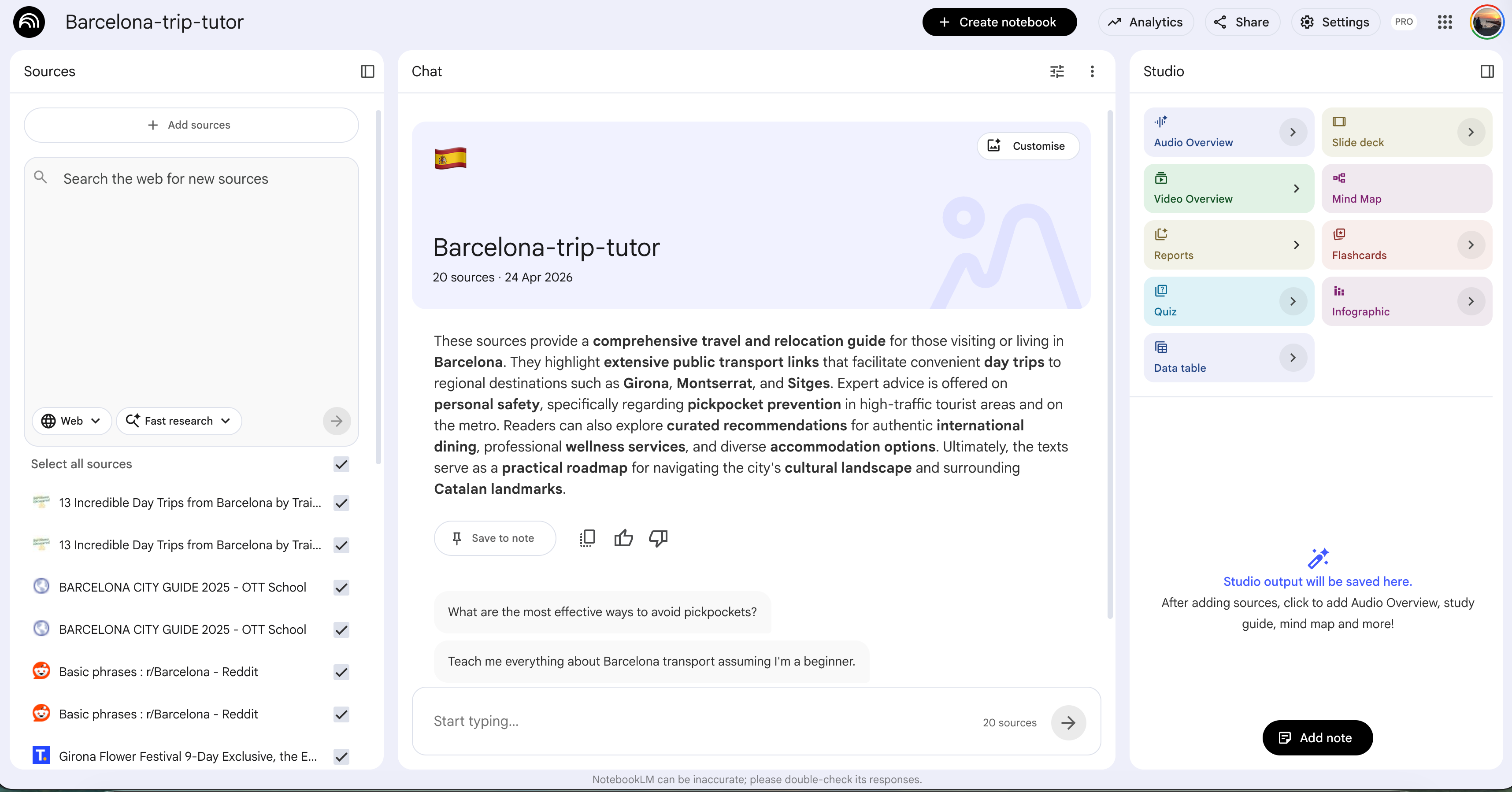
Open NotebookLM. Create a new notebook. Name it barcelona-trip-tutor.
Click “Discover sources.” Switch on Deep Research. Paste this:
Research everything a first-time traveler needs to know about
Barcelona for a trip in [MONTH/YEAR]. Focus on:

- Neighborhood guides for staying in Eixample, Gothic Quarter,
  and Gracia
- Top 20 restaurants and tapas bars across different price points
  (include addresses and what to order)
- Metro and bus system basics (which lines tourists actually use)
- Cultural etiquette Spanish people care about but tourists miss
  (meal times, tipping, greeting)
- Common scams targeting tourists and how to avoid them
- Day trips within 1 hour of Barcelona (Montserrat, Sitges, Girona)
- Typical Spanish phrases locals use daily that tourists do not know
- Seasonal context: weather, festivals, crowds for [MONTH]

Prioritize sources from local bloggers and expat guides
over generic travel sites.
After pasting this notebookLM, import the sources and here your notebook is ready.
Step 2. Ask NotebookLM to build the curriculum
Sanity-check first. Ask the notebook: “Which neighborhood am I staying in, and what are three phrases I will need there?” If the answer pulls from the research you asked for, you are good.
Then paste the curriculum prompt:
Based on the sources in this notebook, build me a 14-day
Spanish crash course for my Barcelona trip.

Each day should cover:
- Five new phrases I will actually use on this specific trip
- Context for where and when I would use them
  (hotel, tapas bar, metro, taxi)
- Pronunciation in plain English (not IPA)
- One cultural note about using that phrase

Prioritize phrases relevant to my hotel neighborhood,
my restaurant bookings, and getting around the city.

Include Catalan variants where locals in Barcelona would
appreciate hearing it (Catalonia has its own language alongside Spanish).

Skip greetings I already know like “hola” and “gracias.”
NotebookLM returns a 14-day plan grounded in your actual trip. Not generic Spanish. Your Spanish.
Here it is.
Step 3. Trigger the NotebookLM skill in Cowork
Open a new Cowork session:
/notebooklm Reach this notebook: barcelona-trip-tutorAnd here it connects.
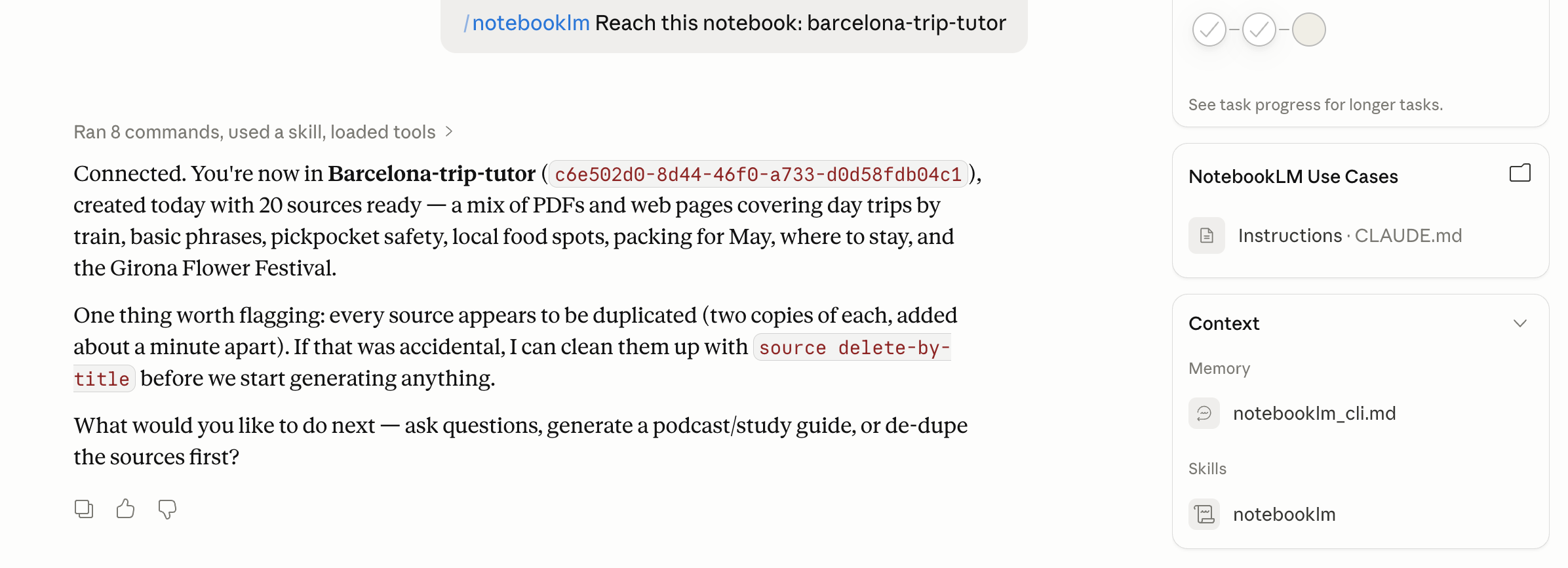
Cowork now has your trip context and your curriculum.
Step 4. Build the tutor app
Paste this:
Build an artifact called “Barcelona Tutor” with three sections:

1. TODAY’S LESSON

   Show today’s five phrases with pronunciation and context.

   Mark a phrase as “learned” with a checkbox.

   Progress bar shows how many phrases I have learned this week.

2. QUICK DRILL

   Flashcard mode. Show the English phrase, I guess the Spanish.

   Tap to flip. Rate myself (easy/medium/hard).

   Hard cards come back tomorrow. Easy ones disappear.

3. TRIP SCENARIOS

   Pre-built roleplays for: hotel check-in, ordering tapas,

   taking the metro, asking for directions.

   I pick a scenario, the app shows me the likely script

   with my phrases highlighted.

Pull all phrases, pronunciations, and cultural notes

from the connected NotebookLM notebook.
And click on “Create” when it asks.
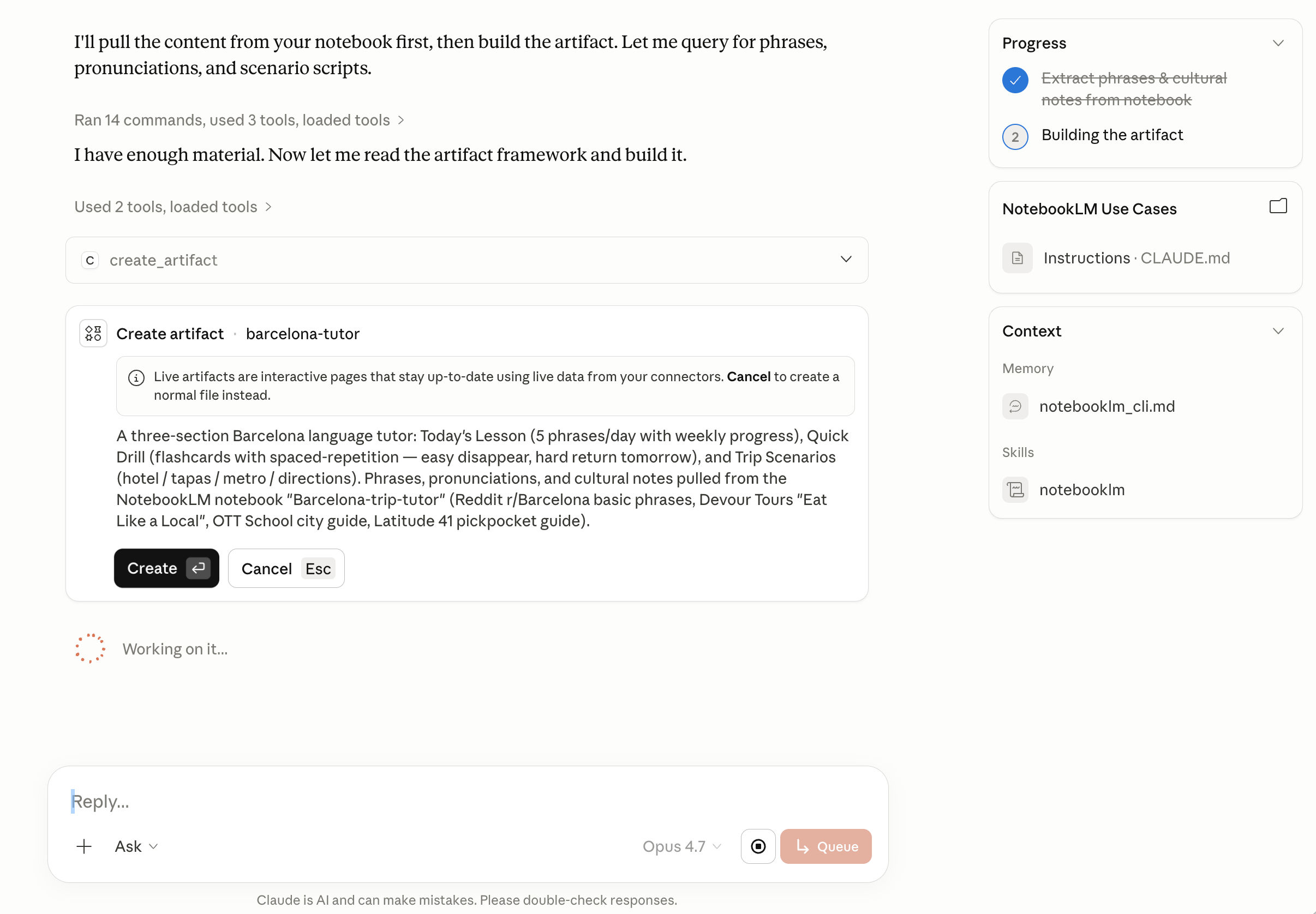
Here is your app.
Three tabs, one live app, built in ten minutes.
Today’s Lesson feeds me five phrases I will actually use in Barcelona.
Quick Drill turns them into flashcards with spaced repetition, so hard cards come back tomorrow, and easy ones get out of my way.
Trip Scenarios drops me into real roleplays, asking for directions in the Gothic Quarter, ordering tapas, checking into the hotel, with my own phrases highlighted in the script.
Every word traces back to the NotebookLM notebook I built in Step 1. Grounded curriculum, personal context, zero generic Duolingo energy.
Use Case 3: Spy on Competitor Content and Extract What’s Actually Working
Every writer stares at the same question on Monday morning.
What should I write this week?
You scroll through three competitor Substacks. You read ten articles. You try to reverse-engineer what made their viral posts hit. You take messy notes. You forget half of them by Wednesday. You end up guessing anyway.
Twenty hours a month, gone. Pattern recognition done by vibes.
Here is the version that works.
Step 1. Collect competitor URLs into one place
Pick three to five writers in your niche.
Grab the URLs of their last free articles. ( to get the tone)
Fastest way: open their Substack archive page, scroll to the bottom, and copy the list.
Here are my articles.
1- NotebookLM Prompts for Students

↳ http://gencay.substack.com/p/notebooklm-prompts-for-studying

2- NotebookLM Prompts to Beat 99%

↳  https://gencay.substack.com/p/10-notebooklm-prompts-that-put-you

3- Free 2026 AI Learning Path

↳ https://gencay.substack.com/p/how-to-learn-ai-in-2026-without-spending

4- Run Claude Code Locally (Free)

↳ https://gencay.substack.com/p/how-to-run-claude-code-locally-100

5- Claude Code Source Code Leaked

↳ http://gencay.substack.com/p/claude-code-source-code-free

6- Claude Code + Telegram

↳ https://gencay.substack.com/how-to-connect-claude-code-with-telegram

7- 7 Hidden Claude Features

↳ https://gencay.substack.com/p/claude-hidden-features-guide

8- ChatGPT → Claude: 5 Surprises

↳ https://gencay.substack.com/p/5-surprises-that-hit-you-when-you

9- Claude Cowork: What Actually Works

↳ https://gencay.substack.com/p/i-tested-all-claude-cowork-features

10- Claude for Content Creation

↳ https://gencay.substack.com/p/the-developer-tool-thats-quietly

11- OpenClaw Better Than 99%

↳ https://gencay.substack.com/p/how-to-use-openclaw-better-than-99

12- Clawdbot Setup (Cheapest + Secure):

↳ https://gencay.substack.com/p/clawdbotopenclaw-cheapest-most-secure

13- Hire a Free AI Employee (Clawdbot):

↳ https://gencay.substack.com/p/how-i-hired-a-free-ai-employee-clawdbot
Step 2. Upload to NotebookLM
Create a new NotebookLM notebook.
Select a web search and use this prompt with the links above.
Analyze the following Substack articles as competitor intelligence.

Extract:

* Tone of voice (writing style, pacing, personality)
* Hook patterns (how each article starts)
* Content structure (sections, flow, formatting)
* Title patterns (what makes them clickable)
* CTA strategies (how they drive engagement like restacks, clicks)
* Common topics and positioning
* What makes these posts perform well

Then:

* Identify repeatable patterns across all articles
* Highlight the top 5 strategies I should reuse
* Suggest 5 new article ideas based on these patterns
* Rewrite one viral-style post using these insights

Articles: [pasted from step-1]
And make sure to select “Deep research”.
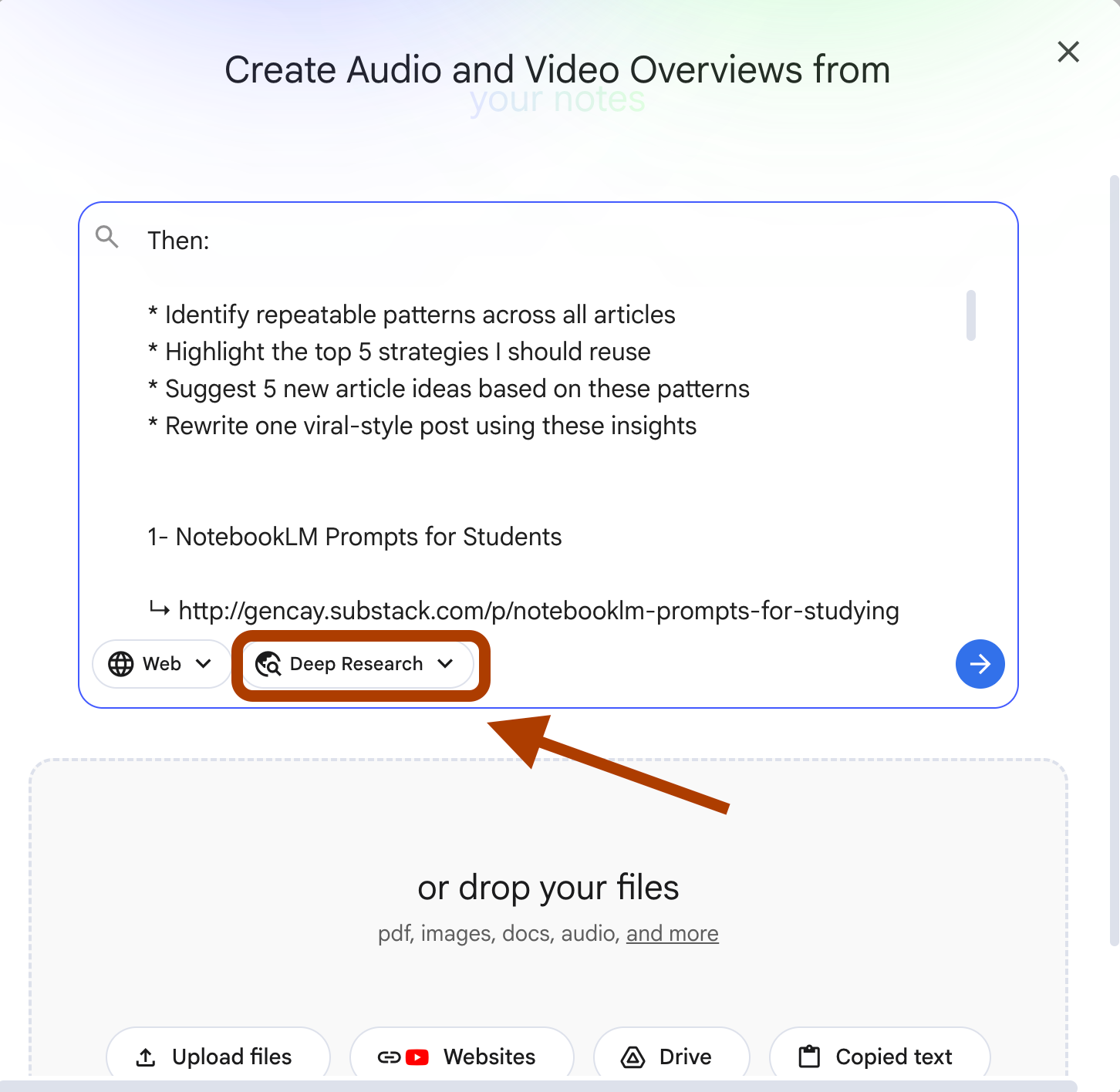
Step 3. Ask NotebookLM to find the patterns
Step 2 triggered the scrape.
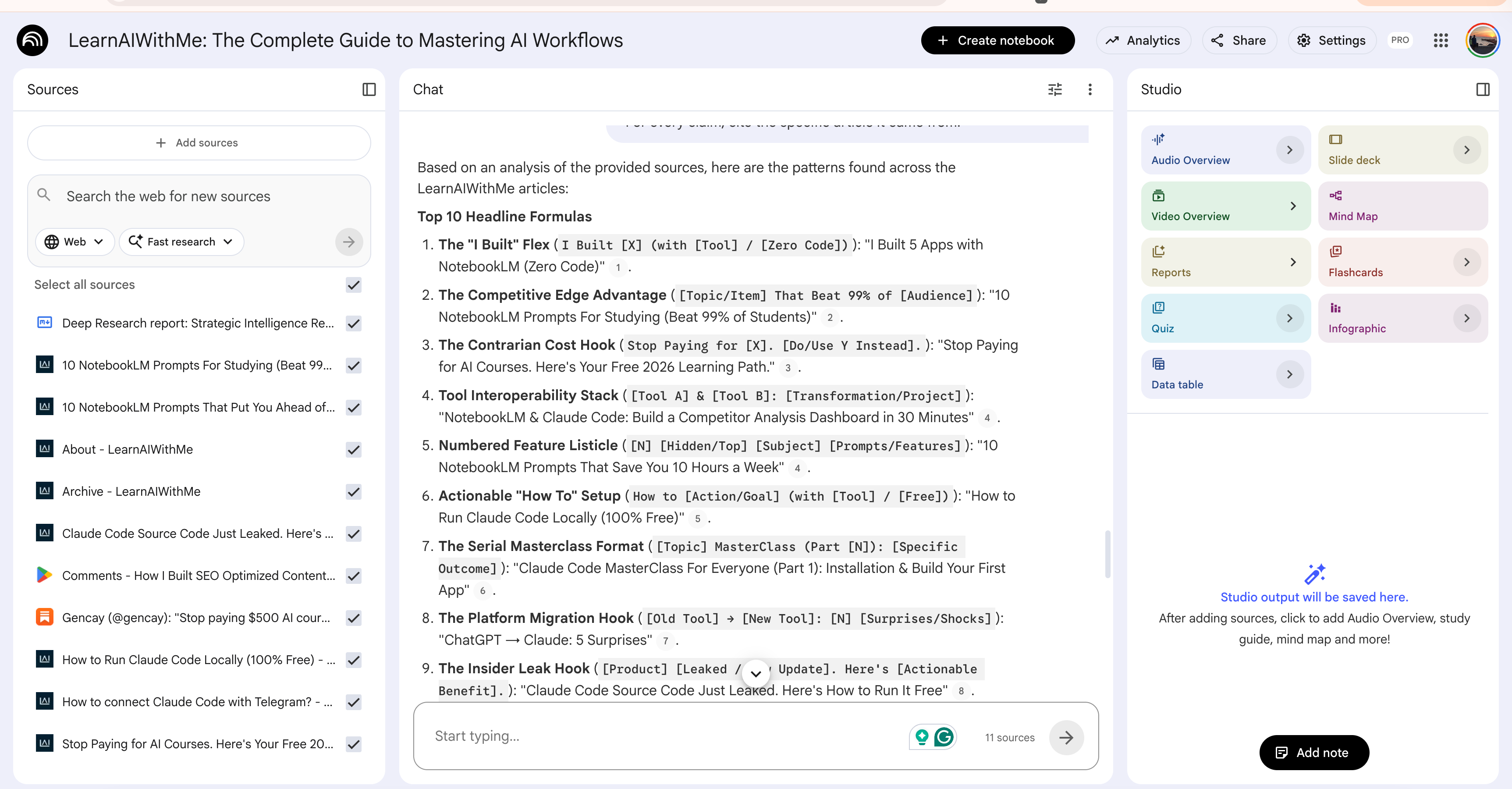
Now that the sources are indexed, we go deeper. Open the notebook chat and paste this
Analyze all sources in this notebook. Find patterns across the articles.

Return:
1. Top 10 headline formulas (with example headlines for each)
2. Top 5 hook patterns used in the first 200 words
3. Most common article length (words)
4. Most common CTA placements and wording
5. Topics that appear in more than 3 articles

For every claim, cite the specific article it came from.
NotebookLM returns grounded patterns.
Every insight traces back to a real article.
Here it is.
Step 4. Trigger the NotebookLM skill in Cowork
Open a new Cowork session:
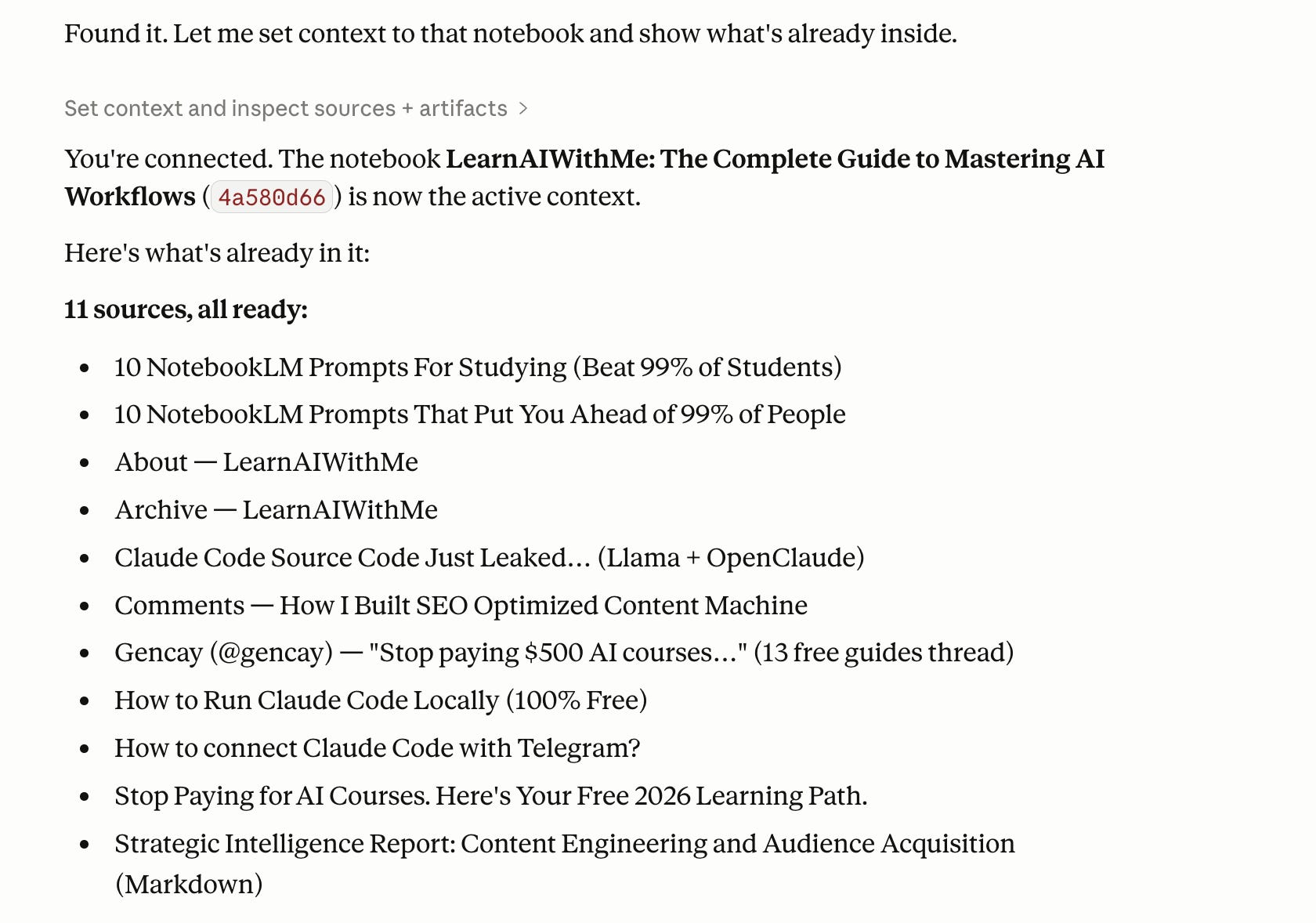
/notebooklm Reach this notebook: LearnAIWithMe: The Complete Guide to Mastering AI WorkflowsPoint it at the notebookLM you just trained.
Step 5. Build an Artifact
Next, paste this:
Connect to my NotebookLM notebook <Paste name of your notebooklm>
Build an artifact called “Content Spy Dashboard” with four sections:

1. HEADLINE FORMULAS
   Show the top 10 formulas with usage count.
   Click any formula to see example headlines that use it.

2. HOOK PATTERNS
   Show top 5 hook patterns with one-line descriptions.
   Click to expand and see real examples from competitor articles.

3. TOPIC HEATMAP
   Grid view. Rows = topics. Columns = competitors.
   Cell shows how many articles each competitor wrote on that topic.

4. GAP FINDER
   List topics the competitors cover often but your niche could
   approach differently. NotebookLM should suggest angles.

Add a “Generate Draft” button at the bottom.
When I click it, the app picks a winning formula + a gap topic
and drafts a headline + opening paragraph in my voice.

Save my past 10 articles as reference for voice matching.
Cowork builds.
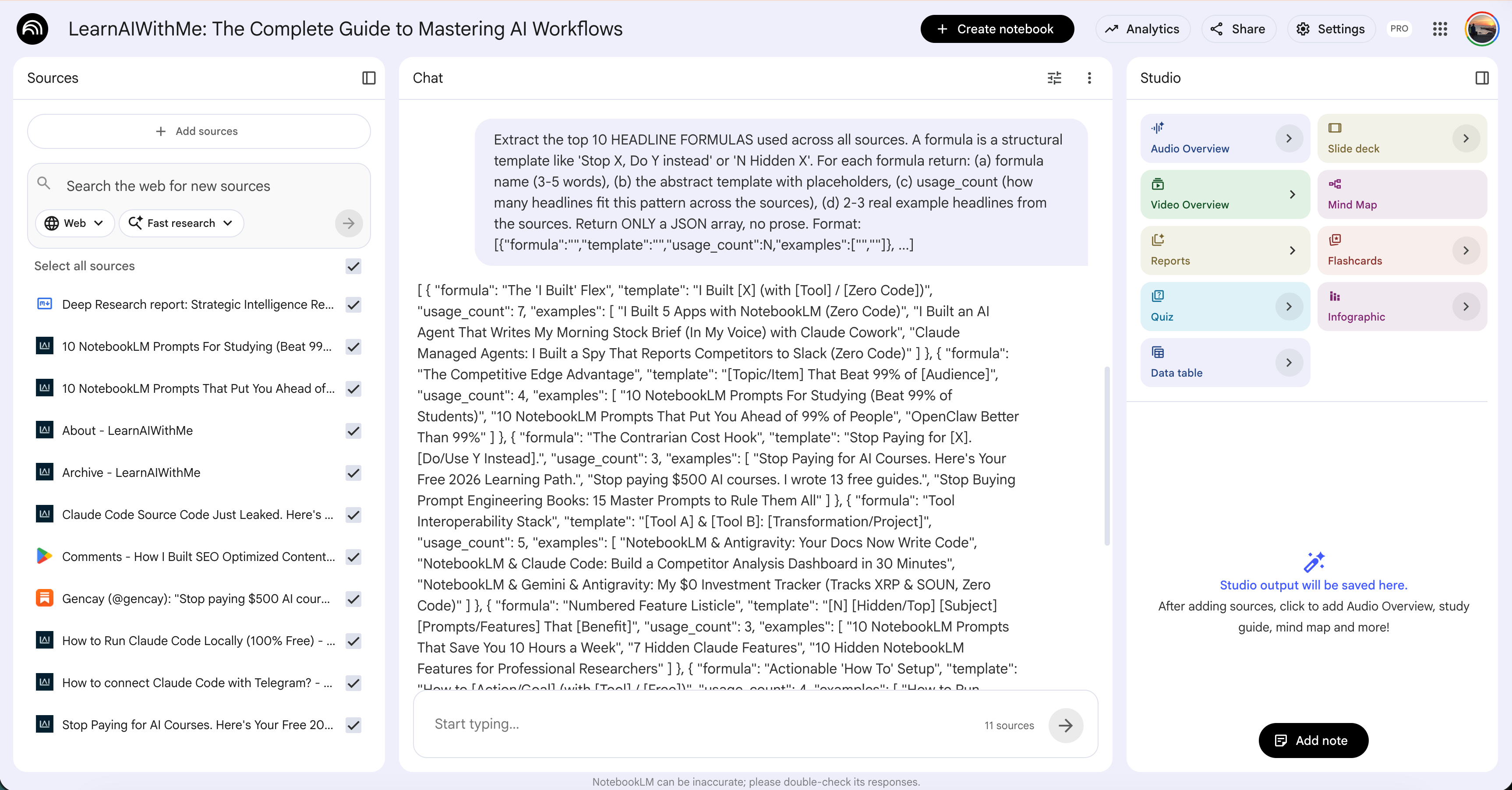
It queries NotebookLM.(Cowork side)
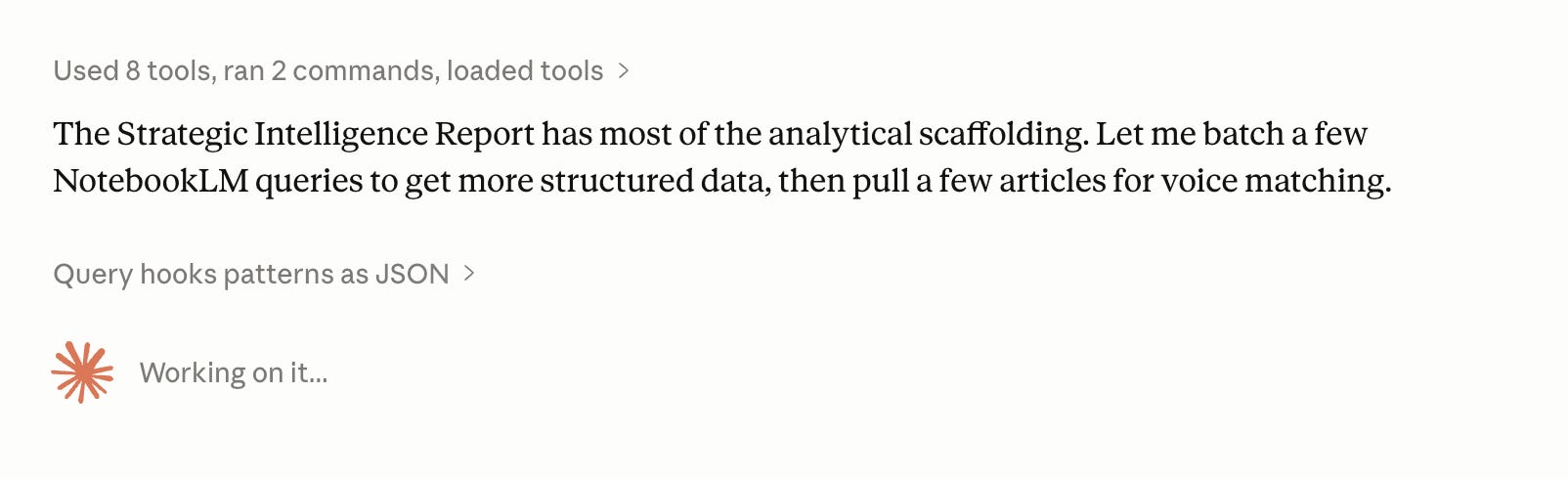
See how it is talking with NotebookLM.
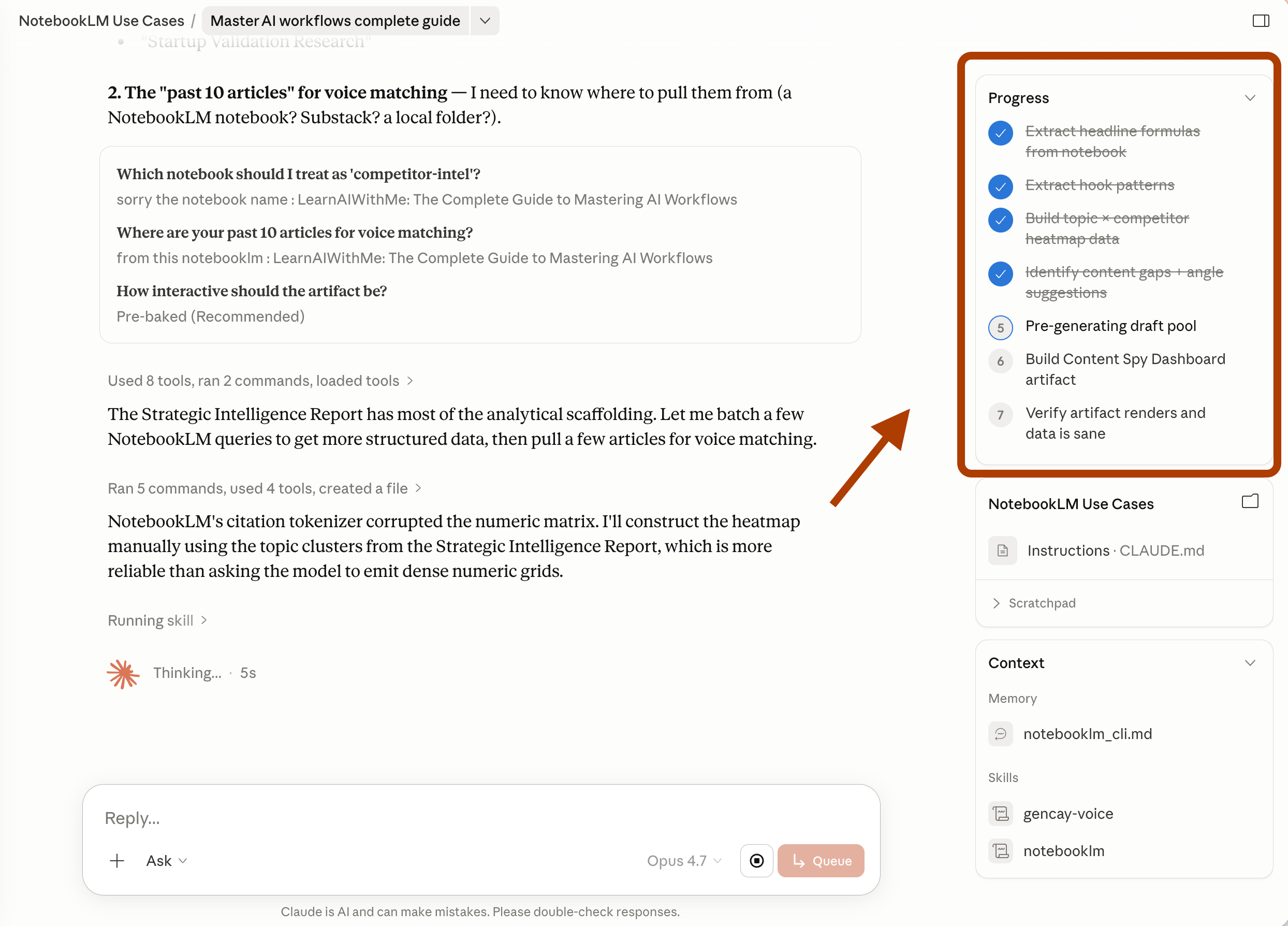
You can follow the progress from here.
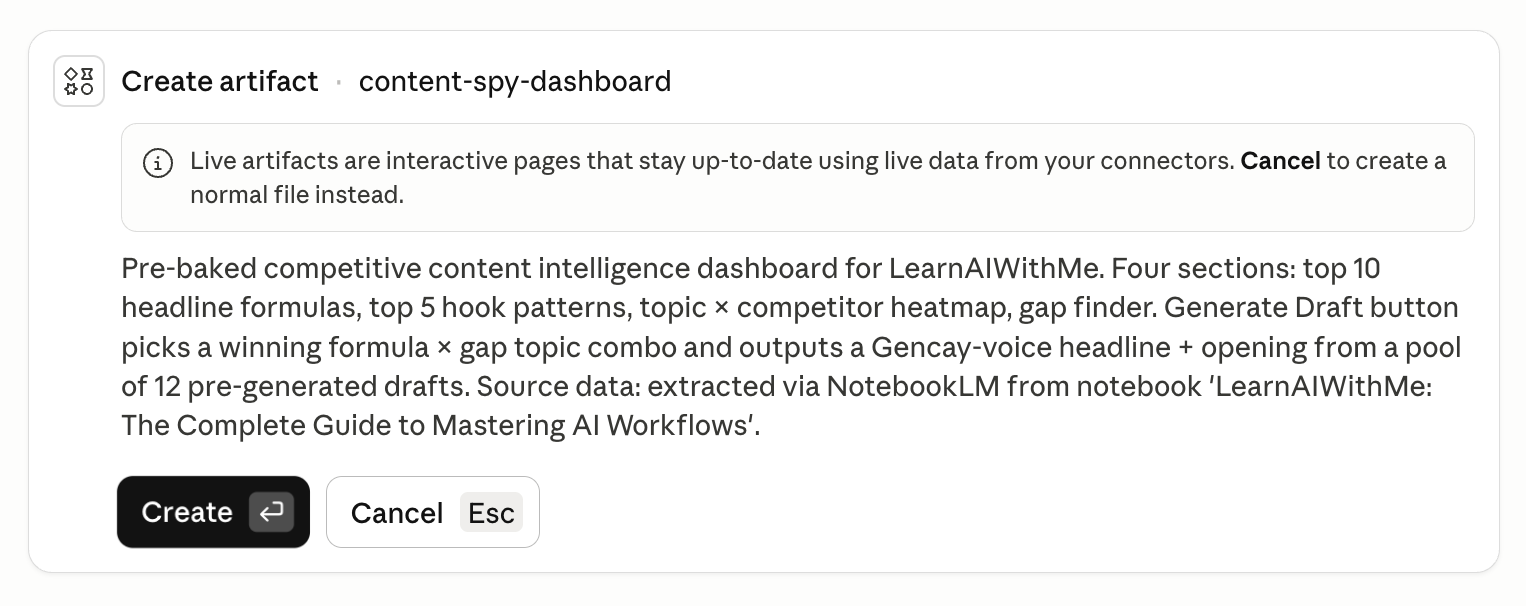
Allow this.
And finished, let’s test it.
Step 6. Test the Artifact
Here’s what it looks like.
Cowork built this in under ten minutes.
Eleven of my own articles are indexed as the competitive corpus.
Headline formulas, hook patterns, topic heatmap, gap finder, and a draft generator — all live, all clickable.
The “Generate Draft” button at the bottom is the kicker.
It picks a winning formula, pairs it with a gap topic, and drafts a headline plus opening paragraph in my voice.
From competitive research to the first draft in one click.
AI News: Artifacts recently became available in Cowork.
Final Thoughts
Most people treat NotebookLM and Cowork as two different drawers.
Research goes in one. The building goes in the other.
They never open both at the same time. That is the mistake.
Connect them, and the math changes. Your sources become the ground. Your apps inherit that ground.
Don’t forget to subscribe to LearnAIWithMe, a newsletter focused on practical AI tutorials for people who’d rather replace than be replaced by AI.
I hard fell in love with Notebooklm this week. I tried using it before but something clicked this week and when I realized its power it blew me away like a mushroom trip. I have 40,000 books on my computer. When I uploaded a few collections and played around with Notebooklm it had me up till 4am.
One of the videos it made is. Something else. You would have to see it to believe it.
My favorite apps right now are Claude and Notebooklm so I wanted to say thank you very much for this post 🙏
thank you s much!