

Click here to get my FREE Claude course (20+ lessons)
If you use Claude a lot, you’ve probably built a setup around it: skills, scheduled tasks, prompts you reuse every week. They tell Claude how to do your work.
But none of them have room for the rest of your job: the decision from last week’s meeting, the fix you spent a whole afternoon finding, the idea you had on a walk. So it ends up in a notes app, and that’s where it gets messy:
Apple Notes: Claude can read your notes, but it’s clumsy at editing them.
Notion: it connects to Claude, but the app gets complicated fast.
And in both, your notes live inside someone else’s app. There’s no folder you can open and move your notes somewhere else.
That’s the gap Obsidian fills. It’s a free note-taking app, but you barely take notes in it.
Claude does: it writes them, edits them and files each one in the right place. Your job is to drop things in and ask questions.
Today, when someone asks why a decision was made, you dig through old emails, or you guess. With Obsidian, Claude keeps all of that for you: a second brain for your work that stays organized and up to date.
It works like your own Wikipedia. The more you add, the more it knows.
In this guide, you’ll learn:
How to set up your Obsidian vault in a few minutes
The one prompt that turns your files into a wiki Claude writes and keeps up to date
How to keep your wiki growing with your new files and your chats with Claude
The health check that catches outdated docs before you act on them
A skill that reviews your wiki every week and flags what needs your attention, before it turns into a problem
Two things before we start:
1. Save this guide, and set up your vault today
2. Send it to a friend who still keeps their best ideas in a pile of Apple Notes.
PS: This newsletter grows mostly from people like you sharing it. Every share helps me keep writing guides like this one.
What Obsidian is
Obsidian is a note-taking app, but under the hood it’s just a folder on your computer.
Every note you write is a plain text file that ends in .md (a markdown file). Obsidian calls the folder that holds them a “vault”. That’s it.
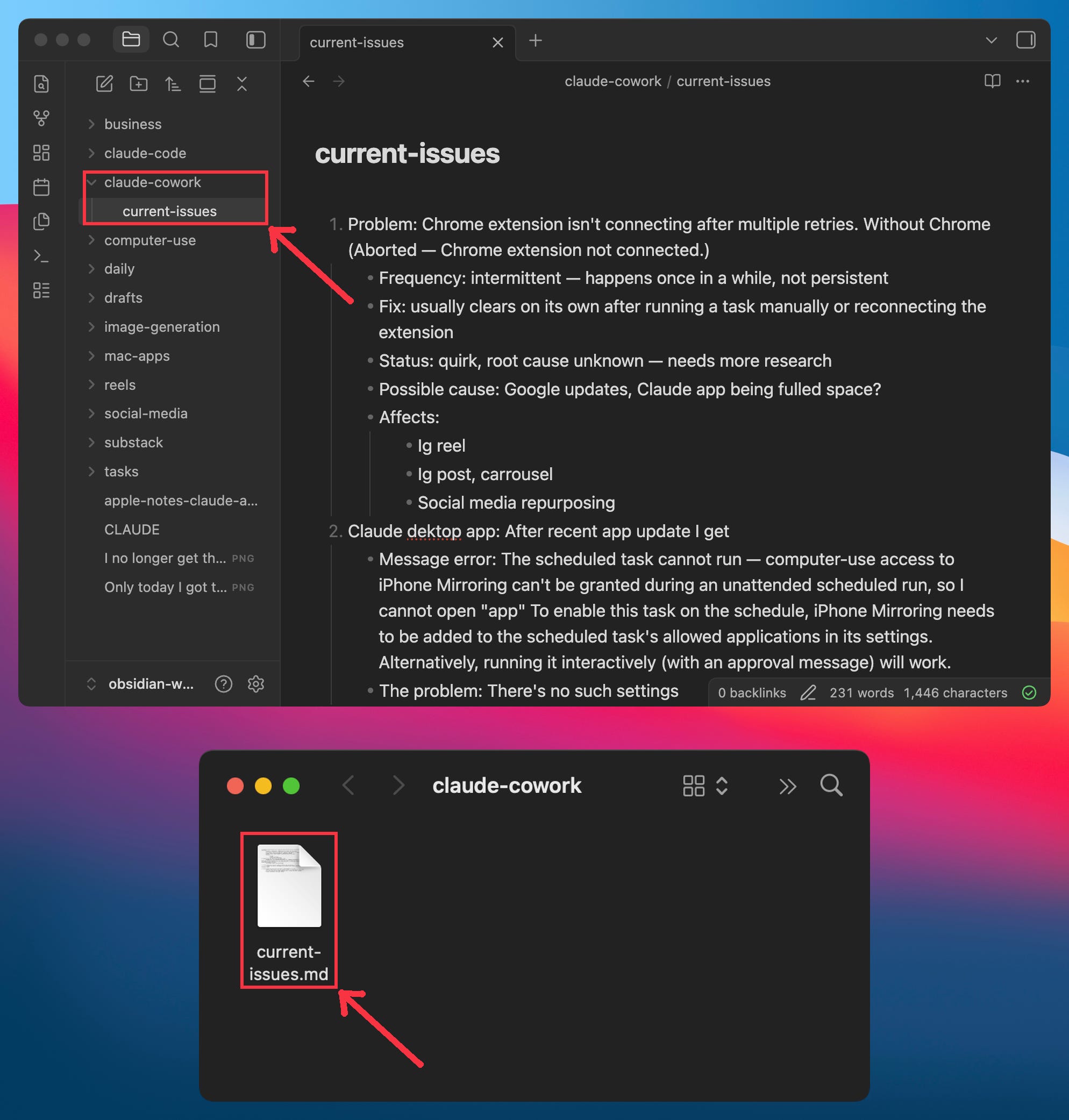
This is what makes it different from Notion or Apple Notes. There, your notes are locked inside someone else’s app. In Obsidian, every note is a file on your own computer, and any app can open and edit it (TextEdit, Word, Claude, etc).
I said it when Anthropic moved scheduled tasks to the cloud: what you build with AI is only yours if it lives in files you own. Those files are assets.
Repeat after me: own your files, rent the AI.
Obsidian itself is free. The only paid part is Obsidian Sync ($5/month), which puts the same vault on your phone. You most likely won’t need it. I pay for it, but I rarely use it, because Claude does most of the writing and editing on my Mac.
Set up your vault
Here’s how to go from zero to a vault you can use.
Create a vault
Download Obsidian from obsidian.md and open it
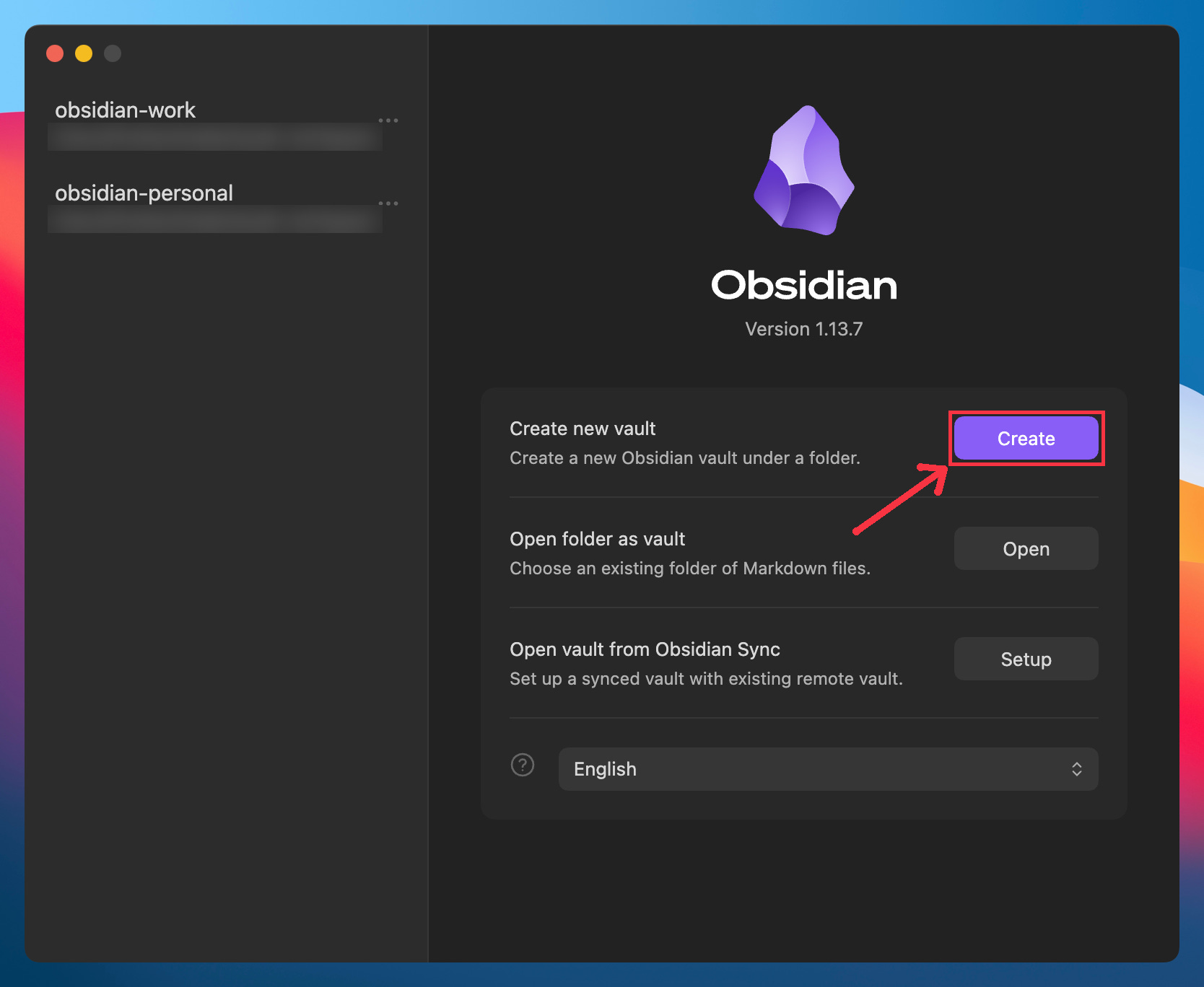
Next to “Create new vault”, click “Create”
Give your vault a name, and click “Browse” to pick where it lives on your computer
Click “Create”
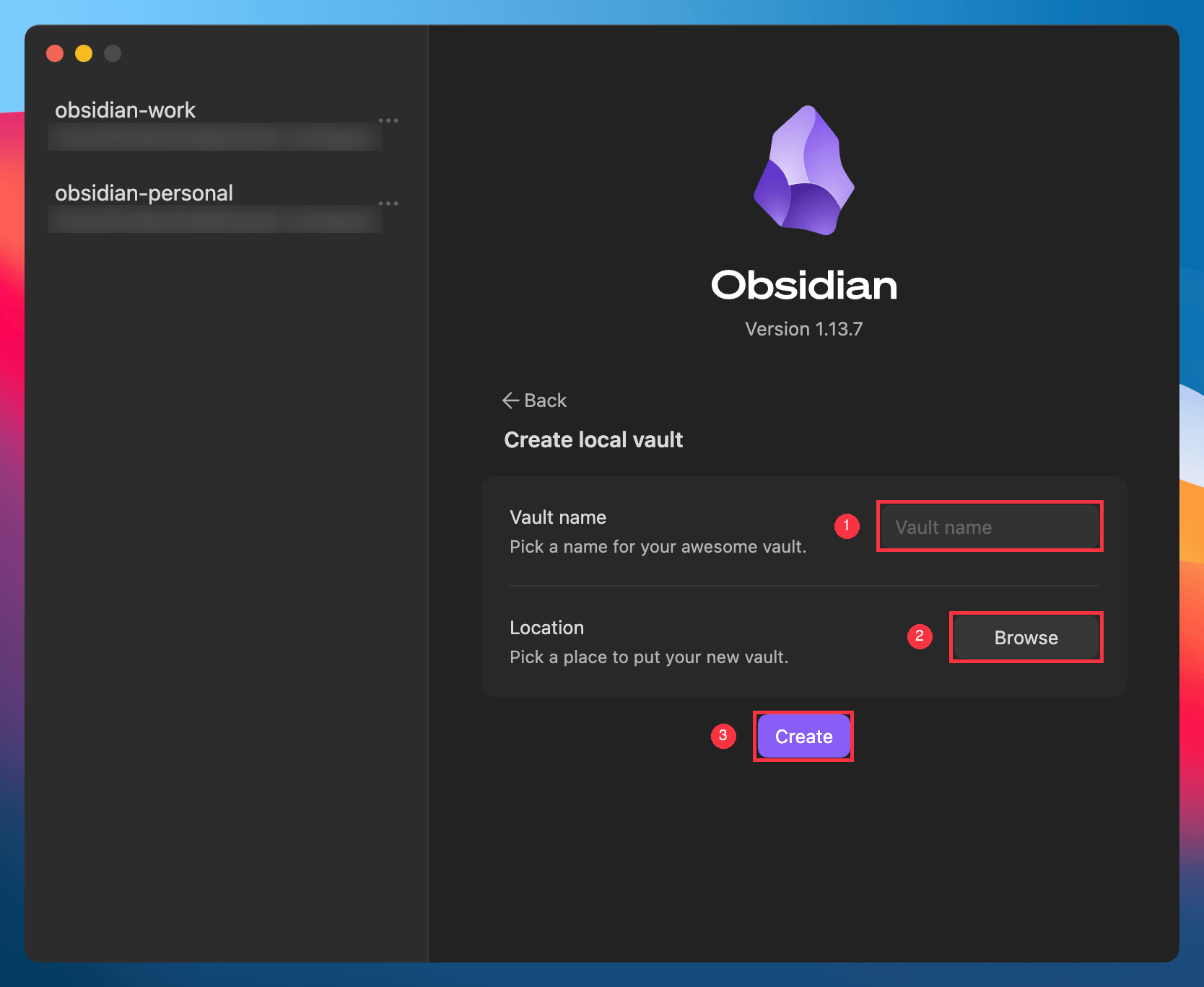
Pick a place you’ll remember. You’ll need this folder again when you connect Claude.
Write your first note
Click the new note icon (or press Cmd+N on a Mac, Ctrl+N on Windows) and start typing. Obsidian saves as you go, so there’s no save button.
Obsidian notes are written in markdown, which uses a few simple symbols for formatting:
#at the start of a line makes a heading##makes a subheading-makes a bullet
Link your notes
This is the feature Obsidian is famous for.
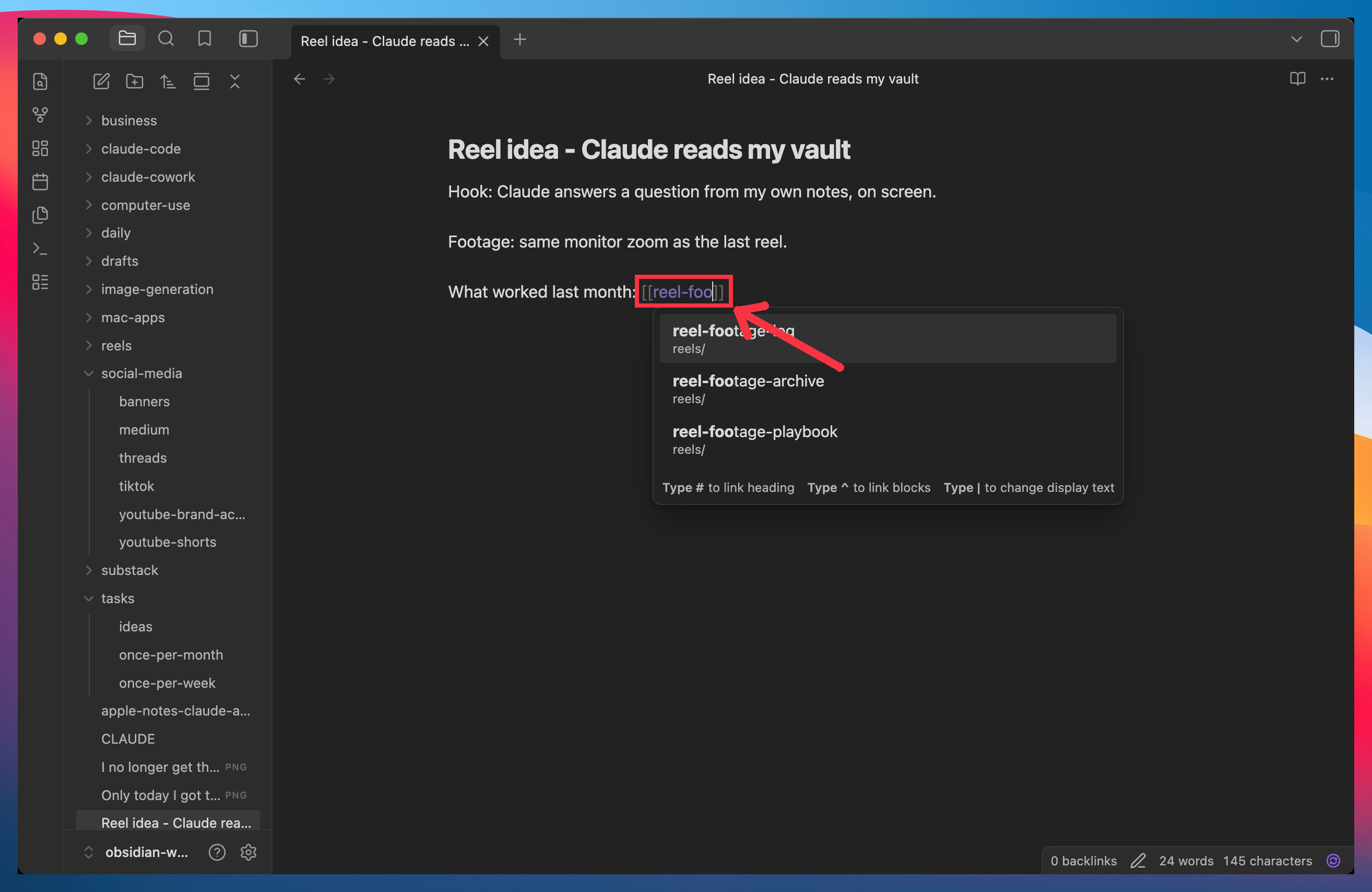
Type two square brackets [[ and start typing the name of another note. Obsidian suggests matching notes, and you pick one. Now the two notes are linked, and you can click from one to the other.
See your notes as a graph
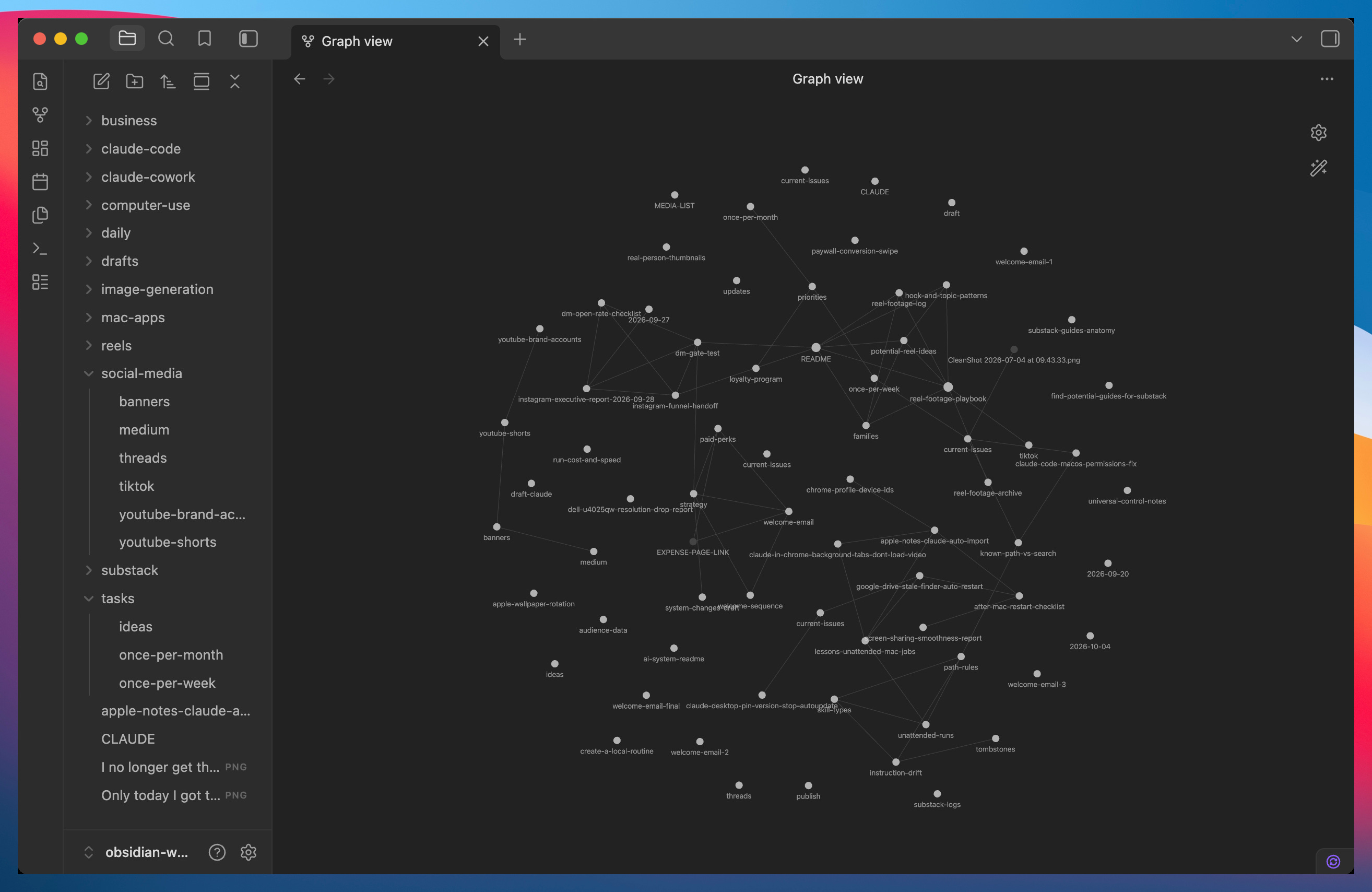
Open the command palette (Cmd+P on a Mac, Ctrl+P on Windows), type “graph” and pick “Open graph view”. Every note is a dot, and every link is a line between two dots.
Here’s my work vault. The clusters are the projects I keep notes on: my reels, my Substack, my notes on Claude. You see which ideas connect without opening a single note:
Click here to get my FREE Claude course (20+ lessons)
Connect Claude to your vault
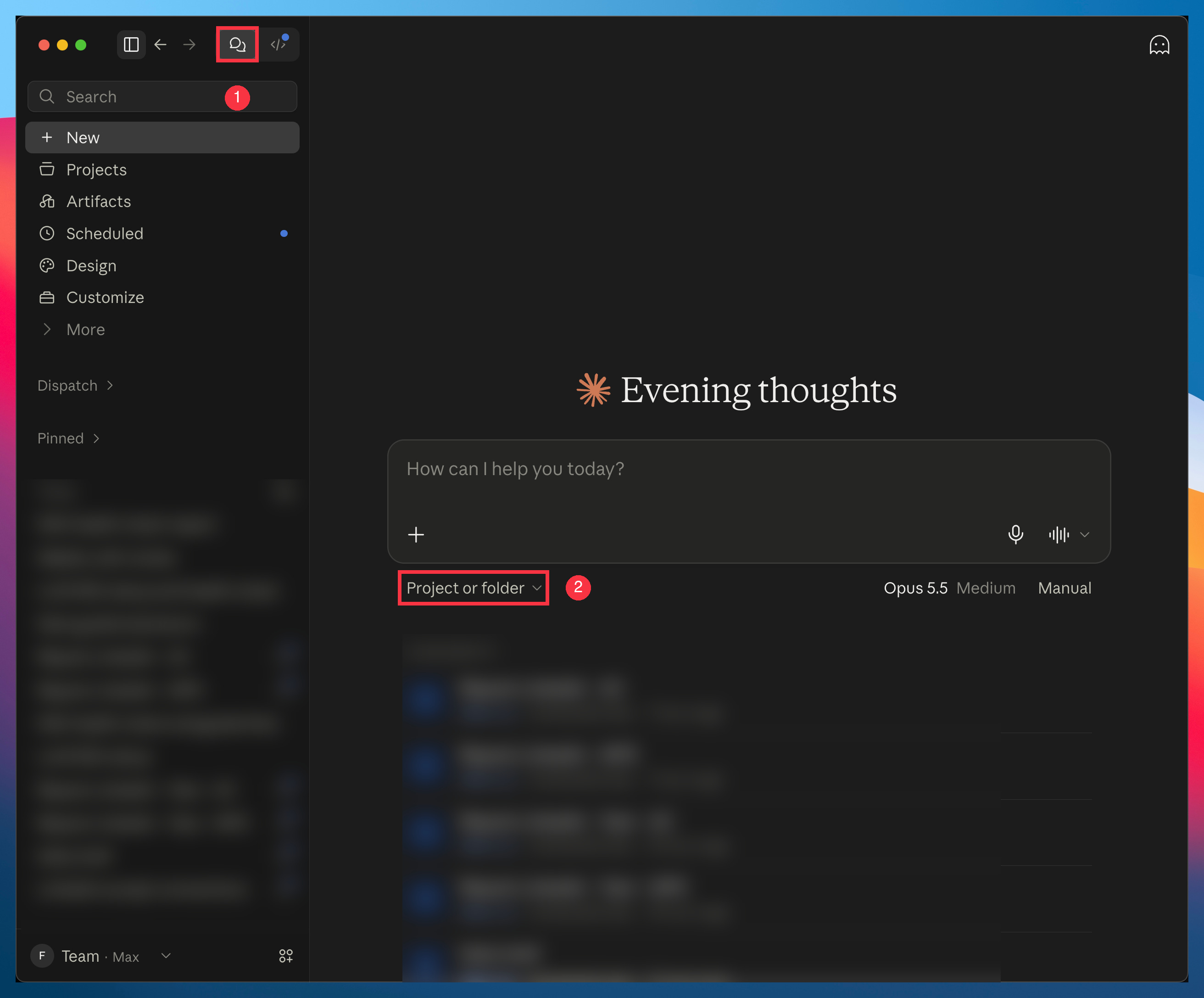
A quick note on names: Anthropic recently merged chat and Cowork. The Claude app now only has two sides, which you switch with the icons at the top left: regular Claude (the speech bubble), which is basically Claude chat + Cowork, and Claude Code (the </> icon).
Here’s how to give regular Claude your vault:
Open the Claude desktop app and click the speech bubble at the top left, so you’re in regular Claude (it works the same with Claude Code though)
Under the message box, click “Project or folder”, then “Add folder”
Choose your vault’s folder and click “Open”
Claude asks if it can change files in that folder. Click “Always allow”, so it doesn’t ask every time
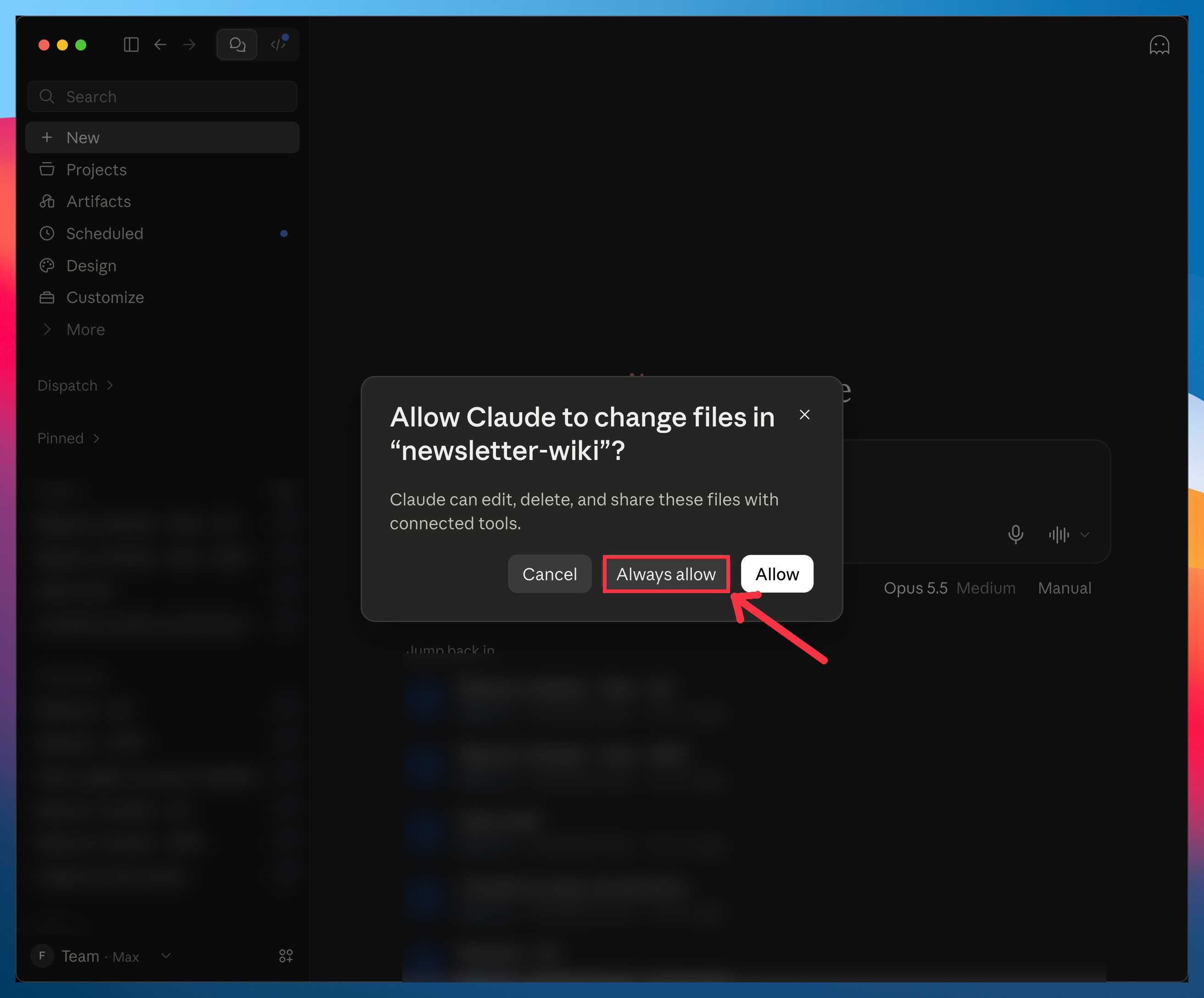
Now Claude can read every note in your vault, edit them and create new ones. You don’t upload anything.
Karpathy’s viral method: a second brain Claude writes for you
Andrej Karpathy, one of the best-known AI researchers, shared an idea earlier this year that went viral: let the AI keep your notes for you. He calls it an LLM wiki.
It works with two Obsidian folders:
raw: what you collect. Articles, PDFs, meeting notes, transcripts. You add files here, and nobody edits them.
wiki: the notes Claude writes from them. One note per idea, person or tool, all linked to each other.
Every time you add a file and tell Claude, it reads the file and updates every note it touches. A normal chat forgets everything when it ends. This wiki keeps growing.
Say you save your work notes there for a few months: meeting notes, project docs, the emails that matter. Claude builds a note for each project, each person you work with and each decision. When a June meeting reverses what the team agreed in March, it flags it. When your performance review comes, you ask “What did I get done this year, and where’s the proof?” and Claude lists your wins with links to the notes that back them up.
It works the same when you’re learning a skill for your next career move. Every lesson, article and video transcript goes in raw, and Claude turns them into one note per concept, linked to everything it connects to.
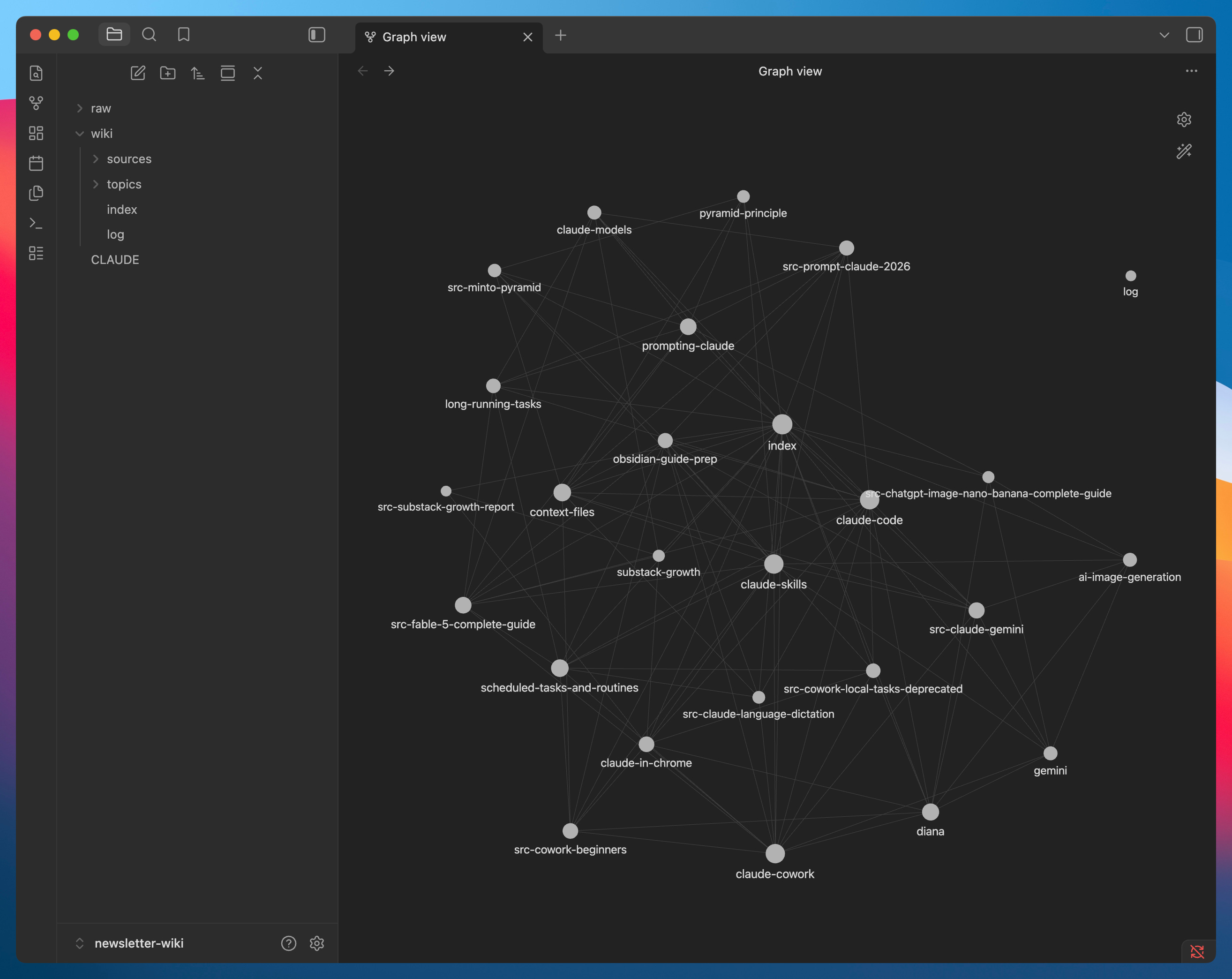
Here’s mine after my first run. Nobody wrote these notes by hand:
The rest of this guide is for paid subscribers. It’s every step I followed, with every prompt I pasted, so you can copy it instead of building it from scratch.
Below the line:
A wiki that writes itself: Meeting notes, important emails, docs and course notes pile up, and nobody opens them again. Now you drop them in a folder, and Claude files every idea into linked notes. Plus the one prompt that builds it for you, and how to save every important chat to it, so a lesson you learned the hard way never has to be learned twice.
A health check that finds what’s out of date: Old docs keep getting shared long after they’re wrong. I created a prompt that finds every outdated doc and what replaced it, while skipping the changes that don’t matter.
How to use your second brain for your career: The questions to ask your wiki before a performance review, a one-on-one, a raise conversation and more, so you walk in with the facts and the proof.
A skill that reviews your wiki every week: What slips at work usually shows up when it’s too late to fix. So I created a skill that reviews my wiki every Monday and shows me what needs my attention, before it turns into a problem.
Past this line, the full setup is waiting: