


Click here to get my FREE AI courses (20+ lessons)
Hi!
Today, Hamza Khalid is sharing with us a guide to NotebookLM (my favorite AI tool for learning new subjects). Hamza writes AI In Public, a Substack that helps professionals learn AI with proven workflows, systems and tools (no technical knowledge needed).
This guide is the 20-minute setup that turns NotebookLM from a place where you dump files into a second brain you actually use.
At the end, I added the four notebooks to build first, the prompts to run on them, and how I turn an expert I follow into an AI mentor I can ask anything.
In this guide, you’ll learn:
How to build your second brain with NotebookLM step by step
The four notebooks to build first, with what to upload and what to ask
12 prompts to remember what you learn and decide with it
How to turn an expert you follow into an AI mentor you can ask anything
Two things before we start:
1. Save this guide, and build one notebook from it today.
2. Send it to a colleague who saves everything and remembers nothing.
PS: This newsletter grows mostly from people like you sharing it. Every share helps me keep writing guides like this one.
Over to Hamza.
Name three specific ideas from everything you read last month.
Most people can’t.
In the 1880s, psychologist Hermann Ebbinghaus tested his own memory and found that more than half of new material was gone within an hour. We save more bookmarks to make up for it, and then never open them.
This guide shows you how to set up NotebookLM, so it keeps everything you save and answers your questions from it.
What is NotebookLM
NotebookLM is a free AI research assistant from Google. You upload your own material (PDFs, Google Docs, website links, YouTube videos, audio, ebooks), and it answers questions using only that material, with a numbered citation on every answer.
ChatGPT answers from everything it was trained on. NotebookLM answers from your shelf.
Google renamed it Gemini Notebook recently. Same product, same notebooks. I’ll use the old name here because most people still search for it. In this guide, we’ll skip the basics and focus on building your second brain. If you’ve never opened NotebookLM, Frank’s complete guide covers the basics.
How to build your second brain, step by step
Here’s the whole setup, click by click.
Step 1: Open NotebookLM
Go to notebook.google → Try Gemini Notebook → sign in with your Google account.
You’ll land on your home dashboard, where all your notebooks live (it’s also in the App Store and Google Play, under “Gemini Notebook”).
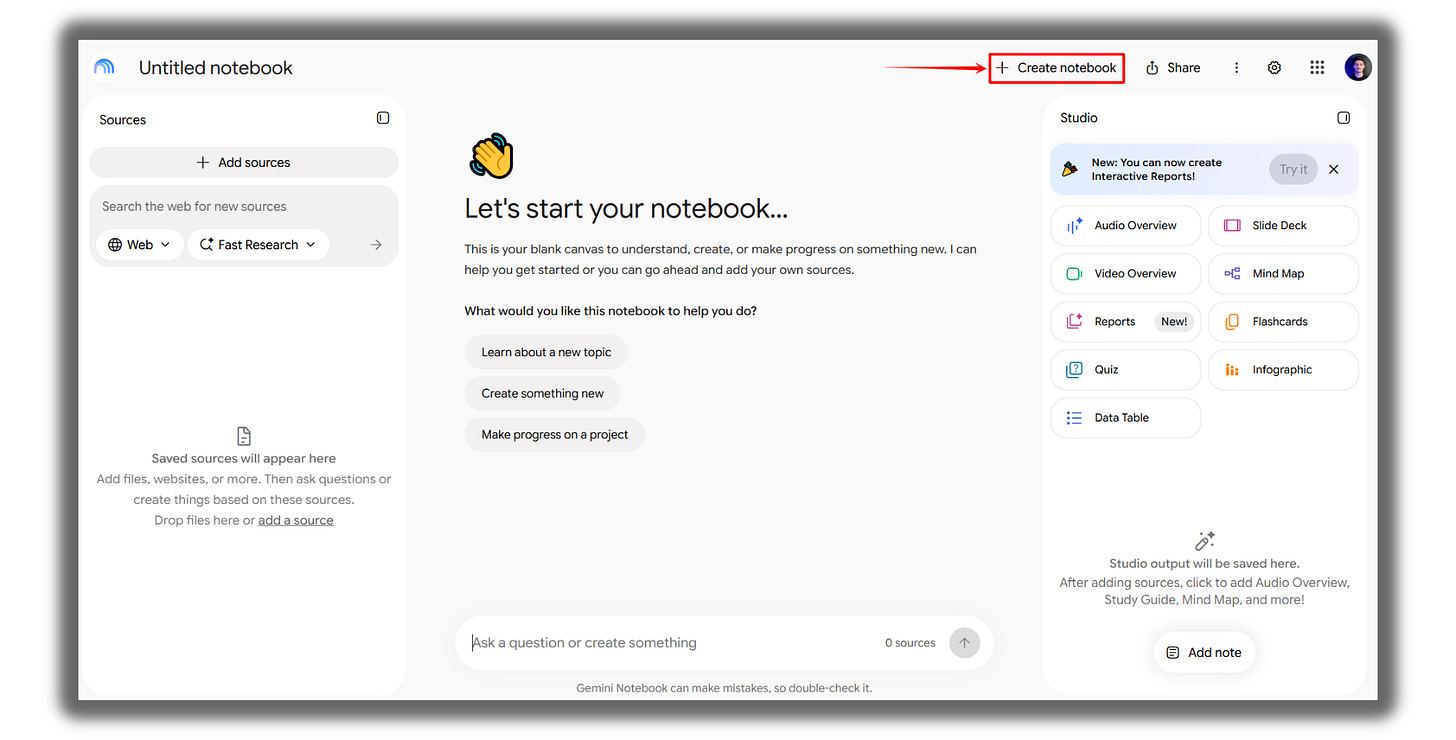
Step 2: Create a notebook
Click “Create new notebook”:
Then click the three dots → “Customize your notebook,” and name it after an area of your life, like “Learning Brain” or “Client Brain.” You can upload a logo or an image here as well:
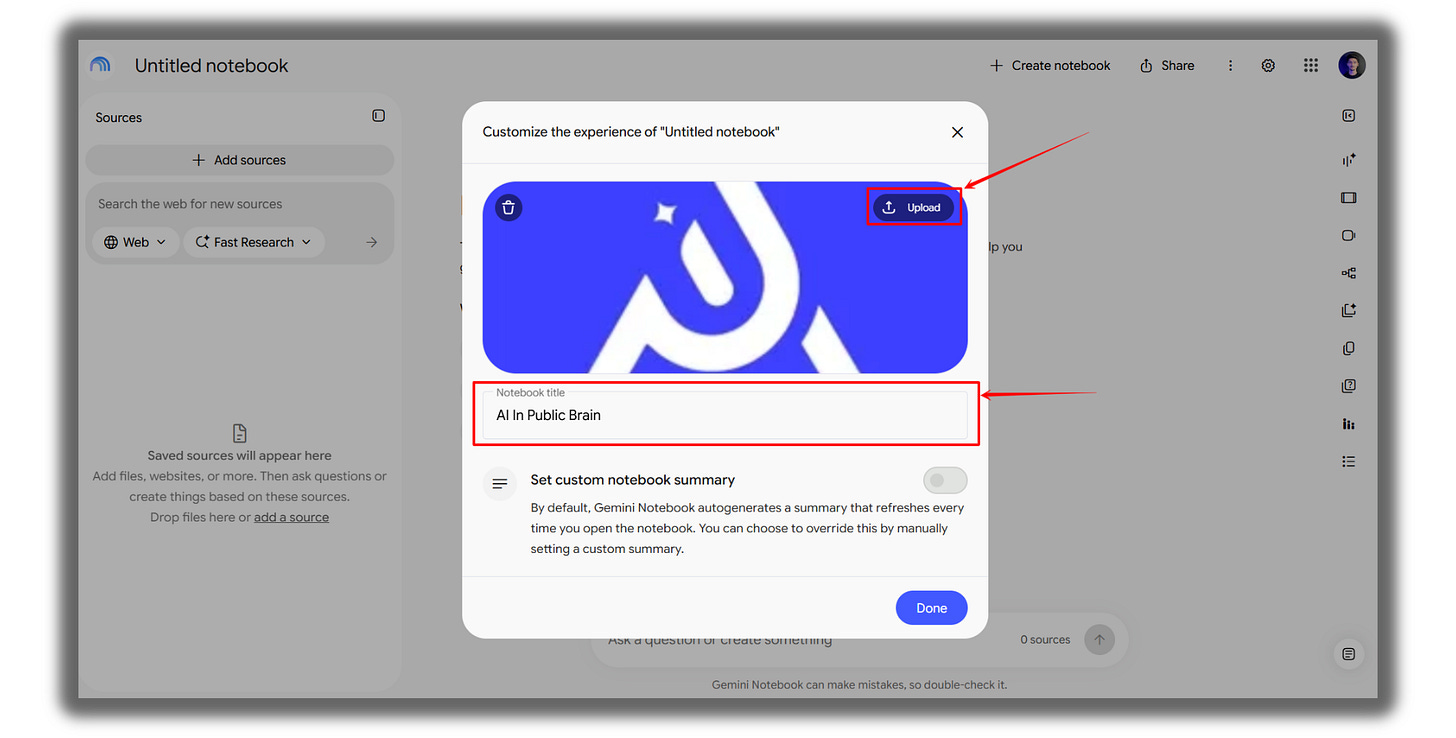
One notebook per area keeps related sources together, so the answers draw on all of them.
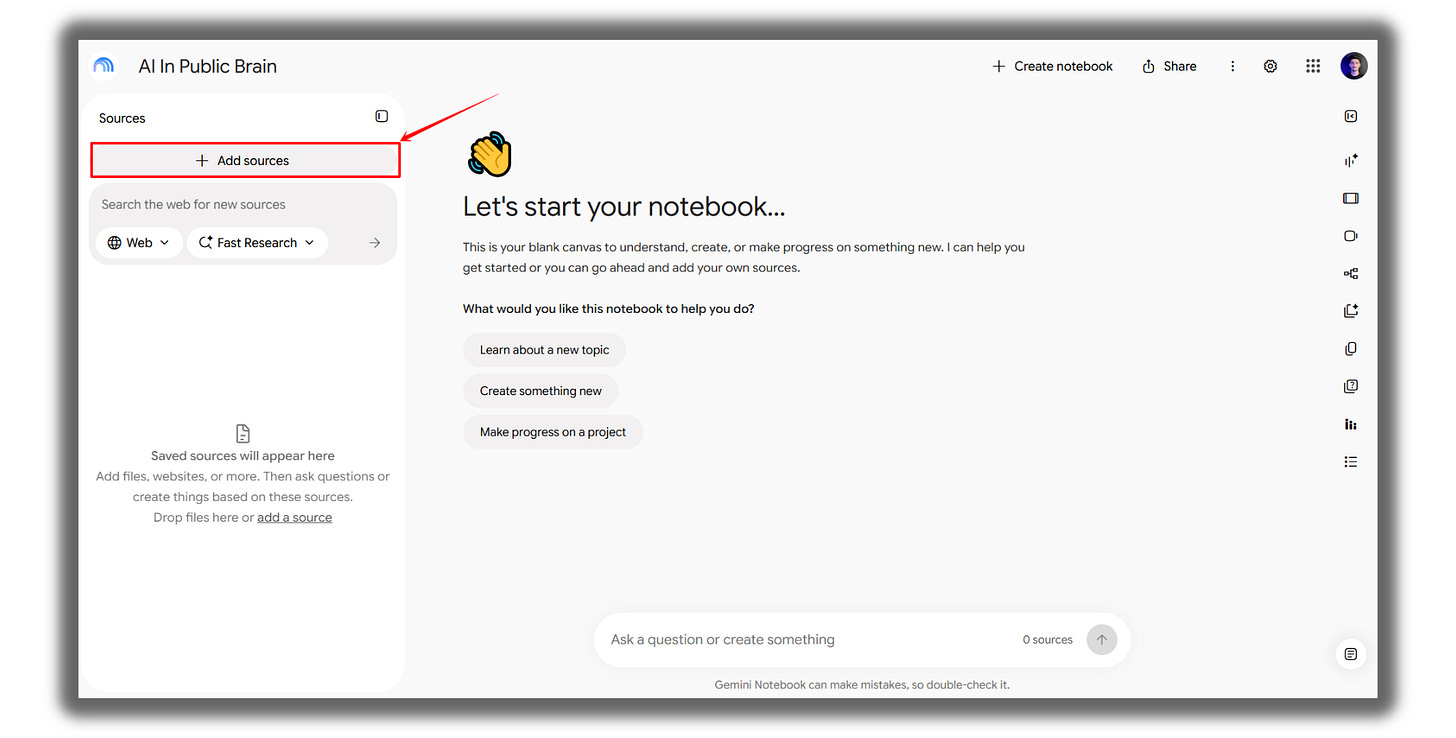
Step 3: Add sources
Click “Add sources” → “Upload files,” and start with 5 files you already saved and care about.
Step 4: Set your rules
This is the step most people skip, and it’s what turns a notebook into a second brain.
Click the three dots in the top right corner → “Configure Chat”:
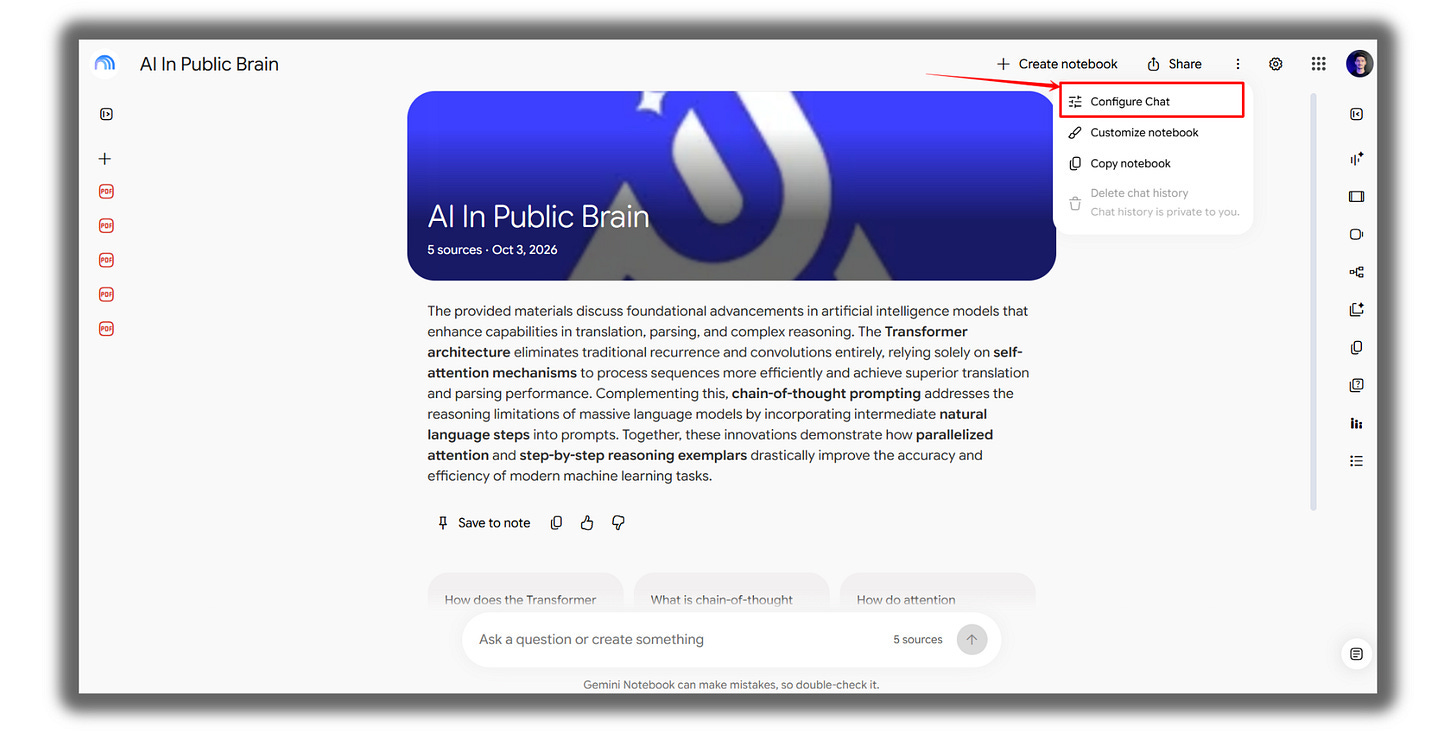
Click “Custom” and paste these instructions in the box:
You are my second brain. Answer only from the sources in this notebook. For every answer: start with the direct answer in 2-3 sentences, then give the supporting points with citations. If the sources don’t contain the answer, say “Not in my sources” and suggest what kind of source I should add.
Use plain English. No filler. Point out when two sources disagree.
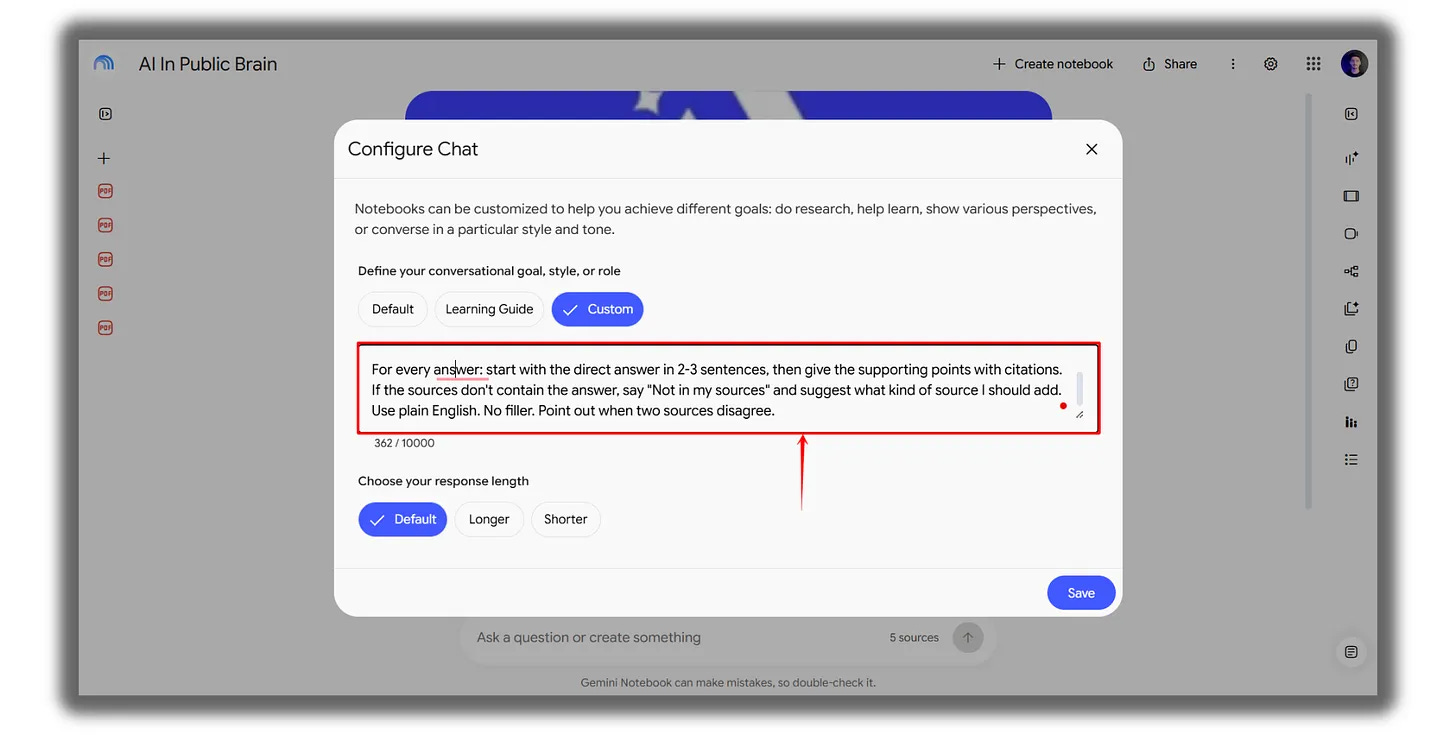
Click “Save.”
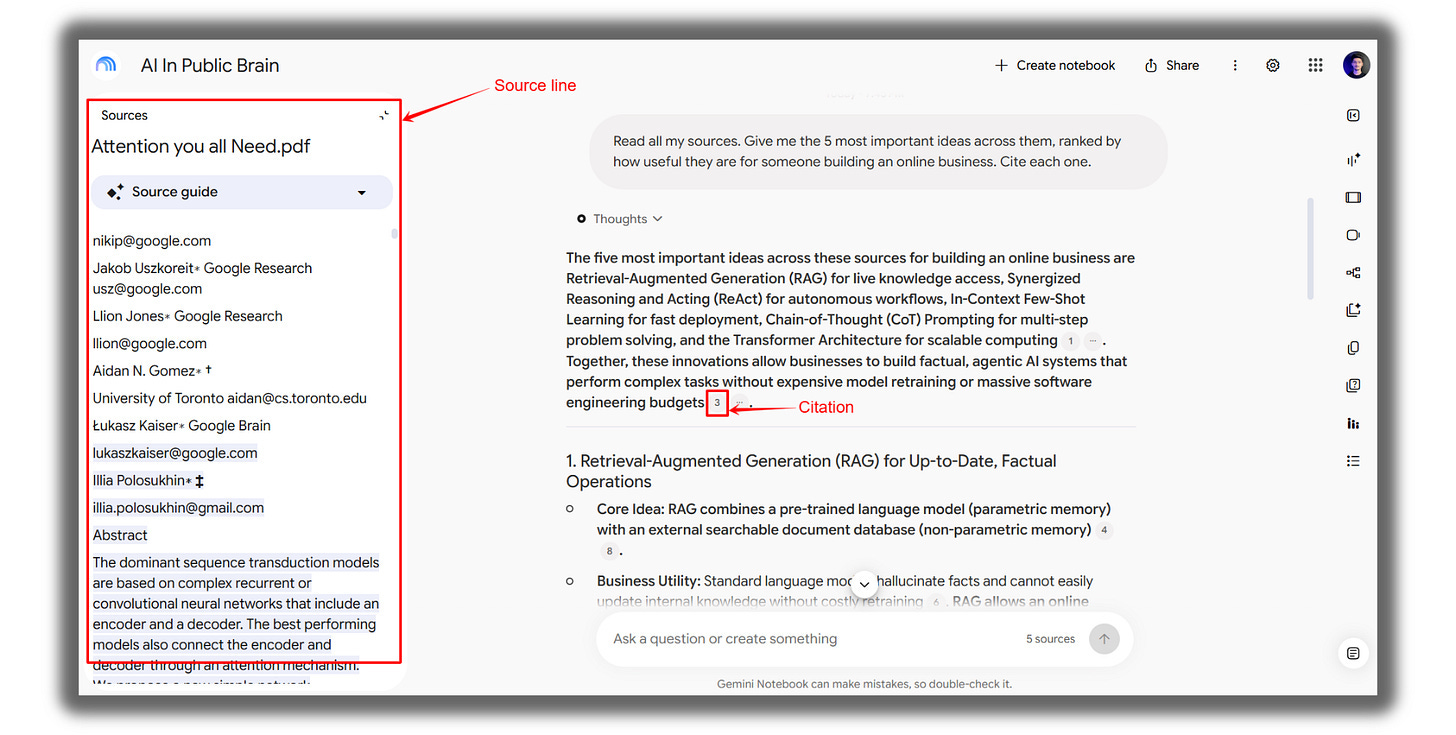
Step 5: Ask your first question
Paste this into the chat:
Read all my sources. Give me the 5 most important ideas across them, ranked by how useful they are for [what you’re working on]. Cite each one.
Citations are the small numbers at the end of sentences. Click one to see the exact line it came from:
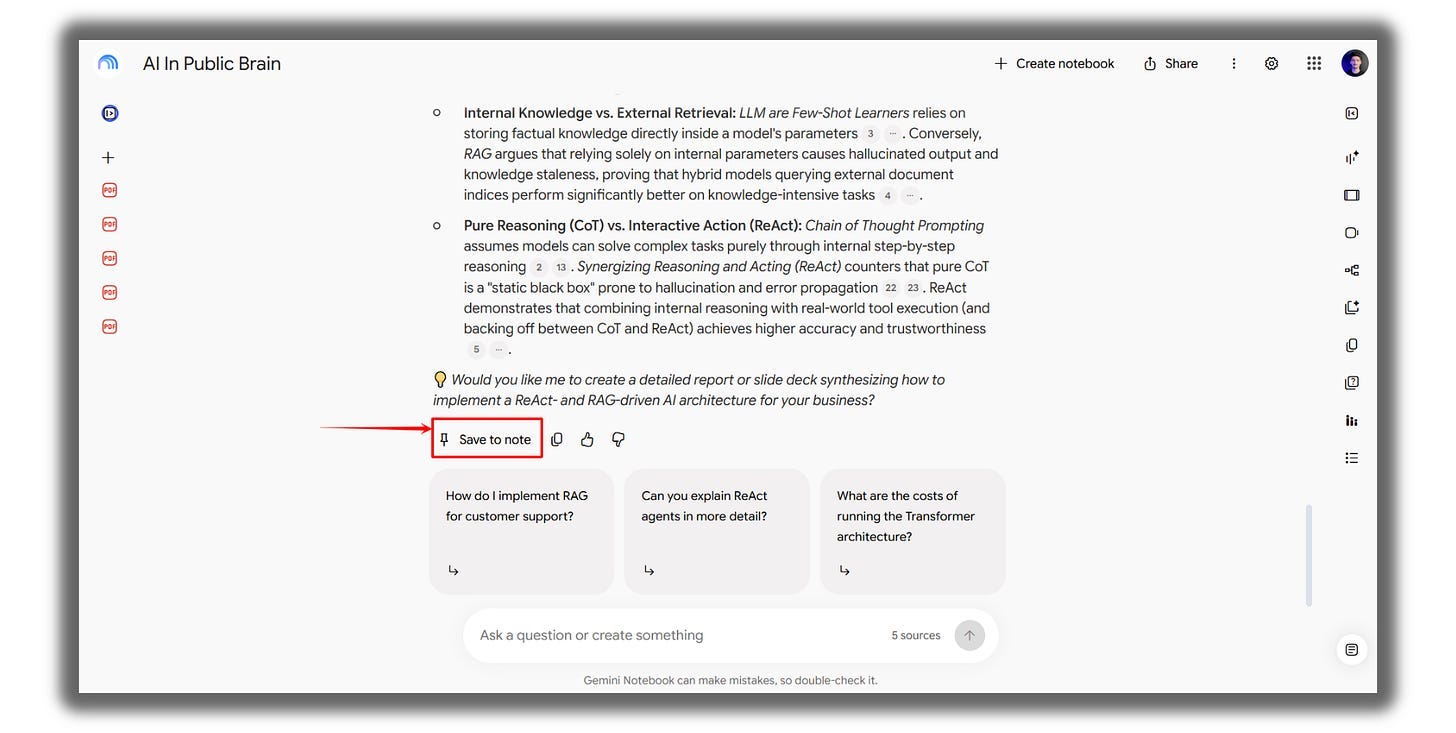
Click “Save to note” on any answer you’ll want again. The button sits at the end of each answer:
Step 6: Use Studio and feed it weekly
Once your sources are in, the Studio panel on the right turns them into a mind map, a podcast you can talk to, and flashcards. Frank covered those features in this guide, so I’ll skip them here.
Then, every Sunday, add what you saved that week. Ask what changed compared to your older sources. Save the answer as a note.
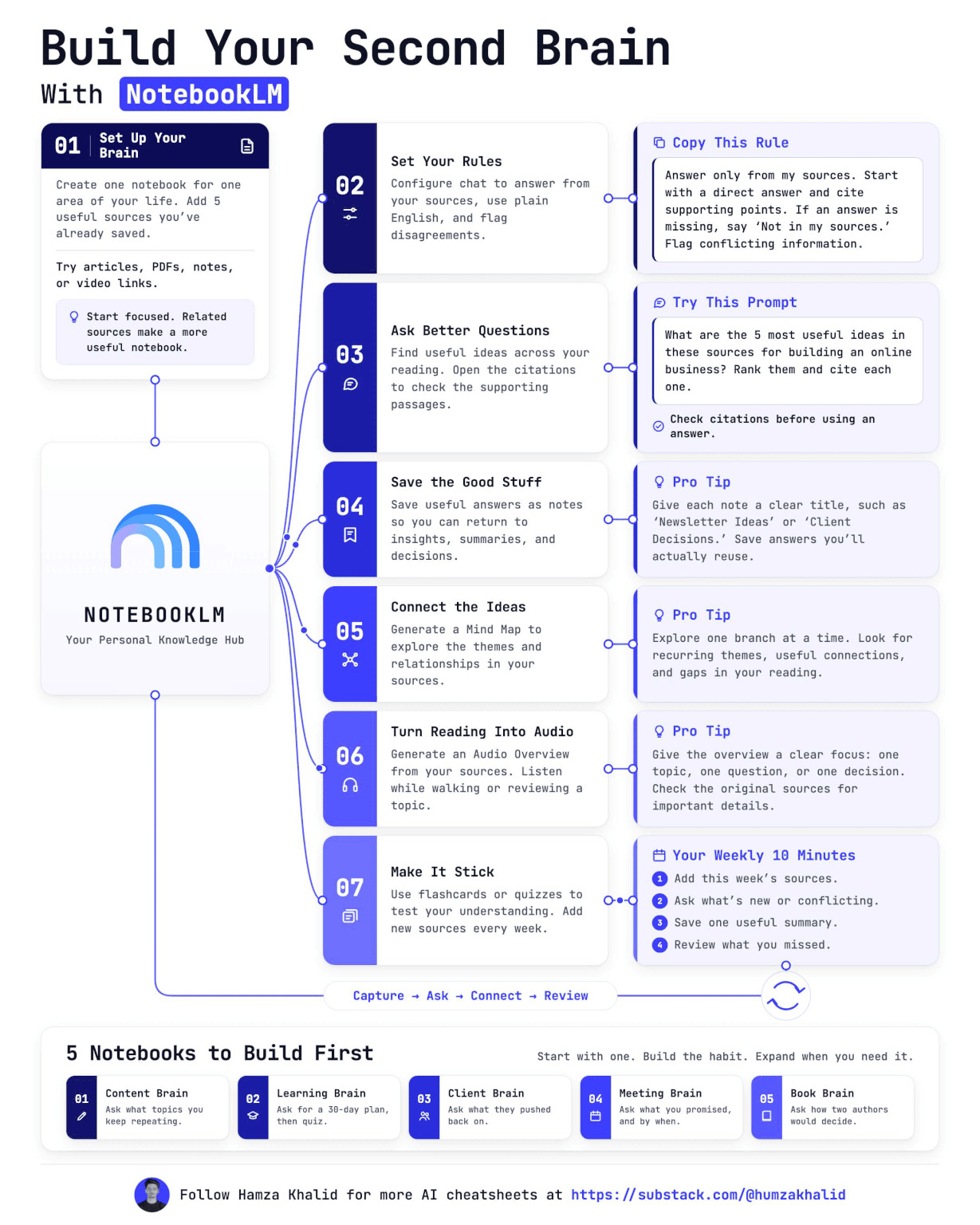
I made a one-pager of the whole setup. Save it now and use it whenever you need it:
You can connect with Hamza on X and LinkedIn.
The Second Brain Starter Kit
Back to me (Frank).
Most people who try NotebookLM do the same thing. Upload one PDF. Ask “summarize this.” Close the tab. Never come back.
What we’ve seen so far gets your notebook built. The hard part comes after it: deciding what goes in which notebook, what to ask it, and where to find good sources when you’re just starting out.
The rest of this guide is for paid subscribers. It’s the Starter Kit Hamza gives his own readers, with the notebooks I’d build first, plus how I turn an expert I follow into an AI mentor I can ask anything, for free, in a few minutes.
Below the line:
Four notebook blueprints, ready to copy: a Learning Brain, a Client Brain, a Meeting Brain and a Book Brain. Each one comes with what to upload, the instruction to paste, and three prompts to run on day one.
12 prompts that make what you learn stick and help you decide: six to test yourself on what you saved, six to get a decision out of it.
How I build an AI mentor for free, in a few minutes: pick an expert, put their whole body of work in one notebook, and ask them questions whenever you want. Plus the prompt that collects every link for you.
Past this line, the full kit is waiting: