

I use an AI dictation app to talk to Claude all day in a language that isn’t my first.
Most of it is briefing. I explain a task the way I’d explain it to a colleague: the context, the goal, what to avoid. And I say it out loud instead of typing it. Since May, that’s 1,174 recordings and almost 7 hours of me speaking my second language, the way I’d speak in a real conversation.
For months, all of it disappeared the moment Claude answered. Hours of speaking practice, and nobody ever corrected a word.
So I built a simple setup.
Every night, Claude reads what I dictated that day, checks it against my Language DNA Profile (my language preferences, my level, the mistakes I keep making) and writes a report made for me. It has run every night since August.
You can do the same with Spanish or any other language, even if you never talk to Claude in the language you’re learning. Dictate a few lines of your journal, a text to a friend, or tomorrow’s to-do list. Your dictation app keeps it, and Claude corrects it at night.
In this guide, you’ll learn:
Why everything you dictate is speaking practice
What you need: a dictation app that saves what you say
How to set up a nightly tutor that corrects you while you sleep, step-by-step
How to turn a pile of reports into a mistake notebook you’ll actually open
1. Everything you dictate is speaking practice
When you dictate, you explain the whole thing, the way you’d explain it to a colleague: what you want, why, and what to avoid. That’s everyday speech, the kind a language teacher wants to hear.
Here’s who this works for:
You already dictate in a language that isn’t your first, to an app, in messages or in your notes. The practice is already happening. You just need to keep what you said.
You’re learning a language you don’t use every day. Dictate something you’d write anyway, but in Spanish: a few lines of your journal, a text to a friend, tomorrow’s to-do list, or one question to Claude. Your dictation app keeps it either way.
No partner, no class, and nobody watching you struggle.
The feedback works like a teacher with a red pen on your diary. You were writing in it anyway. Now someone corrects it every night.
A few minutes of dictation you’d do anyway beat half an hour of Duolingo you keep skipping.
2. What you need: a dictation app that saves what you say
Dictation turns your voice into text wherever your cursor is.
There are plenty of AI dictation apps, and I compared the best ones for talking to Claude in my dictation guide.
Here are the most popular dictation apps:
Superwhisper (Mac, Windows): keeps the audio and the transcript, and it never deletes them on its own
Wispr Flow (Mac, Windows): keeps your transcripts, plus the audio for a limited time
VoiceInk (Mac): keeps the audio and the transcript of every dictation (this is what I use)
Built-in macOS or Windows dictation: keeps nothing, so it doesn’t work for this
Other dictation apps work with this method too as long as they keep a history of your dictation.
This is my VoiceInk history from today. Every line is something I said to Claude while working.
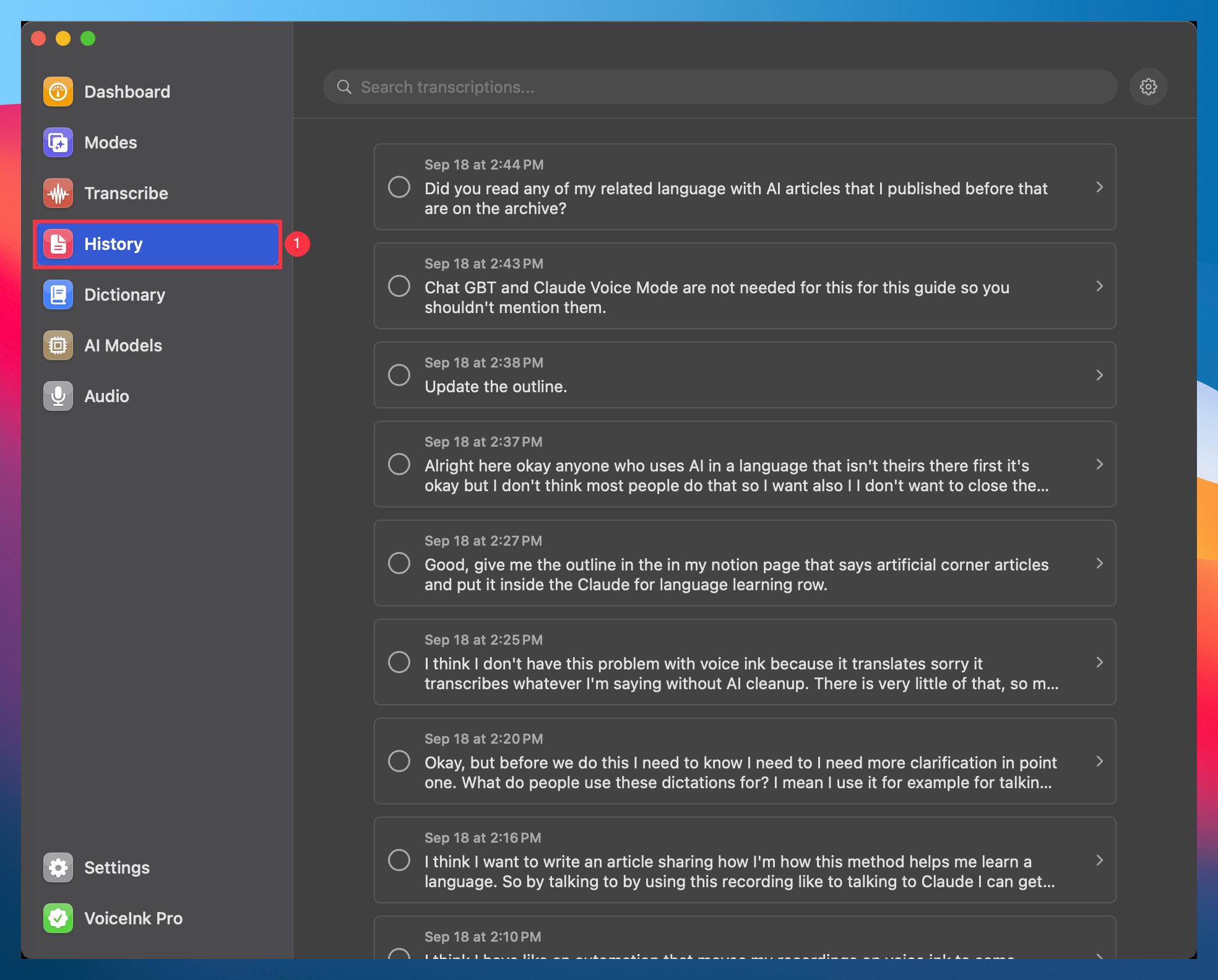
Note: in my dictations up there you can see how I restart sentences and repeat words all the time: “how I’m how this method helps me learn a language”, “because it translates sorry it transcribes”. Everyone does that, in any language, including in their first one. The prompt in Step 3 tells Claude to ignore that, so it never counts as a mistake.
3. How to set it up
Here’s what to do, in order:
Step 1: Turn off the AI cleanup
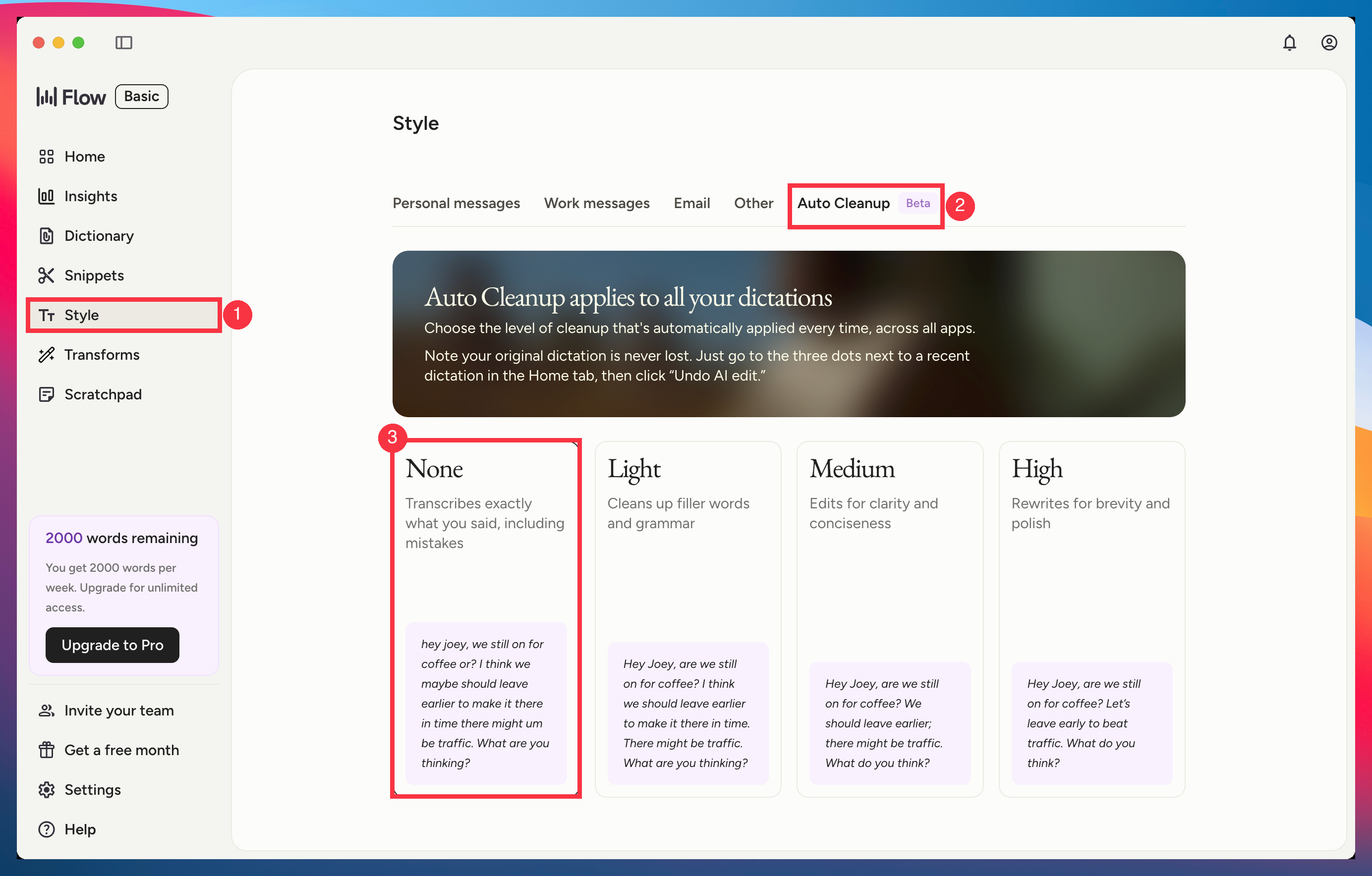
Most dictation apps can fix your grammar before you see the text. That’s great for emails. For this, it erases the exact mistakes you want feedback on.
Here’s where to check:
Wispr Flow is the most popular of these apps, so let’s start there.
Option 1, no cleanup at all: go to Style → Auto Cleanup and pick None. Flow then “transcribes exactly what you said, including mistakes”.
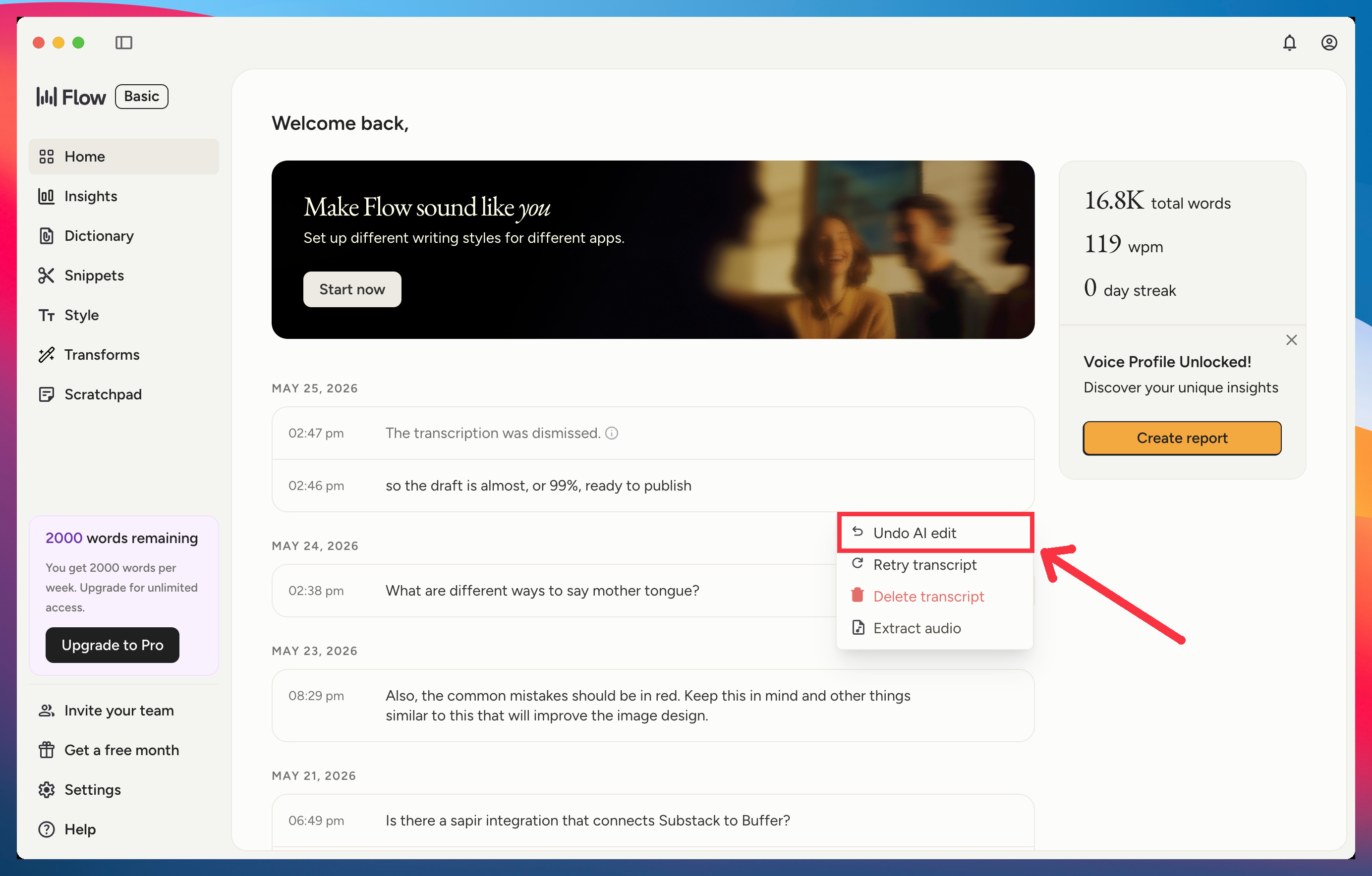
Option 2, keep your cleanup: if you like how Flow polishes your messages, leave it on. When a dictation is worth practicing with, click the three dots next to it in Home, then “Undo AI edit”. You get back exactly what you said (you’ll have to do this manually every time though)
VoiceInk: AI enhancement is off by default. Leave it off.
Superwhisper and other dictation tools: use a mode with no AI step
Step 2: Build your Language DNA Profile
The profile is one file about you: your first language, your level, your goals, and the mistakes you already know you make. Claude reads it every night before it corrects you, so the feedback fits your level and your first language.
To build it, use the 50-question interview from my guide. To do it faster, answer by dictating in your first language, and at the end Claude writes the file for you. Save it as language-dna-profile.md: you’ll put it in a folder in Step 3.
Step 3: Set up your nightly tutor
I set up Claude to give me language feedback on everything I say during the day. It works while I sleep, and the report is waiting for me when I wake up.
I’ve used it since August. That’s 29 nightly reports so far. I’ll also show you where to click, step-by-step, so yours starts tonight.
The setup below is one piece of a bigger system.
The whole thing, including my video course on learning a language with AI, comes with the paid subscription, along with other perks and full access to new guides every week.