

Claude got dozens of updates over the past few weeks.
This one is mind-blowing!
It’s called “Computer Use.” It lets Claude control your entire computer. This means controlling your keyboard and mouse in any app that you allow.
It’s only available for the macOS Claude app, BUT after testing it since its release, I think Windows users can still benefit from a simplified version of it (keep reading and you’ll understand what I mean).
Claude is releasing updates like crazy lately! I spend a lot of time testing and digging into each one so you don't have to. If it's useful, it's in my guides. If it's not, I save you the time
Click here to read the best Claude guides
If you like this Claude series, support me by becoming a paid subscriber :) 👇
Computer Use is powerful, but Claude tries to avoid it. Here’s why
After doing dozens of tests, I’ve noticed that Cowork doesn’t always use computer use’s full potential, and there’s a reason for that.
Even if you prompt Cowork “use computer use for this task,“ Claude follows this order to execute tasks:
Connectors: If a connector is available (Gmail, Google Drive, etc), Claude uses it. This is the fastest and most reliable path.
Claude in Chrome: When there isn’t a connector for the tool you need, Claude will navigate the Chrome browser to work on your task
Screen interaction: If options 1 and 2 won’t help, Claude uses computer use to interact directly with your screen: clicking, typing, and navigating your desktop apps.
Claude prioritizes the fastest method (1 and 2) to avoid longer sessions and mistakes.
In my use-cases, you’ll notice that Claude avoids as much as possible using screen interaction (aka computer use). Instead, it uses connectors or Claude in Chrome. Is that bad? Not at all, you’re wasting fewer tokens and getting the job done anyway.
That’s why I think Windows users without the computer use feature can still benefit from the use cases we’ll see later (Claude mostly uses Claude in Chrome).
First, let’s see how to enable Claude’s computer use.
How to enable Computer Use
First, download the Claude desktop app: claude.com/download
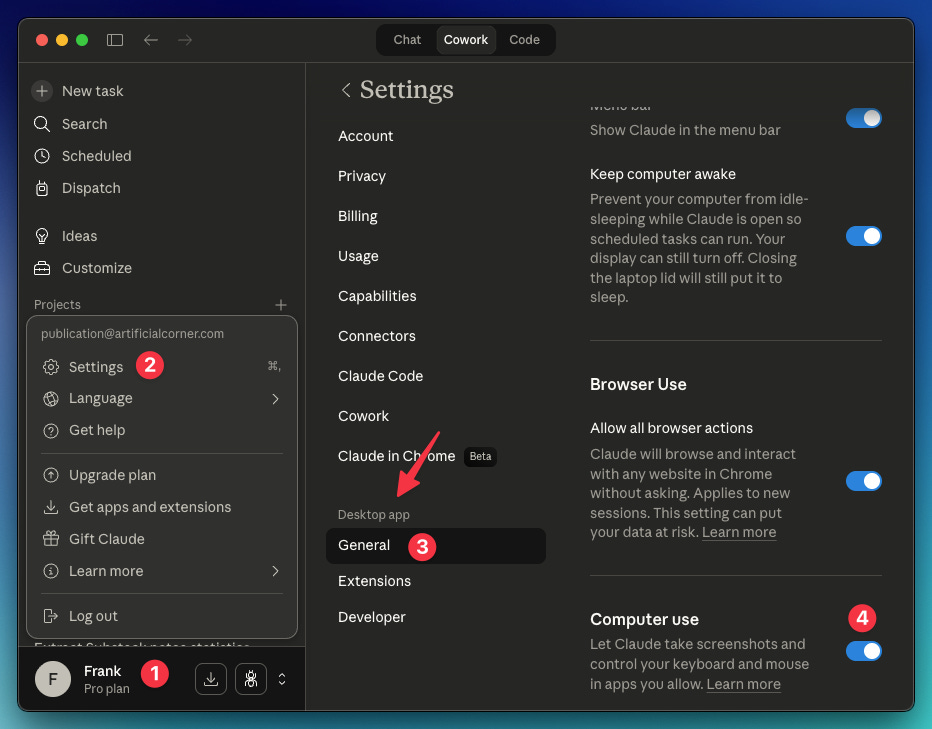
Open the app → Select Cowork → Open the sidebar:
Click on your name
Settings
General (inside “desktop app” section)
Toggle on “computer use“
How to know you’re actually using computer use
The best way to trigger computer use is to make Cowork work with local files or apps. Here are some ideas:
Create an analysis using local files and then create a formatted report in Excel
Navigate apps that don’t have connectors (tools your team uses, macOS apps, etc)
Fill in a spreadsheet with data from multiple sources, format it, and save it
Here’s a test you can do to see what your computer looks like when it’s controlled using Claude’s computer use.
Go to Cowork and paste in this prompt:
Use computer use for this task:
Open the calculator app to calculate 30x200 and then create an apple note to store the result
This might seem silly, but, believe me, sometimes it seems that this new feature is being used, but it’s not! If you see the orange outline on the whole screen, Claude is controlling your entire computer with computer use. If you see the outlines only in the Chrome window, Claude in Chrome is being used.
These are only technicalities. At the end of the day, we care to get things done without wasting too many tokens. That’s what we’ll do in the following use cases.
My Best Use Cases
Computer use helped me automate my busywork. Here are my best use cases that you can adapt to your workflow.
#1 Automate LinkedIn responses (“Comment X, Get Y”)
If you use LinkedIn or Instagram, you probably came across the “Comment X and I’ll send you Y.“ X is a keyword that triggers an automation. Instagram has third parties that make this easy. However, as far as I know, LinkedIn doesn’t have any.
With the prompt below, I could automate this:
Use “Computer Use” to control my computer and do this task:
Open the Excel file “LinkedIn DMs.” Find today’s row, copy the message, and open the LinkedIn post. Then open the comments section and send a DM to everyone who commented, using the keyword. After you successfully sent the DM reply “Sent!” to their comment
Why do content creators use this formula? Platforms like LinkedIn penalize posts with links, so this is the best way to share links without hurting views.
By the way, if you want to connect with me on LinkedIn, click here: https://www.linkedin.com/in/thepycoach/
I accept everyone :)
#2 Accept connections
Every day, I get new connection requests on LinkedIn. I manually accept each of them because there’s no native LinkedIn way to automatically accept requests.
Thanks to the prompt below, I can get my connection request inbox down to zero:
use “computer use” to accept all my connection requests on linkedin
Before this test, I was manually accepting a lot of requests. Luckily, a new one came in right when I needed it (lucky me!)
One less task in my daily routine!
#3 Create a customized short link after publishing a new guide
Every time I publish a new guide, I manually create a Bitly shortlink to share it on other platforms. I use the original link slug to create a customized shortlink.
This prompt automated this process:
Use “computer use” for this:
I have a Substack newsletter at artificialcorner.com where I publish AI guides every Wednesday and Sunday. At the end of each Wednesday/Sunday I want you to go to my bitly.com account and create a customized bitly link using the same URL slug used in the original guide (if it’s taken come up with something similar)
Note: This week I published on a Tuesday (it was an exception)
#4 Create an Excel table with web data
To quickly keep track of all the links I create with Bitly, I need an Excel table with these columns: Guide name, Original Link, Bitly Link.
The prompt below extracts the data I need from Bitly and puts it into Excel.
Use “Computer Use” for this:
Build a table in Excel with these columns: Guide name, Original Link, Bitly Link. All the info is in bitly. Only consider the links from my site artificialcorner.com
#5 Update an Excel table
If I need to update a table with fresh data, I ask Claude to visit a website, extract the information I need, and update the table for me.
Here’s the prompt I use:
Use “computer use” for this:
Go to bitly.com and add the latest link created to my dataset Bitly_Links_ArtificialCorner.xlsx located in Download -> Bitly. Open the Excel file and add the data in a new row. The data needed is Guide Name, Original Link and Bitly Link
Final tips to get the most out of computer use
You can turn a chat into a scheduled task, so it runs on any day/hour you want. Learn how here: artificialcorner.com/p/claude-automates
You can use Dispatch to trigger computer use from your phone. Check out my guide: artificialcorner.com/p/cowork-dispatch
To prevent Claude from using some apps, do this: Settings → General → Denied apps → Add app
Close anything you don’t want Claude to see. When Claude uses your computer, it takes screenshots to navigate your screen
Subscribe to this newsletter so you never miss guides like this, delivered straight to your inbox 👇