

I’ve been using Claude Cowork since day one. It’s the best AI tool for getting real work done on your computer.
But there was always one problem: You had to be sitting at your desk to use it.
If you wanted to start a task or monitor Cowork’s output while you were at the gym or grabbing coffee, you couldn’t do anything about it. There wasn’t mobile access.
That just changed.
Cowork just got a new feature called Dispatch. This feature lets you text Claude a task from your phone, and it completes the work on your computer while you’re away. When you come back home, the work is done.
In this guide, you’ll learn:
How to set up Dispatch on your phone and desktop
How to use Dispatch
How to unlock Dispatch full potential with skills, tasks, and more
A few things to keep in mind before you use this feature
I’ve been getting a lot of sponsorship offers for this newsletter lately.
I appreciate every single one, but out of respect for my paid subscribers, I’m keeping this space ad-free.
Click here to read my best Claude guides
If you like my Claude guides and want me to keep making more, consider becoming a paid subscriber👇
How to set up Dispatch
Here’s what you need:
The latest version of the Claude desktop app (Mac or Windows)
The latest version of the Claude mobile app (iPhone or Android)
A Claude paid plan
Here’s how to set it up:
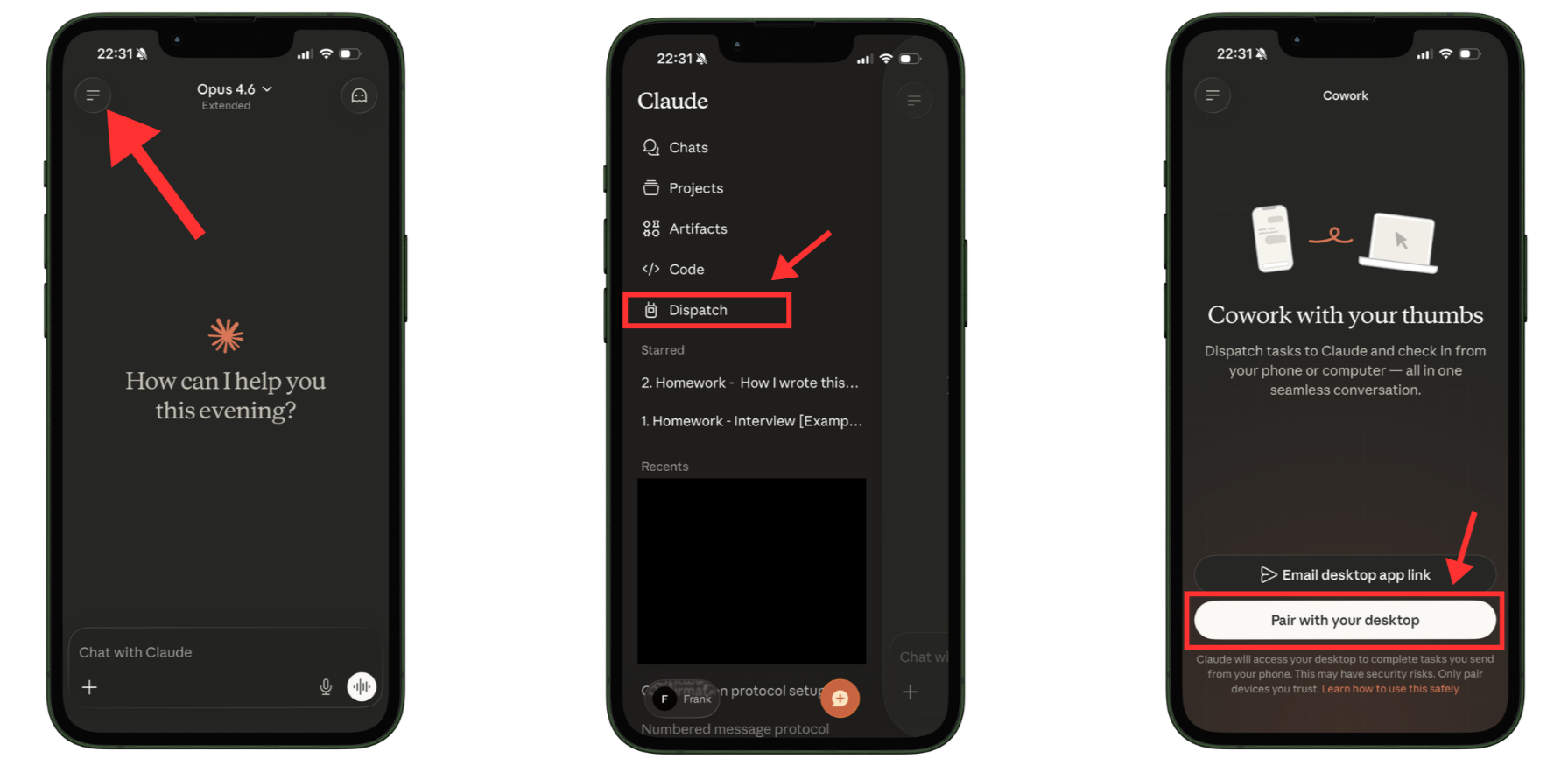
On your phone:
Open the Claude app → open the sidebar → Dispatch → Pair with your desktop
On your computer:
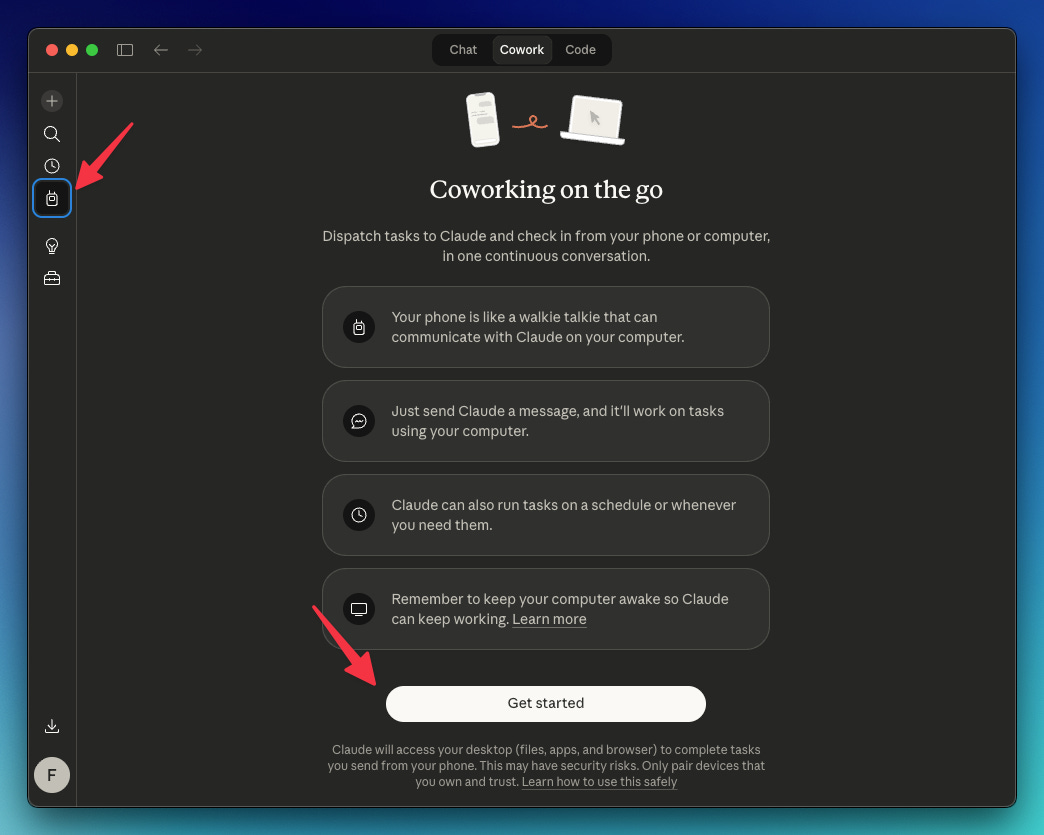
Open the Claude desktop app → open the sidebar → Dispatch. You’ll see a screen that says “Coworking on the go.” Click “Get started.”
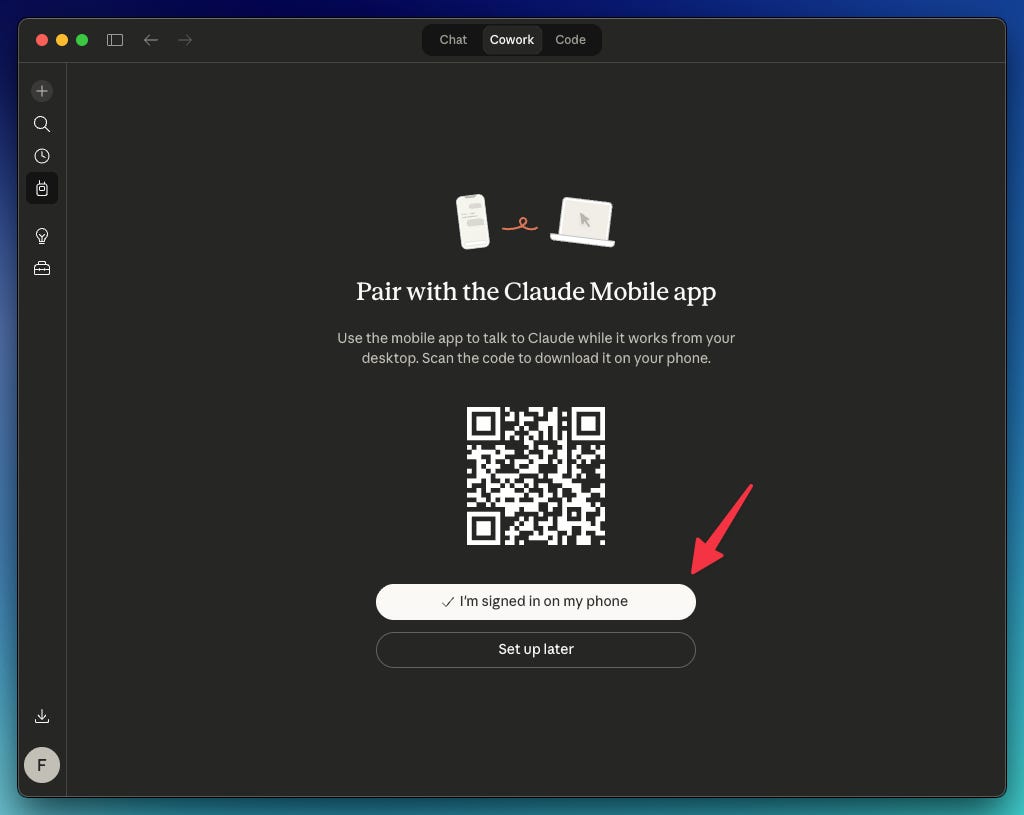
Click “I’m signed in on my phone.”
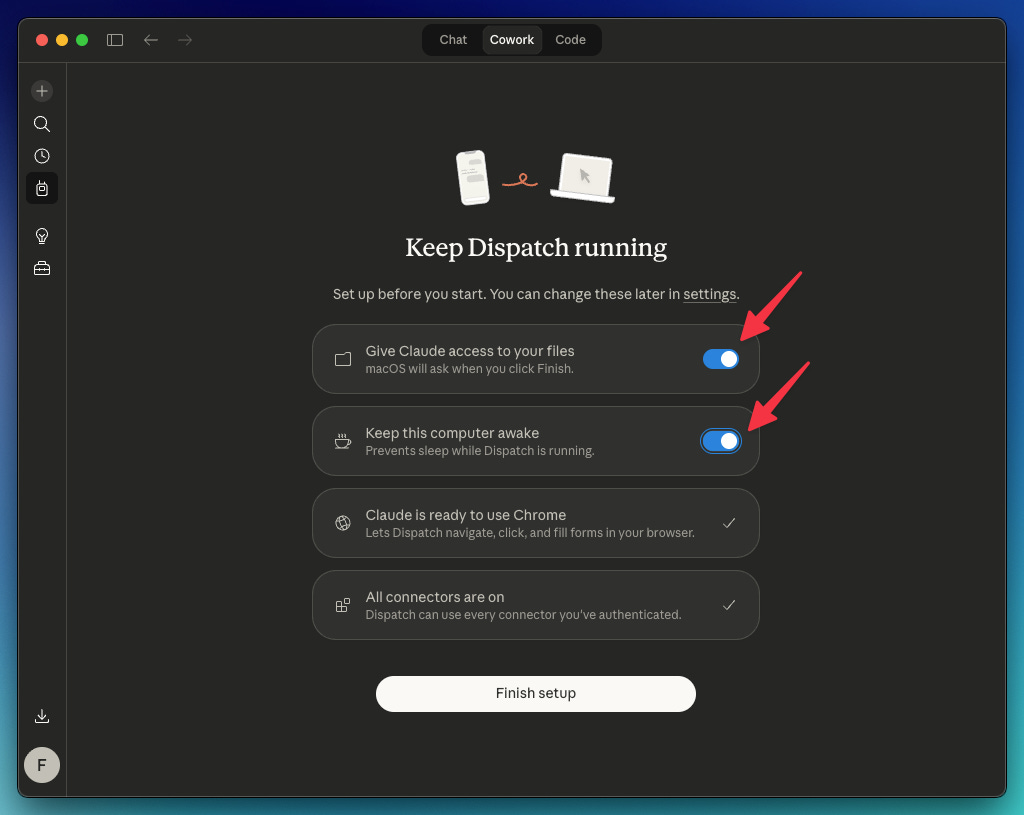
Toggle on two things: give Claude access to your files, and keep your computer awake while Dispatch is running (if your computer goes to sleep, Claude stops working)
The setup is finished!
You should see the screen below when you go to Dispatch in the desktop app (in the mobile app, you’ll see a simplified version)
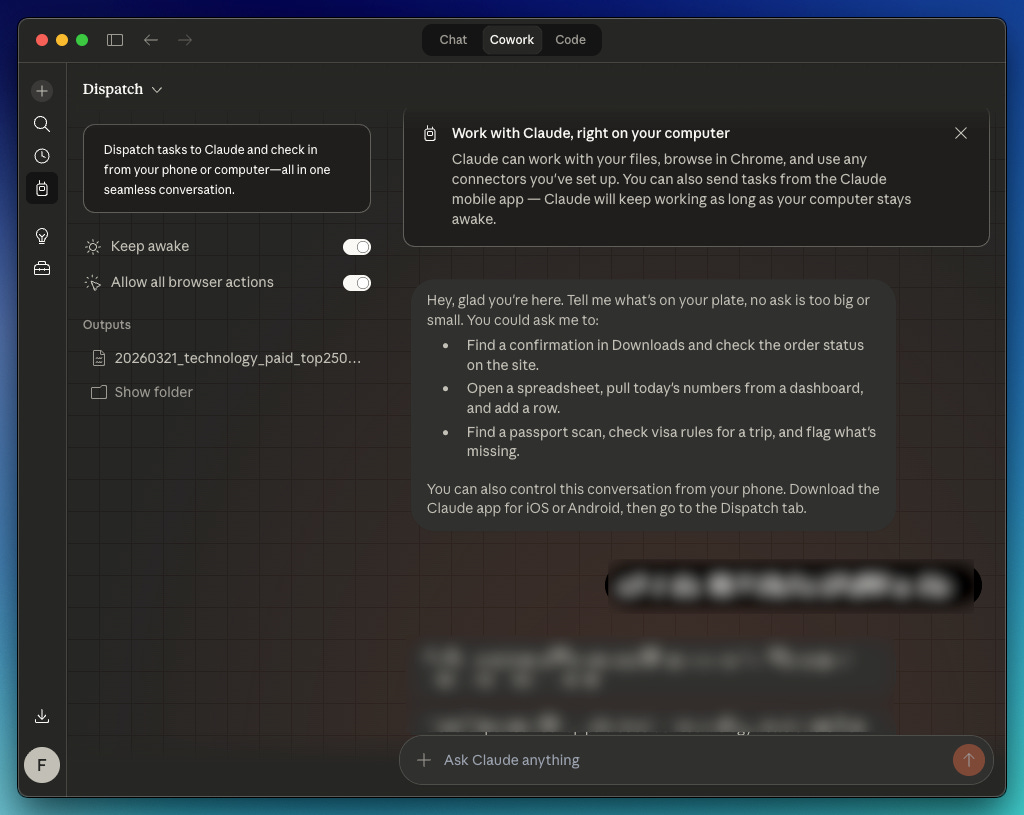
You now have one continuous conversation with Claude Cowork that works from both your phone and your desktop. Text it a task from your phone, and Claude works on your computer using your local files, skills, connectors, and more.
Let’s see how to use Dispatch with a basic example.
How to use Dispatch
Dispatch is designed for moments when your phone is the only device you have. Here’s how to fire it up on your phone.
Go to the Claude phone app → open the sidebar → Dispatch
You’ll see this default message on your phone.
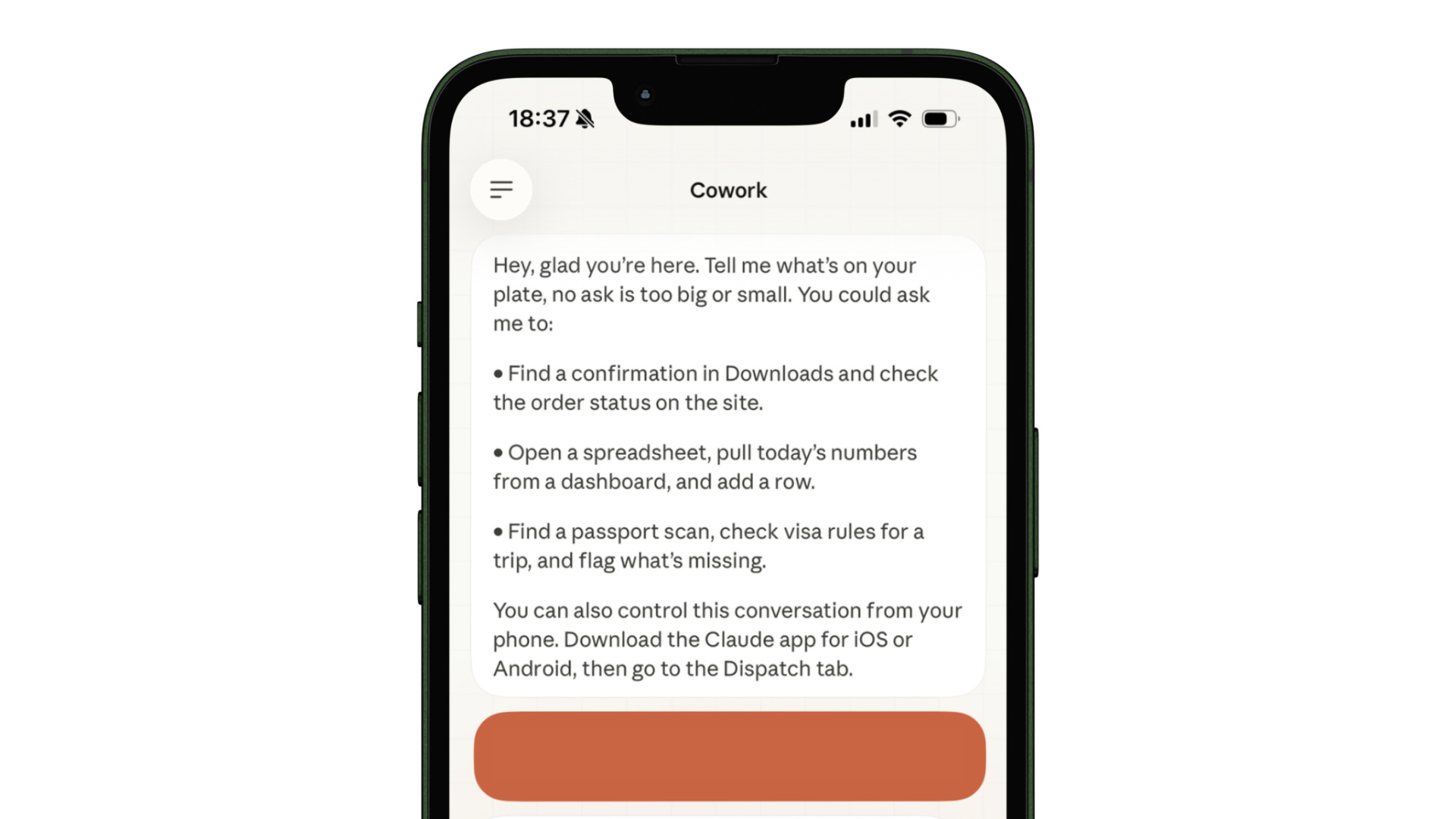
Use a prompt to point it to a folder on your computer and tell it what to do.
You can type something like this:
“In my [folder name], can you give me a quick summary of what’s in the final report spreadsheet?”
In your prompt, be specific about the folder and the file name.
In a few minutes, the report summary will be generated on your phone. No laptop needed. Just a text message to Claude and a clean summary back on the phone.
But that’s only the most basic thing you can do with Dispatch!
Now that you've seen it in action on your phone, let me show you the computer setup that unlocks its full potential.
Unlock Dispatch's full potential with skills, tasks, and more
If you’ve used Cowork before, you probably know about skills and scheduled tasks.
Skills are reusable instructions you save inside a folder so Claude knows exactly how to handle specific tasks. Scheduled tasks are prompts that run automatically at a certain hour and day.
Both make Dispatch really powerful, because you can trigger them from your phone with a short message.
Step 1: Add skills to your list
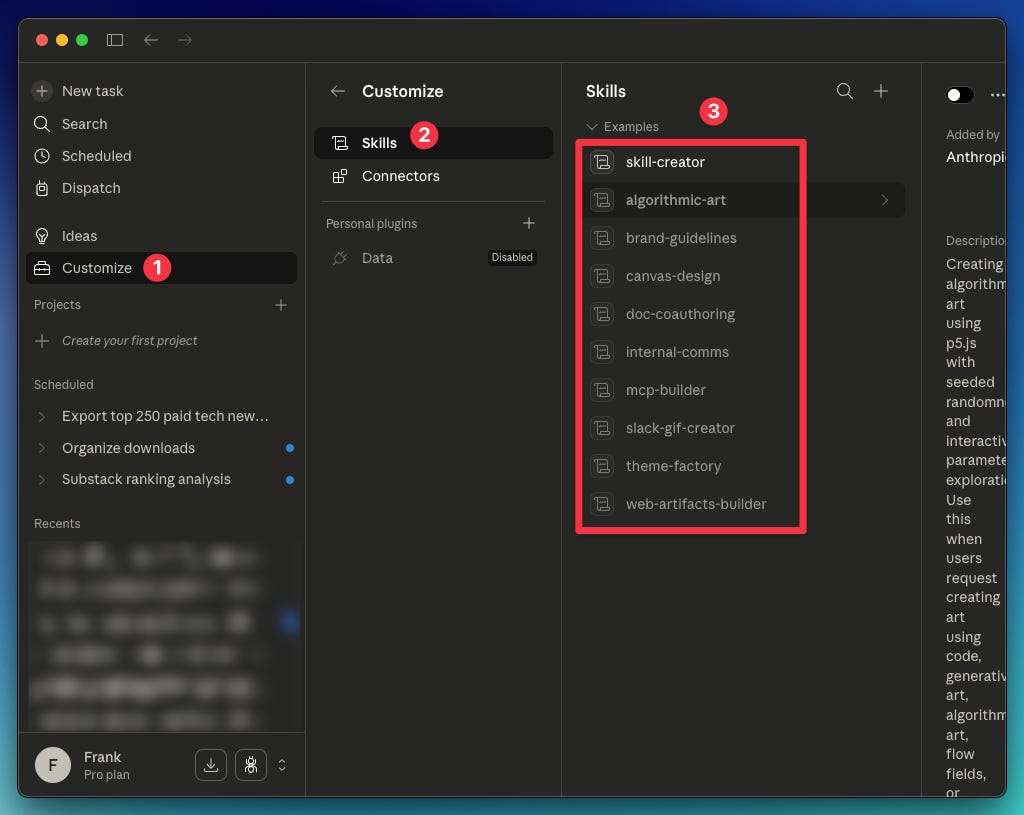
To see the list of skills you can trigger from your phone, do this on the desktop app:
Open the sidebar → Go to Customize → Skills → List of skills available
To download skills and learn how to create your own, read this: artificialcorner.com/p/claude
Step 2: Add tasks to Scheduled
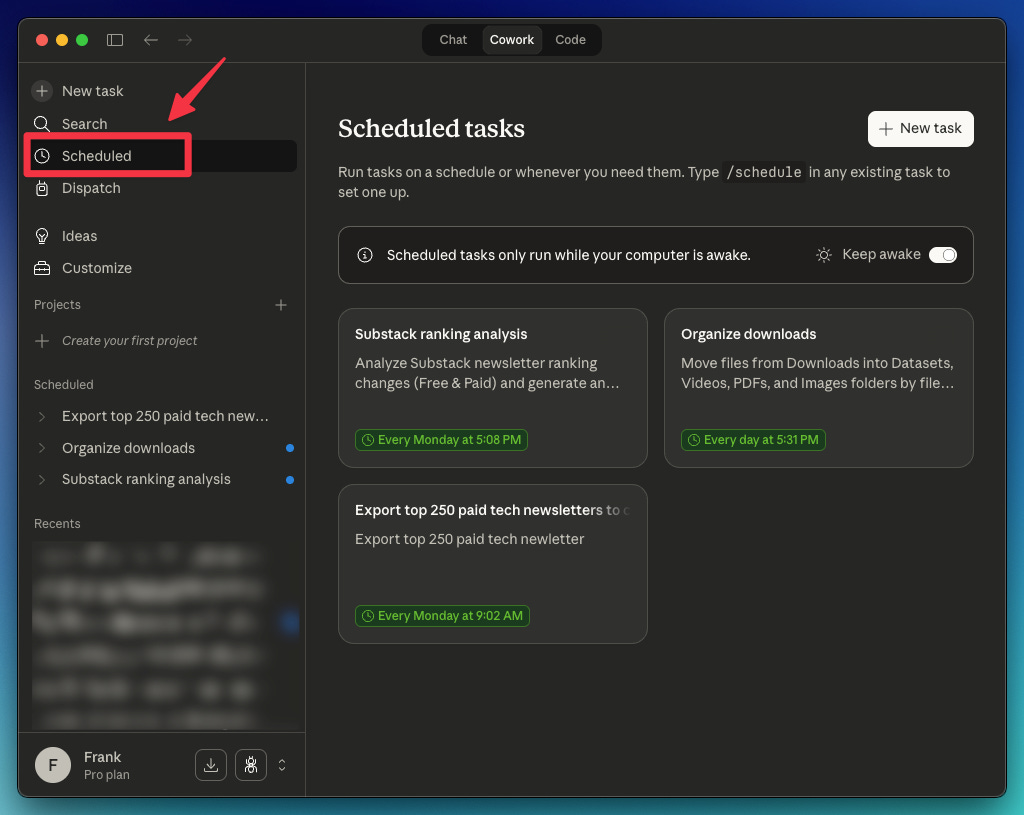
To see the list of tasks you can trigger from your phone, do this on the desktop app:
Open the sidebar → Go to Scheduled → List of tasks available
To learn how to create scheduled tasks, read this: artificialcorner.com/claude-automates
Step 3: Trigger skills or tasks from your phone
Now that you know the list of skills and tasks available, you can trigger them with a short message from your phone.
Here are the steps to follow:
Open the Claude phone app → open the sidebar → Dispatch
Type “Run the [name of skill/task]“
Allow permission
You get your output
If your task/skill generates a file, you might need to explicitly tell Claude to show you the file in the phone Dispatch chat.
Here’s an example
Say I’m in the barber shop or sitting in the taxi. I can grab my phone, open Claude, and type: Run the task “export top paid newsletters to CSV.” That’s a task that scrapes Substack newsletter rankings from a site.
Pro tip: Use simple names for your skills/tasks so they're easy to trigger on your phone.
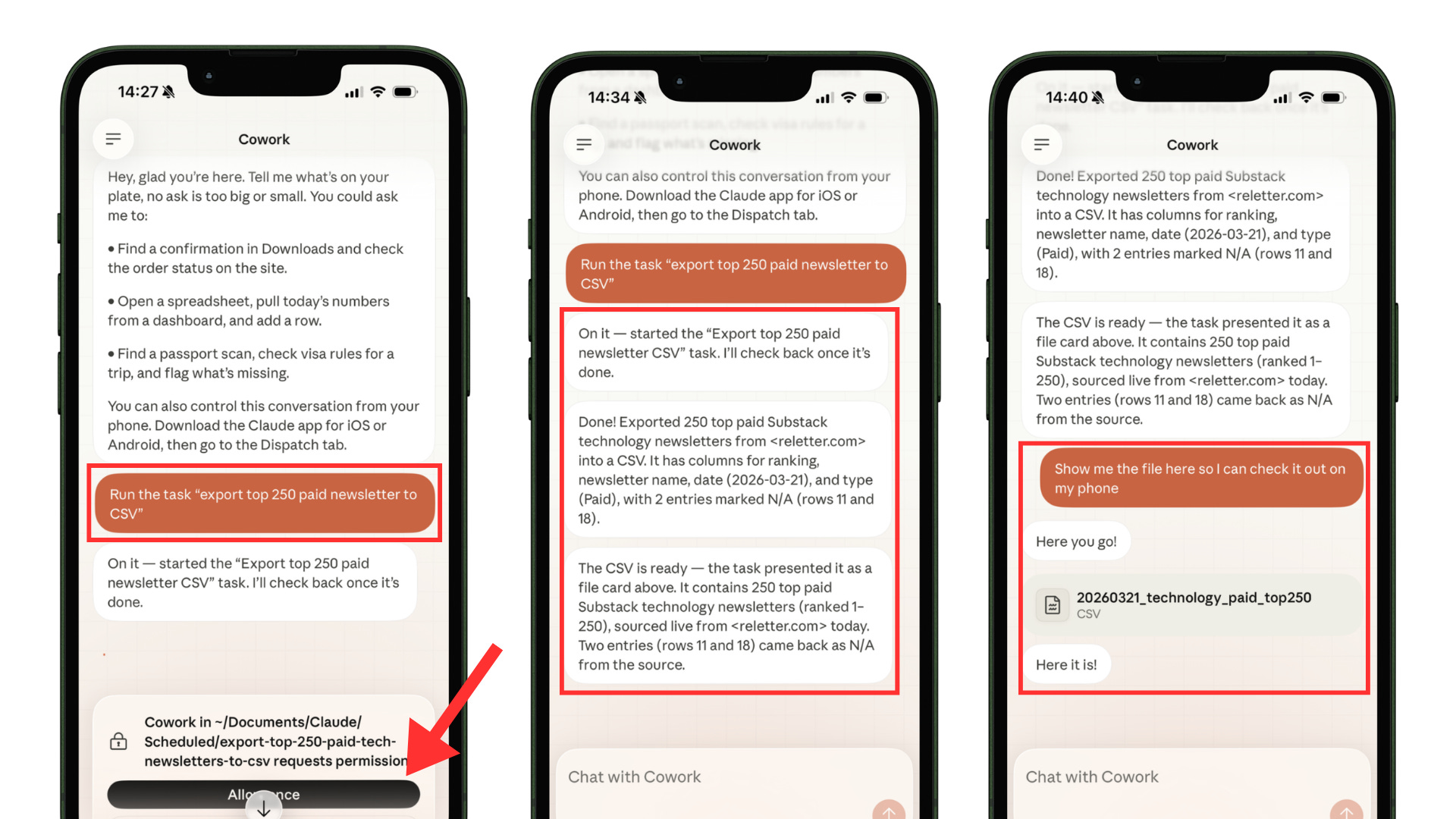
Done! The CSV file was generated. I can open it on both my phone and computer.
When I come back home and open Claude Cowork on my computer, the same chat is right there in the Dispatch tab.
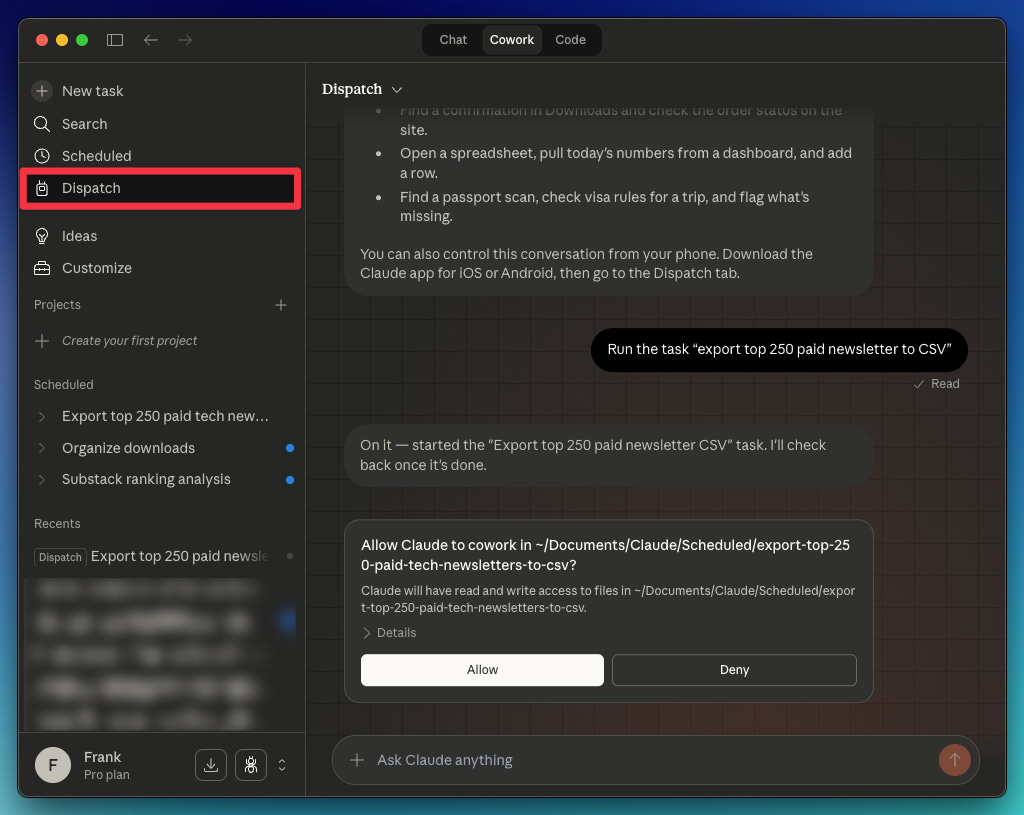
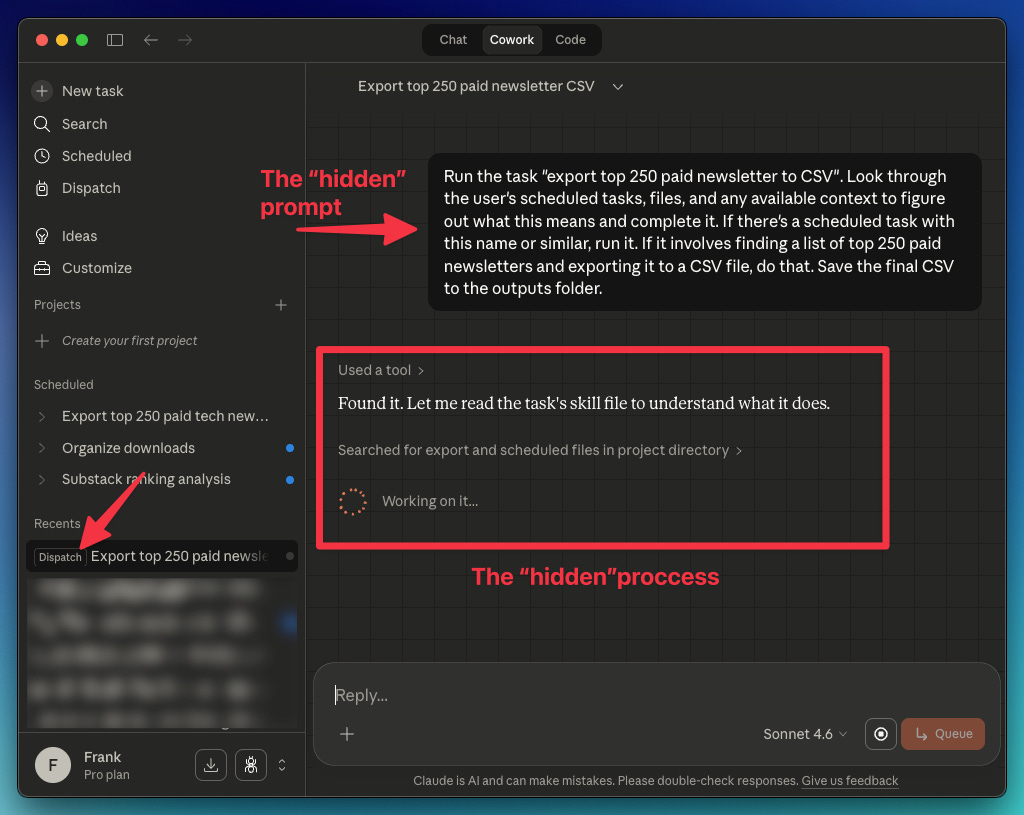
But there’s one thing in the desktop app that you won’t find in the mobile app — in recent chats, you’ll see one chat tagged “Dispatch.“ That’s a chat that is created every time we run a task using Dispatch (but it’s only visible in the desktop app)
Inside the chat tagged Dispatch, there’s the hidden prompt and process used to carry out my task.
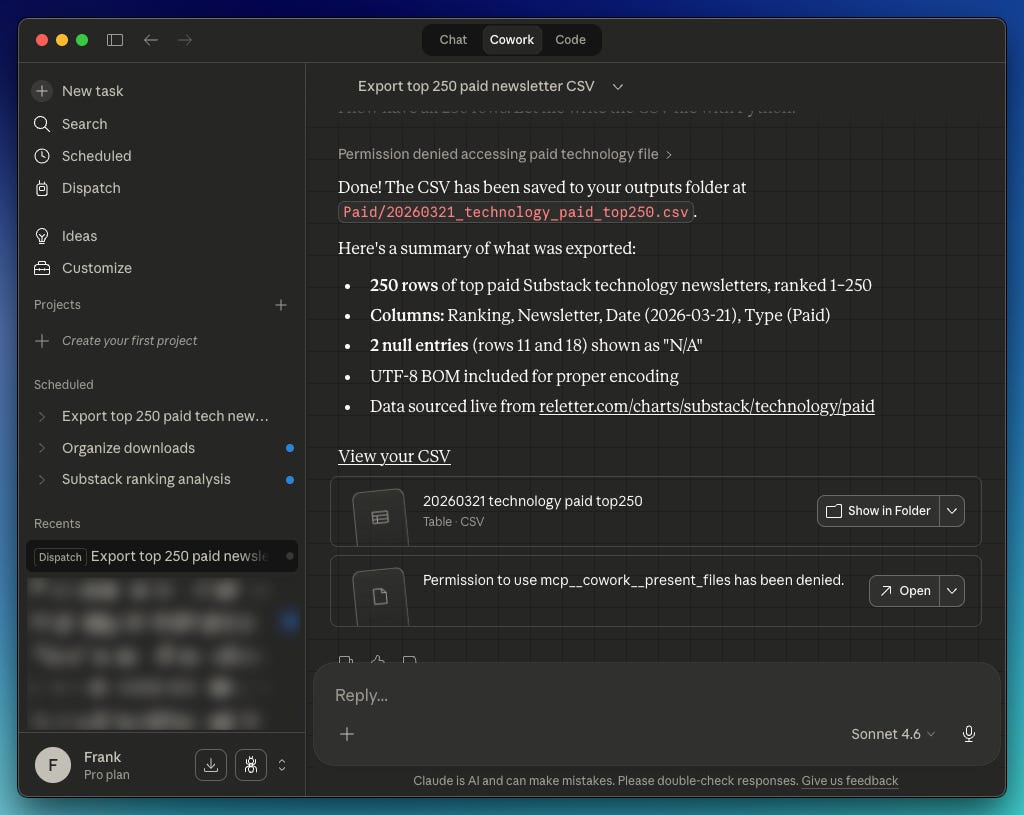
The complete chat is like the longer version of the Dispatch tab. There, I can also find the CSV file generated.
Final Notes
Here are a few things worth keeping in mind:
Your computer has to stay on: This is the most important thing. If your desktop goes to sleep or you close the Claude app, Dispatch stops working. Toggle on the “prevent sleep” option during setup.
It’s one continuous thread: There’s no way to start a new conversation or manage multiple threads in Dispatch. Everything lives in a single chat, which means Claude remembers context from previous tasks.
You can run multiple tasks at once: Send three or five different tasks from your phone and Claude will work on them in parallel (as long as the tasks don’t depend on each other).
Sequential tasks aren’t supported yet: If task B depends on the output of task A (like “research X, then email the team about it”), you’ll need to send them one at a time and wait for the first one to finish.
No notifications yet. Claude won’t ping you when a task is done. You’ll need to check back in the chat to see results. Hopefully, this gets added soon.
Connectors extend to mobile automatically. Whatever apps you’ve connected in Cowork (Gmail, Slack, Google Drive, etc.) are available through Dispatch
Dispatch is still in preview mode, so expect some rough edges. But even in its current state, it’s already changing how I use Cowork.
Woooo thats amazing man
WTH? Dude, how dangerous are you trying to make me? 🤘🏾😈🤘🏾