

You just started using Claude.
You chat with it, write some prompts, use the default model, and wonder why your outputs feel no different from ChatGPT.
Why? You haven’t set up Claude properly.
In this guide, we’ll fix that. You’ll learn how to:
Set up Claude chat (the features that separate it from ChatGPT)
Set up Claude Cowork (the files you need before every session)
Set up Claude Code (for non-technical folks)
Click here to get my FREE Claude course (20+ lessons)
How to set up Claude chat
“Claude chat” is the default way to interact with Claude, whether you use the web or desktop app. Here’s how to get the most out of it.
#1 Models + extended thinking
Claude gives you three models to choose from. Think of them as three employees with different strengths.
Opus 4.6: It’s the smartest. It takes its time, thinks deeper, and gives you the most thorough answers.
When to use it: For complex tasks (long documents, strategy, analysis, etc)
Downside: It’s slower and eats through your usage limits faster.
Sonnet 4.6 (default model): It’s fast and smart
When to use it: For quick writing, brainstorming, summarizing, and daily work
Downside: It’s not as thorough as Opus
Haiku 4.5: It replies almost instantly
When to use it: For quick questions or simple tasks (Claude won’t think too hard)
Downside: It’s the least powerful of the three
To switch models, click the model selector.
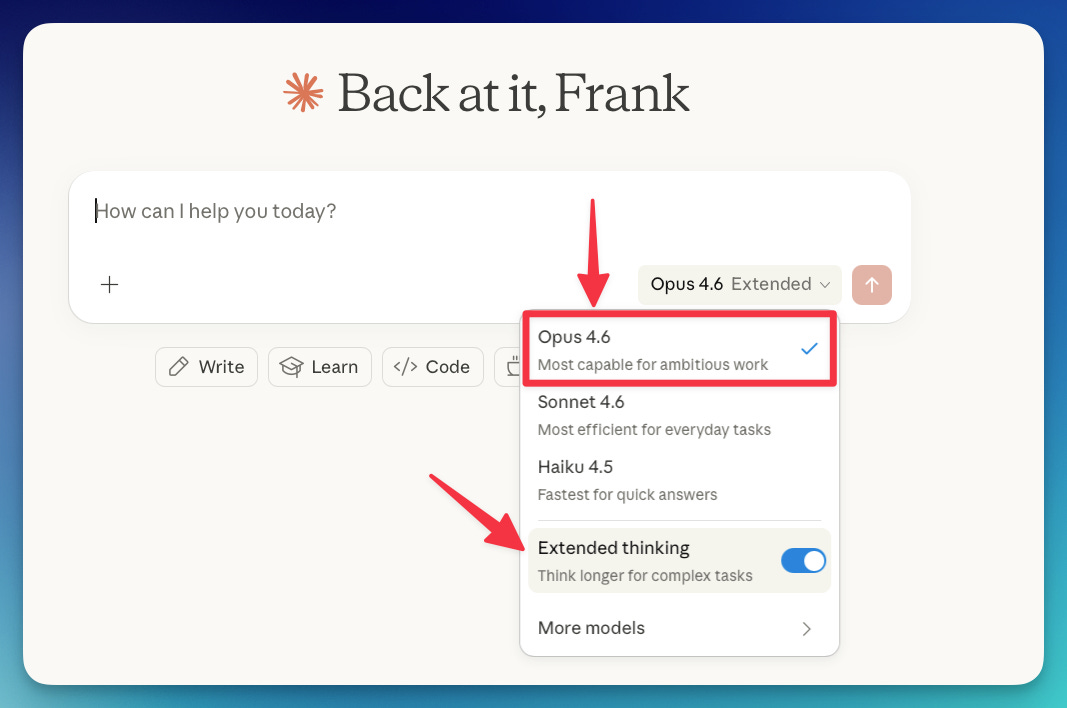
To be completely transparent, I use Opus 95% of the time.
When I need AI for casual tasks, I use ChatGPT or Gemini instead of wasting usage on Sonnet or Haiku. If you have access to either, I’d recommend doing the same. If not, use Opus wisely.
I also prefer to keep “extended thinking” turned on. When it’s on, you’re telling Claude: “Don’t rush. Think this through before you answer.”Leave it off for everyday stuff (quick questions, casual writing, simple requests).
#2 Projects
Think of a project as a folder where Claude already knows the context. You upload documents, add instructions, and from that point on, every conversation inside that project starts with context.
Here's how to create a project:
Click “Projects” in the left sidebar
Click “New Project”
Give it a name
Add custom instructions and upload files (PDFs, docs, etc)
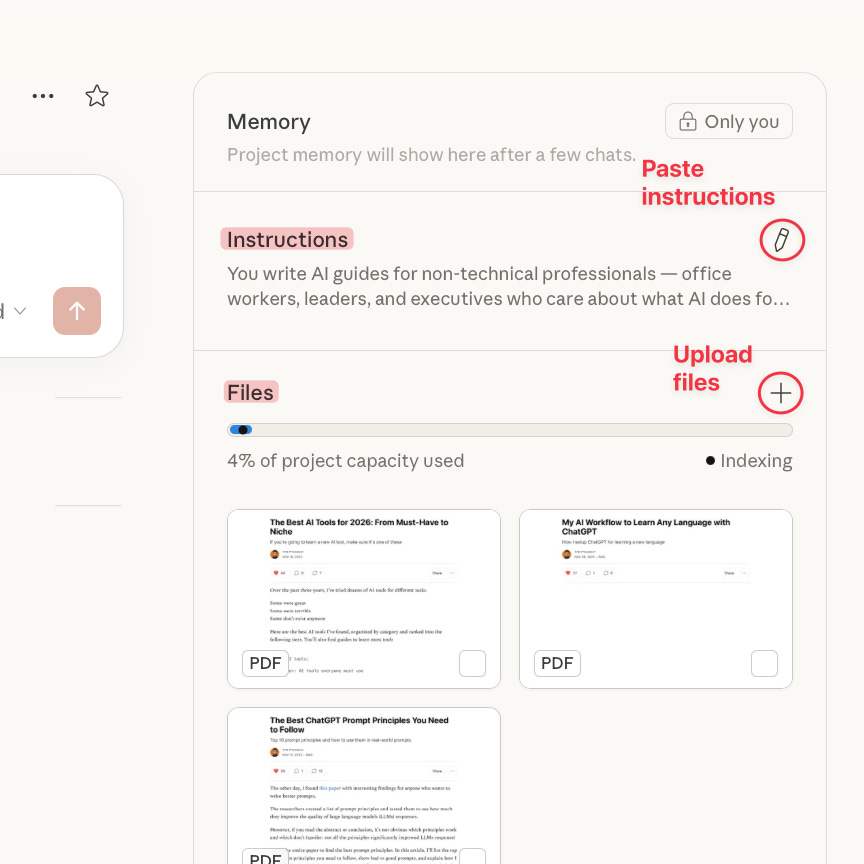
Pro tip: Create an .md file with context about you or your work and upload it to your project, so you don’t have to repeat it over and over again.
📚 How to generate an .md file with context: artificialcorner.com/p/md-file
#3 Skills
A skill is a set of instructions you save once, and Claude loads it automatically whenever it's relevant.
Say you write weekly reports and they always follow the same structure. Instead of explaining that structure every time, you create a skill for it. Next time you prompt “write my weekly report,” Claude recognizes the task, loads your skill, and follows your format from the start.
To work with Skills, enable it in settings.
Go to Settings → Capabilities → Turn on Skills
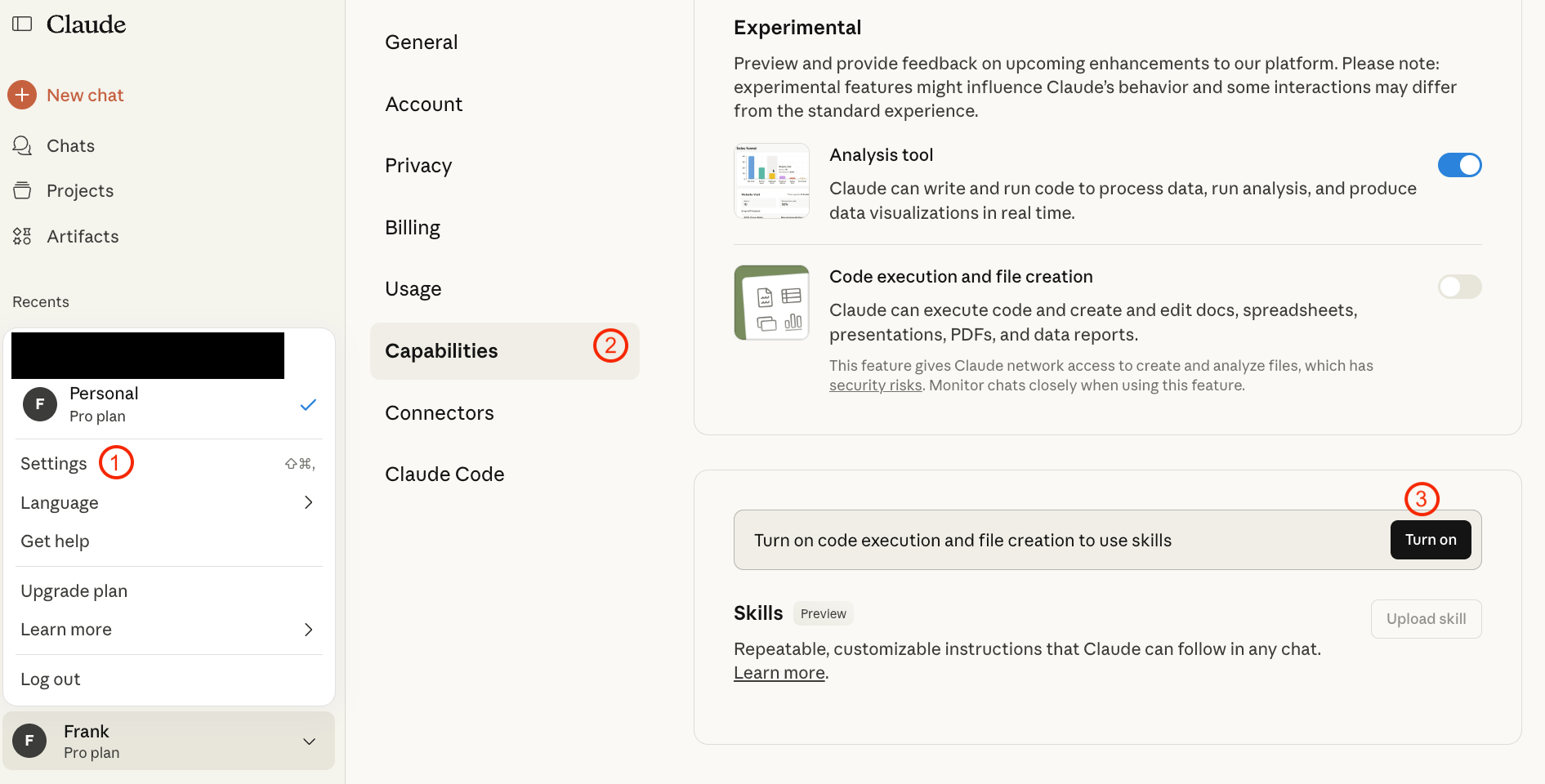
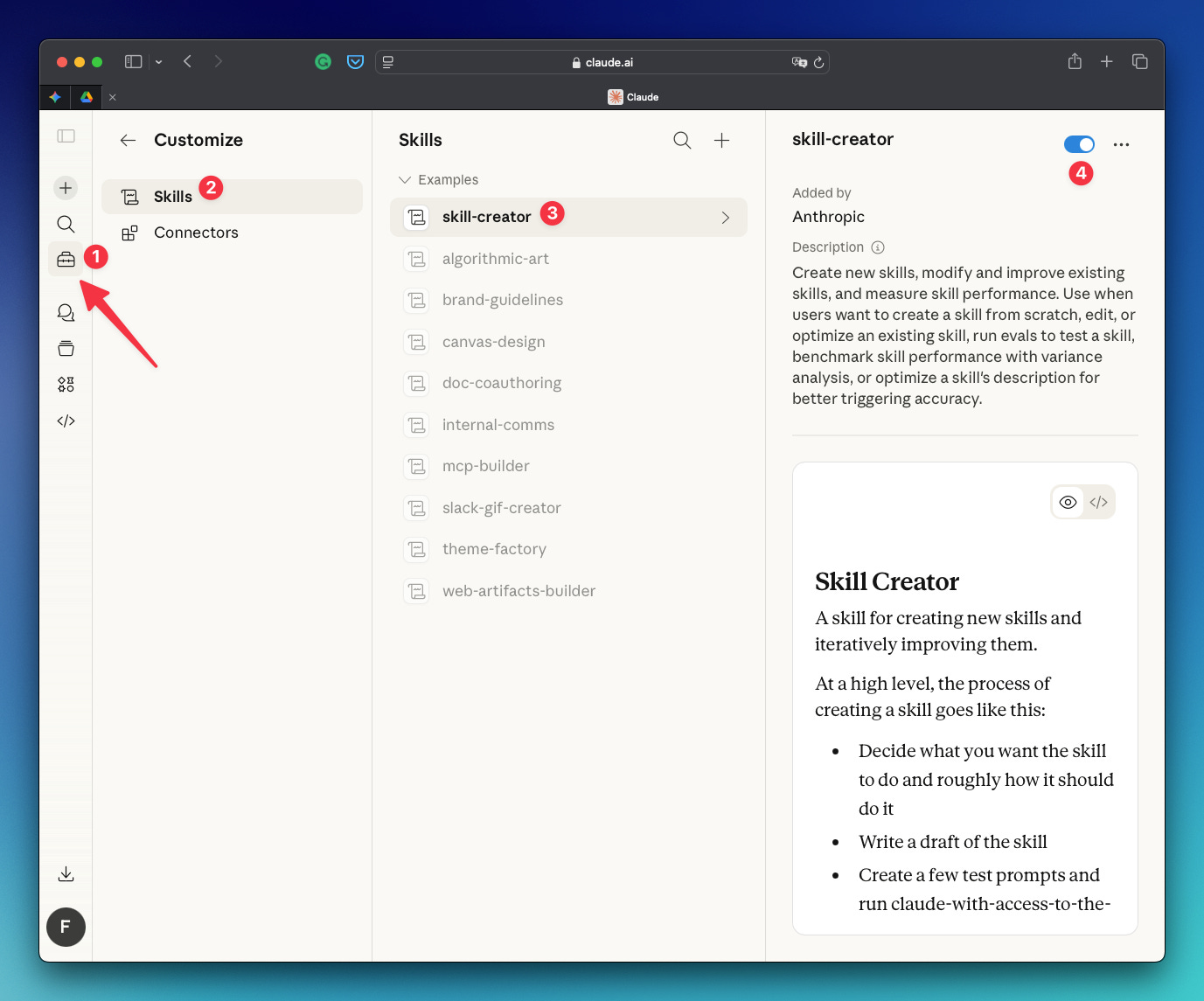
You don't need to be technical to create a skill. Claude has a built-in skill creator that builds the skill for you. Here’s how to enable the skill creator:
Go to preferences in the left sidebar
Click “Skills“
Select “skill-creator“
Toggle skill-creator on (leave it always on)
If you toggle on the skill brand-guidelines and try the prompt below, you’ll get slides with the Anthropic colors, design, etc.
create a quick presentation on claude skills. use anthropic brand guidelines
📚 Learn more about skills: artificialcorner.com/p/claude
#4 Artifacts
Artifacts turn ideas into shareable apps, tools, or content. Common examples of artifacts are diagrams, flowcharts, websites, and documents.
To trigger an artifact, just describe what you want (an app, diagram, document, or chart) and Claude will automatically create an artifact for it
To turn artifacts on, do this:
Click your initials or name in the lower left corner
Navigate to Settings > Capabilities
Find Artifacts and toggle it on or off
One video is worth a thousand words. Watch artifacts in action:
How to set up Claude Cowork
Claude chat is like texting a smart friend. You ask, it answers.
Cowork is like hiring an assistant. You describe the task, point it to your files, and it gets to work — planning steps, reading documents, creating files, and delivering results directly to a folder on your computer.
Cowork lives inside the Claude desktop app. Here’s how to set it up:
Download the Claude app → claude.com/download
Open the app and sign in
At the top of the window, you’ll see three tabs. Click Cowork
Create or pick a folder on your computer where Claude will work
Point Claude to that folder
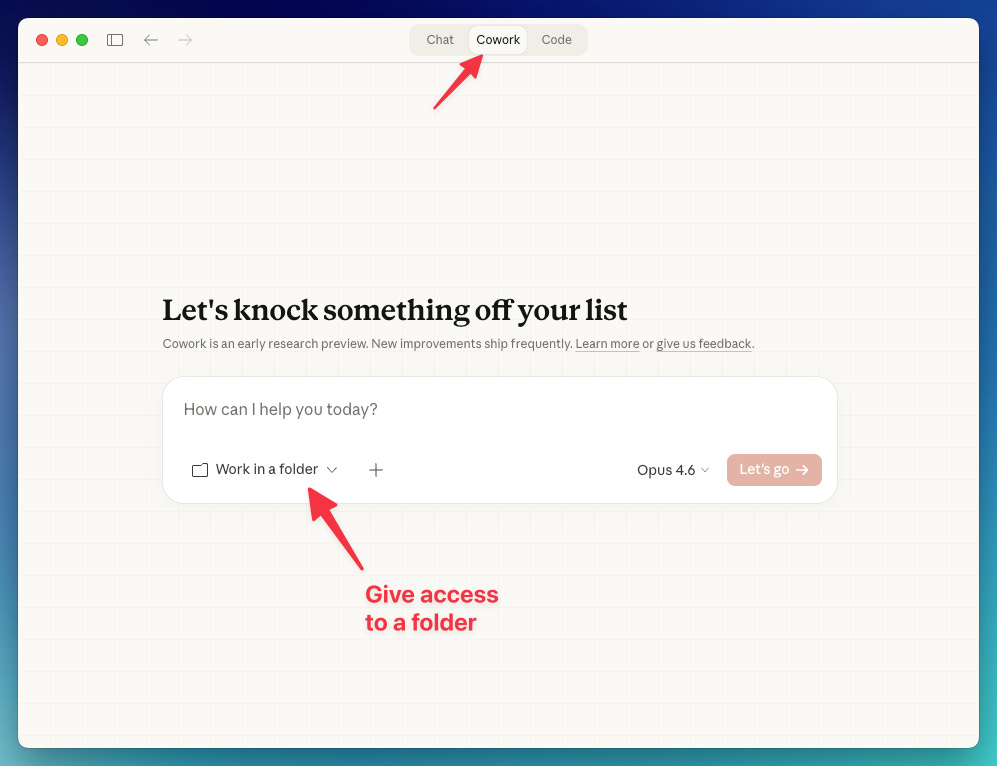
Try this prompt:
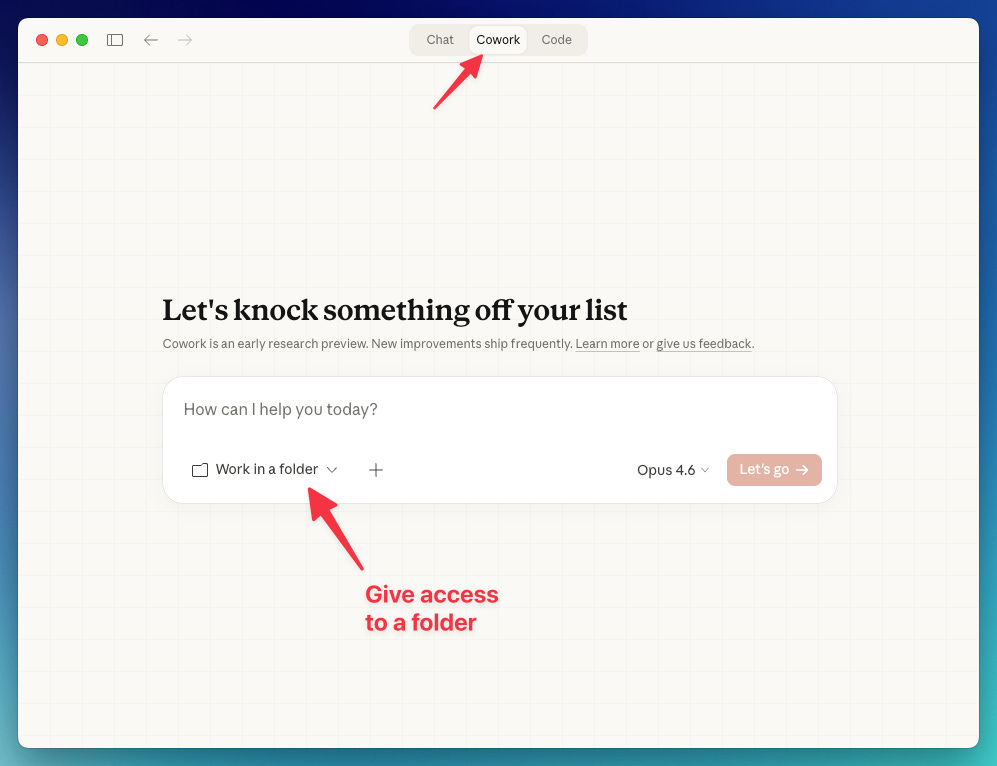
You are going to help me create a context file I can use with Claude Cowork.
Ask me questions one at a time to understand my work: who I am, what I do, how I like things done, what I never want to see in outputs, and what “good work” means to me specifically. Use AskUserQuestion for it.
Ask me 40-50 questions total. One at a time. Push back if my answer is vague — ask for a specific example. When we’re done, compile everything into a .md file I can save and use with Claude.
You’ll get an .md file with context about you. Put it inside the folder Cowork has access to.
Next time you use Cowork, add this at the end of your first prompt:
[your prompt]
Before you start, read [your filename].md first
Now you don’t need to repeat context to Cowork.
Pro tip: To get the most out of Cowork, it helps to keep these three .md files ready:
about-me.md — everything about you, your work, etc
voice-and-style.md — your tone preferences, formatting rules, words you like/dislike, writing samples, etc
working-rules.md — how Claude should behave
📚 How to generate these .md files: artificialcorner.com/p/md-file
Cowork offers something that you won’t find in Claude chat: plugins. They’re pre-built instruction sets that make Claude good at specific professional tasks.
Here’s how to install and use plugins:
Cowork → Click + → Add plugins → Pick the plugin you like → Click install
📚 Learn more about plugins: artificialcorner.com/p/cowork
How to set up Claude Code
Claude Code is Cowork on steroids.
Both can read your files and execute tasks. But Claude Code goes deeper. It can edit code, run commands, manage entire projects, and work across multiple files at once. It’s the most powerful way to use Claude.
Now, here's the part that scares most people: Claude Code was originally built for the terminal (that black screen with the blinking cursor that feels like hacking in a movie)
The good news is that after the installation, you don’t have to touch the terminal!
Here’s how to install Claude Code:
Go to the Claude website → “Install the latest version“ → Look for your operating system → copy and paste the installation command into your terminal → execute it
If you’re new to the terminal, here’s how to open it:
Windows: press the Windows key, type “CMD” and press enter
Mac: press Command (⌘) + Spacebar, type “Terminal“ and press enter
After running the command, you should see this message: “✅ Installation complete!“
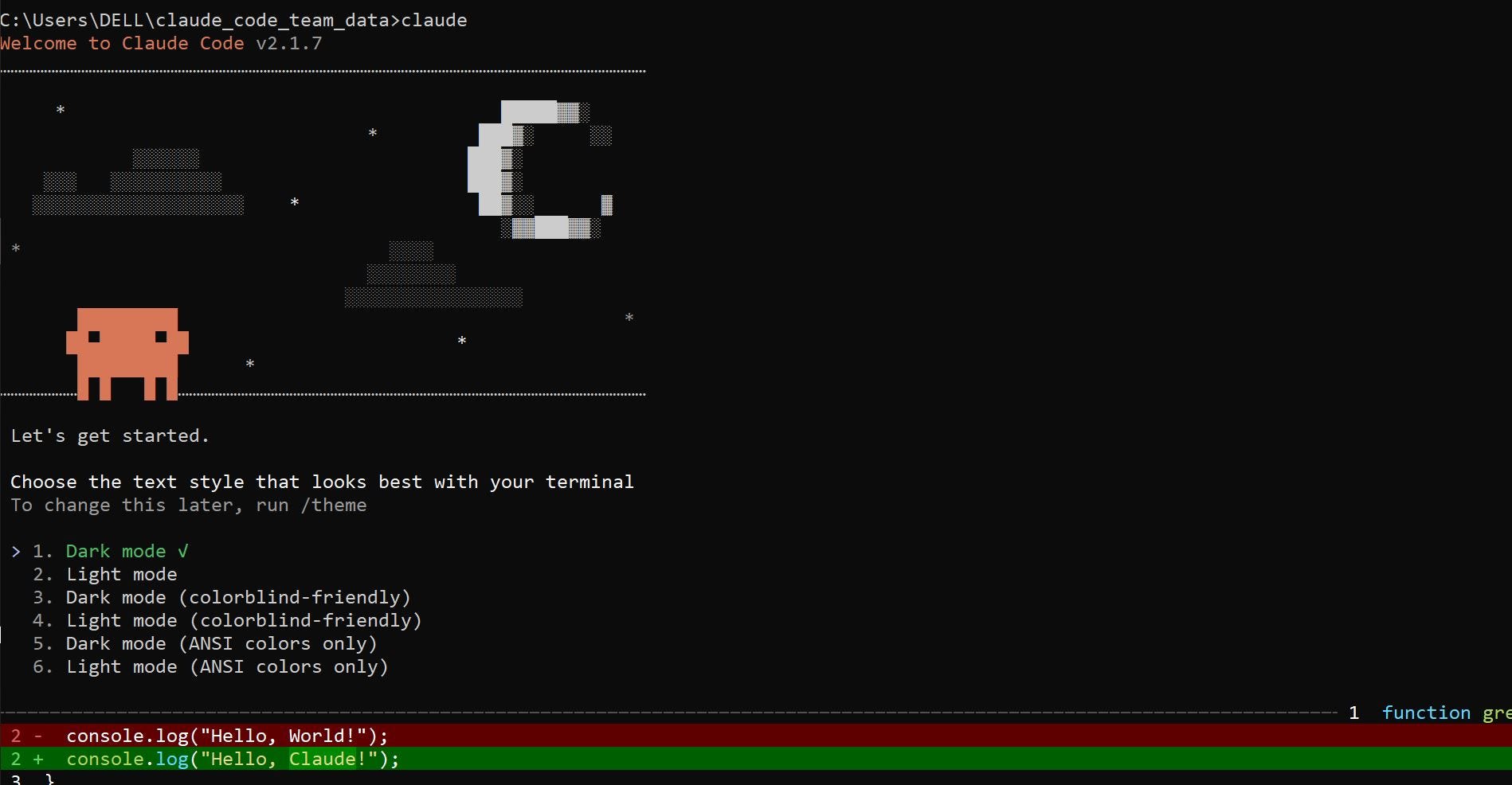
To verify that Claude was installed successfully, type “claude” and press enter. You should see the image below in your terminal
Install VS Code. It has a friendlier interface to work with Claude Code
Install the Claude extension within Visual Studio Code: Open VS Code → View → Extensions → search for Claude → click Install
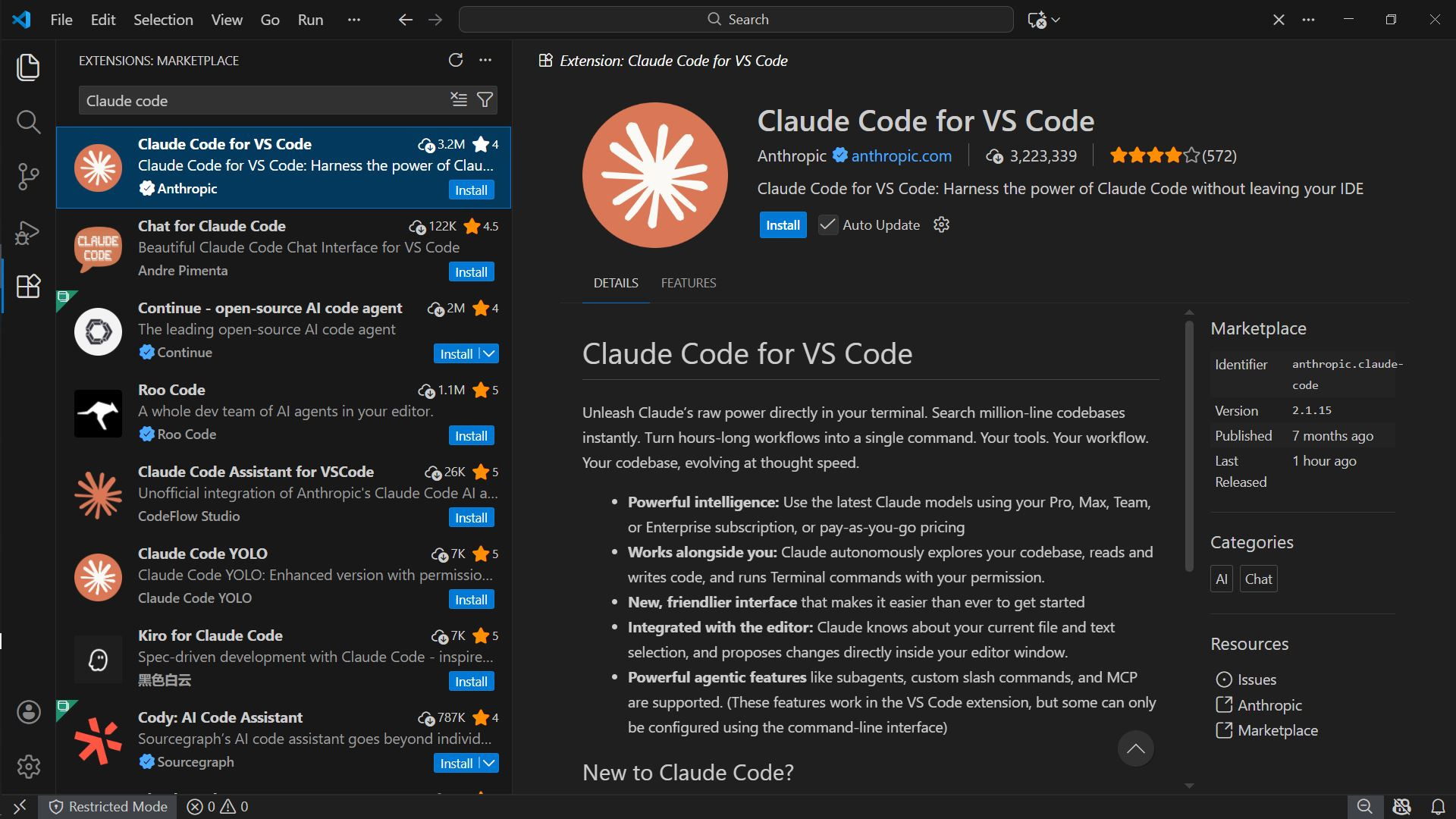
After installing the extension, click on the Claude icon to log in to Claude
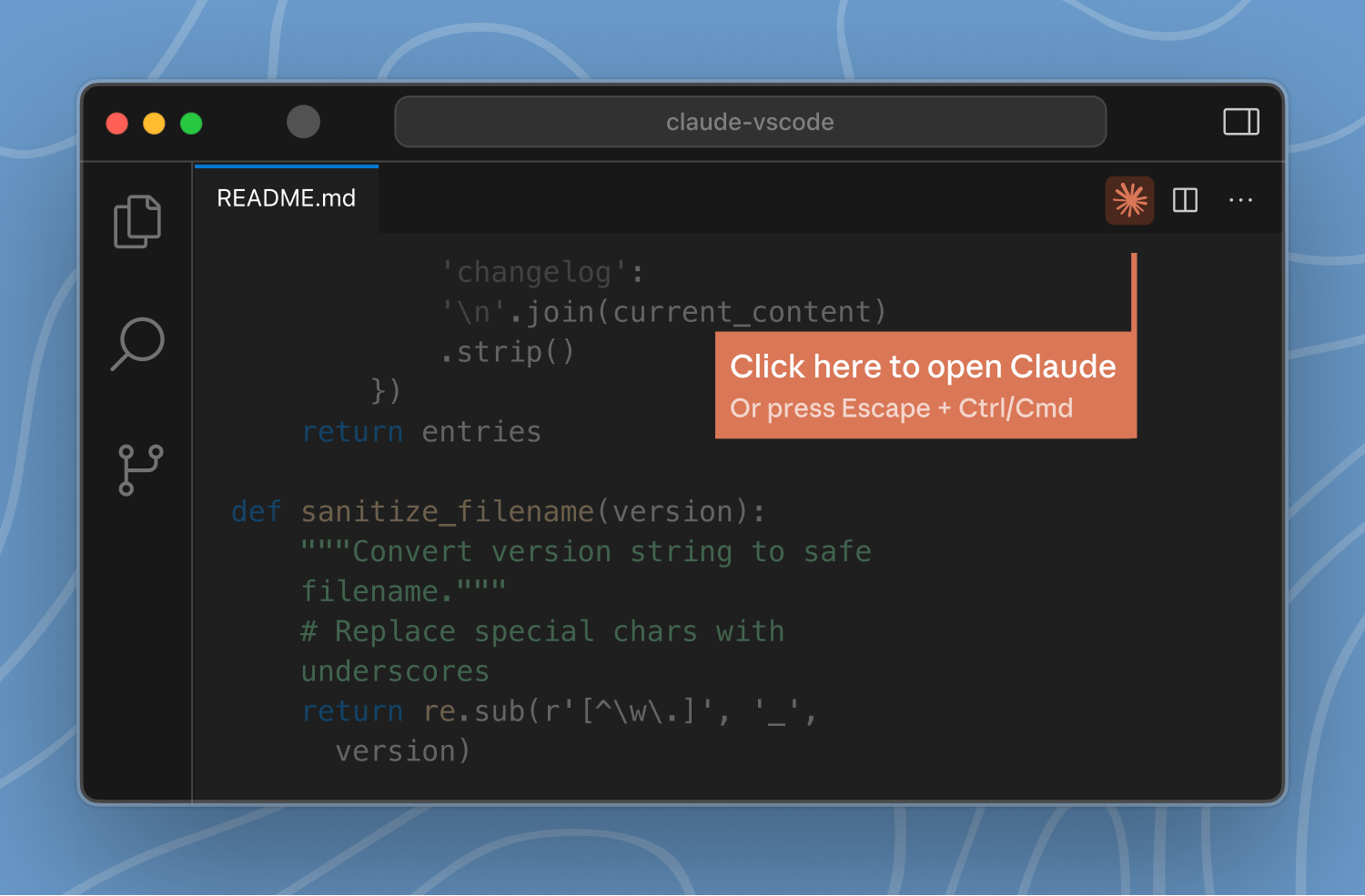
Finally, open a folder you will use as your working directory inside Visual Studio Code: File → “Open Folder” → Select a folder
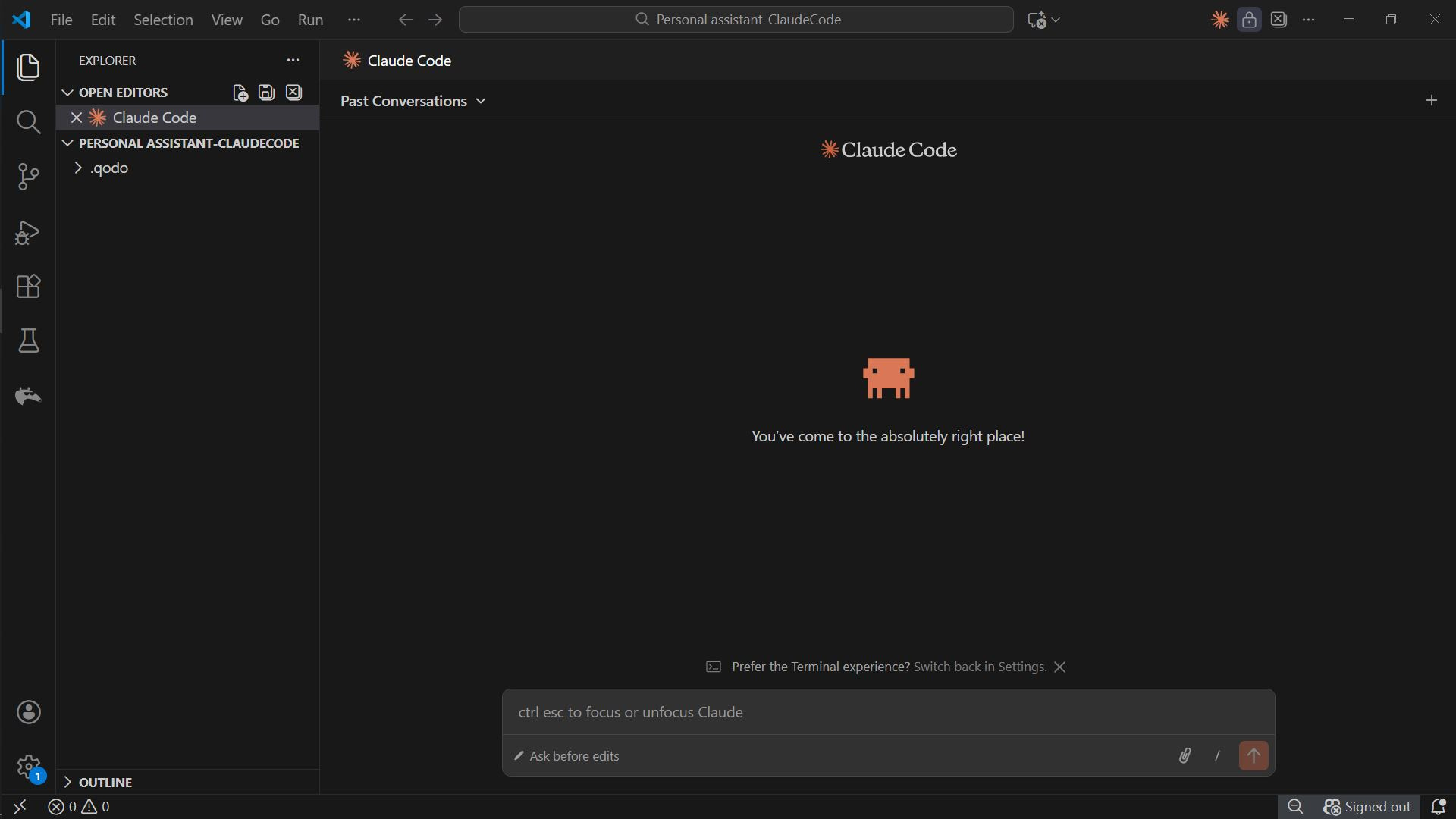
Inside the folder selected, add the structure below.
my-project/
├── CLAUDE.md
├── context/
│ └── content-context.md
├── profiles/
│ └── audience-profile.md
├──skills/
│ └── SKILL.md
Download the files here: Click on the green “Code“ button → download ZIP
Viewed inside VS Code, the structure will look like this:
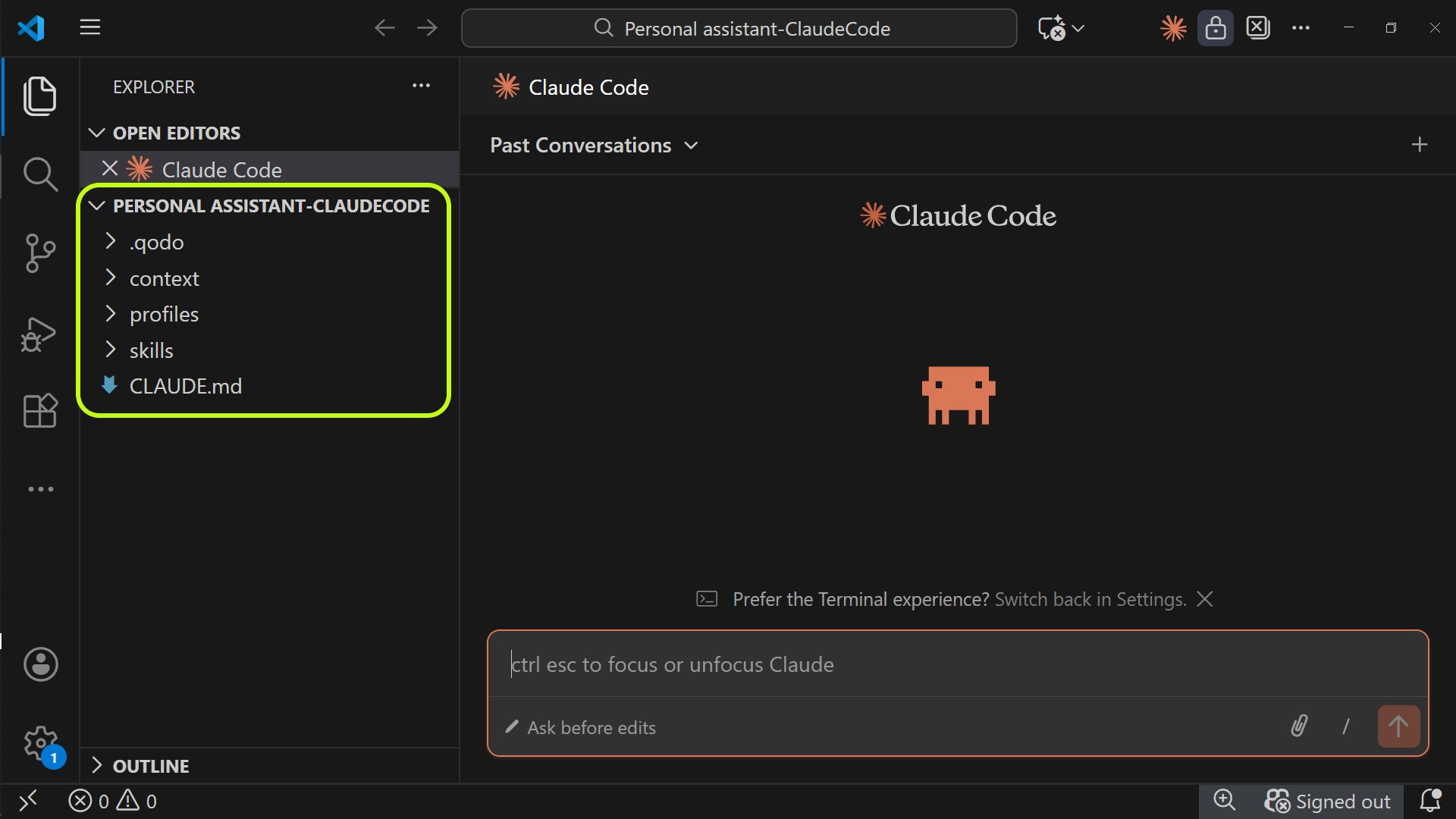
This is just a basic Claude Code setup, though.
For more, check out our Claude Code series here.
Subscribe to get my FREE Claude course.
20+ lessons delivered straight to your inbox 👇
🙏🏼🙏🏼🙏🏼
Quick question re subscription, is best way to test content (to see if worthwhile for my level) to subscribe for a month? other way?
The right Claude setup really does change how much you can get done, this is worth reading carefully.