


Last week, I taught Diana the basics of Claude. Before that, she used it a little, mostly for studying, work, and googling, and she had barely touched Claude Cowork.
A few days before this session, she asked me:
“I use Claude chat every day now. What else can Claude do?”
She knows the chat box. Now it’s time for the part of Claude that does the work: Cowork.
Here’s the main difference: Claude Chat gives you text, the way ChatGPT did in 2023. You ask, it answers, and the work is still yours. Cowork does the work: it builds reports, runs workflows and handles the boring clicks for you.
We had a 38-minute session, and I kept it to the three features I use in every automation I’ve built.
This guide walks you through each one step by step, with a screenshot for every click, so you can follow along on your own computer. The complete video is at the end.
In this guide, you’ll learn:
The 3 Cowork features that every Claude user must know
Claude in Chrome: Claude does the clicks for you
Skills: three ways to get a skill, and the one I use 80 to 90% of the time
Scheduled tasks: how to make Claude run a skill every night while you sleep
How to go from Claude beginner to pro
Before we start, here’s a quick video on what this beginner series with Diana is about:
The 3 Cowork features that matter most
You can skip almost everything in Cowork except three things:
Claude in Chrome: Claude does the clicks for you.
Skills: Claude remembers how it did them.
Scheduled tasks: Claude does them again while you sleep.
They show up in every automation I’ve built. They’re the foundation every Cowork user needs.
This guide focuses on these three, one section each, in the order you’d use them.
Note: Anthropic recently merged chat and Cowork into one Claude. The Chat and Cowork switch is gone: you type in one box, and Claude figures out what each request needs. It’s rolling out to Pro and Max plans first, with Team and Free plans next. Nothing changes for this guide.
1. Claude in Chrome: Claude does the clicks
Claude in Chrome is an extension for Chrome, the browser most of us already use every day. It lets Claude use Chrome for you. It clicks, types and downloads the way you would.
Picture scheduling a social media post. You click New, then Post, pick LinkedIn or Instagram, type the text and attach a PDF. Every step is a click you make with your mouse.
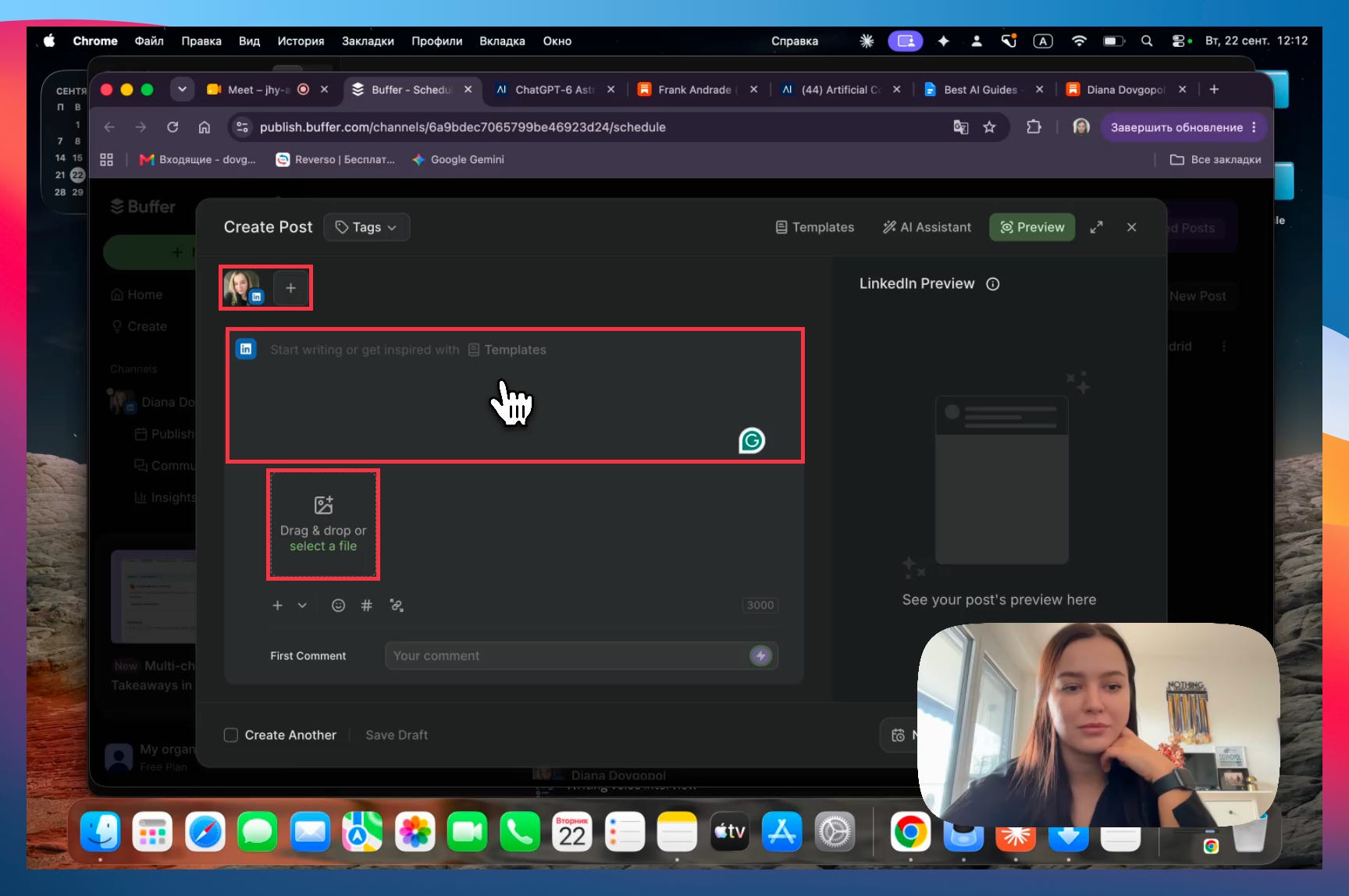
Doing it once is fine. Doing it every day is work that deserves to be automated.
Here’s how to set it up:
Search “Claude in Chrome” on Google and open the Chrome Web Store page.
Click Add to Chrome, then Add extension.
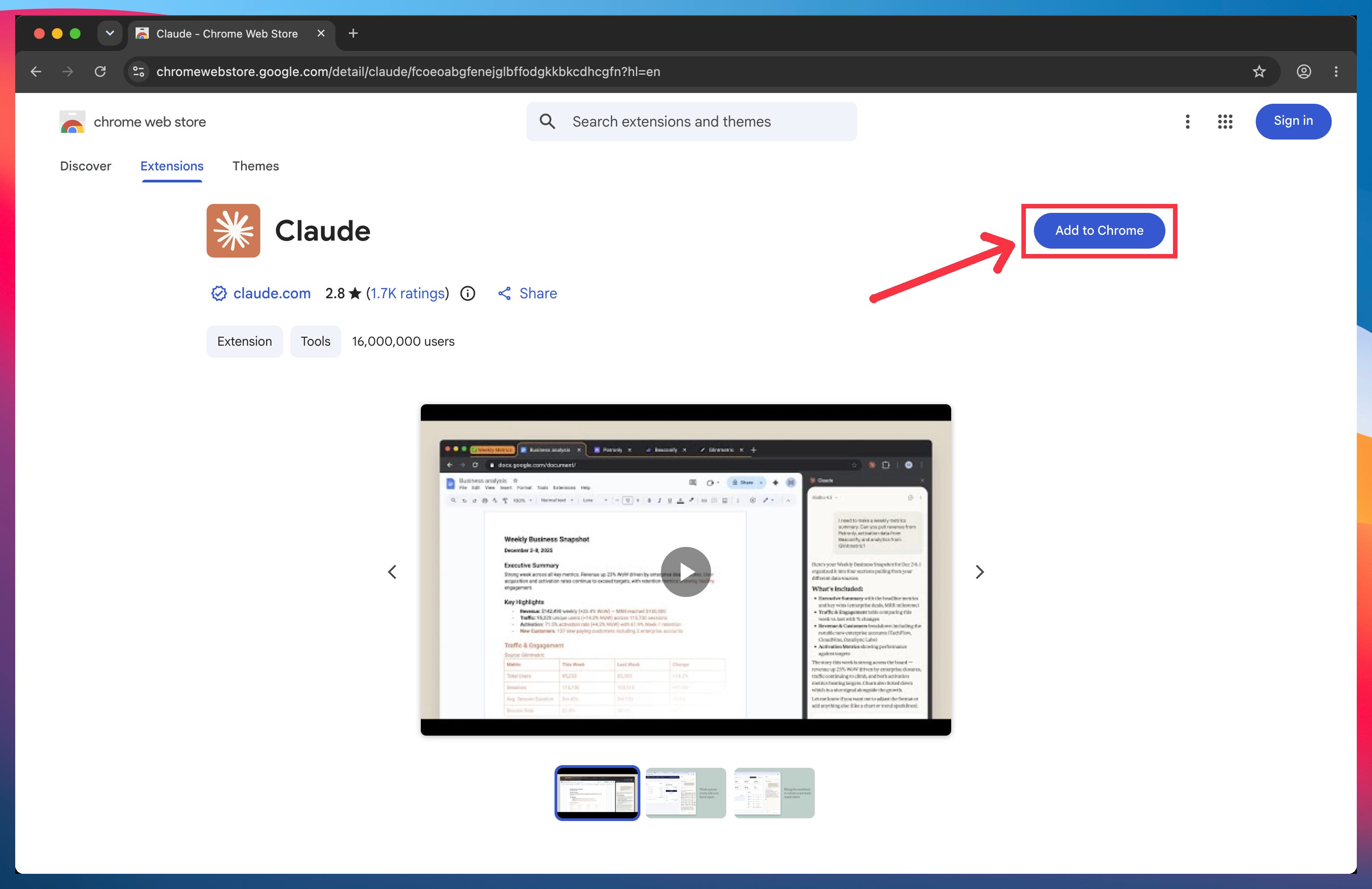
Log in to your Claude account and click Authorize.
Click the puzzle icon at the top right of Chrome and pin Claude, so it’s always one click away.
In the session with Diana, we tried Claude in Chrome on something simple: saving an article as a PDF (if you want a more robust use case, I’ll link to one at the end).
Let’s do it together!
Open any of my guides on artificialcorner.com (or try it on this one), click the Claude icon to open the sidebar, and type:
download this article as a PDF file
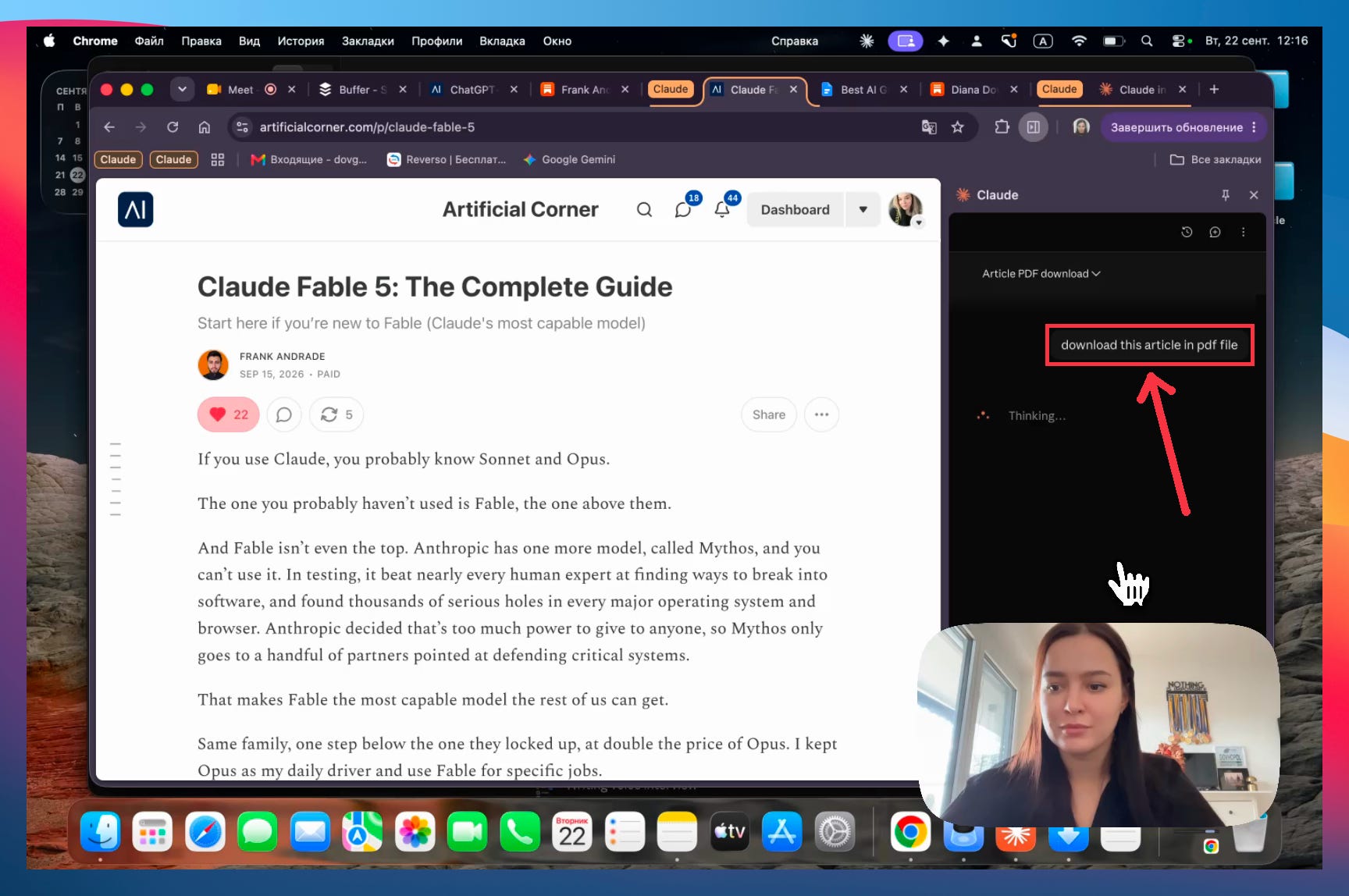
Doing this yourself means pressing Ctrl+S (Cmd+S on a Mac) and saving the page as a PDF.
Claude does it on its own and hands you the file.
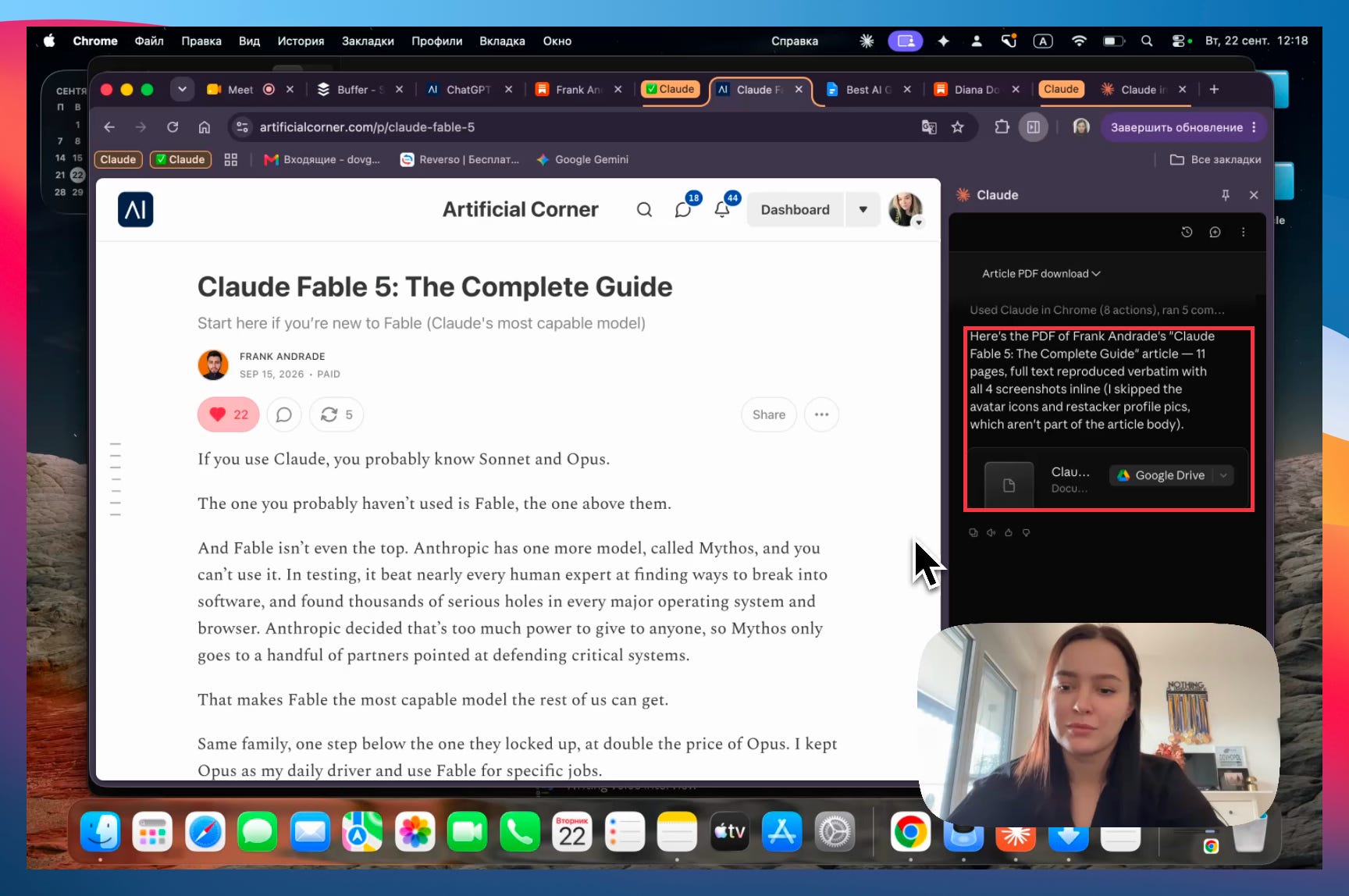
One habit I’d copy: I use the sidebar only for the first test. It answers one question: “Can Claude do this?”
Once it can, I move to the Claude app, which keeps everything organized, and write something like:
use Claude in Chrome to download this article as a PDF: [link]
The sidebar gets messy fast. The app is where the real automations live.
From the next section on, we’ll mostly work in the Claude app.
2. Skills: Claude remembers how
A skill is a saved recipe. It holds the steps Claude followed to finish a task successfully, so it can follow them again next time.
That also tells you when to make one: only for tasks you repeat, never for something you’ll do once. For example, I save every article I publish as a PDF, every night, so that task got its own skill.
Here are three ways to get a Claude skill.
Way 1: Turn a run that worked into a skill. This is what I do 80 to 90% of the time. When Claude finishes a task the way you wanted, type “turn this into a skill”, then click Save.
That’s what we did with the PDF from the previous section: once Claude in Chrome had saved the article, Diana typed the prompt below in the same chat:
turn this into a skill
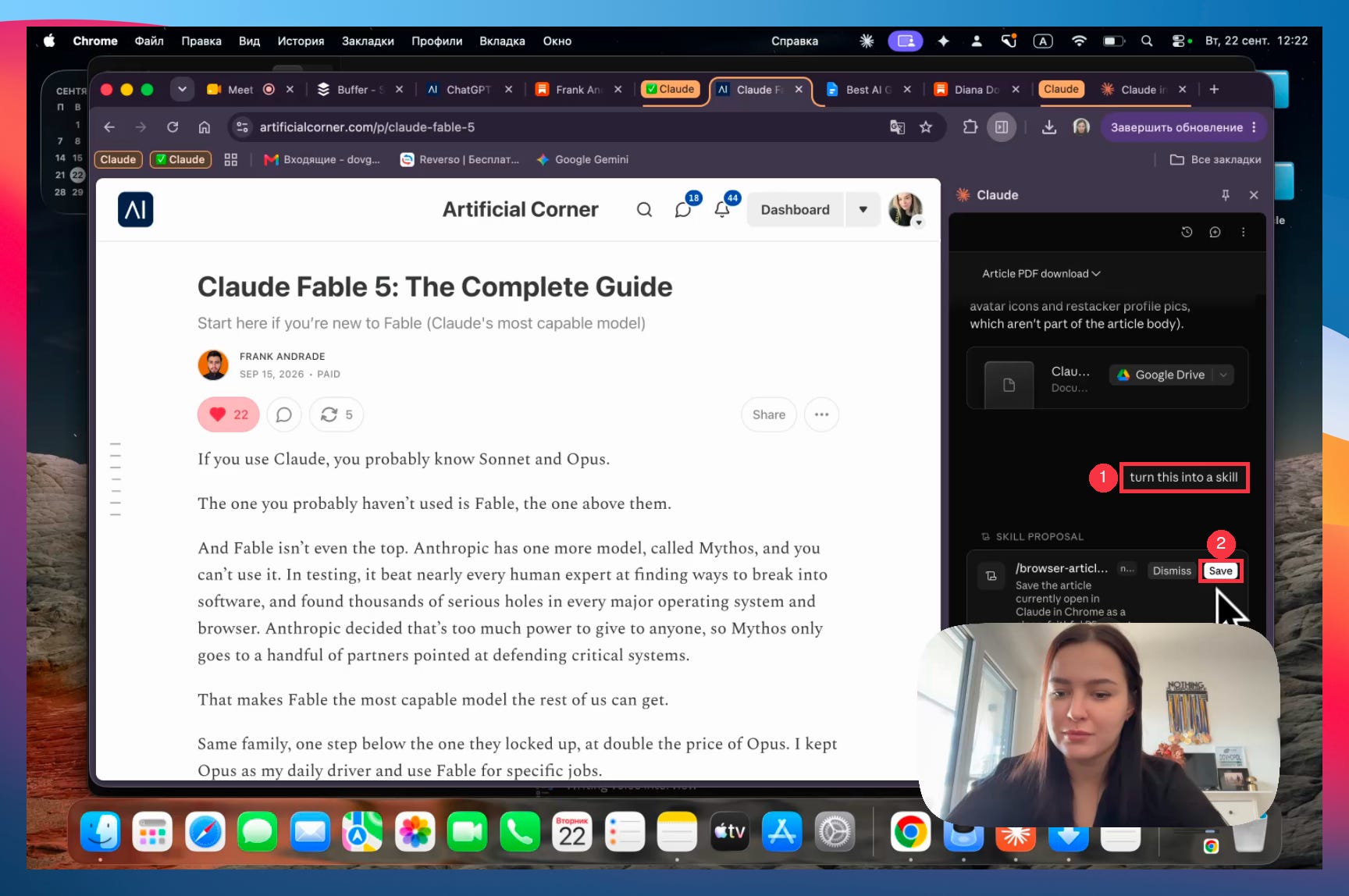
The next run follows the same path, without the mistakes from the first try
Way 2: Record a skill. Click the + button and choose Record a skill. Then you do the task on screen while Claude watches, like showing a new colleague how you do it.
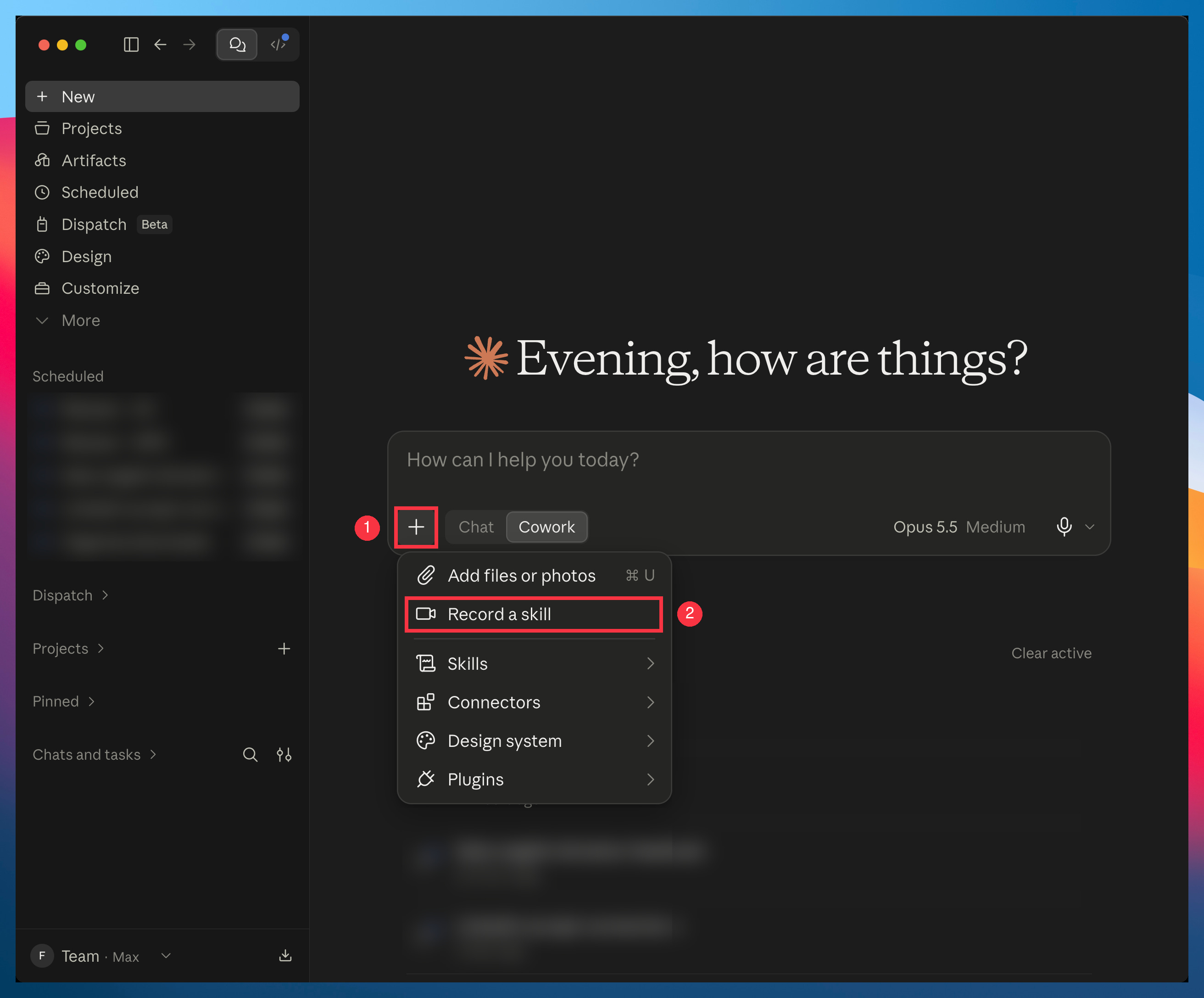
Here’s me recording one. My gym videos land on my Mac with generic names (IMG_4521, IMG_4522, and so on), so I showed Claude how I rename them: watch the video, find the exercise and the weight, and count the reps.
Pro tip: keep the recording clean. If you make a mistake while recording, Claude copies the mistake too.
Way 3: Install one someone shared. Skills are shared as .zip files (like the ones in my best Claude skills). If someone sends you a folder, right-click it and choose Compress first. Then:
Click Customize in the left panel.
Open Skills.
Click Add at the top right.
Choose Upload skill and pick the .zip file.
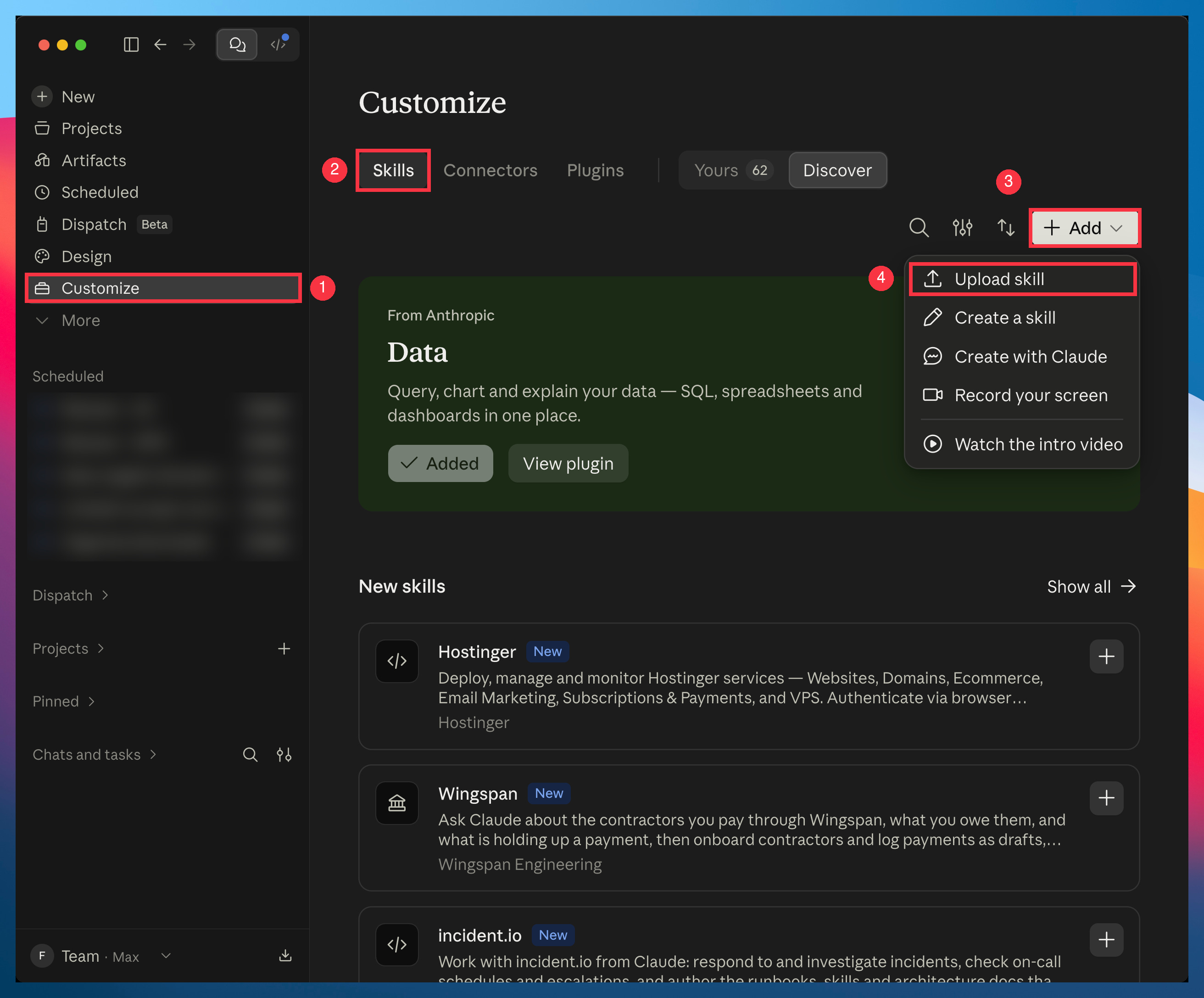
Note: There’s also a Create a skill option. I don’t recommend starting there. You need to explore a task first, and a skill written before a run that worked starts with all its mistakes built in.
3. Scheduled tasks: Claude does it while you sleep
A skill only runs when you trigger it by hand, unless you give it a schedule.
That’s what a scheduled task does: it runs the skill for you at whatever time you choose, even while you sleep.
The easiest way to create one is to ask Claude in a chat:
Open a new chat in the Claude app (select Cowork if you still have the Chat and Cowork switch).
Type / to open your skills and pick the one you want (mine is article-to-pdf).
Add when it should run: “schedule the /article-to-pdf to run every day at 2 AM”.
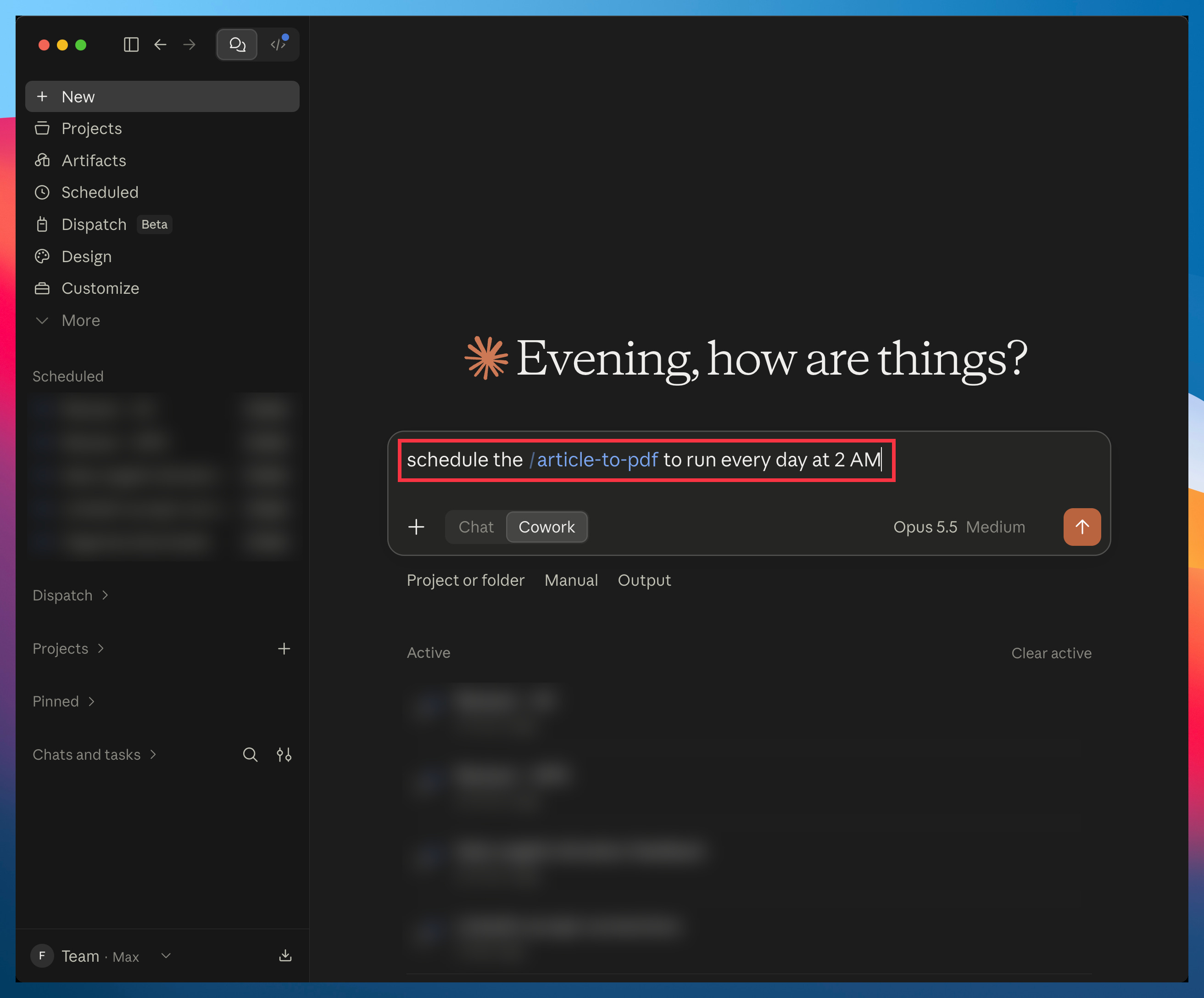
Claude may ask you a few questions back. Ours asked whether to download the latest article or a fixed link. That’s a good sign: every answer makes the task more precise.
Once it’s created, here’s how to find it and see what Claude set up:
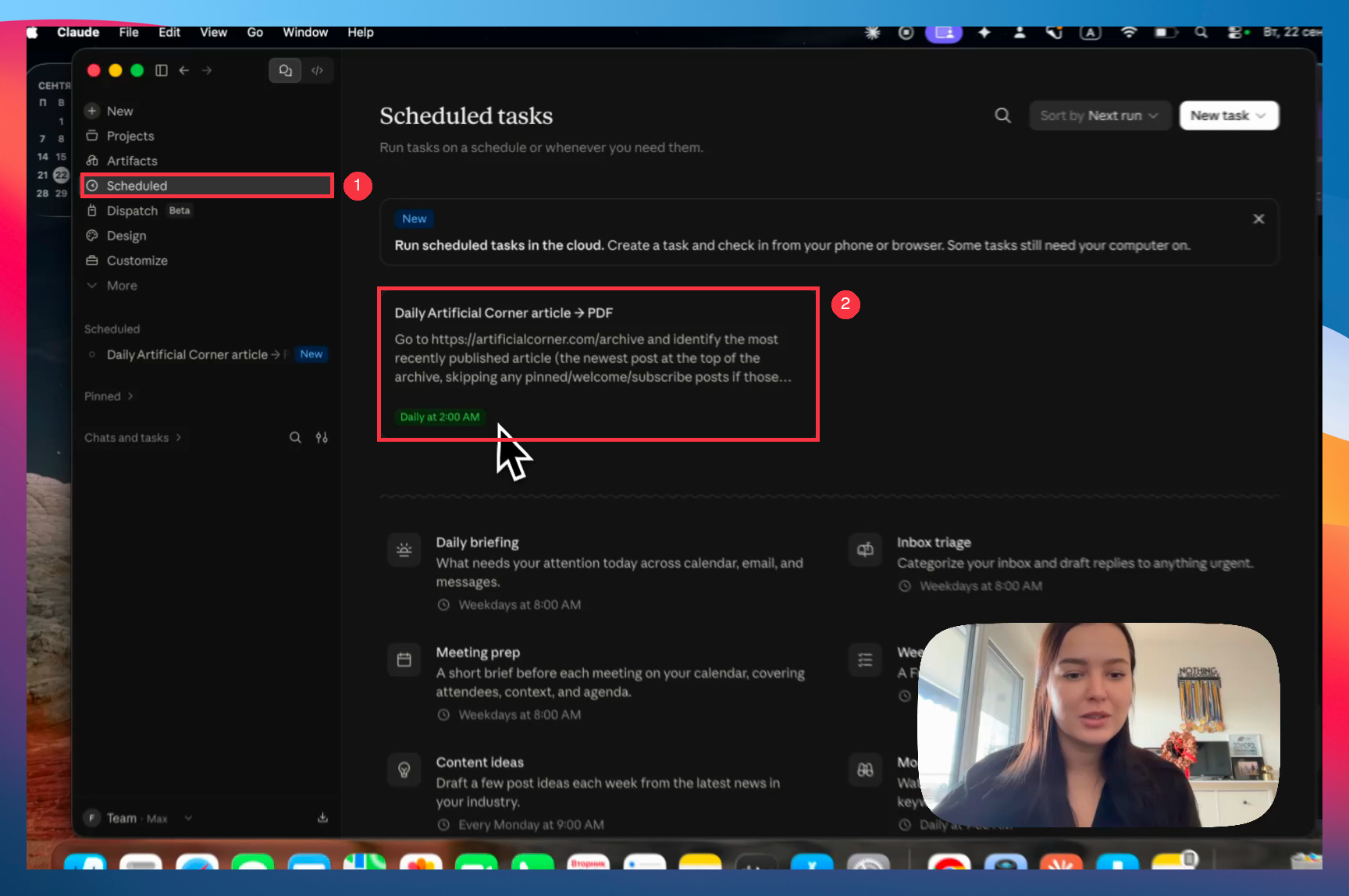
Click Scheduled in the left panel.
Click your task to open it.
Click the pencil icon at the top right, next to Run now.
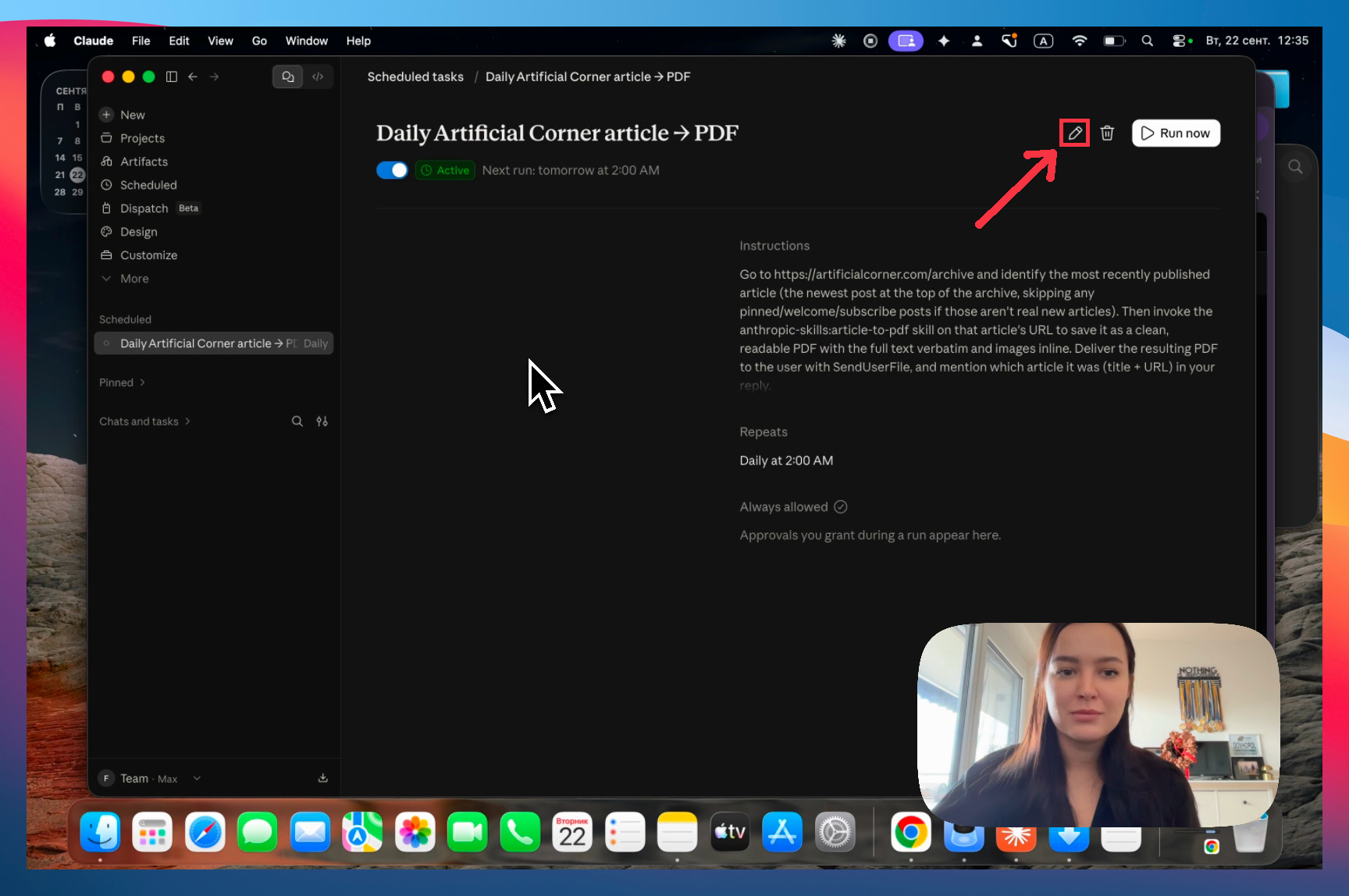
You’ll see everything Claude set up: the name, the instructions, how often it runs and what it’s allowed to do.
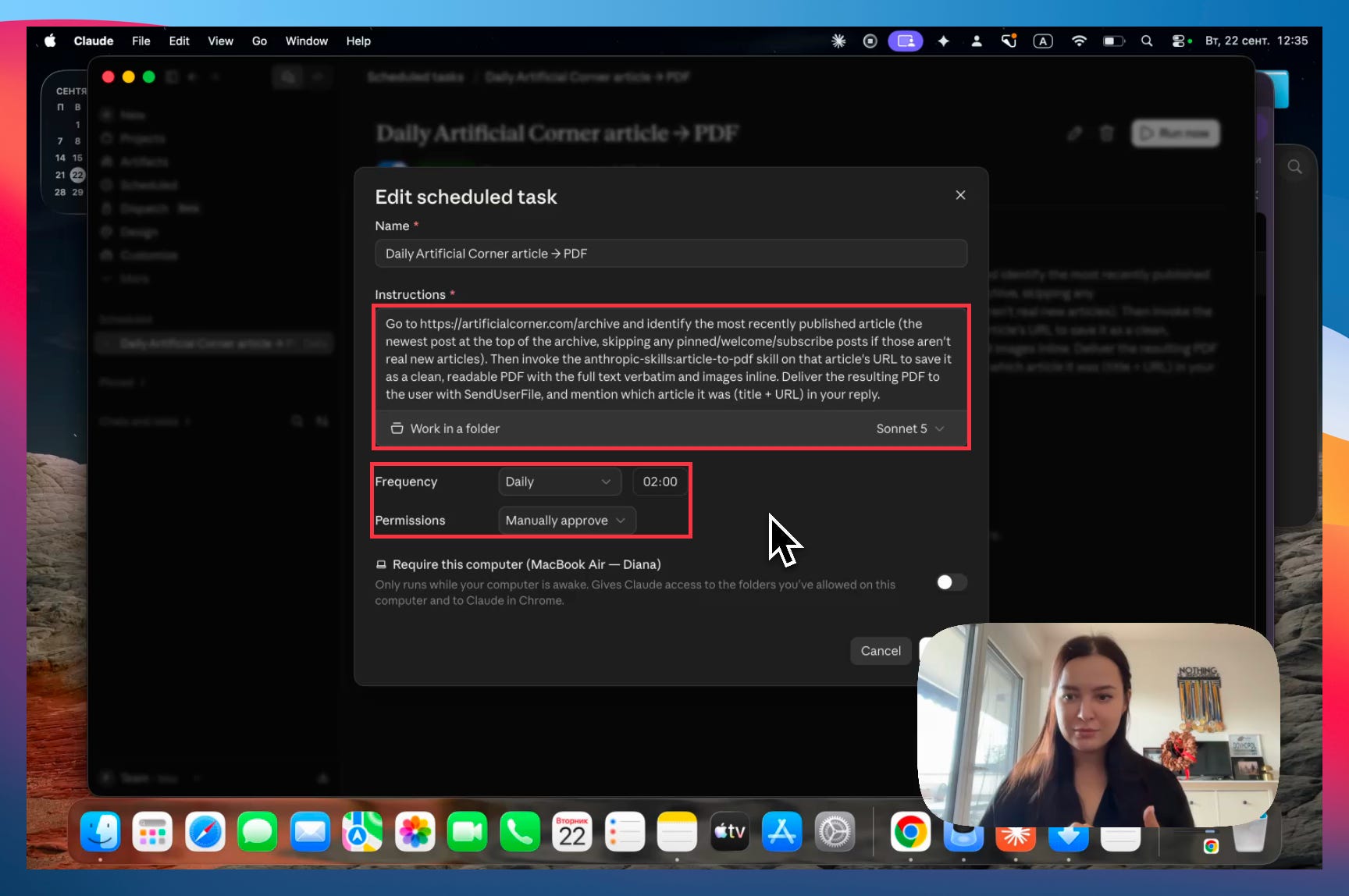
You can change any of it by hand, but I’d ask Claude to edit it instead. Long instructions depend on each other, and Claude updates everything a change affects.
4. How to go from Claude beginner to pro
Chrome, skills and scheduled tasks are the basics. Everything else in Cowork builds on them.
The rest of this guide isn’t more theory. It’s what to do this week, in the order I’d do it, and each step comes with a guide that walks you through it.
Below the line:
The use case that puts all three pieces to work. Our job-hunting series: Claude finds the job posts, a skill scores them against your CV, and a scheduled task runs it every morning.
The Cowork guides worth reading next. Your first automation, the files that tell Claude about you and how you write, and your workspace setup, in the order I’d read them.
The full video session with Diana. Unedited, 38 minutes: Diana installs Claude in Chrome, saves her first skill and schedules it, including every moment a button wasn’t where we expected. If you get stuck on a step above, you’ll find it there.
The rest of this guide is for paid subscribers. Support us by becoming one.