

If you learned to prompt AI last year, some of what you learned is now getting in the way.
“Think step by step.”
“You MUST.”
Older models needed these. Claude doesn’t need them anymore, and some of them just slow it down.
Claude can now do things it couldn’t before. It works on a task for hours, builds a finished file you can send, and more.
Those need a different kind of prompt.
I read Anthropic’s docs on how to prompt Claude so you don’t have to.
Here’s what still works, what you can drop and what’s new, from beginner to pro.
In this guide, you’ll learn:
The 6 parts of a good prompt, and the 2 old habits to drop
How to prompt Claude for real work and long sessions
The instructions pros write once and never repeat
The anatomy of a Claude prompt, in one image you can save
Two things before we start:
1. Save this guide, and try one tip from it on your next prompt.
2. Send it to a colleague who still ends their prompts with “think step by step.”
PS: This newsletter grows mostly from people like you sharing it. Every share helps me keep writing guides like this one.
1. Beginner: the basic prompt formula
Start here even if you’ve used Claude for a while. The anatomy at the end of this guide starts with these six parts.
The 6 elements
1. Task context: tell Claude what it’s doing and, if it helps, who it’s playing. One sentence is enough. A role mostly sets the focus and the tone of the answer.
Weak: Rewrite my resume
Strong: You are a career coach with 15 years of experience. Help me improve my resume
2. Tone: the easiest way to set it is to say who the answer is for.
Weak: Explain quantum computing
Strong: Explain quantum computing to a high school student with no physics background
3. Rules, with the reason: when Claude knows why a rule exists, it follows it better, and it handles the cases your rule didn’t cover.
Weak: Keep it short.
Strong: Keep it under 150 words. I’ll read it on my phone between meetings.
4. Examples: still one of the most reliable ways to get the format and tone you want. Anthropic recommends 3 to 5, different enough that Claude doesn’t copy one of them.
Write [the thing you need]. Match the style of these examples:
[paste 3 to 5 examples]
5. Attach the image: if you have a chart, a screenshot or a slide, attach it. Don’t retype the numbers. Opus 5.5 reads images more accurately than the models before it, including things that depend on where they sit (which box an arrow points to, when a meeting starts on a calendar screenshot).
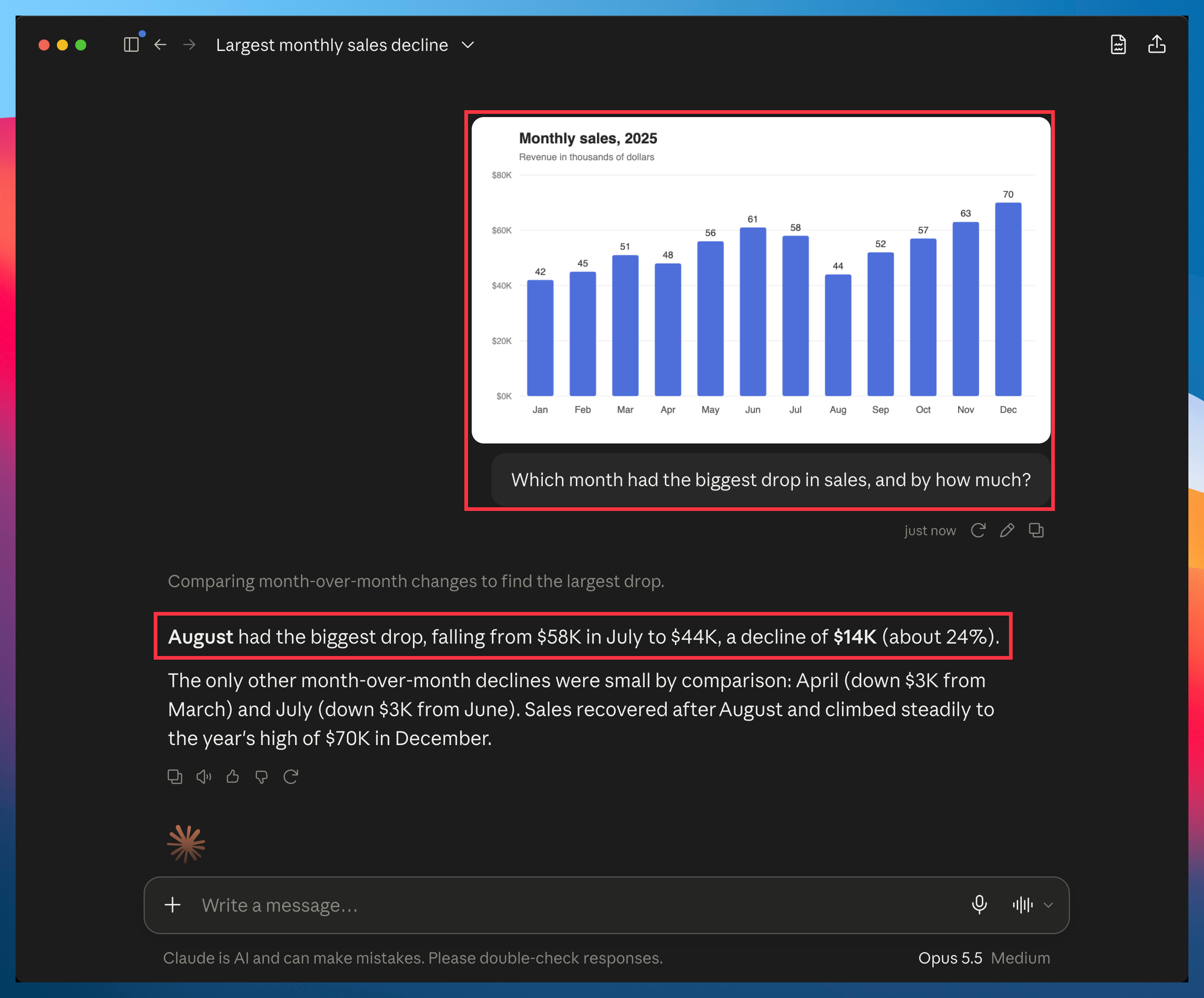
6. Ask for the finished file: say which file you want and what goes in it. Claude can make the spreadsheet or document itself, so you don’t have to copy its answer out of the chat and reformat it.
Make this a spreadsheet: one row per vendor, with columns for cost, contract end date and owner.
Put the six together and you get a prompt like this:
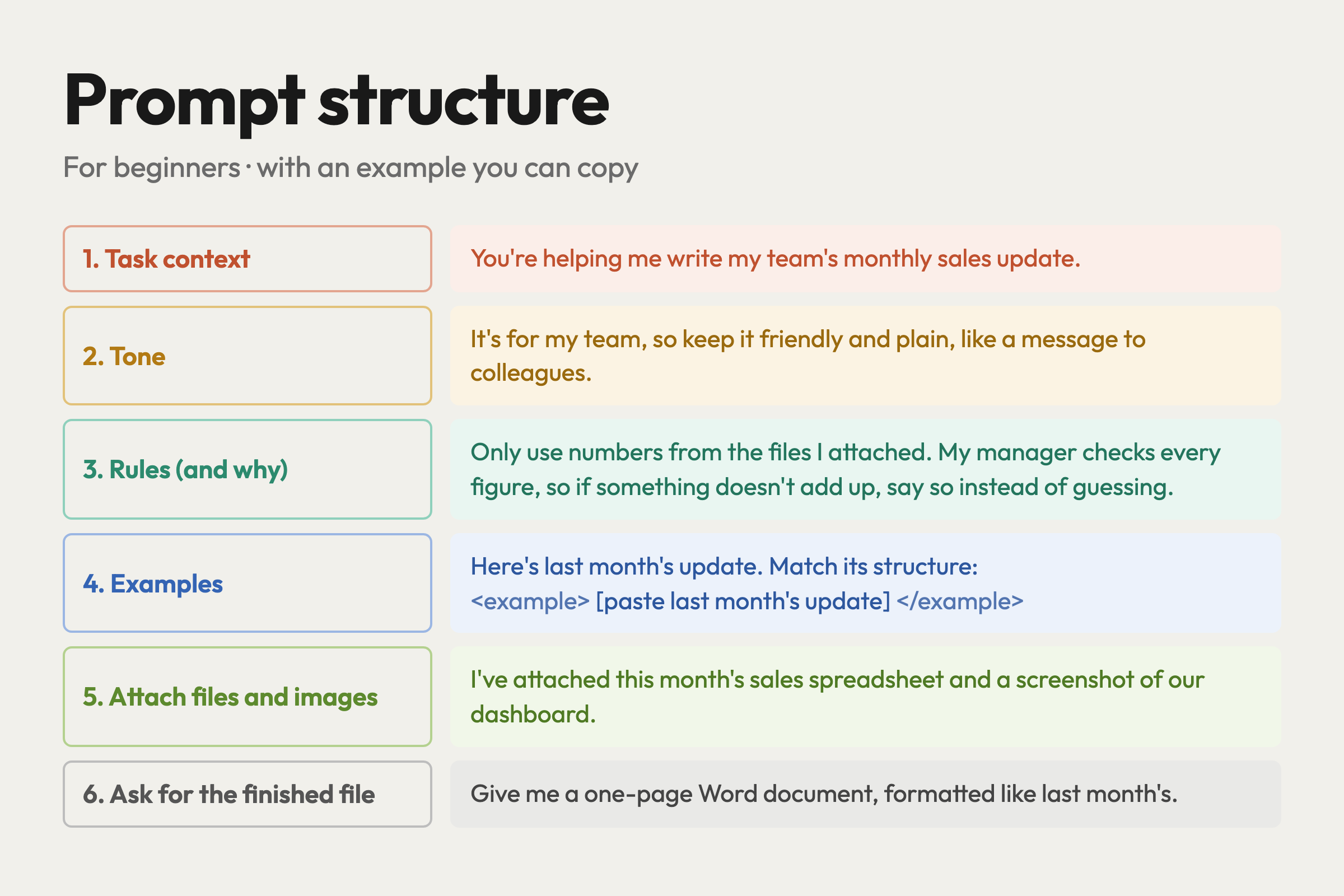
You’ll rarely need all of it. A quick question needs a single line. But when a task matters, go down the list and see what’s missing.
One habit to add
Let Claude ask you questions first. End any important prompt with the line below
Before you start, ask me any questions you have.
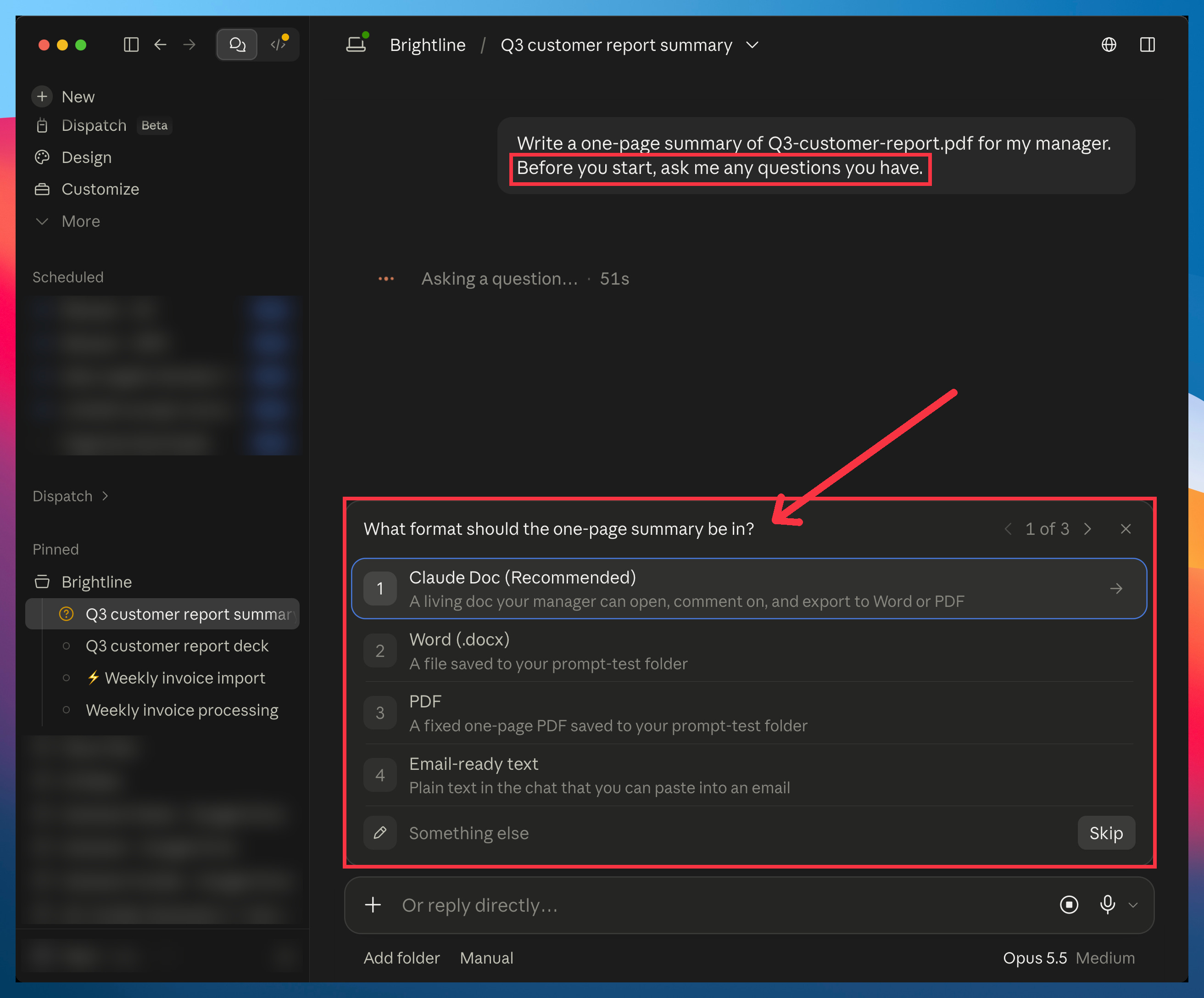
Claude then asks what it needs before it starts. When it built my contributors’ payout system, two of its questions landed on bugs that were already hiding in the old spreadsheet.
The 2 habits to drop
Older models needed these. Today’s models don’t, so you can stop writing them.
1. “Think step by step” and “take a deep breath”: Opus 5.5 thinks before every reply, and it decides how much on its own. Anthropic tested this in a chat product: removing a “think carefully” line made replies start sooner, with no clear drop in quality.
2. Shouting at Claude: In an old prompting guide, one of my principles was to write “You MUST” in your prompts.
Older models skipped instructions, so we shouted. Newer ones follow instructions closely, so you don’t need to anymore. Anthropic now tells people who build with Claude to dial it back: “Use this tool when...” instead of “CRITICAL: You MUST use this tool when...”
In a chat, a “MUST” won’t break anything. It just isn’t needed. Write your rules the way you’d say them to a colleague.
Your next step
Pick one thing you’ll ask Claude this week: an email, a summary, a plan. Before you send it, go down the six elements and add the ones that are missing. Then end with the questions line.
2. Intermediate: real work and long sessions
The first tips below help on any task. The rest are for long tasks.
All of them work the same in Claude Cowork or in Claude Code.
Any task
1. Name the defaults you don’t want: with no direction, Claude falls back on the same few looks and phrases. A list of specific things to avoid works much better than asking for something “less generic.”
Example 1: Design
“Make it look less generic” mostly swaps one default look for another. Name what to leave out instead:
Create [the deck, page or chart you need].
Don’t use [a look you don’t want], [something you always delete] or [a layout habit, like more than three bullets per slide].
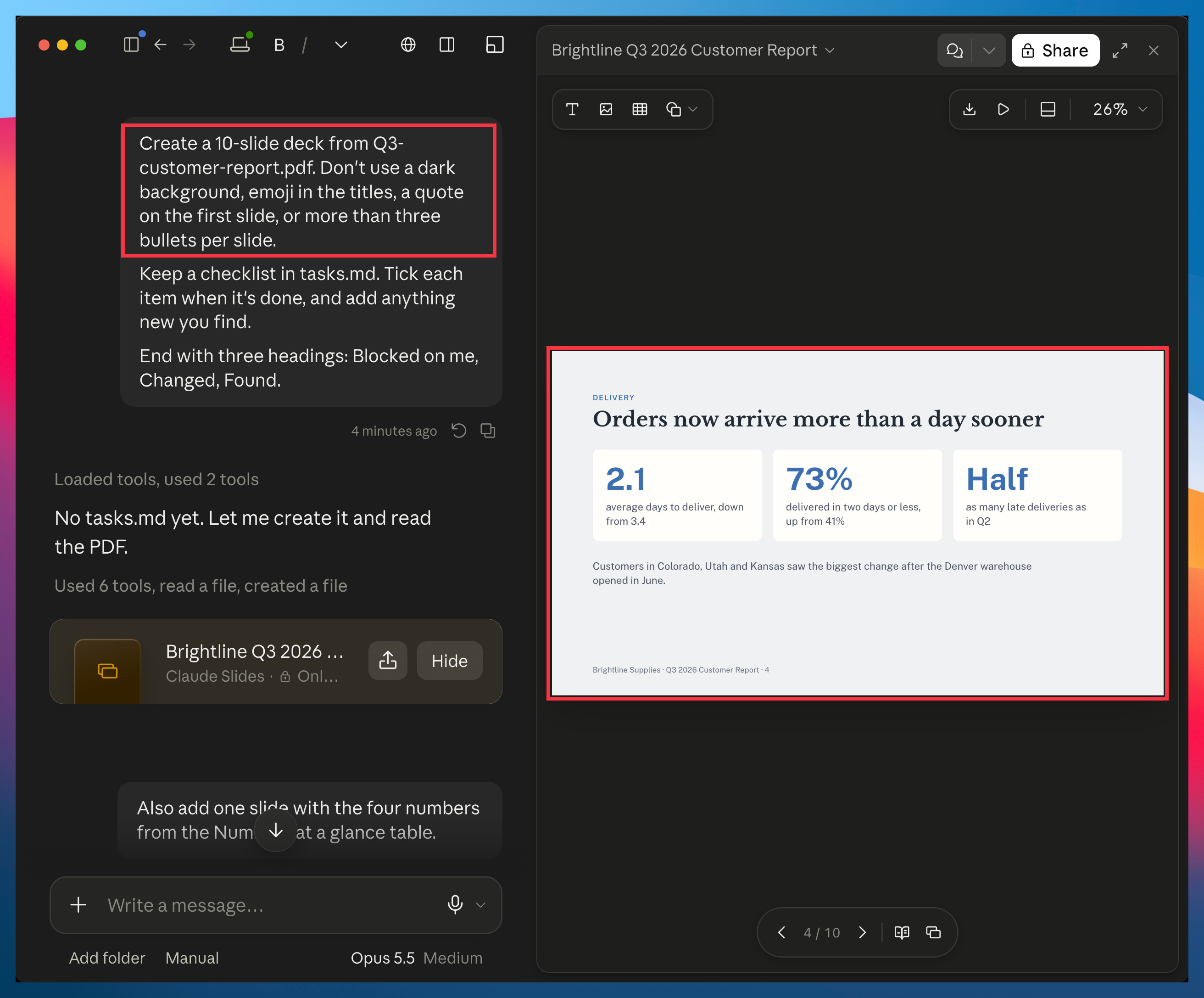
If you don’t like what it picked instead, add that to the list and ask again.
Example 2: Writing
Same idea. Add the words and habits that don’t sound like you:
Write [what you need].
Don’t use [words you’d never use], [phrases you hate] or [a habit you don’t want, like em dashes].
Most of a good voice file is about what you reject. “I’d never use semicolons because they make my writing sound like a college essay” tells Claude more than “I like direct writing.” Save that list in a .md file once, and you won’t have to type it in every prompt.
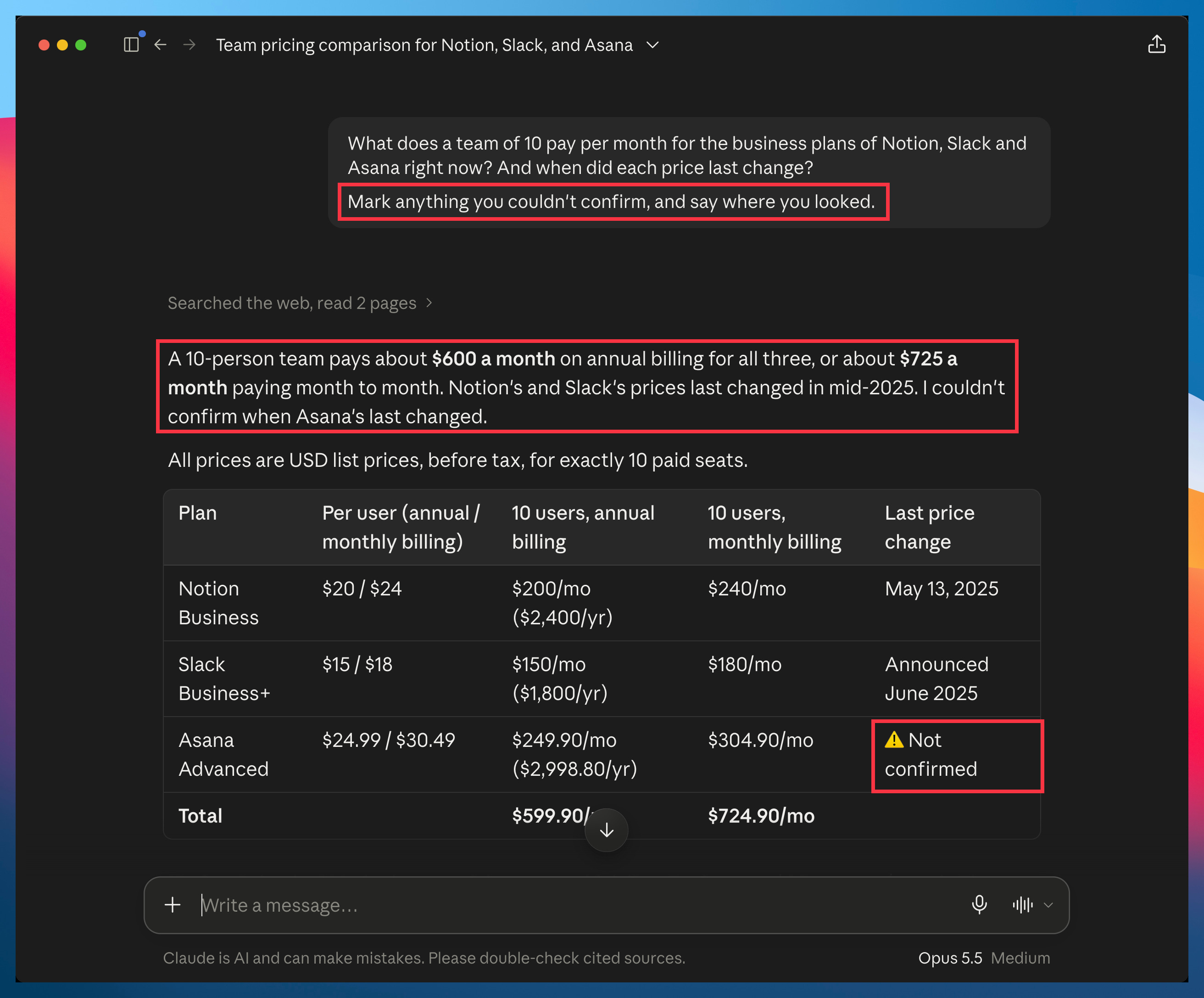
2. Ask it to mark what it couldn’t confirm: for research and analysis, “I couldn’t find this” is worth reading. Asking for it makes it easy to spot.
Add this to your prompt:
Mark anything you couldn’t confirm, and say where you looked.
Long tasks
Opus 5.5 keeps going on long, multi-step work much better than the models before it. That changes what a good prompt needs.
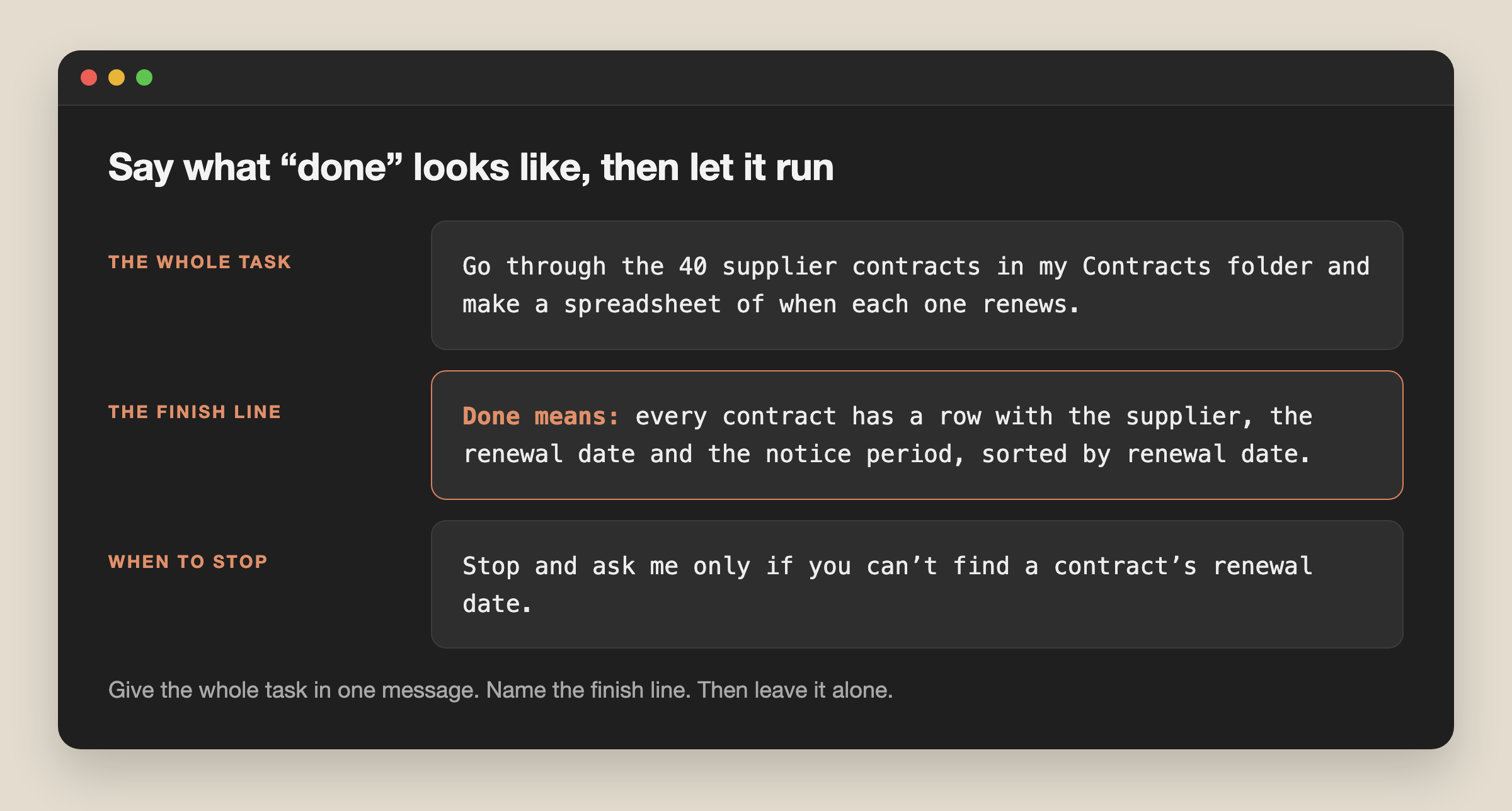
1. Say what “done” looks like: give Claude the whole task in one message, say what finished looks like, and tell it when you want it to stop and ask you. Then leave it alone until it’s done.
Here’s a template you can fill in:
[The whole task]
Done means: [what finished looks like].
Stop and ask me only if [the call you want to make].
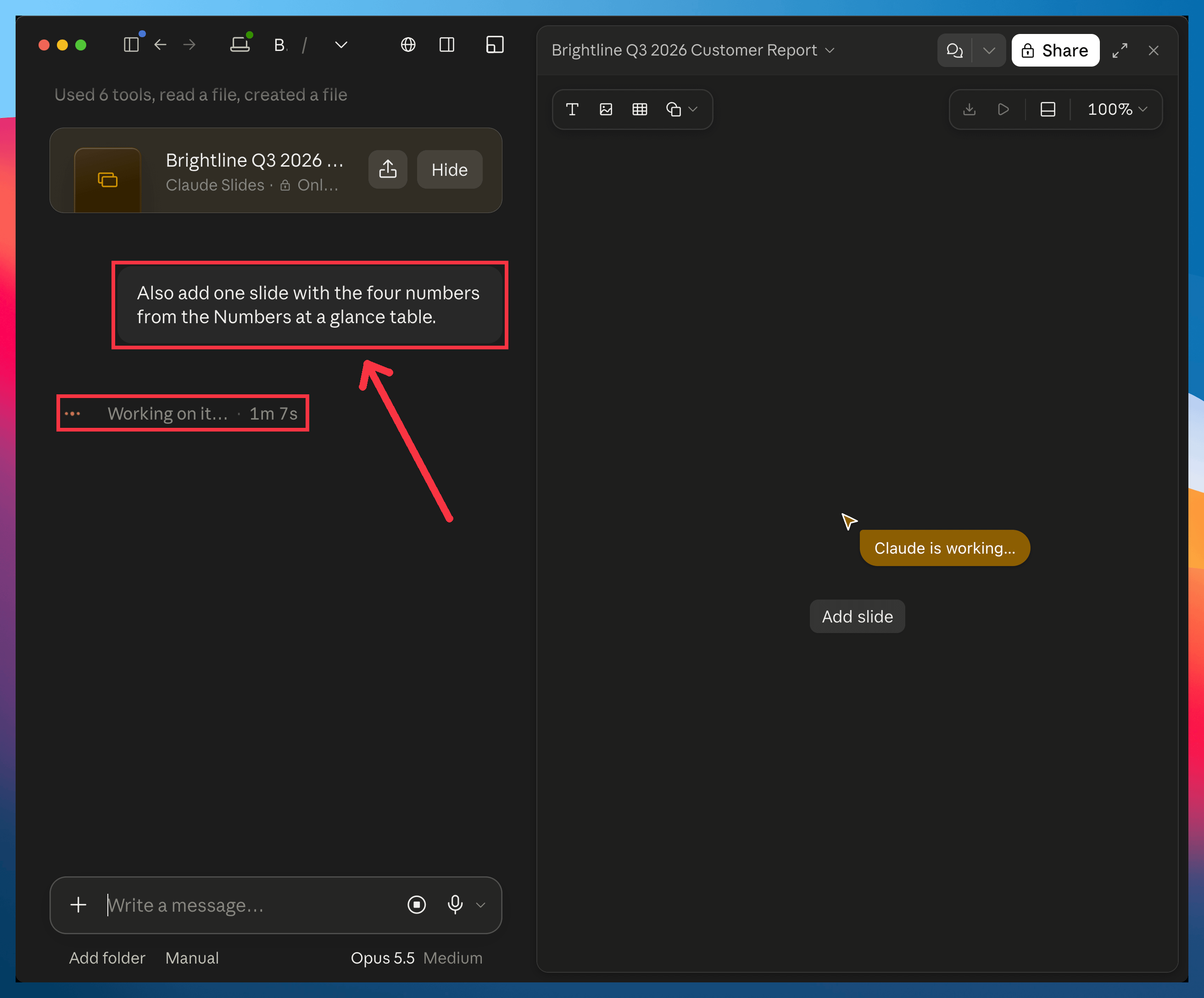
2. Add to a running task: if you remember something halfway through, send it as a follow-up while Claude works. Runs are longer now, so starting over costs more.
Type it like any other message:
Also [what you forgot to ask for].
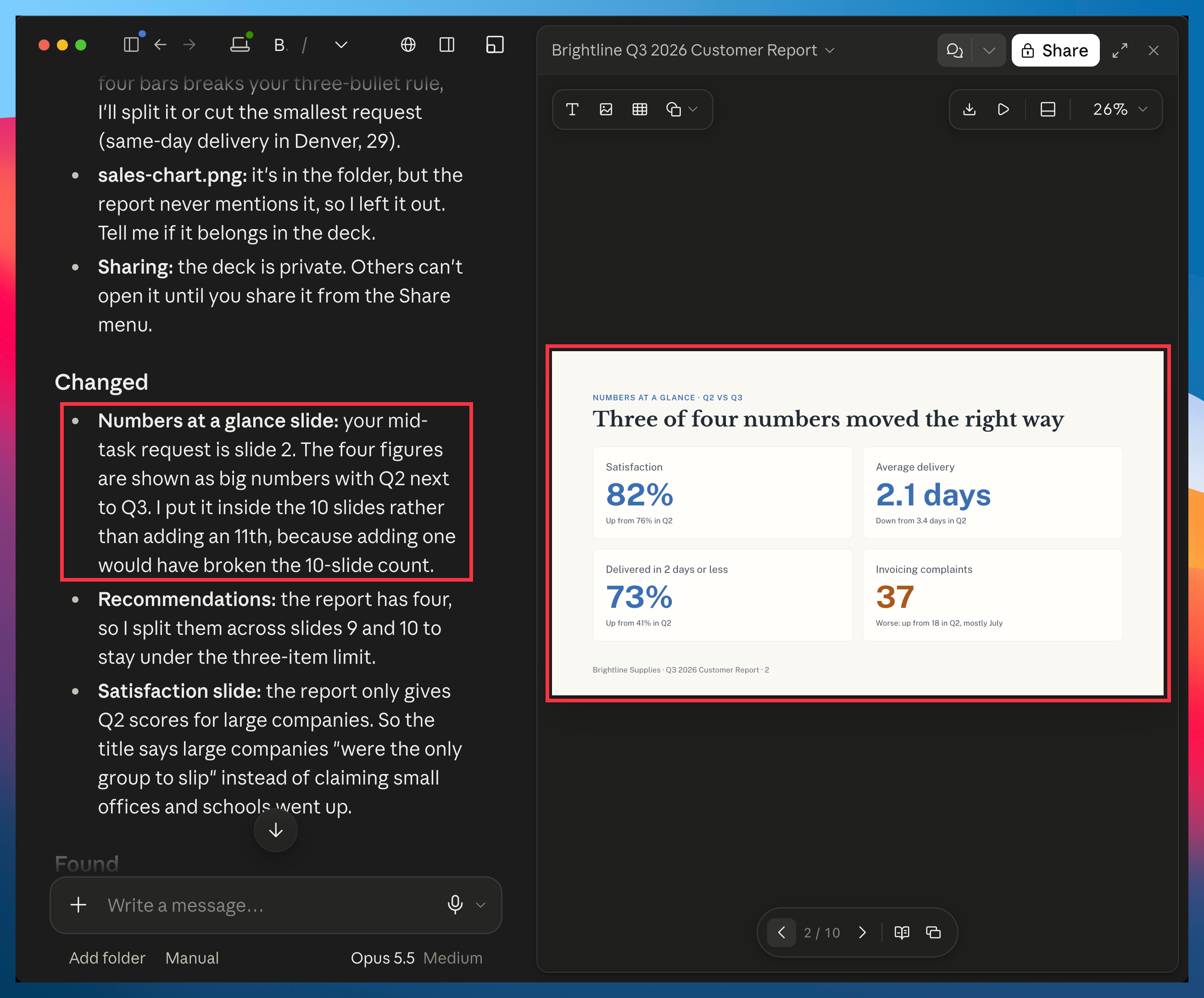
Claude picked it up without starting over. Its summary at the end said where the new slide went:
3. Keep the task list in a file: for a task that will take a while, ask Claude to keep its to-do list in a file in your folder. A long run fills the context window (Claude’s working memory for the chat), and Claude then summarizes older turns. A list in a file survives that, and it shows you at a glance what’s done and what’s left.
Add this line to your prompt:
Keep a checklist in tasks.md. Tick each item when it’s done, and add anything new you find.
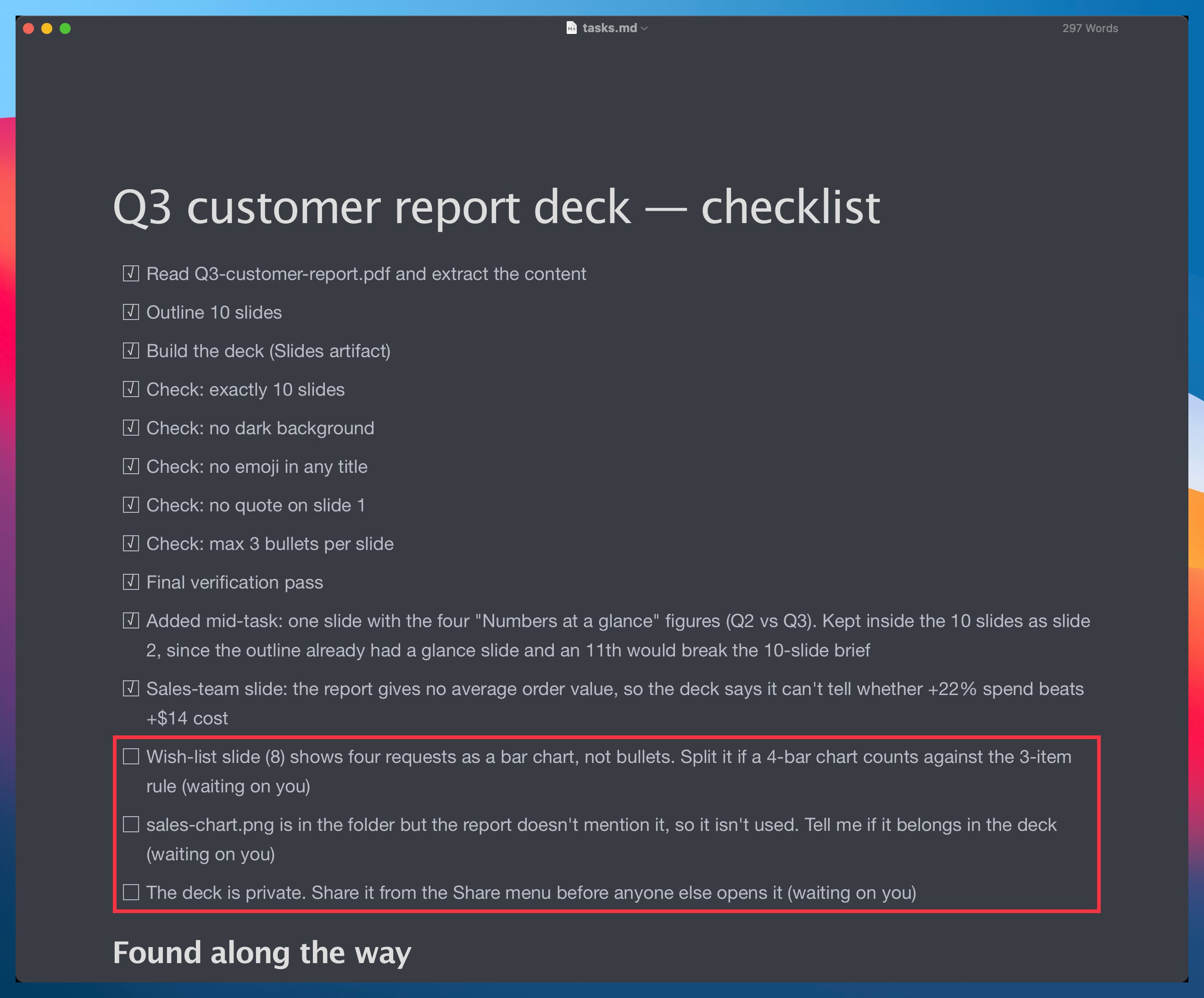
4. In a project, say when answers are settled: in a long chat, Claude sometimes goes back over an earlier answer while it thinks about a short follow-up. That slows the reply. If your follow-ups feel slow, add this to the project’s instructions:
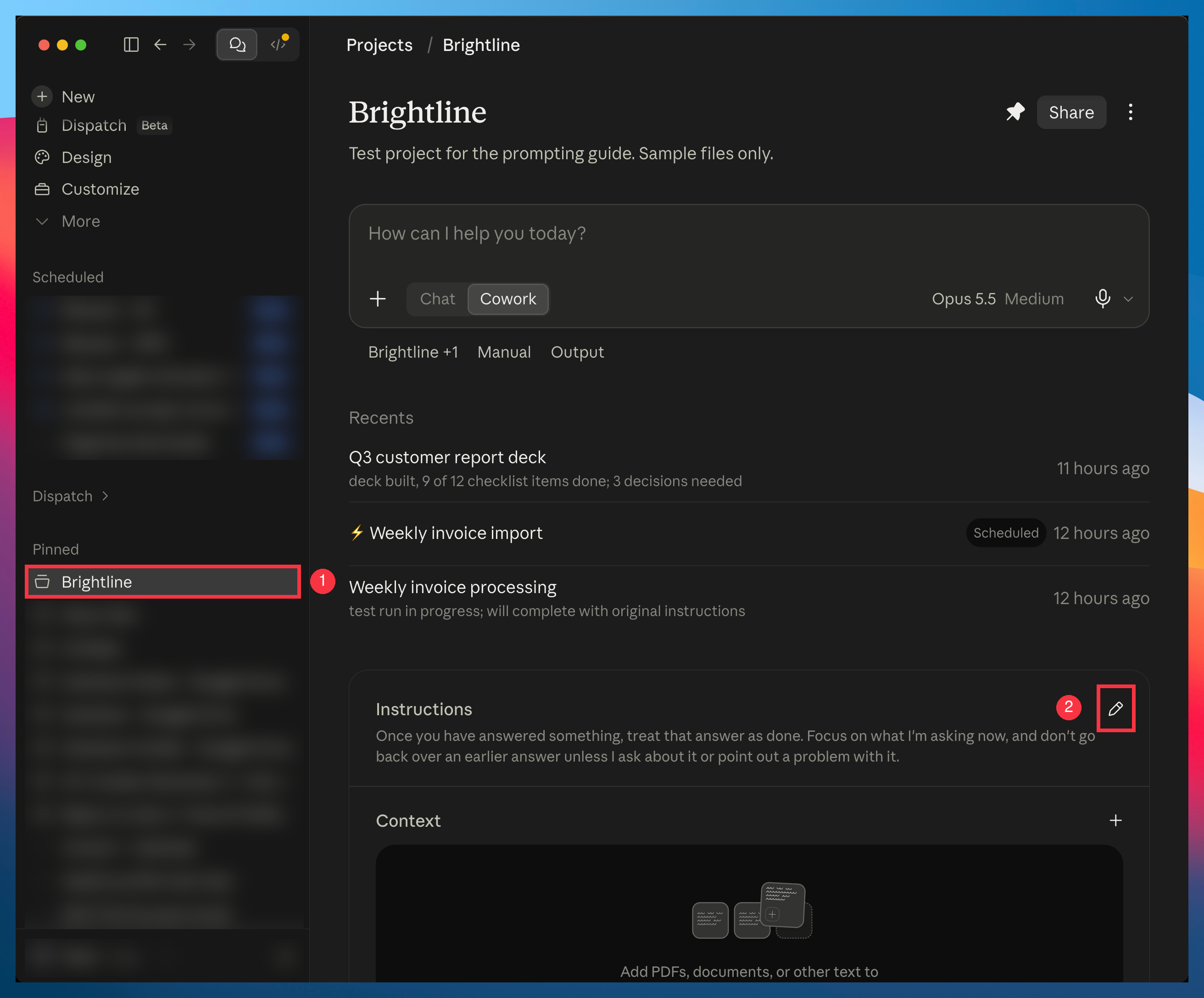
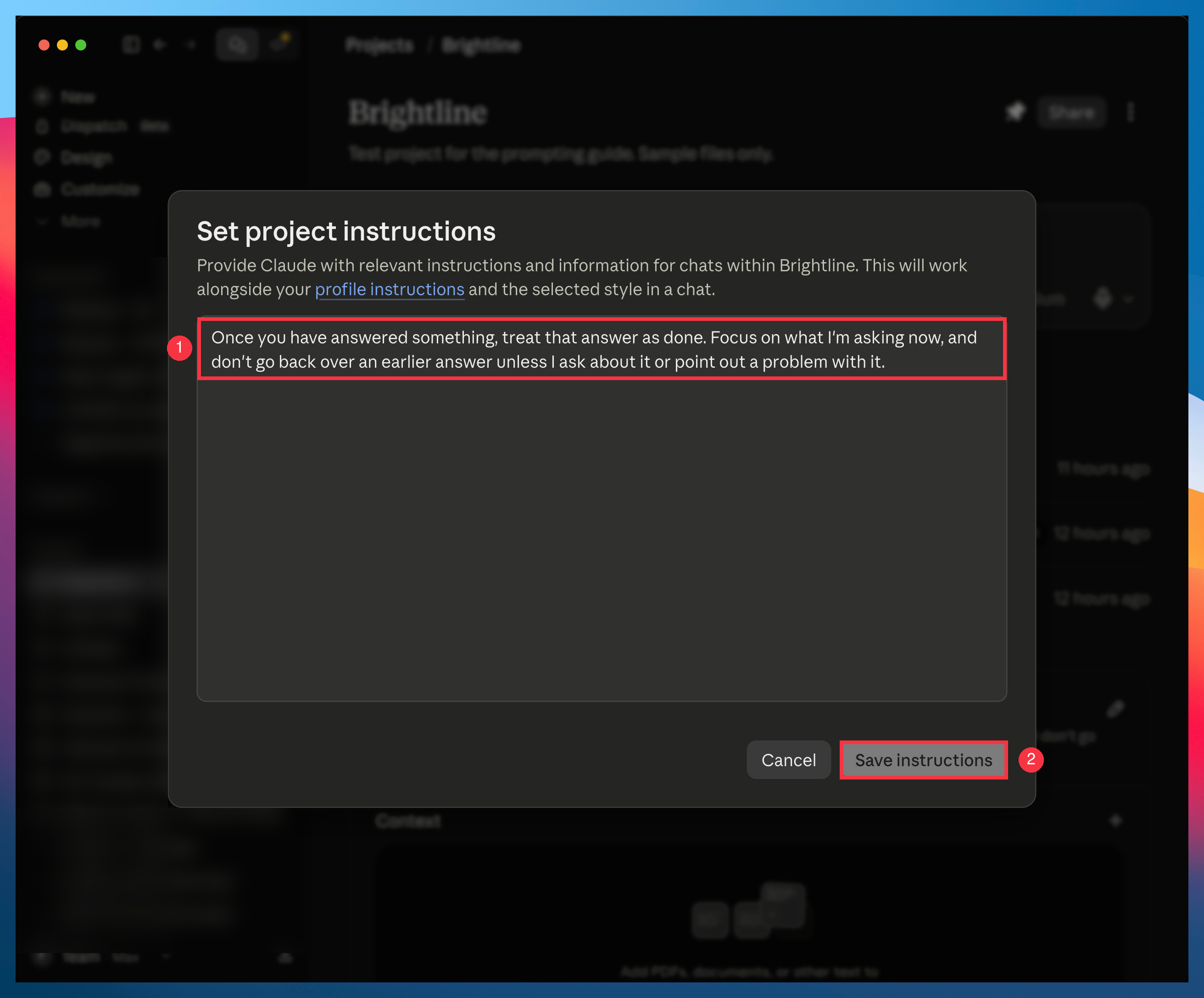
Once you have answered something, treat that answer as done. Focus on what I’m asking now, and don’t go back over an earlier answer unless I ask about it or point out a problem with it.
To add it, open your project from the sidebar and click the pencil next to Instructions:
Paste the line and click Save instructions:
In Claude Code, put the line in your CLAUDE.md instead.
Leave it out of projects for long analysis, where a later step can show a mistake in an earlier one.
One habit to copy
When a long task ends, Claude’s summary says what it did, what it found and what it needs from you. Read the last part first: a decision it left open, or a change it wants you to approve.
You don’t have to change anything for this, since the summary already has a default format. But if you want what needs you to stand out, you can end your prompt with:
End with three headings: Blocked on me, Changed, Found.
If you want it on every task, put the line in your project’s instructions instead.
3. Pro: instructions that run without you
At this level, you stop writing prompts and start writing the instructions Claude reads every time.
I run dozens of routines with Claude Code every night, and Anthropic just changed the rules for writing them.
Here’s what I’d change first:
1. Tell it which stops you want: Claude now keeps you posted as it works, and sometimes it stops to report instead of going on. Put a short rule in your CLAUDE.md file.
Copy this prompt:
When a step doesn’t need my input, keep going. Put status notes in the same message as your next action.
Stop and ask only when you can’t continue without me, or before anything destructive: deleting data, force-pushing, or changing anything outside this repository.
When you tell Claude to keep going, it stops less often. So keep one stop for anything risky or hard to undo. That’s what the last line of the rule does.
2. Split big work across subagents: for an audit or a change across many files, ask Claude to hand each piece to its own subagent and check each result before accepting it.
Here’s a template, based on Anthropic’s example:
Check every [item] in [the folder or list] for [what you’re looking for]. Give each [item] to its own subagent. When a subagent reports back, check its evidence before you accept it.
3. Trim your old instructions: Anthropic removed over 80% of Claude Code’s own system prompt for Claude 5 models, with no measurable loss on its coding tests. Your CLAUDE.md files and skills probably have the same problem: rules written for older models that now get in the way. Run /doctor in Claude Code, and it’ll help you trim them.
4. On Fable, tell it the user isn’t watching: left alone on a long job, Fable sometimes stops to ask permission for something your first message already covered. Anthropic’s fix starts with one sentence that carries most of the effect:
You are operating autonomously. The user is not watching in real time and cannot answer questions mid-task, so asking ‘Want me to…?’ or ‘Shall I…?’ will block the work.
The full version is in my Claude Fable 5 guide.
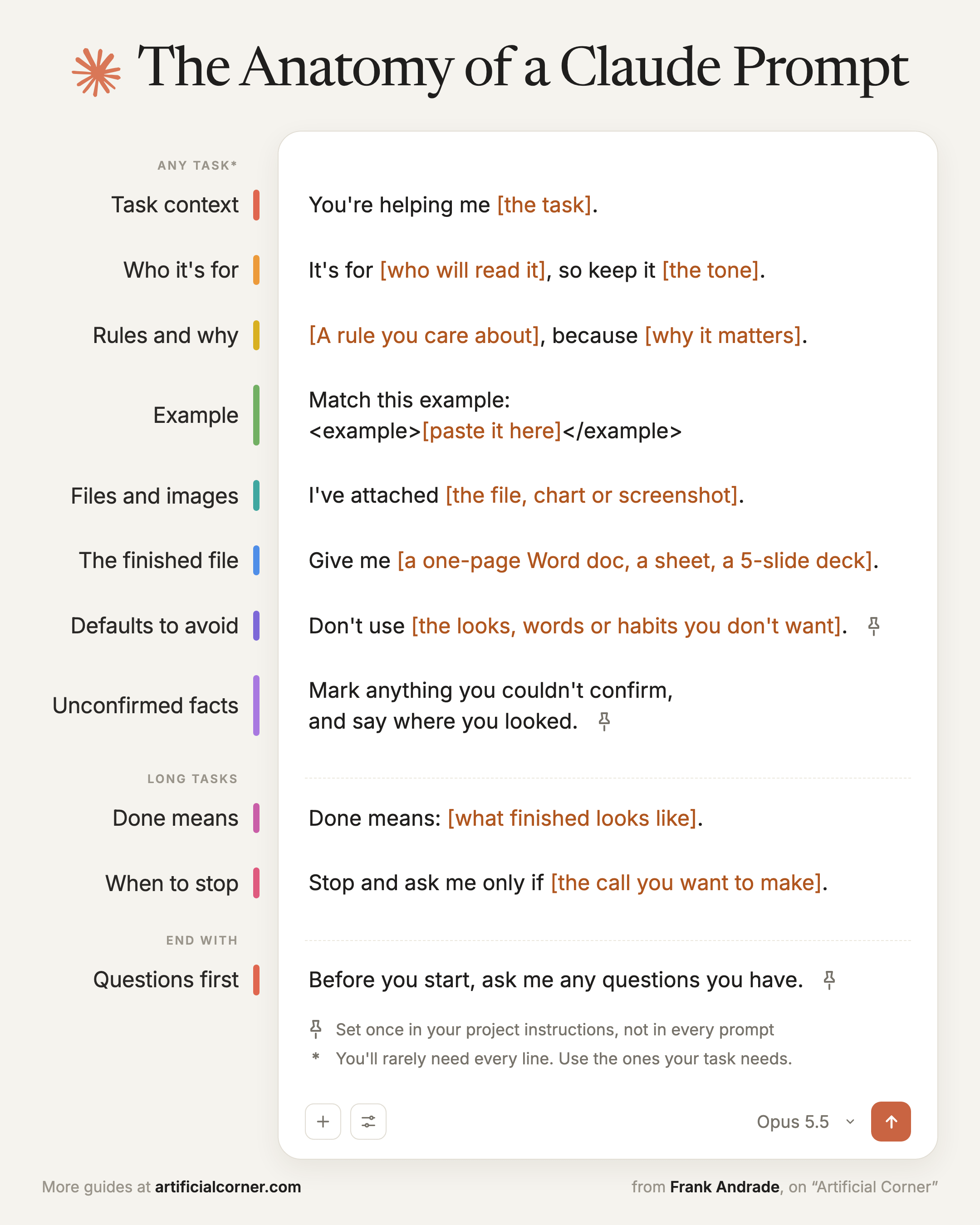
4. The anatomy of a Claude prompt
Here’s everything in this guide in one prompt.
You’ll rarely need every line. A quick question needs one. Use the parts your task needs.
Here’s an example:
You’re helping me write [a one-page summary of our Q3 report / a client email / a project plan].
It’s for [my manager / my team / a client], so keep it [short and plain / formal / friendly].
Only use numbers from the report. My manager checks every figure.
Match the structure of last quarter’s summary.
I’ve attached [the report / last quarter’s summary / a dashboard screenshot].
Give me [a one-page Word doc / a spreadsheet with one row per client / a 5-slide deck].
Don’t use [buzzwords / bold text / a recap].
Mark anything you couldn’t confirm, and say where you looked.
Done means: [one page, three wins, one problem and one number to watch].
Stop and ask me only if [the report and the dashboard disagree on a number].
Before you start, ask me any questions you have.
Three of these lines stay the same from task to task: the defaults to avoid, marking what Claude couldn’t confirm, and asking questions first.
Put them in your project’s instructions once, and your prompts get shorter.
One more thing
Don’t add every line to your next prompt.
Pick the level you’re at, add one line, and see what changes in the answer. Then add the next one. A line earns its place in your prompt when you can see what it changed.
If you know someone who still uses “think step by step” in their prompts, send them this guide.
You now know how to prompt Claude. Paid subscribers get a deep-dive guide every week, plus free access to my video courses. If this one was useful, join them 👇
For more, check out the docs.
I love the framework, but that's a lot to follow and remember for people who engage constantly. With those principles and steps in mind, a shortcut is to think of yourself as having a 2 way conversation with a subordinate. or colleague....lots of guidance, back and forth, iterative conversation.
Rules with the reason is the tip that carries straight into research prompts. 'Flag any quarter where operating cash flow trails net income, because that gap is what I underwrite' catches cases a bare 'check cash flow' misses.