


Last time I shared the best Claude skills I found after trying 100.
This time, I asked AI writers to share theirs.
We use Claude daily in our real work. Between us, we’ve built dozens. We picked our #1 skill.
In this guide, we’ll see:
The best skills we built
Skills for Writers & Content Creators
Skills for Making Better Decisions & Research
Skills for Busy Professionals
Skills for Building with Claude Code
How to install the skills in Cowork
How to build your own skill in Cowork (+ my tips)
Quick reminder if you’re new: Skills are reusable instructions you give Claude, so it follows your way of doing things. For a refresher on the basics, read this guide.
Each skill is credited with a link to its creator at the end. If you find one useful, consider supporting them by subscribing to their newsletter :)
Click here to get my FREE Claude course (20+ lessons)
The Best Claude Skills We Built
There are many skills out there. Here are the best we built
Almost all the skills listed can be used with Claude Cowork. I'll flag the few that don't.
For writers & content creators
1) Instagram post downloader
Problem:
You see a great Instagram post, a carousel of slides, or an image you want to keep. Instagram doesn’t have a download button, so you come up with a workaround: screenshot, swipe, screenshot again, crop each one, rename them, drop them in a folder. By slide six, you’ve lost interest. Screenshots aren’t the real image anyway (they’re a lossy copy)
The Skill:
You hand it an Instagram post URL. It opens the post, figures out whether it’s a single image or a carousel, pulls the actual high-resolution files straight from Instagram’s site, and saves them into a tidy-named folder based on the caption. For carousels, it also stitches every slide into a single PDF so you can scroll through the whole thing in one place.
Why it works:
There are sites that download an Instagram image if you paste a link, but you have to feed them one URL at a time and click download through every slide of a carousel yourself. Do that every day or every week and it turns into a small, stressful chore. This skill skips all of it: you drop in multiple links at once, press enter, and walk away. As a bonus, I’m also sharing a skill for downloading reels using a third-party site.

Download the skills: image & carousels, reels
This skill was created by me (Frank) and Diana Dovgopol from Write, Prompt, Scale
Note: If the skill doesn’t work, add *.cdninstagram.com to domain allowlist: Settings → Capabilities → Domain allowlist → Paste *.cdninstagram.com → Add
2) AEO-Optimization
Problem:
You write a great Substack post. Google might rank it eventually. But ChatGPT, Perplexity, and Claude will never quote it. Why? Because the structure they need to extract answers, short capsules, question headings, no links inside the answer, is the opposite of how most of us write. So the article works for humans scrolling, and disappears the moment someone asks an AI the same question your post answers.
The Skill:
You give it a draft (or a published post). It rewrites your H2s as the actual questions people ask AI (”What is X?”, “How do you Y?”), drops a 50-80 word answer capsule right under each one with zero links inside, and audits the rest, paragraph length, original data signals, named frameworks. You get back an AEO-ready version that’s still your article, just structured so AI can quote it cleanly.
Why it works:
AI engines don’t read articles end-to-end. They scan for extractable, link-free chunks that directly answer a query. Most writers bury the answer in paragraph three and stuff the first two with links. This skill flips that, the answer comes first, clean, in the exact word count AI prefers. You stop competing for Google rankings alone and start being the source AI cites when someone asks.
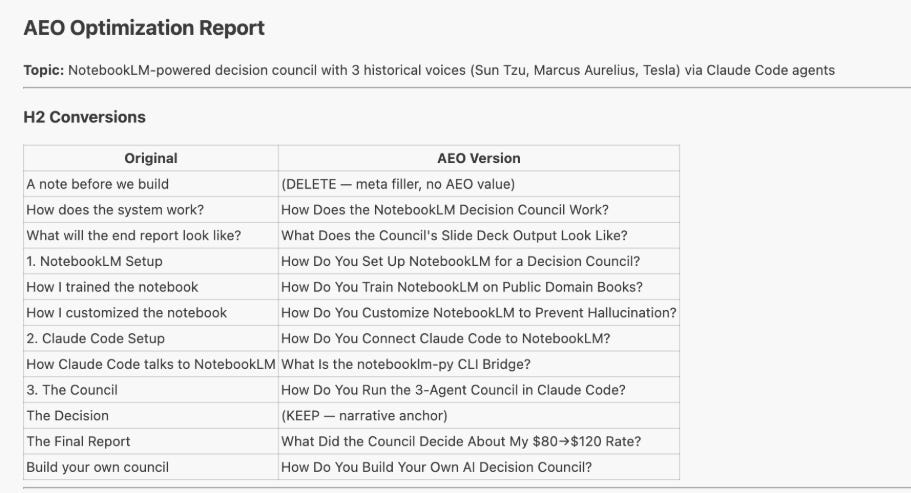
Link: Download the skill
This skill was created by Gencay from LearnAIwithMe
3) Create Thumbnails for Articles (Claude Code)
Problem:
Creating newsletter thumbnails can be time-consuming if you’re generating image candidates one at a time from the Gemini web interface. Gems can eliminate the need to keep attaching images and pasting prompts, but the overall experience feels slow to me. I wanted a way to quickly generate multiple brand-appropriate images with Gemini models from Claude Code where I do most of my work.
The Skill:
You paste in your article copy or a link and ask Claude Code to give you a few thumbnail options. It will suggest compositions informed by your copy and your brand specs, build an image prompt based on your selections, use a script to call Gemini, and evaluate the completed images through its Computer Vision. You can work on other tasks while the images are processed.
Why it works:
It allows Claude to act as an image-generation agent that has access to your brand’s reference images. While I know many people prefer evolving images one step at a time, I find it easier to get three or four candidates all at once. A lot of the time, I get lucky and just pick one. I also find that Claude does a better job with image prompts than I do.
I turned my Skill into a template you can use with Claude Code. It requires a Gemini AI Studio API key and a small script for calling Gemini. You can get the Skill and everything you need to install it on GitHub.
Here’s an image sample.

Link: Download the skill
This skill was created by Karen Spinner from Wondering About AI
4) Substack Notes Scraper
Problem:
You write notes on Substack and want to know which ones actually landed — likes, comments, restacks, all of it in one place. Substack doesn’t give you that view. So you end up scrolling your own notes page, copying numbers into a spreadsheet by hand, screenshotting the good ones, and trying to remember which post said what. Do it once and it’s annoying. Do it monthly to track what’s working, and it eats half a morning every time.
The Skill:
You give it three things: the notes URL, the author name, and the period you care about (a month, a date range, whatever). It opens the page, scrolls until it has loaded every note from that window, pulls each one’s date, text, likes, comments, restacks, and link, and hands you back a clean .xlsx with frozen headers, filters, and proper formatting. Ready to sort, filter, or paste into a report.
Why it works:
Substack Notes has no public API, so the only honest way to get the data is from the rendered page. Doing that by hand is exactly the kind of repetitive task that gets skipped. This skill does the scrolling, the filtering (so restacks from other authors don’t pollute your data), and the formatting in one go. You ask once and get a spreadsheet you can actually work with.
Here’s a dataset I generated after running the skill.
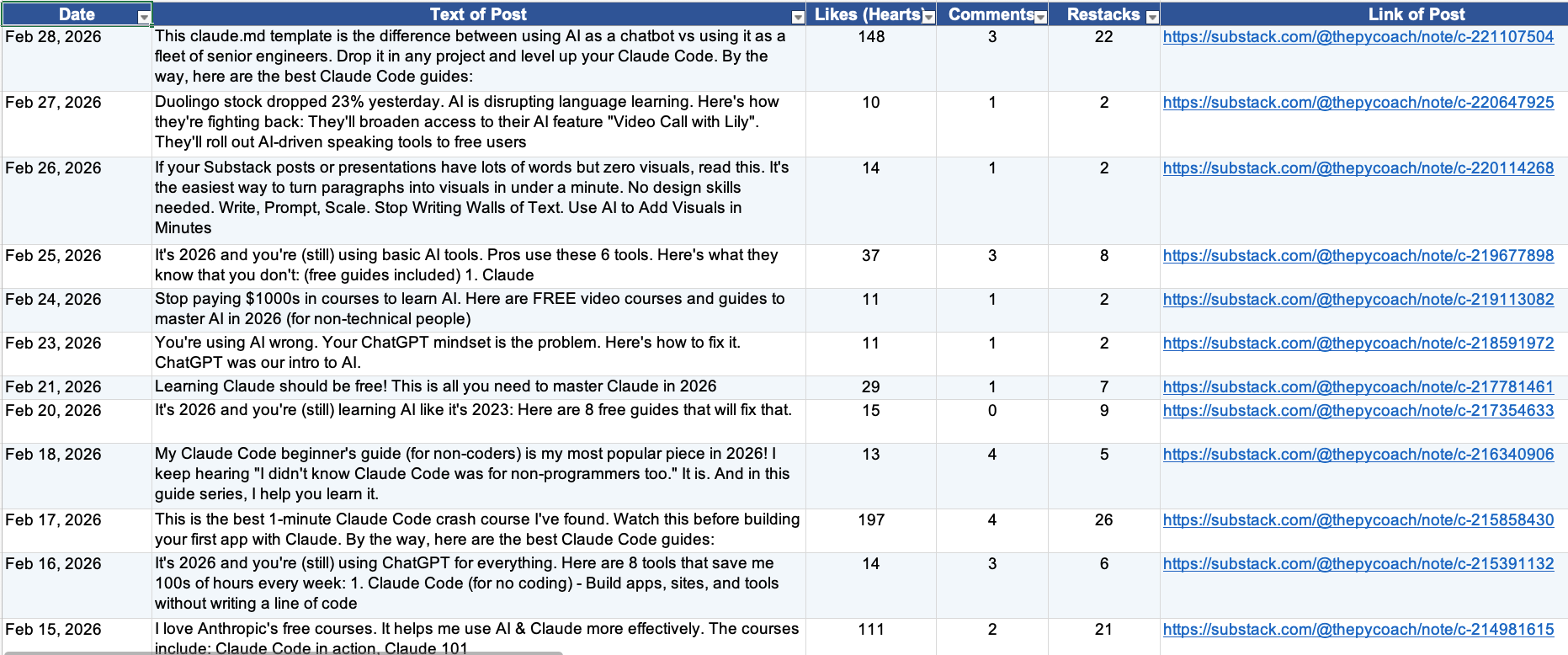
Link: Read the guide | Download the skill
This skill was created by me! Consider becoming a paid subscriber for more :)
5) Notes Humanizer
Problem:
You can spot AI writing from a mile away. Em dashes everywhere, “let’s dive in” openers, rule-of-three lists, every sentence the same length. Asking the model to “sound more natural” just makes a slightly different version of the same generic text. So you end up rewriting it yourself, sentence by sentence.
The Skill:
You paste in any AI-generated text. It runs through the full list of patterns that mark text as machine-written and strips them out. Then it adds the things models don’t do well on their own: opinion, varied rhythm, a specific detail, an aside. You get back text that reads like a person wrote it.
Why it works:
Most “humanize” prompts just tell the model to write less formally. That doesn’t help. The AI patterns are statistical defaults, the most common phrasing the model has seen in its training data from WriteStack.
Link: Download the skill
This skill was created by Orel from TheIndiepreneur
Want to grow on Substack? Orel built WriteStack to make life easier for Substack writers. It handles Notes scheduling, performance analytics, and content generation in one place (quick note: that link’s an affiliate one, so I’ll earn a small commission if you decide to give it a try)
Skills for Making Better Decisions & Research
6) The Sycophancy Skill
Problem:
The default version of Claude wants you to feel right. You bring it a decision, it finds three reasons your instinct is solid, and you leave more confident than when you started. That’s not a thinking partner. That’s a mirror with better grammar. The longer you use it that way, the harder it gets to catch your own blind spots, and the cost doesn’t show up until a decision you can’t take back.
The Skill:
You paste a prompt that flips Claude’s default. Instead of starting with agreement, it starts with the assumption you haven’t tested. It argues the strongest case against your idea before it considers yours. It doesn’t retreat when you push back unless you give it new evidence. It tells you what’s weakest first, not what’s working. And if it can’t find a real flaw, it tells you that too, instead of inventing one to seem thorough.
Why it works:
Most skill prompts tell Claude what to add. This one tells Claude what to stop being by default. The prohibitions do more work than the rules. Without them, Claude follows the framework and then reverts to “great question” energy anyway. The prohibitions shut that off at the source.
Default Claude:

Sycophancy Skill Claude on:

Link: Read the guide
This skill was created by Joel Salinas from Leadership in Change
7) Last 30 Days
Problem:
You hear about a new AI tool or trend and want to know what’s actually going on with it. Is it as good as people say? What are the real complaints? Googling it gives you SEO-stuffed “best of” lists and PR fluff from last quarter. The honest takes live on Reddit threads, X, etc. Chasing them across platforms eats your afternoon.
The Skill:
You activate it and name a topic. A tool, a trend, a feature, whatever. It searches Reddit, X, and the web for anything from the past 30 days. Then it hands you back a single report: what people agree on, where they disagree, and the pain points that keep coming up.
Why it works:
Most “research” is just one Google search dressed up. This one looks where the real opinions actually live. And when something shows up on multiple platforms at once, that’s your strongest signal it’s true. You save the afternoon and walk away with a much sharper picture.
Link: Watch the tutorial | Download the skill
8) Notebook LM Connector
Problem:
Notebook LM is one of the best AI tools out there, but it doesn’t talk to your other tools. So every time you want a new mindmap, audio overview, or slide deck, you’re back inside Notebook LM clicking the same buttons. There are open-source workarounds, but most of them need Claude Code and the terminal (not exactly beginner-friendly).
The Skill:
You install it inside Claude (no coding, no terminal). Then you just tell Claude what to do: “create a notebook, add these links as sources, generate a mindmap.” Claude goes into NotebookLM and does it for you. It runs through the Claude Chrome extension.
Why it works:
Notebook LM has the outputs (audio overviews, slide decks, infographics, mindmaps). Claude has the automation. Connect the two and you get NotebookLM on autopilot.
Link: Watch the tutorial | Download the skill
Skills for Busy Professionals
9) Email tasks
Problem:
A lot of us (at least I am) are drowning in emails. Newsletters, news, etc. I wanted to have something that I can launch from my phone in Claude and that will help me save time and only read the emails that matter.
The Skill:
This skill is connected to my Gmail (connector). I type /emails-tasks and it reads my inbox for the last 8 hours (or whatever window I want to be set). It throws out everything that doesn’t need me, things like receipts, notifications, etc. Then, it surfaces only what requires a reply or a decision. For each one: who it’s from, what they actually need, how urgent it is, and a one-line opener if there’s a need for one.
Why it works:
Claude sorts the emails perfectly now. The best part about this skill - I can launch it straight from Dispatch from my phone. So now I am just seeing the most important emails and if I need to take any action or not.
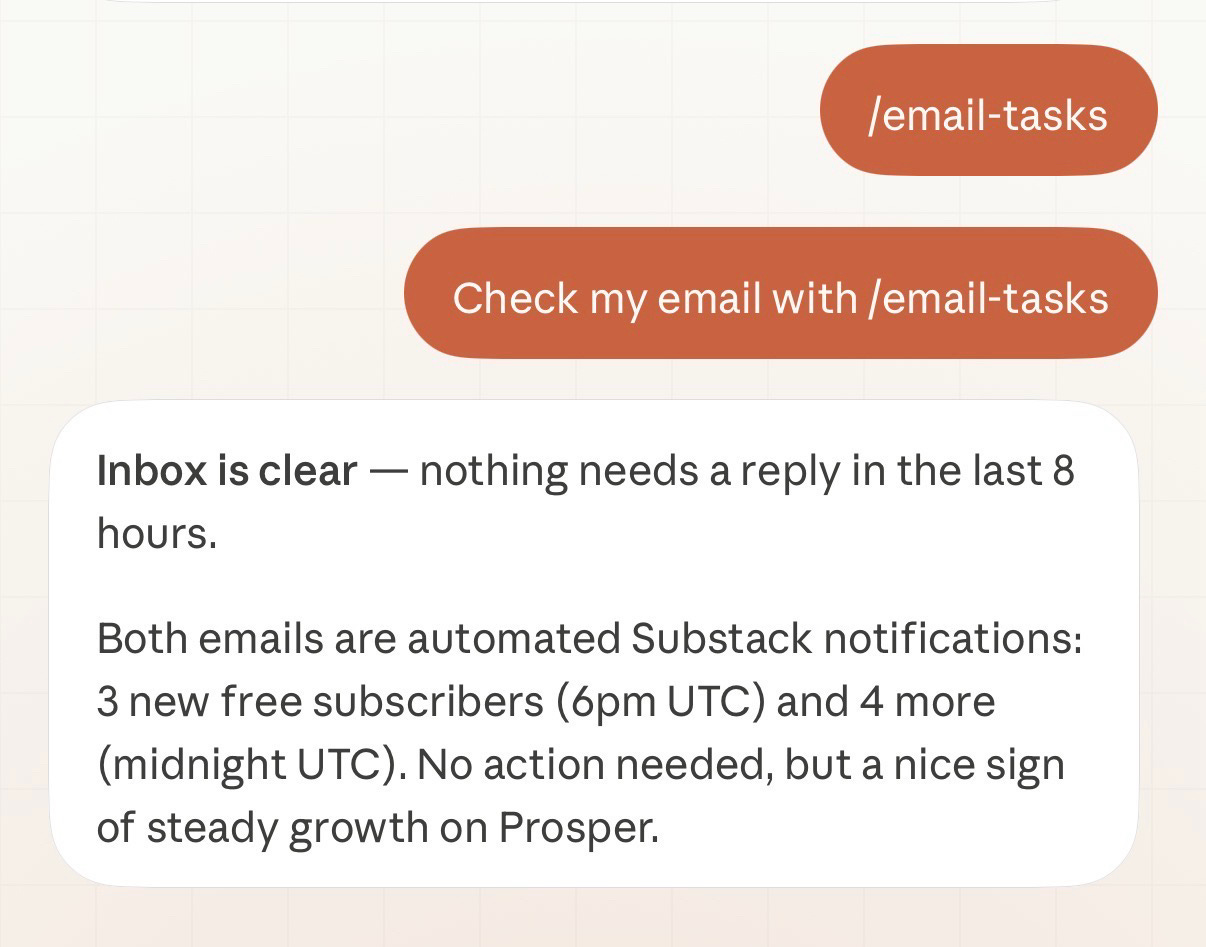
Link: Download the skill
This skill was created by Ilia Karelin from Prosper
10) Morning intelligence
Problem:
You want to stay on top of news that matters to your work. Cowork Scheduled Tasks and Claude Code Routines now run recurring tasks on a schedule. The bottleneck is the prompt. A good one has to capture who you are, what you track, what to exclude, your sources, your geography, your format. Writing it from scratch is hard. Tuning it every time your focus shifts is harder.
The Skill:
A 15-question interview that captures your role, focus, story-type mix, exclusions, freshness, and format. It clusters your answers into pillars and writes a master prompt ready to paste into a Cowork Scheduled Task or Claude Code Routine. When priorities shift, run it again for a fresh prompt.
Why it works:
Design once, run forever. Drop the prompt into Cowork (Scheduled Tasks → New Task, requires Pro/Max with the desktop open) or Claude Code (Routines → New routine → Remote runs in the cloud without your laptop on). Either path turns a one-time prompt into a brief that arrives on its own.
Pro tip: Run the interview with Opus.
Link: Download the skill
This skill was created by Ashwin Francis from Cash&Cache
For building with Claude Code
These are skills I found on the Nate Herk YouTube channel. They’re highly recommended for Claude Code users.
11) Context Mode
Problem:
Use Claude Code for a while and you’ll notice this: Things get sluggish, it forgets what file you were editing, it asks what you wanted to do (again). What’s happening is every command Claude runs dumps a pile of raw output into its memory. After about 30 minutes, most of that memory is junk. Claude has to reset to keep going. And when it does, it forgets where you were.
The Skill:
It does two things. First, it filters the junk before it ever reaches Claude’s memory. Only the useful part of each command makes it through. Second, it keeps a running log of your session (files edited, tasks in progress, your last prompt). When Claude resets, it pulls that log back in and picks up exactly where you left off.
Why it works:
Most “long sessions” with Claude Code aren’t really long. They’re a bunch of short ones glued together with you re-explaining yourself. This kills both problems at once: less garbage going in, full memory of what you’ve done. Sessions that used to die at the 30-minute mark now run for hours.
Link: Watch the tutorial (installation steps in the description)
12) Superpowers
Problem:
You ask Claude Code to build something. It sprints out of the gate, writes the whole thing in one shot, and on the surface it looks great. Then you actually run it. Or worse, your client runs it. And it falls apart. Why? Claude doesn’t plan. It doesn’t test. It doesn’t double-check its own work. It just writes.
The Skill:
It forces Claude to work like a senior developer. Step back and plan the whole thing first. Work in an isolated environment so nothing breaks your main project. Write tests before writing code. Then review its own work twice. Once for “does this match what I asked for” and once for code quality.
Why it works:
Most failures with Claude Code aren’t from Claude being dumb. They’re from Claude rushing. Slowing it down just enough to actually think gets your first pass to 80% instead of 60%. That means fewer debugging cycles, lower token costs, and code that doesn’t fall apart the second a real person uses it.
Link: Watch the tutorial (installation steps in the description)
Bonus: Dr Sam Illingworth has a Claude Code skill that reviews your configuration against the latest Claude Code documentation and recommends improvements. Check it out here.
How to install the skills in Cowork
Follow the steps below when you want to add one skill to Claude (.zip or skill.md file)
Customize → Skills → “+” → Create skill → Upload a skill → Upload your .zip or skill.md file
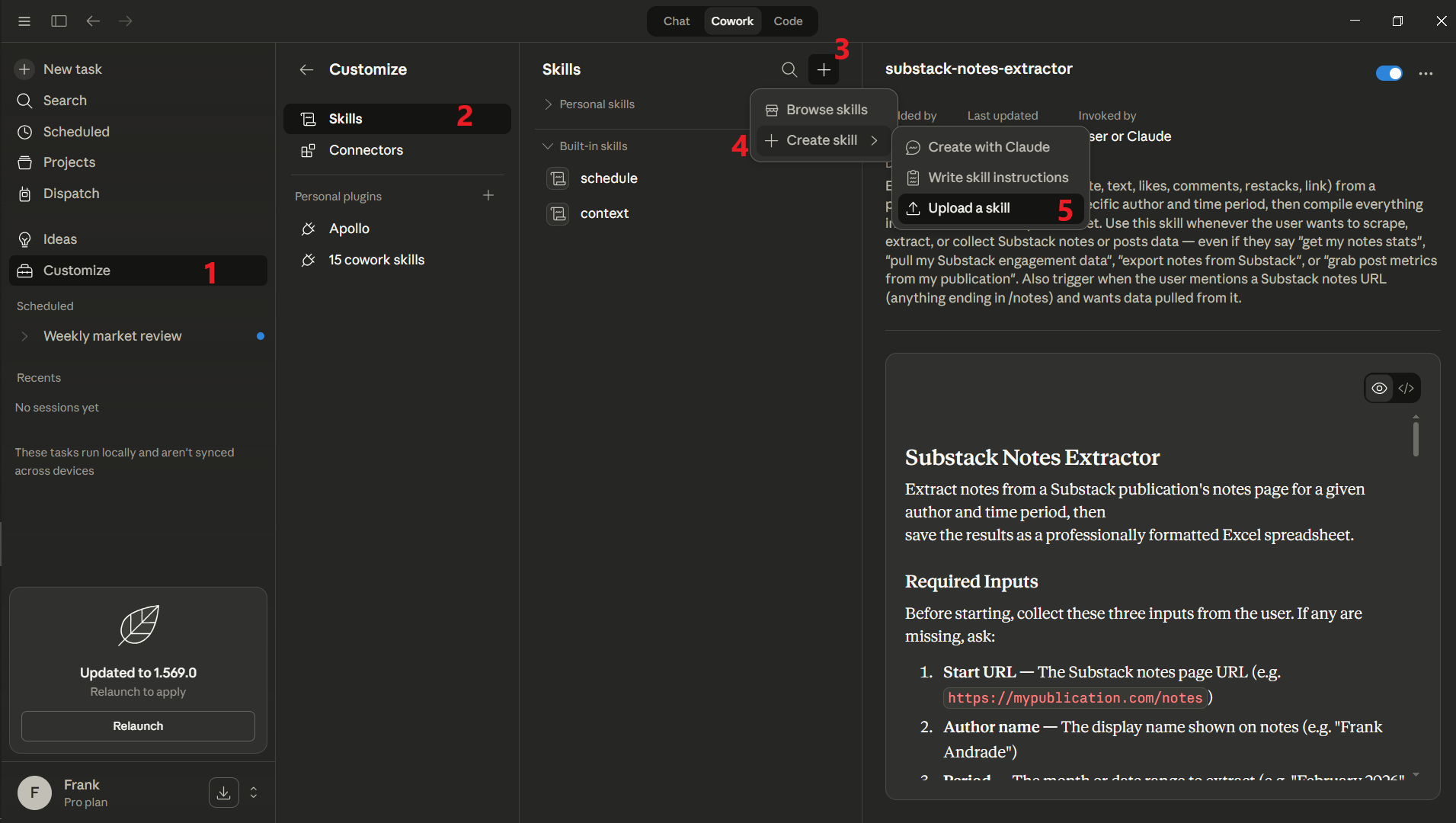
How to build your own skill in Cowork
On paper, creating a skill is as simple as describing to Claude what skill you want to build.
<your instructions in plain English>
When creating a skill, you should get a skill.md or zip file at the end of the response.

You can either download it and then upload the file using the steps above, or click on “save skill“ (for the latest Cowork versions)
In real-world projects, building a Claude skill takes a lot of trial and error.
Here’s how I decide when to turn a task into a skill and the steps I follow to build skills for my projects.
When to create a skill
Look for tasks you do repeatedly and are time-consuming (those are your best skill candidates)
Tasks that follow a clear, repeatable step pattern are even better candidates
One-off tasks aren’t worth skillifying. The value comes from reuse.
How to build a Claude skill
Start the task in Claude Cowork as you normally would, and ask Claude to do it end-to-end.
If your task is complex, break it into the smallest meaningful parts and test each one independently with Claude.
For each part, set a goal (output, action, etc) and describe it to Claude in plain English
After some back-and-forth, Claude will get your task right. At that moment, type something like this: “based on everything we learned in this session, create a skill called XYZ“
Save the skill and test it in a new chat. If it doesn’t work as expected, just tell Claude to fix the issue and reupload the skill
What’s your favorite skill? Let me know in the comments.
If you found this guide useful, share it with others!
Claude Skills are the true magic power of Claude. Love seeing how each creator uses that power differently! Can't wait to grab a large coffee and enjoy this post.
Thank you Frank for curating such a valuable resource and including me in such good company! 🙏