

I’ve been using Claude, Claude Cowork, and Claude Code a lot lately.
It’s the best AI I've tried so far.
If it weren’t for the short daily usage limit (the $20 plan isn’t enough), I would’ve cancelled ChatGPT a long time ago.
Most people can’t get the most out of Claude because they’ve been using ChatGPT for a long time, so they:
Use Claude like ChatGPT. Like it’s 2023!
Think of prompt crafting, rather than systems
Have a big catalog of prompts that they rarely use
I’ve been there. You’re probably there too, and there’s nothing wrong with that.
ChatGPT was our introduction to AI, so we learned the ChatGPT mindset. In 2026, we need to shift this mindset. In this guide, we’ll do that.
We’ll learn when and how to go from:
Prompts → .md files
Prompt libraries → Skills for repeatable workflows
Chat windows → AI that executes
I’ll break this into levels. Not everyone needs to reach the final level, but I want to give you a sense of what’s possible with a mindset shift.
Click here to get my FREE Claude course (20+ lessons)
Level 1: Prompts → .md files
Since ChatGPT's release, we’ve been obsessed with prompt engineering.
I wrote many guides teaching the best prompt engineering techniques. They’re still relevant. But here’s the thing.
Your best prompts saved on Notion are at the “what to do” level.
Since 2023, the context window and agentic capabilities evolved. Now we can go deep into the “exactly how to do it” level.
This means we can go far beyond ‘Act as a writer with 10 years of experience. Write about XYZ ’
We can teach the AI how to create the article end-to-end: our writing voice, how to structure each section, which words to avoid, the format, etc. The entire workflow becomes instructable, not just the final ask.
All this info goes into an .md file (aka markdown file).
An .md file is simply a text file.
The difference? A .txt file is flat. Markdown gives you headings, code blocks, bold/italic text, and organized lists. This structure helps AI (and us) quickly find sections without having to read the entire file top to bottom.
Here’s what a simplified .md file looks like for capturing your writing voice:
# Blog Post Instructions

## Structure
- Start with a personal story (1-2 sentences max)
- 3 tips only. No fluff. Each tip should have a real example.
- End with one clear takeaway the reader can apply today

## Writing Style
- Short paragraphs (2-3 sentences max)
- Use "you" more than "I"
- No corporate jargon. Write like you're texting a smart friend.
- Never use: "In today's world", "Let's dive in", "Game-changer"

## Formatting
- No bullet points inside the body (use them only for lists of tools)
- Bold only the first sentence of each tip
- Total length: 800-1000 words
Not all your prompts should be turned into an .md file, though.
Think of .md files as recipes: write the instructions once, and the AI follows them every time it runs the task.
There are different ways to create an .md file:
You can create one manually from scratch (like drafting a brief)
You can have AI interview you and generate it from your answers
You can generate them with Claude skills
I spent over an hour answering a 100-question interview designed to capture my writing voice in an .md file. The result is a detailed instruction set for how I write guides. Now, anyone on my team can upload that file and rewrite any draft in my voice.
📚 Here’s a guide with interview-style prompts you can copy-paste to generate .md files for business context, project work, and more: artificialcorner.com/p/md-file
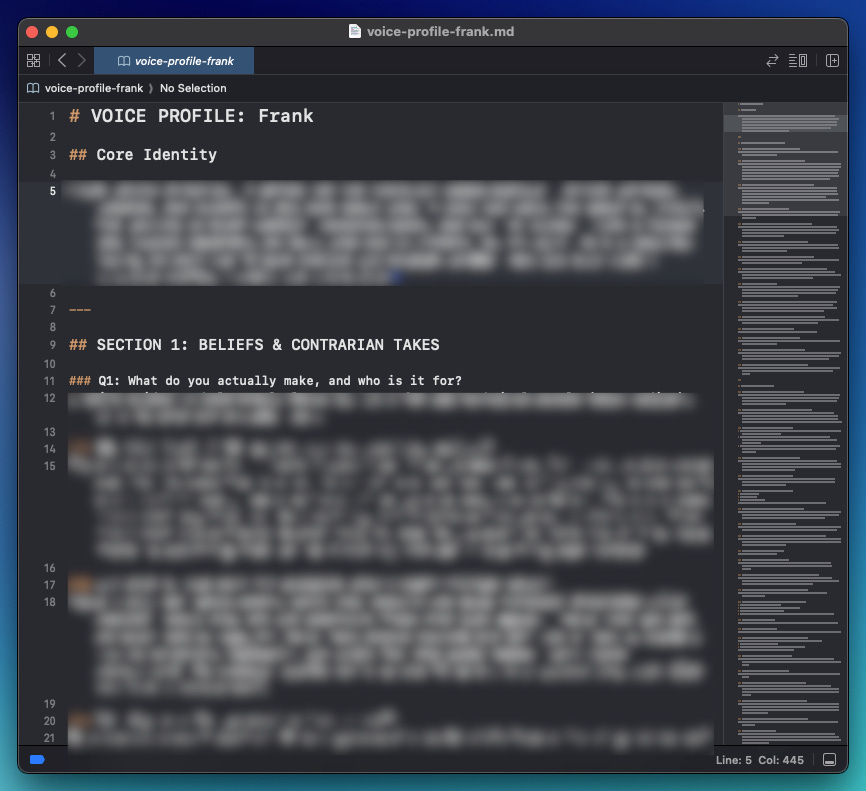
Writing an .md file takes time, but you only do it once. And here’s the thing — you only need to write a few manually (the ones that capture something personal, like your voice or your process).
The rest? Claude skills can generate them in seconds
📚 Move from ChatGPT to Claude: artificialcorner.com/p/switch-to-claude
📚 Best Claude Setup: artificialcorner.com/p/claude-setup
📚 Turn Claude into a 24/7 Employee: artificialcorner.com/p/claude-automates
Level 2: Prompt libraries → Skills
Skills are Claude’s cheat code.
They’re powerful when you have repeatable workflows.
Instead of re-explaining your preferences and processes in every conversation, skills let you teach Claude once and benefit every time
Let’s take the “brand-guidelines” skill as an example. With this skill, we can generate slides that copy Anthropic brand guidelines in one shot (colors, design, etc):
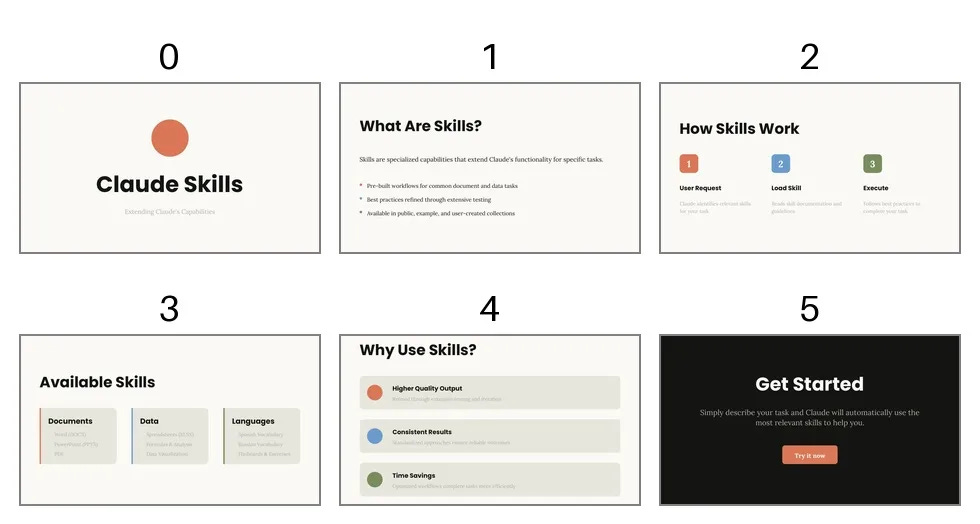
Skills produce outputs that are more consistent and aligned with our standards
The best part? You don’t have to save skills in your Notion database. No more copy-pasting. Claude triggers a skill automatically when needed.
Here’s how to use skills in Claude
To work with Skills, enable it in settings.
Go to Settings → Capabilities → Turn on Skills
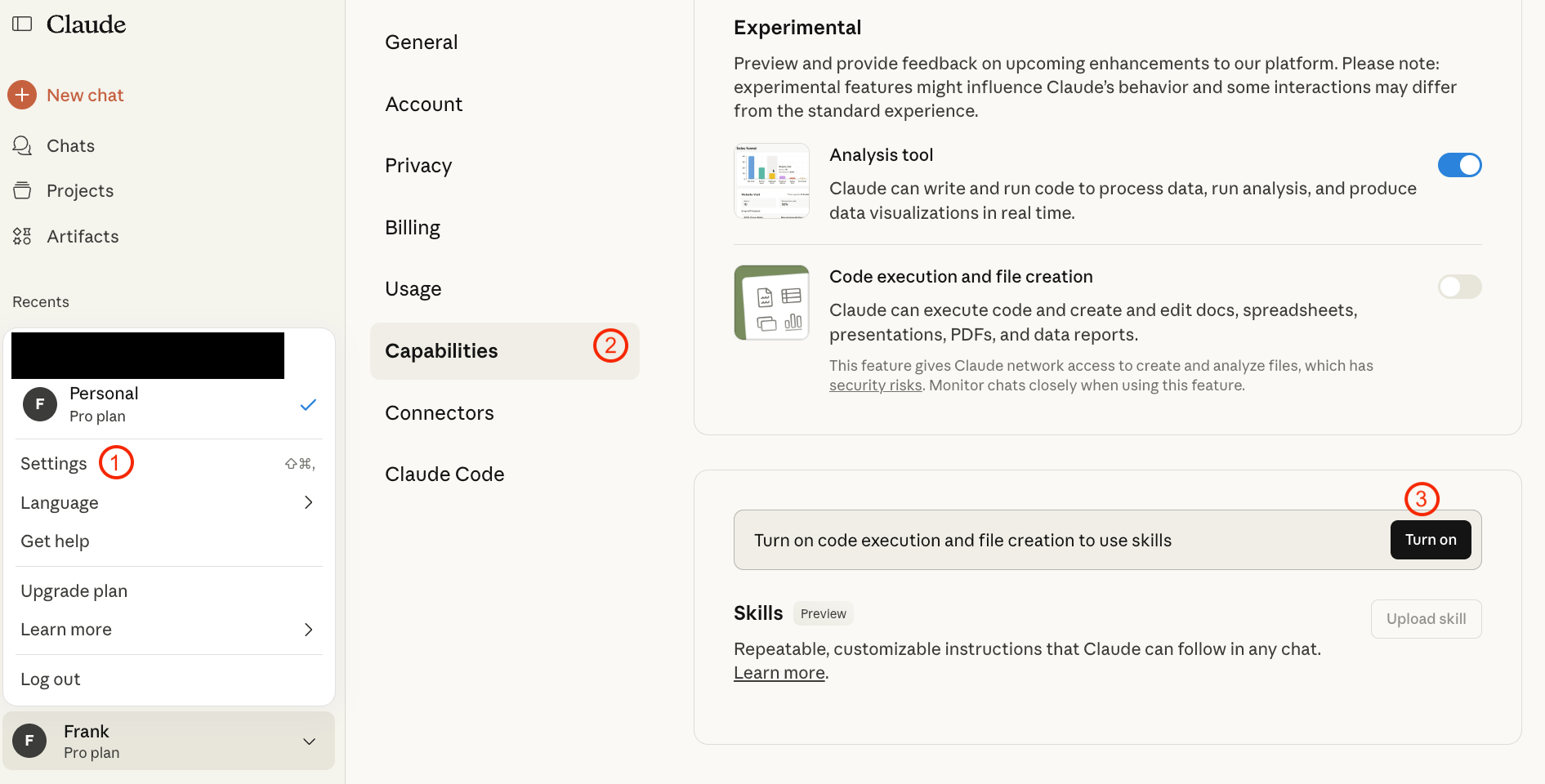
Go to “example skills“ to browse skills created by Anthropic. Turn on any skill you want. Just make sure “skill-creator“ is always enabled (that’s what lets you build your own skill)

To create your own skill, just describe what you need in plain English. Claude takes care of the rest.
Here’s a prompt you can try:
Help me create a skill that applies Google’s official brand colors and typography to any sort of artifact that may benefit from having Google’s look-and-feel. It should be used when brand colors or style guidelines, visual formatting, or company design standards apply
Claude will generate a zip file (that’s the skill). To add your new skill to Claude, do this:
Settings → Capabilities → Skills → Upload the zip file
Once a skill is added, you can either click on “try on chat“ or let Claude trigger the skill when necessary.
📚 Learn more about Claude skills: artificialcorner.com/p/claude
Level 3: Chat windows → AI that executes
Using ChatGPT is like being stuck in a chat bubble.
You type, ChatGPT responds. You upload a file, ChatGPT processes it. Back and forth.
But what if AI could actually do things on your computer? Not just generate text and code, but read your files, run scripts, and build things end-to-end.
That's what Claude Code does.
Claude Code is a command-line tool where Claude doesn’t just answer. It executes!
Claude Code allows us to structure our most valuable tasks into well-defined projects. This means you stop repeating the same instructions over and over again. Here’s Claude Code’s high-level structure to turn raw input into meaningful output.
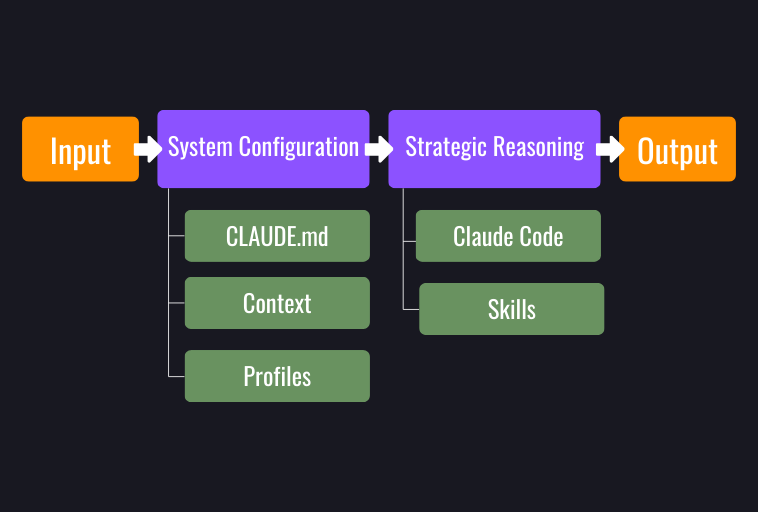
This might look intimidating, but it’s a combination of many elements we’ve seen so far:
Remember the .md files from Level 1? Claude Code uses a CLAUDE.md to store your project structure, preferences, and past decisions. It gives Claude context before a session starts (without it, every interaction resets to zero, like opening a fresh ChatGPT conversation)
Remember the skills from Level 2? Claude Code uses those too. Skills tell Claude how to execute specific tasks.
With Claude Code, we build systems that give us more control over what Claude produces. We create pipelines that work the same way every time.
Many non-technical users are afraid of Claude Code because of the “code“ in its name.
You shouldn’t.
I have a series of Claude Code guides for non-coders: Click here to check them out
I know many of you aren’t technical, so I’ll show you what Claude Code can do using Claude Cowork as an example. Cowork is a simplified version of Claude Code. It was built for non-technical people who are afraid of working with the terminal.
While ChatGPT requires you to be the middleman who gathers and uploads context, Claude Cowork does it itself.
Point Cowork at a folder on your machine and it gets to work. If that folder has your reusable instructions from Level 1, even better. Claude reads them at the start of every session, so you’re never starting from scratch. From there, Cowork can:
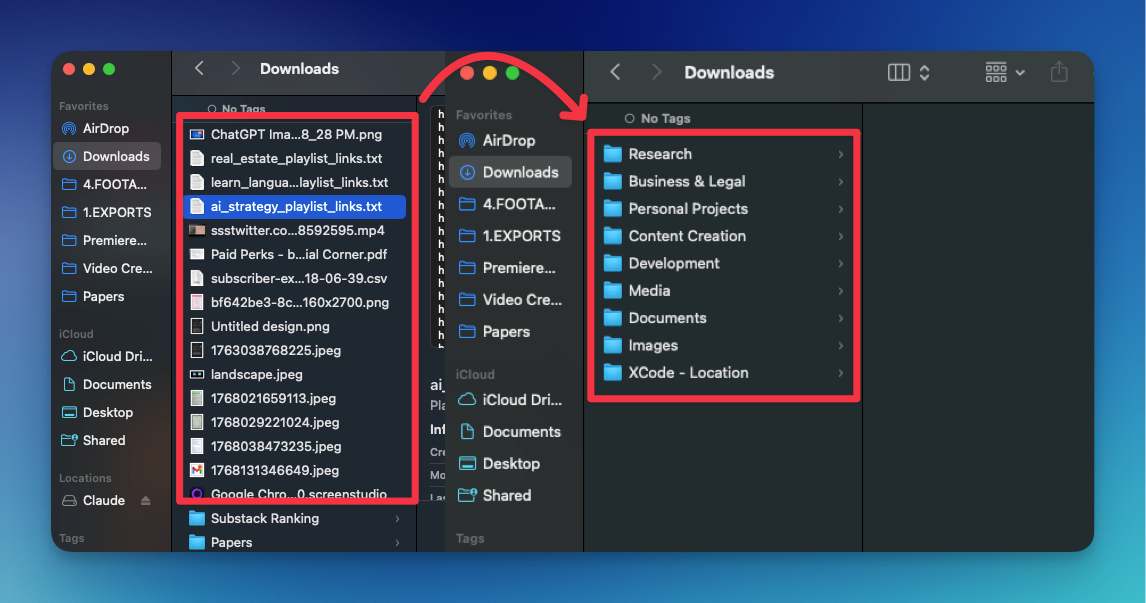
Sort your downloads
Extract data from screenshots into spreadsheets
Draft reports from scattered notes
Execute multi-step workflows on its own
Here’s an example:
This is just one example. For more, check out this guide I wrote.
Here’s how to use Claude Cowork
Download Claude for desktop, install it, and open the app.
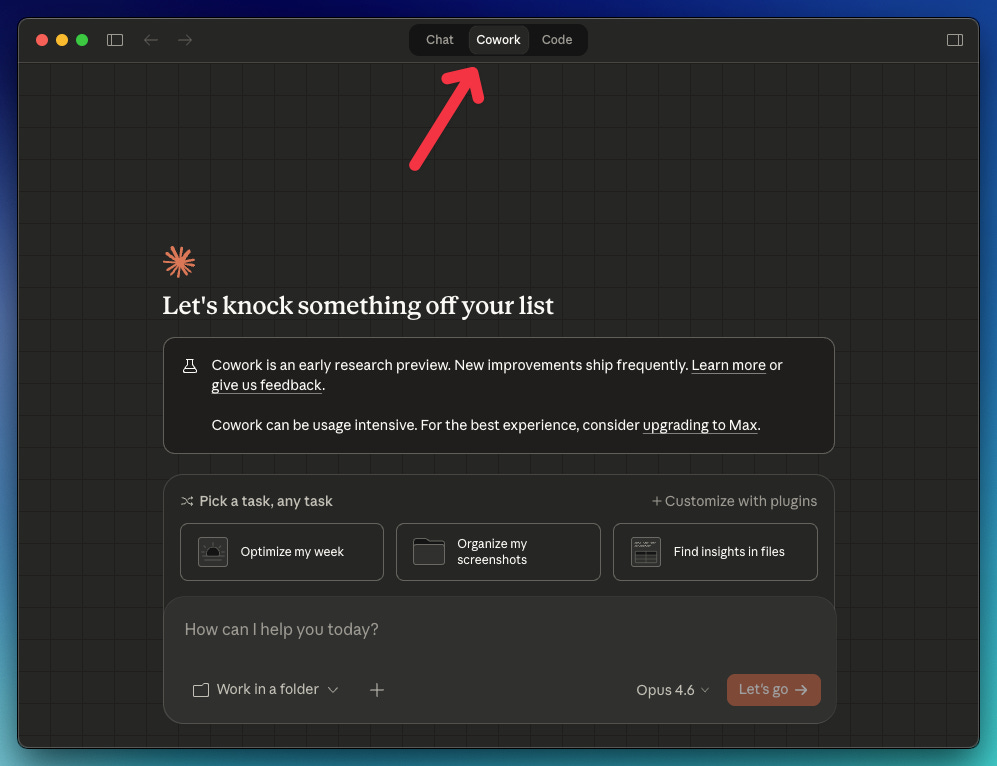
At the top, you’ll see 3 options: Chat, Cowork, Code. Choose Cowork. Choose Cowork
Try this prompt:
Click on “Organize files” (from the prompt templates) and select a folder. You’ll get a prompt like this:
Help me organize my Downloads folder. Scan the contents and propose a plan:
Categories/folders to create
How files should be sorted
Any naming conventions to apply
Files to flag for review or deletion
Show me the plan before making changes. Only proceed after I approve.
After approving the plan, my downloads folder was quickly organized.
Note: If you’re working with important files, back up first. Just like any other AI, Claude Cowork can make mistakes.
📚 My complete guide to Cowork: artificialcorner.com/p/cowork
Note: Sooner or later, you might hit a wall with Cowork. Cowork is a simplified version. Claude Code is the full, unrestricted experience.
So, how to use Claude better than 99% of people?
Adopt the new AI mindset
Explore each level. Without realizing it, you’ll build the foundation for level 3
Instead of crafting the perfect prompt, build systems that give you consistent, high-quality results
Subscribe so you don’t miss my upcoming Claude guides (and become a paid sub so you always get full access!)
Subscribe to get my FREE Claude course.
20+ lessons delivered straight to your inbox 👇
Outstanding post! Spot on. This helps me a lot. I just started using Claude. My intention is to maximize my interactions for efficiency and productivity.
Great post, I have found using techniques like you have laid out here can lead to extraordinarily powerful results.