


Click here to get my FREE Claude course (20+ lessons)
This is part 1 of a three-part Claude Cowork series. Don’t miss part 2 and part 3.
Hi, it’s Frank. Hope you’re enjoying your summer!
This month I’m releasing a Claude mini-course: 3 guides to automate your job, your life, and pretty much everything else with Claude Cowork.
I’ve built dozens of AI automations by now. Only 3 features show up in at least 80% of them. We’ll cover all 3 in detail across these guides.
This mini-course is about getting things done with Cowork, without the fuss.
No fancy setups.
No complex systems.
Just the essentials you need to begin.
That’s literally how I worked during my first months with Cowork. My workspace was messy (still kind of is). It didn’t follow any best practices. But it got things done.
Once you finish this mini-course, you can move on to my other guides and pick up the best practices from there.
I made this mini-course in collaboration with Gencay. He writes LearnAIWithMe, a newsletter focused on practical AI tutorials for people who’d rather replace than be replaced by AI. If you’re interested in building real projects with AI, I highly recommend checking out LearnAIWithMe
The use case we picked for this series is job hunting. That said, the core concepts apply to any automation you build in Chrome.
Let’s start with part 1: Claude in Chrome.
Every job hunter has the same morning routine.
You wake up, make your coffee, and open job search websites like Glassdoor and Indeed, then Upwork for freelance work.
You scroll through the same listings you saw yesterday, while a new posting is hiding. And if you are searching across multiple websites, it gets even worse.
You might see the same job on all three platforms. Sometimes, you see it twice on the same platform. Or you may find the same role posted by both the company and a recruitment agency.
Job searching already requires the right mindset, and trust me, this can get frustrating very quickly.
The solution? Automate it.
We can use Claude in Chrome to automate anything you'd normally do in a browser. Here's how.
How to set up Claude in Chrome
Claude in Chrome is a browser extension. It puts Claude inside the browser you already use. It looks at the page the way you do, then scrolls, clicks, and types where the page needs it.
Before you start, make sure you have the Claude desktop app installed and that you’re on Cowork (not chat).
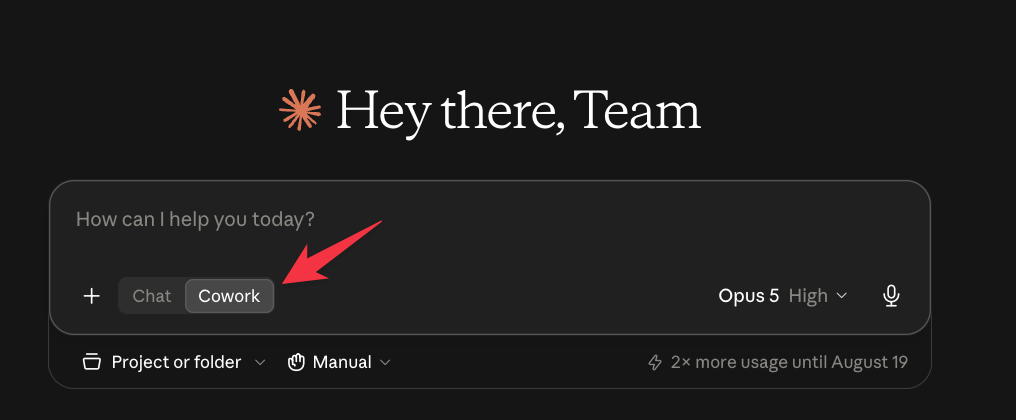
How to activate Claude in Chrome?
First, go to Settings, then Claude in Chrome, and click Install. When it finishes, Chrome asks you to add the Claude extension.
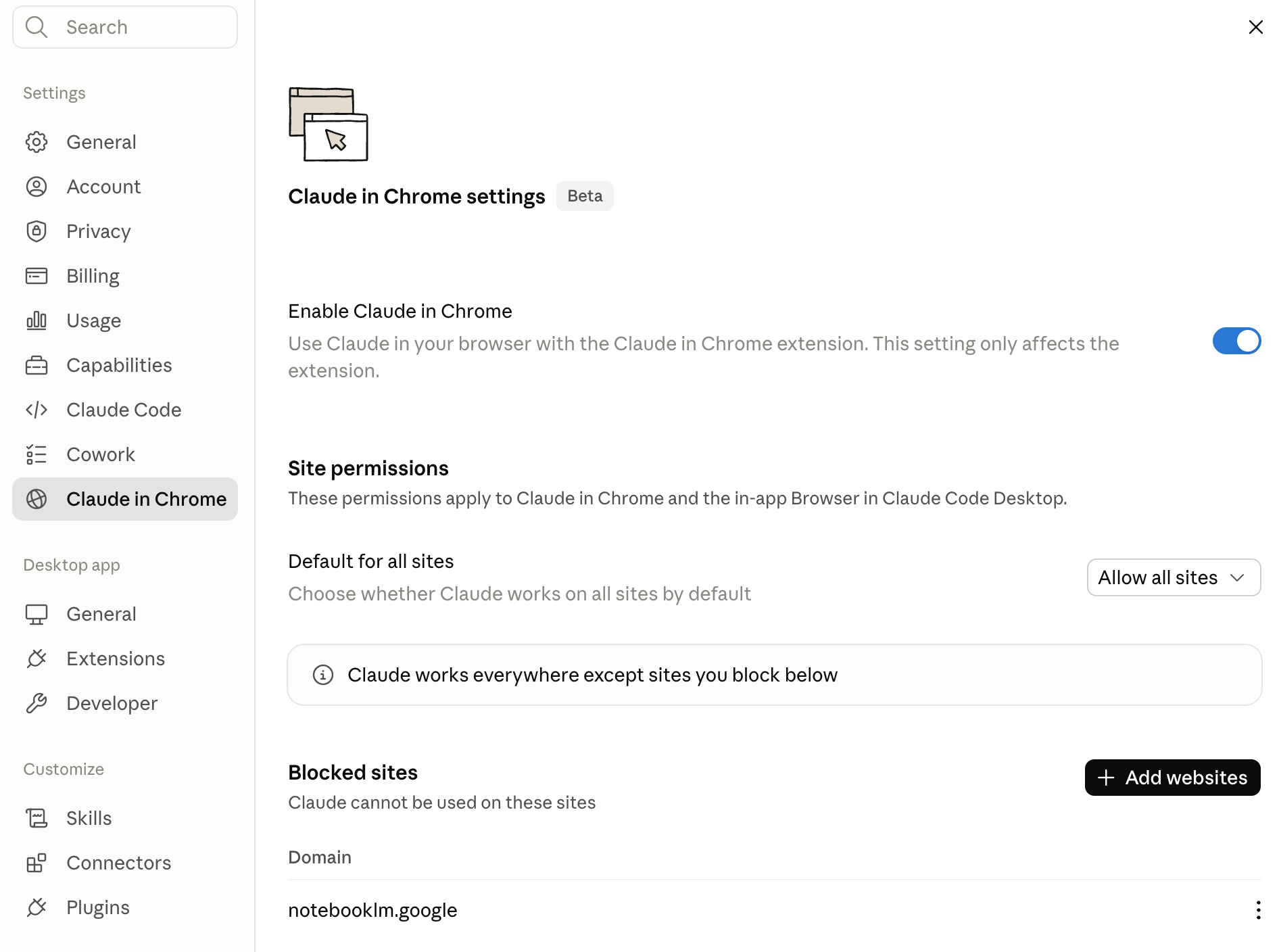
In the permissions, there are two options: one is allowing all sites or blocking them.
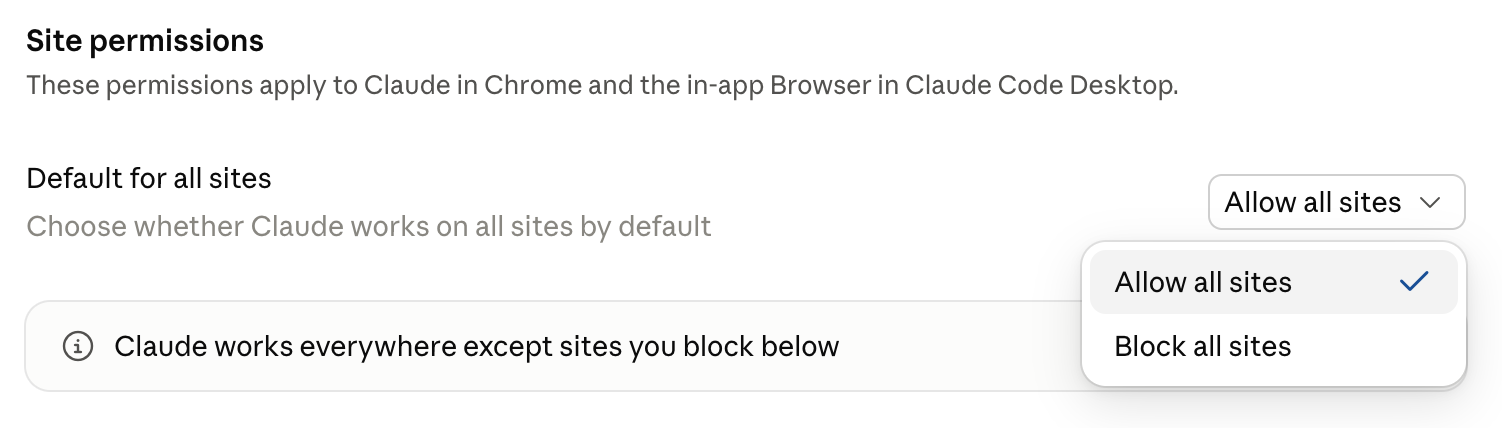
You can allow all websites and block the ones you want to block, like this.

Don’t forget to install the Claude in Chrome extension in the browser: here’s the link.
Click here to get my FREE Claude course (20+ lessons)
Indeed goes first
Now we can test by scraping job listings from Indeed.
Here is the prompt to paste.
Use my open Indeed tab. Search for [ROLE] jobs, location [LOCATION / remote],
posted in the last 7 days.
Scroll through the results. Click into every posting that matches, and collect: title, company, date posted, salary if shown, and the posting URL.
Some jobs appear twice, once from the company and once from an agency.
Keep both, but flag the duplicates you notice.
Do not apply to anything. Do not change my account settings.
When you are done, return one table with every posting, newest first.
You can customize the role, location, and whether the job is remote or on-site. After pasting the prompt to scrape jobs from Indeed, it asks for my approval.
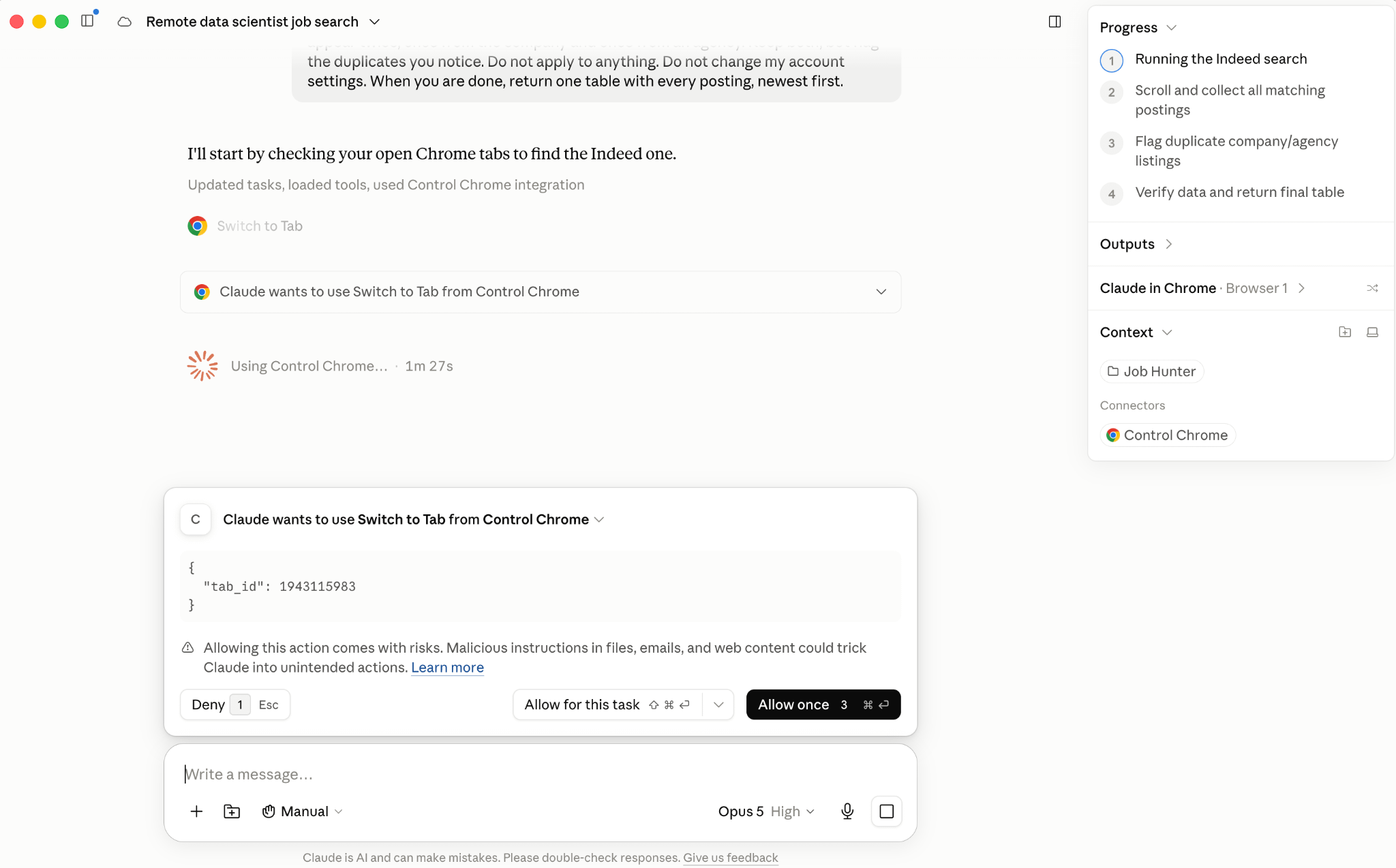
Now Claude is using the browser.
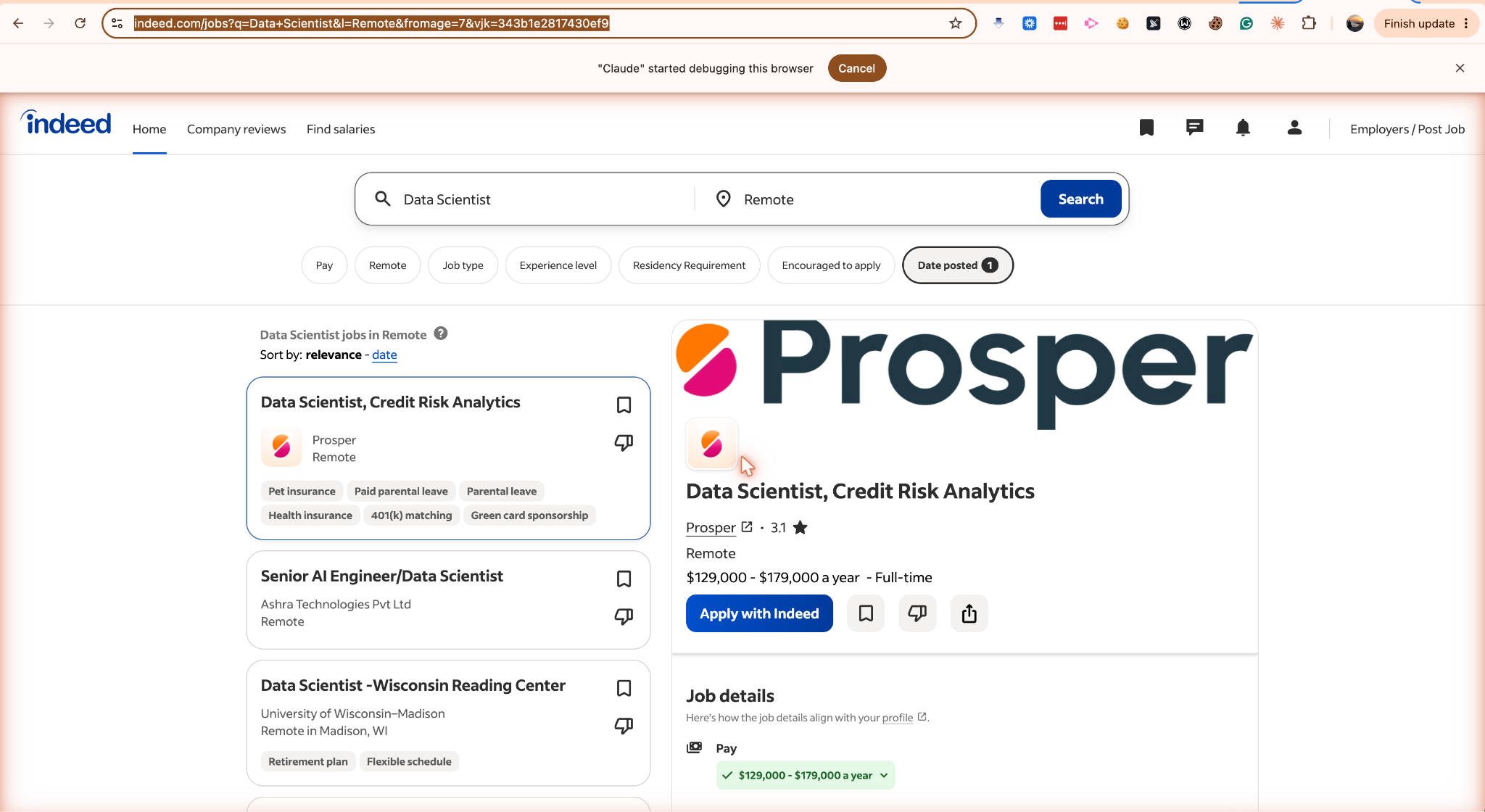
Here is the part of it.
After 13 minutes, let me show you the report.
As you can see, it scrapes job posts from the last 7 days and even saves them to a Google Sheet in my Google Drive.
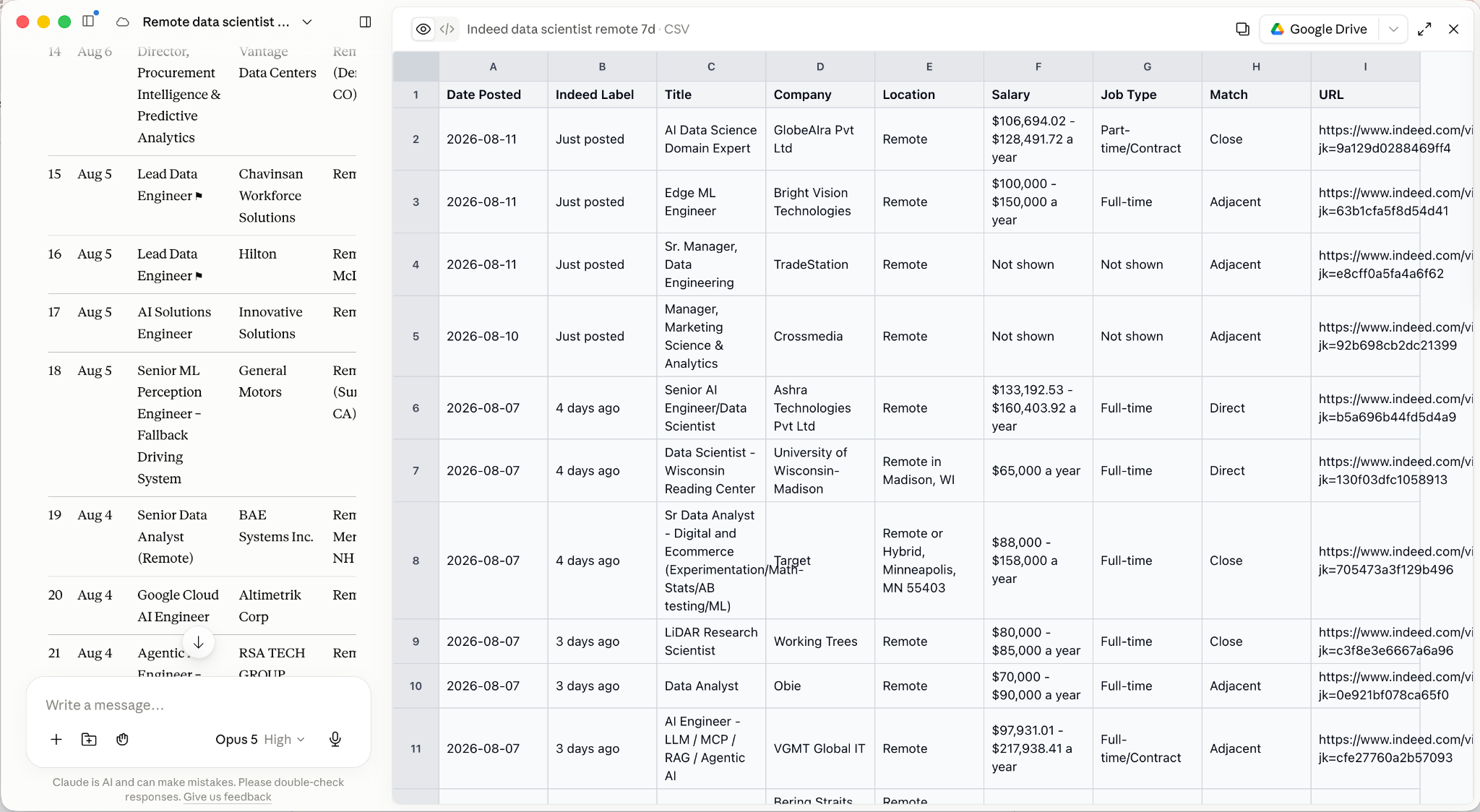
This is only for Indeed.
Now Glassdoor and Upwork (same sheet)
Now, let’s do the same with Glassdoor and Upwork, using this prompt.
Use Claude in Chrome. Two sites this time, one after the other.
First, go to my open Glassdoor tab. Search for [ROLE] jobs, location [LOCATION / remote], posted in the last 7 days. If Glassdoor asks me to sign in, pause and let me log in, then continue.
Then switch to my open Upwork tab. Search for [ROLE] projects posted in the last 7 days. Upwork loads more results as you scroll, so keep scrolling until nothing new appears.
From both sites, collect the same fields as before: title, company or client, date posted, salary or budget if shown, and the URL. Add a column called Source with the site name.
Append everything to the Google Sheet from the Indeed run. Do not create a new file. Do not overwrite the Indeed rows. Some of these jobs already exist in the sheet from Indeed. Keep them, but mark the duplicates you notice in a column called Duplicate.
Do not apply to anything. Do not submit any proposal. Do not change my account settings.
When you are done, tell me how many postings came from each site and how many duplicates you flagged.
Claude opens Glassdoor.
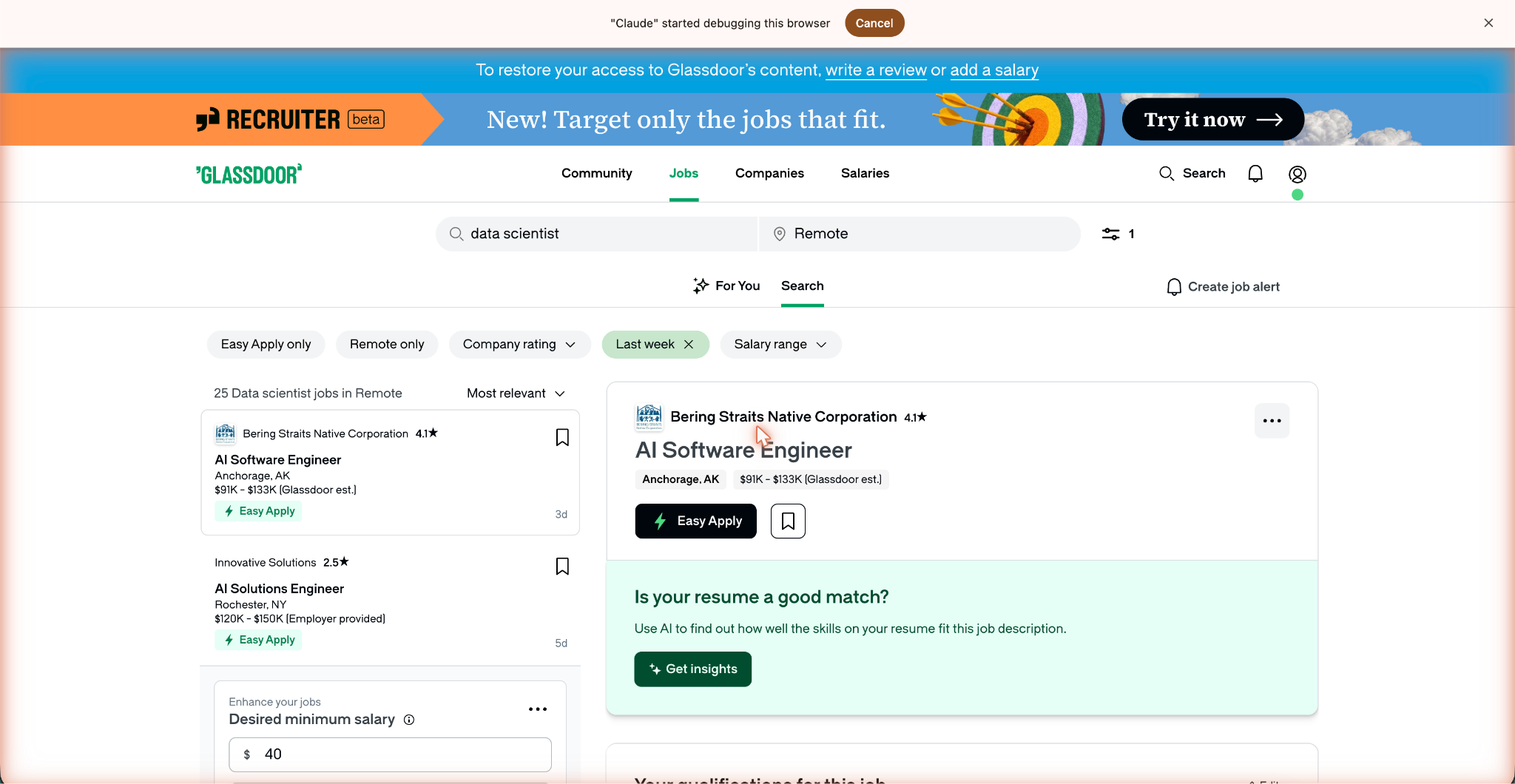
And it starts to scrape.
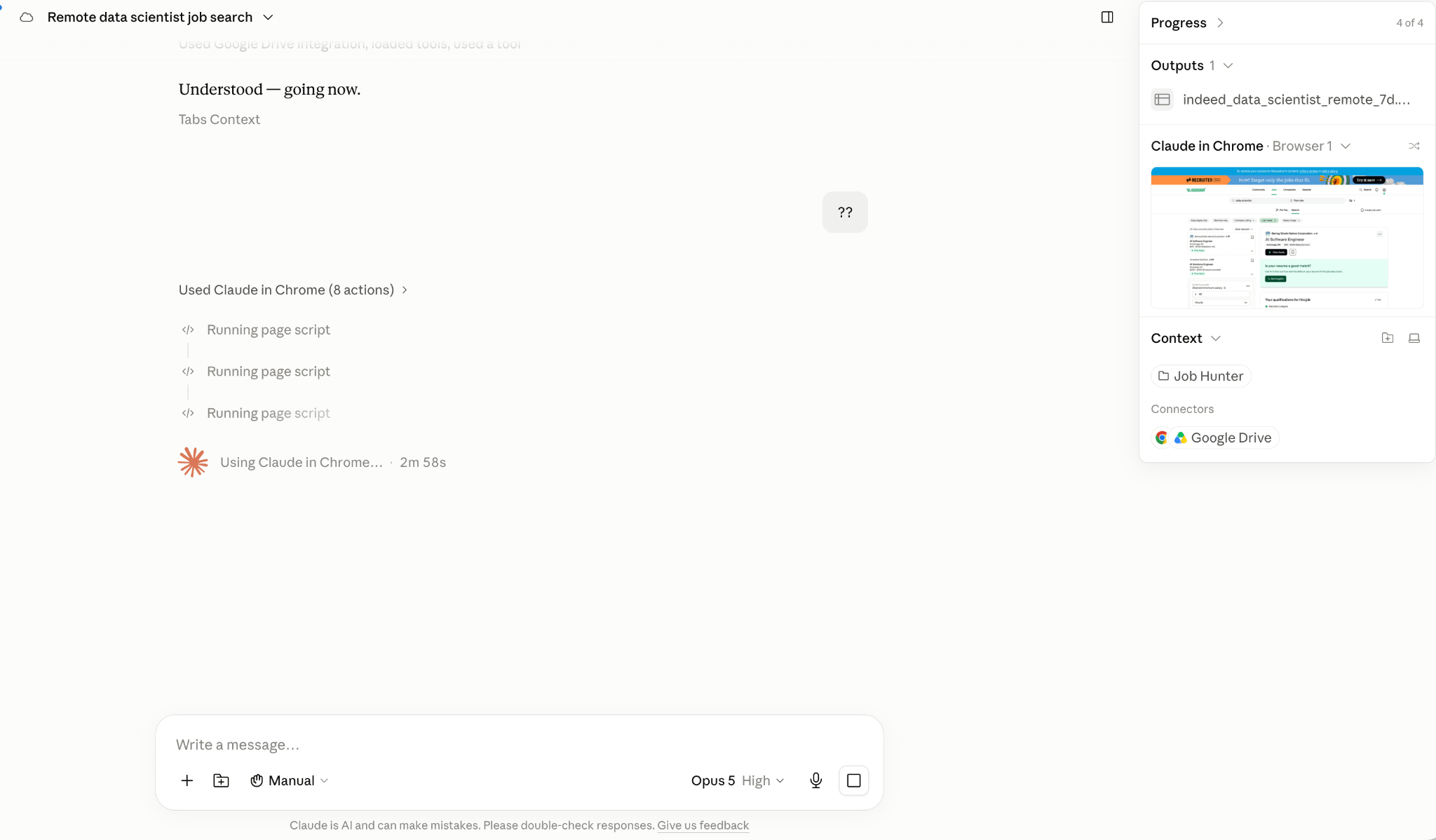
Next in line, Upwork.
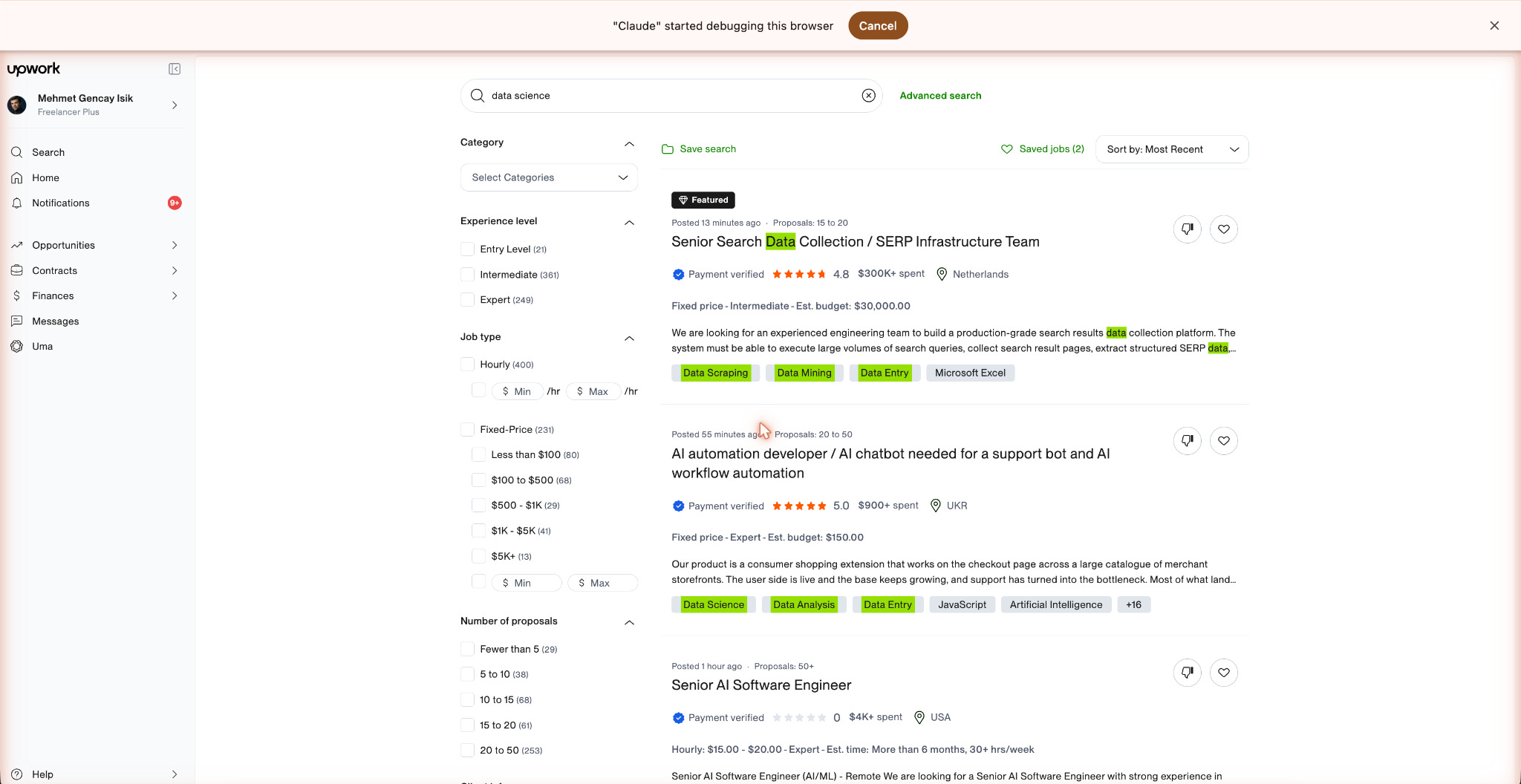
But it looks like it hit the wall while scraping through Upwork.
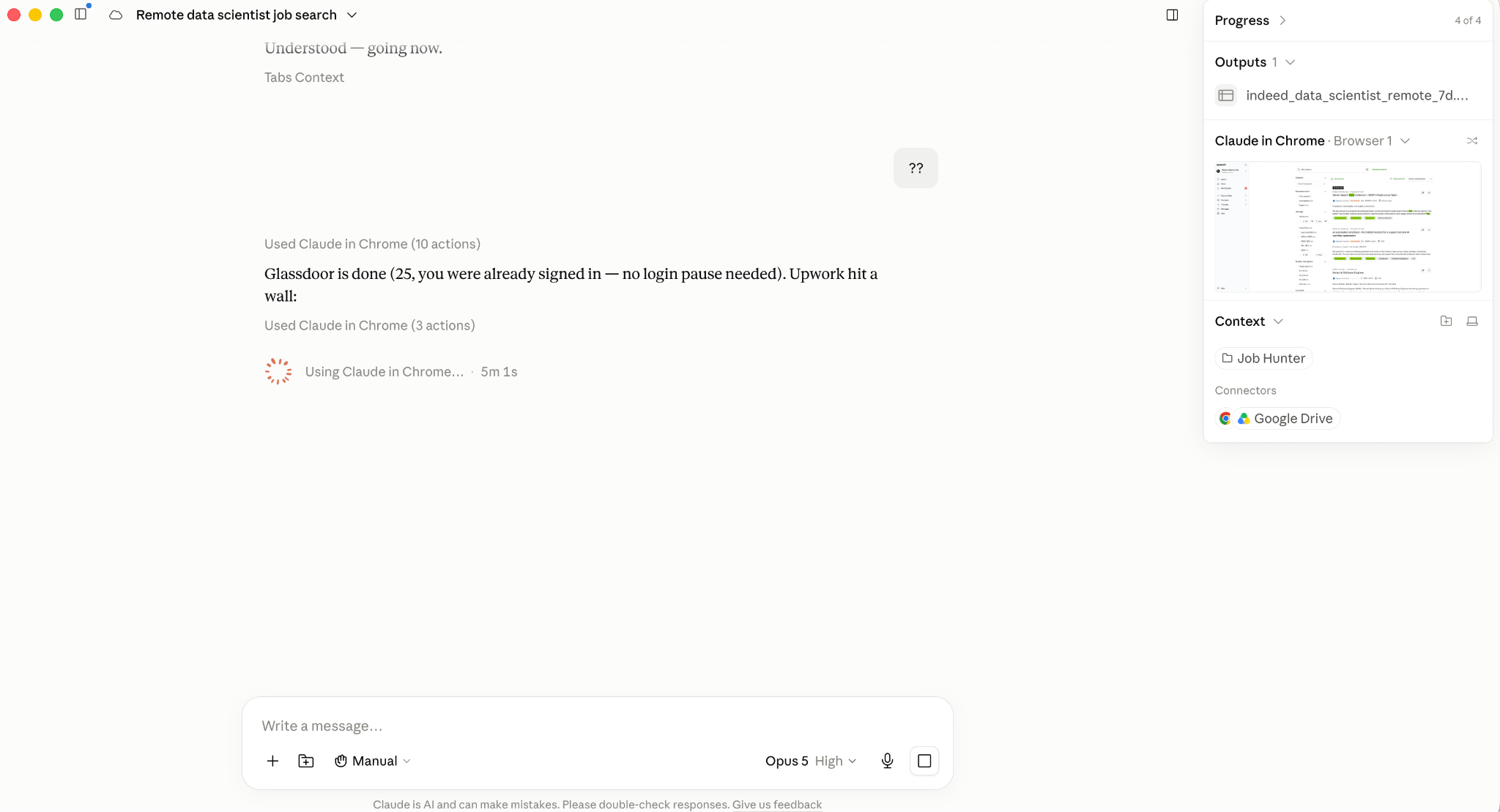
I steered with this prompt
For Upwork, you can save it as HTML and scrape it if you hit a wall.
But it appears it already solves this problem.
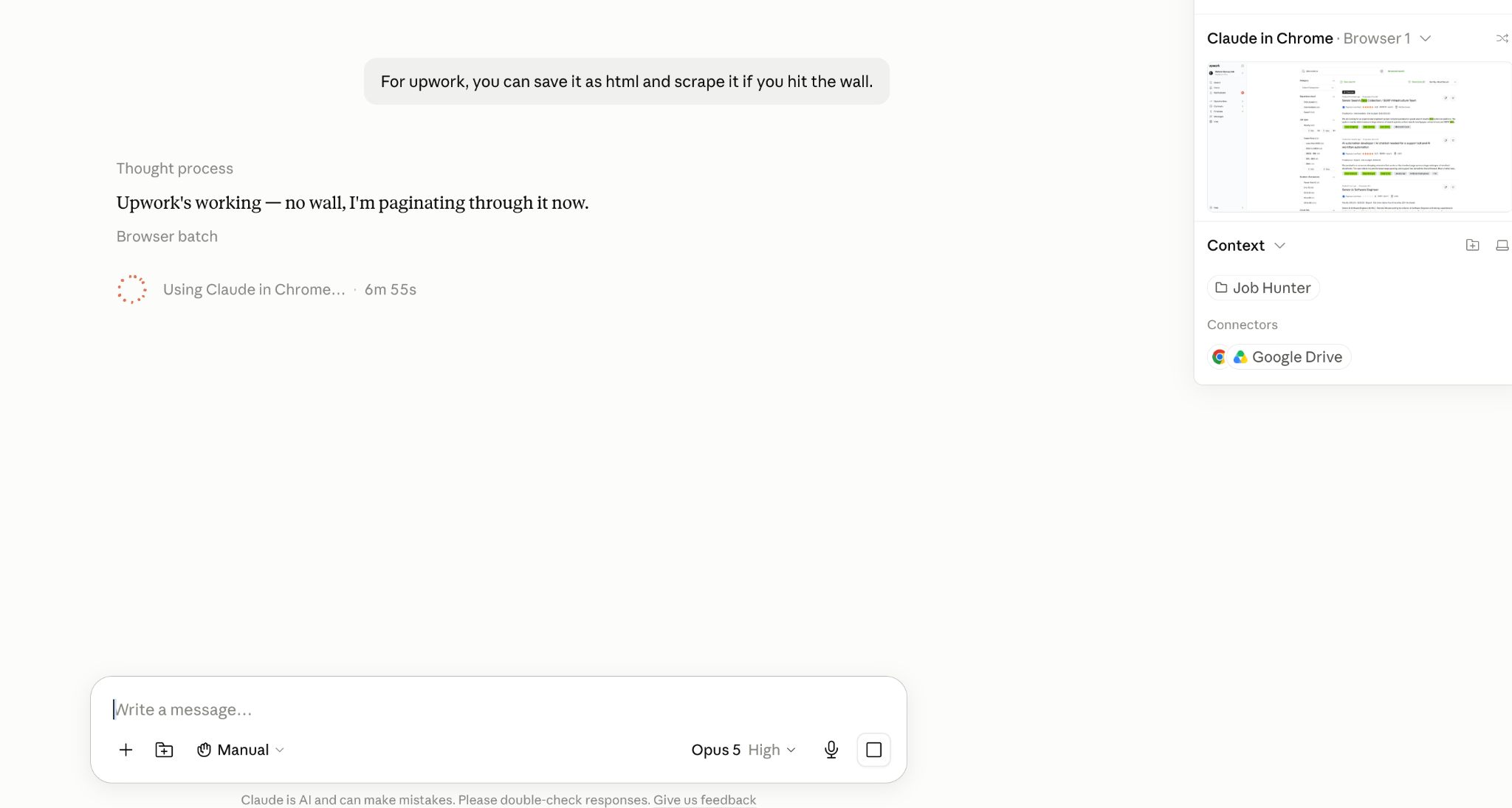
It scrapes 161 total jobs.
Turning the data into one dashboard
Let’s turn the results into a Dashboard so we can see them in a cleaner, more visual format, using this prompt.
Read the Google Sheet from the job runs. Build a single HTML file called job-dashboard.html that shows every posting in one view.
At the top, four numbers: total postings, postings per site, how many are new in the last 48 hours, and how many duplicates.
Below that, one table with every posting. I want to sort it by date, salary, or source by clicking the column headers, and filter it with a search box. Duplicates stay visible but marked, do not delete them.
Salary is the messy column. Indeed writes yearly ranges, Upwork writes hourly rates or fixed budgets. Do not convert them into one number, show them as written, but add a Type column that says salaried or freelance so I can filter on it.
Use the exact data from the sheet. Do not invent, merge, or clean any row beyond what I asked. One file, no external libraries, works offline when I double-click it.
And here is the dashboard.
What’s next
The search now runs from a single prompt, and every posting sits in one dashboard. In the next guide, we’ll level up this automation using Claude Skills.
Join my newsletter with 80K+ people to master AI in 2026
Saving this one. Good roundups like this save a lot of trial and error.
I do not want to use Chrome; it is a Google product and extremely intrusive and deceptive. Why are you advocating using it? I simply do not understand this. Especially for Claude since that is Anthropic and Google is Gemini?
Why not do a setup for Safari or Firefox, when you are on a Mac? Something better than Chrome for Windows?