



Click here to get my FREE Claude course (20+ lessons)
ChatGPT chats. Claude works.
That sounds like a small difference. It’s not.
I used ChatGPT for almost everything in 2023 and 2024. It answered my questions, wrote my drafts, helped me think out loud. But every output stayed stuck inside the chat. I still had to copy, paste, format, and do the actual work myself.
Then I started using Claude Cowork (not the chatbot, the version that lives on your desktop and acts on your computer).
It doesn’t just tell you what to do. It does it: organizes your files, builds your slides, runs tasks while you sleep, and connects to the tools you already use.
I’ve spent months testing the features ChatGPT simply can’t match.
Here are 7 amazing things Claude can do that ChatGPT can’t.
1. Claude Cowork can do the work (not only chat)
Most people use AI like it’s a search engine. You type something, get an answer, start over.
Claude Cowork works differently.
It’s built for doing tasks: organizing files, creating on-brand content (slides, reports, infographics, etc), and almost anything that can be done on your computer.
You’re actually giving AI a job.
If you’re new to Claude Cowork: Download Claude for desktop, install it, and open the app.
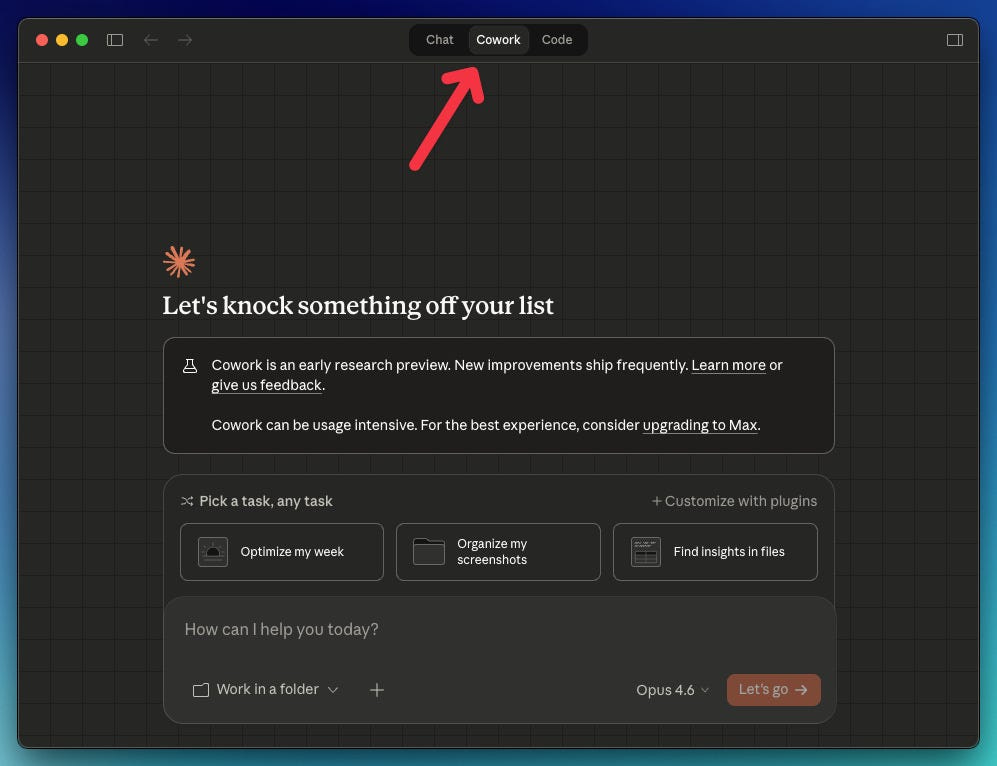
Claude Cowork can review files, follow instructions, keep your project context in mind, generate real deliverables, and handle processes that would be a nightmare to do manually.
ChatGPT chats. Cowork gets things done.
In the video below, Claude Cowork takes a messy folder of receipts and turns it into an organized system: category folders and a summary spreadsheet.
We’ll see many features exclusive to Claude Cowork in the following points.
2. Claude Skills: It turns repeated tasks into reusable workflows
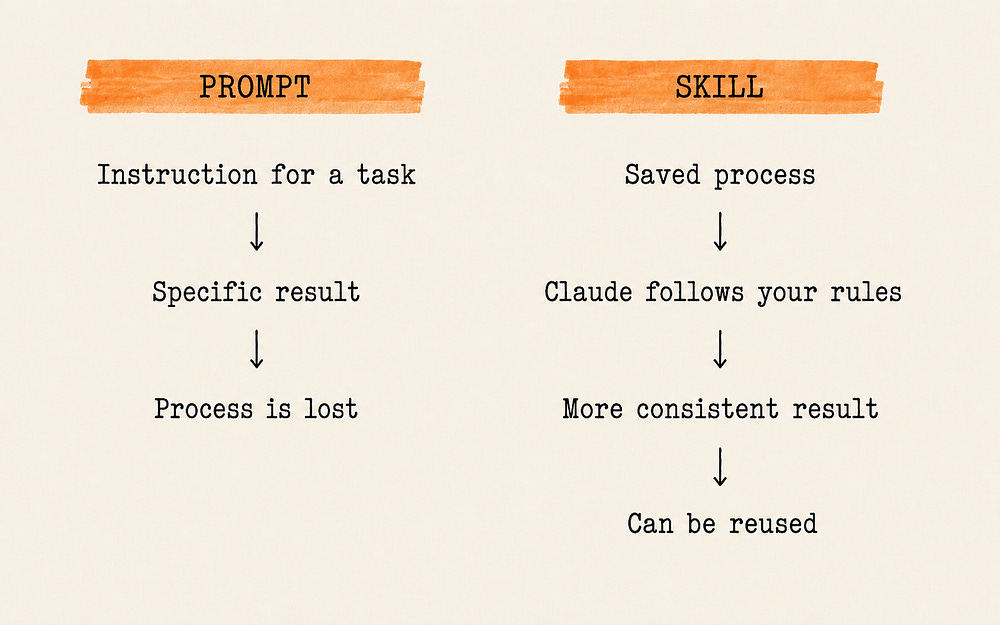
A prompt can solve a task once.
When you do the same task frequently, you end up rebuilding the process every single time.
You explain again what role Claude should take, what criteria to follow, what format you expect, what mistakes to avoid, and what a good result looks like.
That works once. But it doesn’t scale.
That’s the first major shift Claude skills introduced.
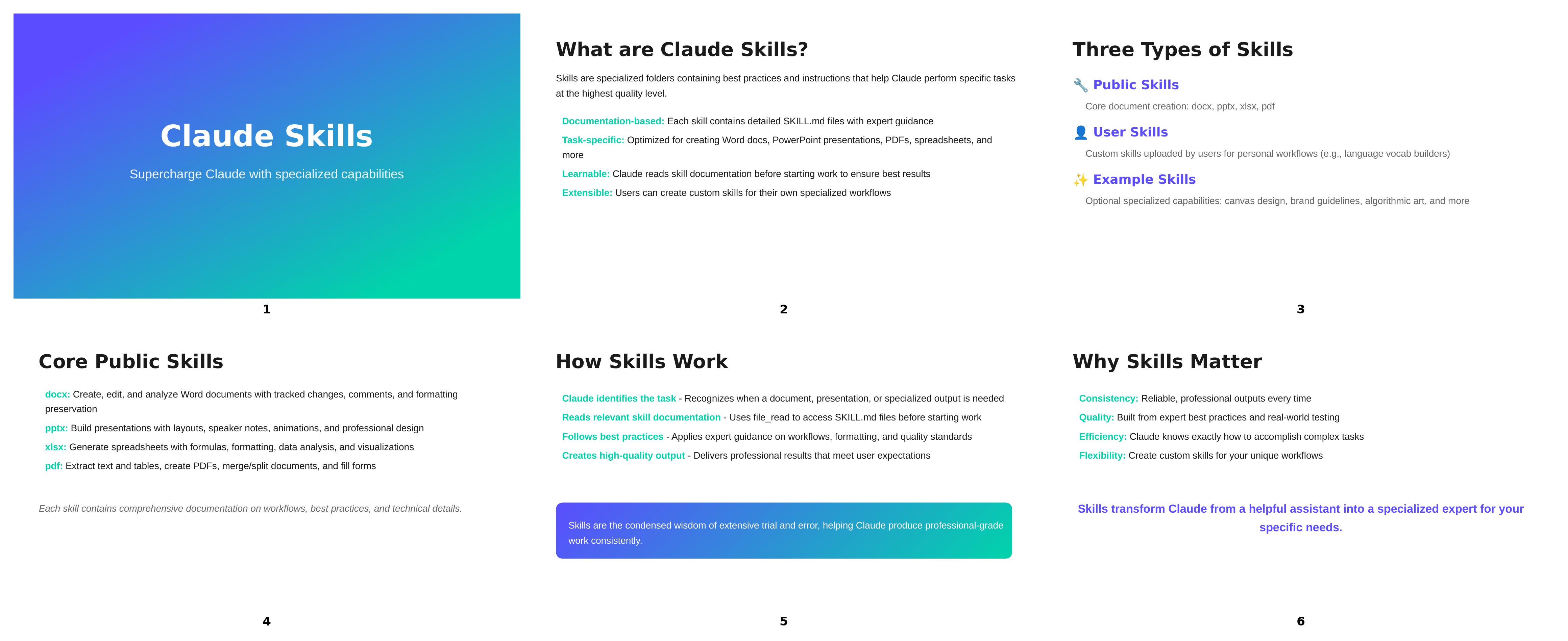
Here’s what I got when I asked Claude to create a presentation (no skill enabled):
Here’s what I got when using Anthropic’s brand guidelines skill:
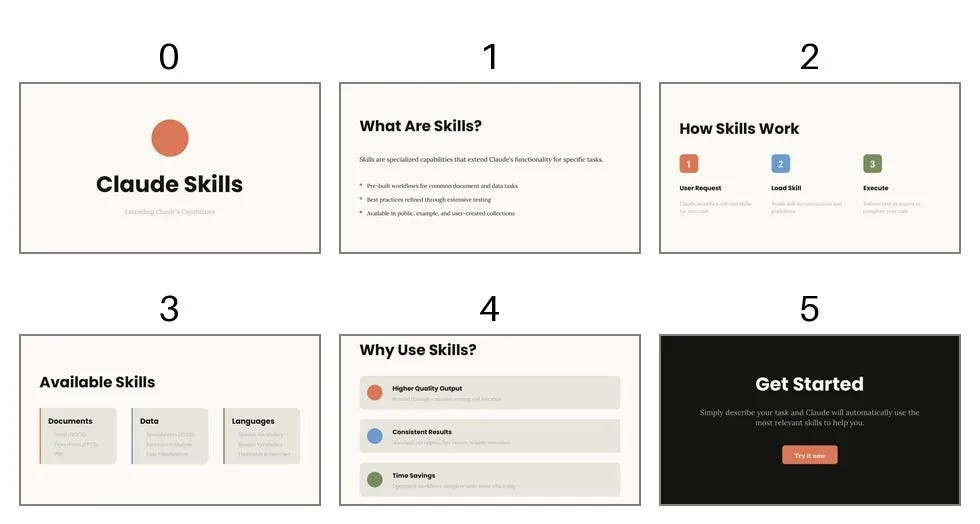
With a slide deck builder skill:
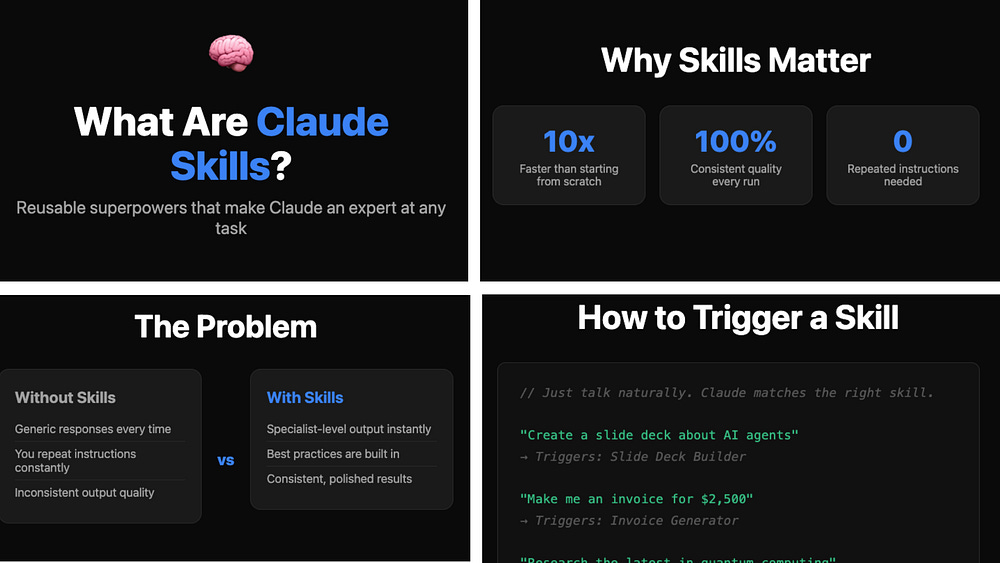
With skills, you teach once and Claude follows your instructions every single time.
To download the best Claude skills, read my guide below
📚 We Tried 100 Claude Skills. These Are The Best
Note: Skills is in beta for a small group of ChatGPT users (no Plus and Pro ChatGPT accounts)
3. You can automate your life with Schedule Tasks
Lately, Claude has been running tasks on my computer while I sleep.
How? With Scheduled Tasks.
Here’s an example.
I used to go to YouTube and manually search for videos on specific topics (part of my research step when writing).
It was tedious.
So I scheduled a task that runs at 3 am and creates a filtered report of trending videos automatically. That alone saved me several hours.
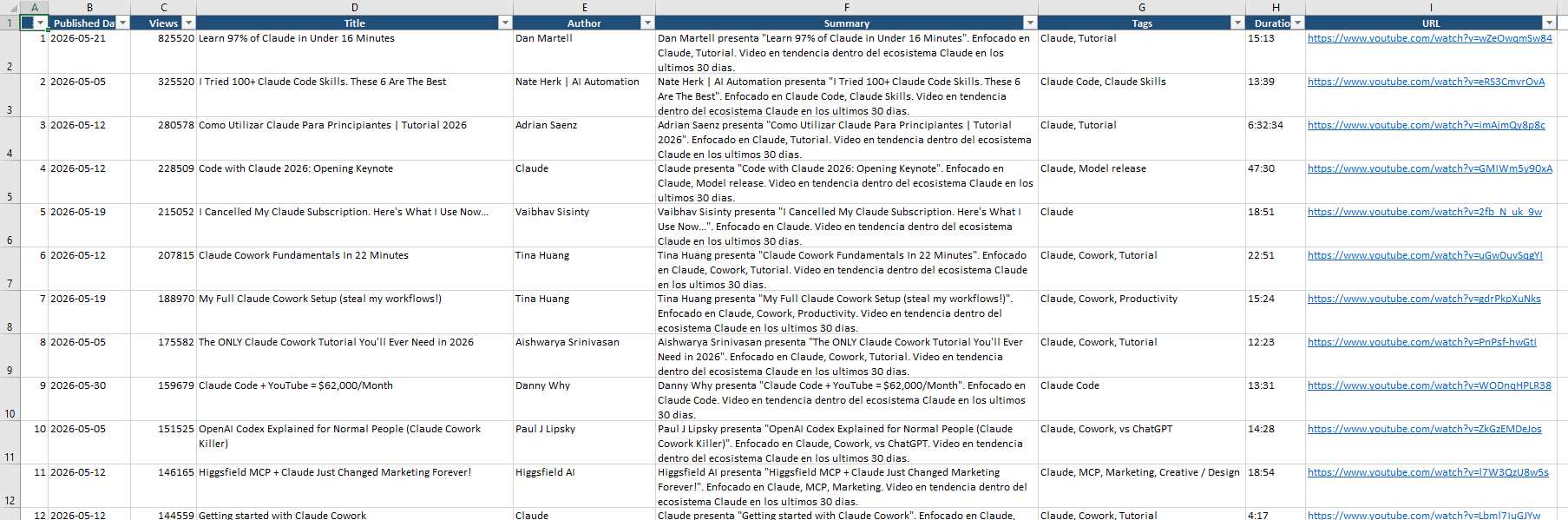
Here’s how to create a scheduled task from scratch:
Download Claude for desktop
Open the app and choose “Cowork”
Click “Scheduled” in the left sidebar
Click “+ New task”
Fill in the details (prompt, task name, etc.)
Click “Save”
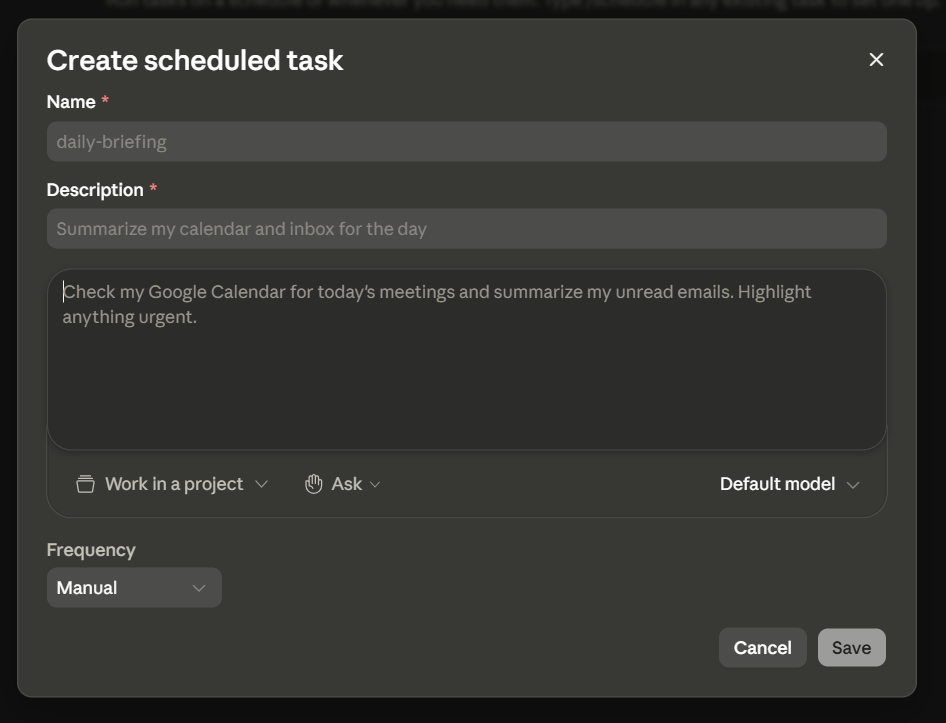
Once saved, you'll see a confirmation like this:

That’s the most basic way to create scheduled tasks. For more use cases, read my complete guide below.
📚 Claude Scheduled Tasks: Complete guide
ChatGPT also has Tasks, but they’re mostly for reminders and recurring prompts.
In Cowork, scheduled tasks feel closer to real work automation: files, reports, folders, desktop workflows, recurring tasks Claude keeps handling over time.
Not every task needs you sitting in front of a screen. Some work can run later. Some can repeat every day.
4. Claude connectors
Claude can also move closer to where the work actually happens.
Your work lives in documents, spreadsheets, emails, calendars, and the tools you use every day. Not inside a conversation.
If Claude can’t get closer to that context, you end up doing the bridge work yourself. And that limits how much you can actually delegate.
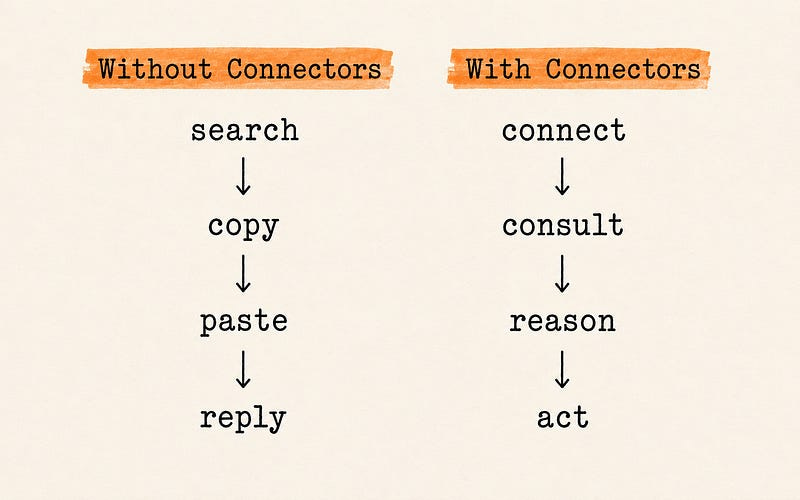
Connectors bring Claude closer to where your work actually lives.
They bring Claude closer to your Google Drive documents, Gmail, calendars, etc.
To install a connector, go to Cowork → Customize → Connectors → + → Browse connectors
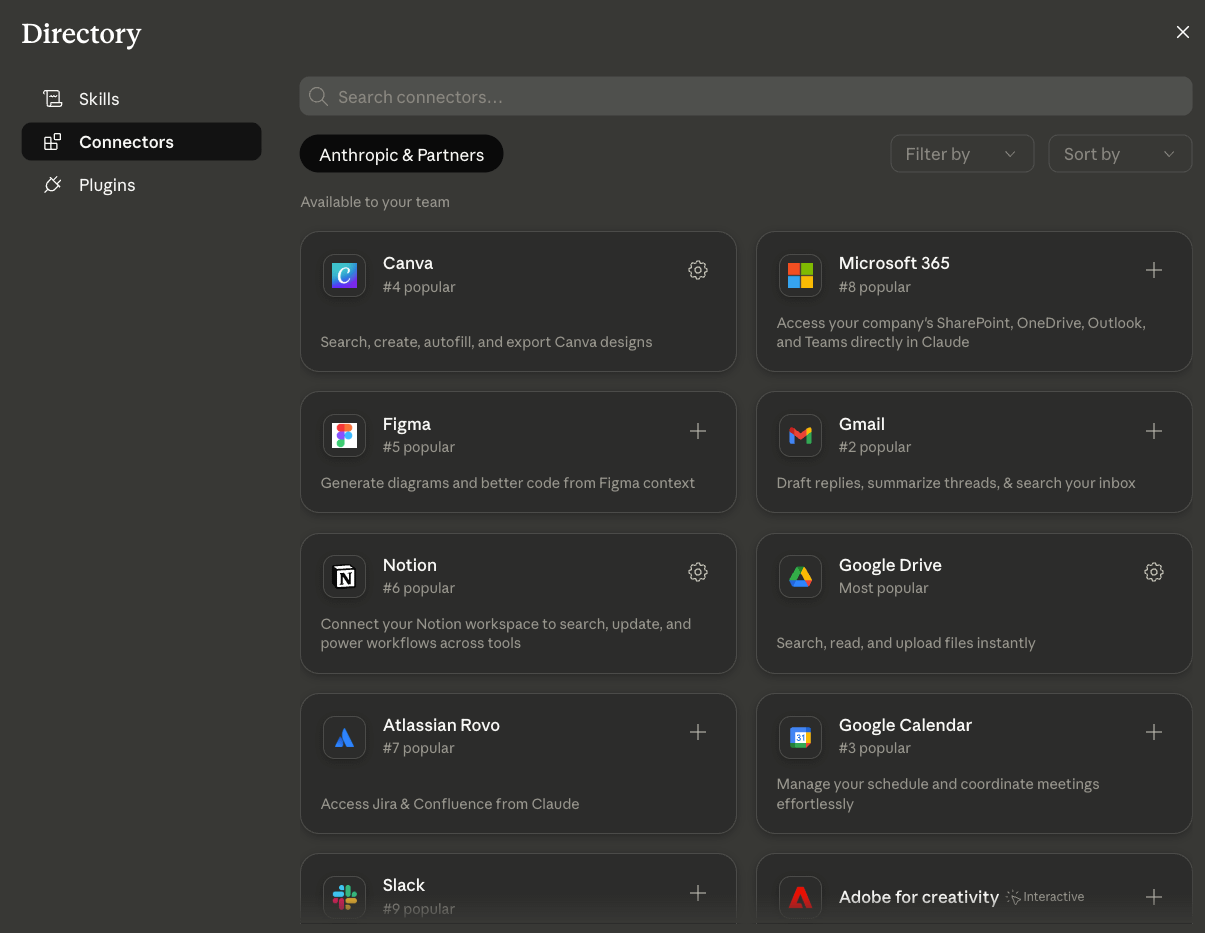
Less manual searching, copying, and pasting before asking for help.
Remember: Skills tell Claude how to work. Connectors give Claude access to where the work lives.
📚 Claude connectors: Complete guide
5. Claude in Excel, Word, and Power Point
A lot of professional work still lives in Office files: spreadsheets, documents, presentations, tables, reports, dashboards.
Copying a formula from a chat and pasting it into Excel gets old fast.
Claude in Excel changes that.
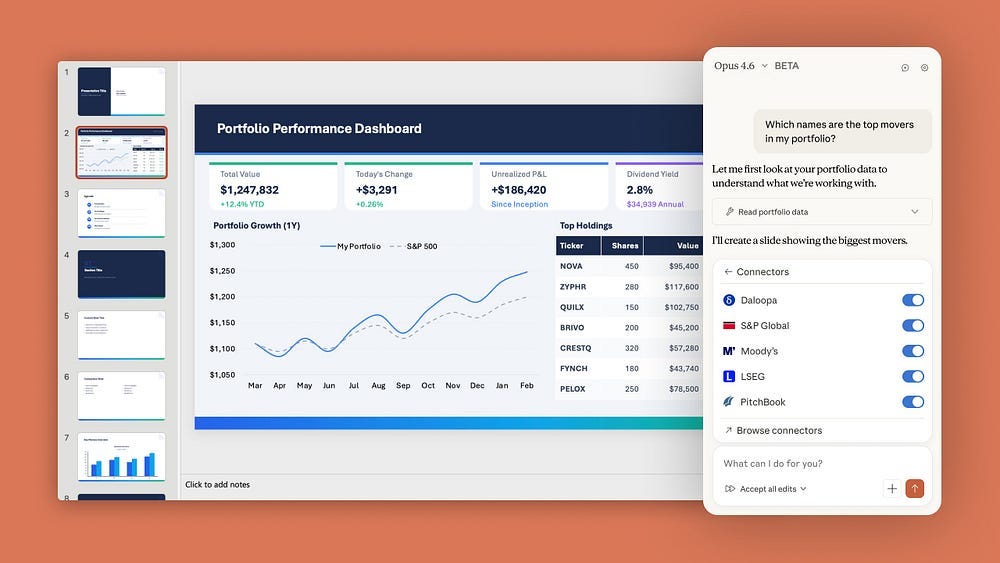
Instead of working from a chat bubble, Claude works closer to the spreadsheet itself: cleaning, analyzing, visualizing, and presenting the data.
In the Claude in Excel: Complete guide, I show examples of how Claude cleans data, summarizes, creates visuals, and synthesizes insights.
Thousands of rows. Manually exploring it would take hours. Claude summarizes the data, identifies trends, and builds a dashboard with visuals inside Excel. After a few tweaks, that raw spreadsheet becomes something you can actually present.
In Word and PowerPoint, same idea. You work closer to the actual file instead of bouncing between a chat and your document.
6. Claude can connect to many AI tools
Claude works well with other tools. Some have an official connector. Others don’t, but there are still useful workarounds.
The easiest way to understand this is with two examples: ElevenLabs and NotebookLM.
Let’s start with ElevenLabs.
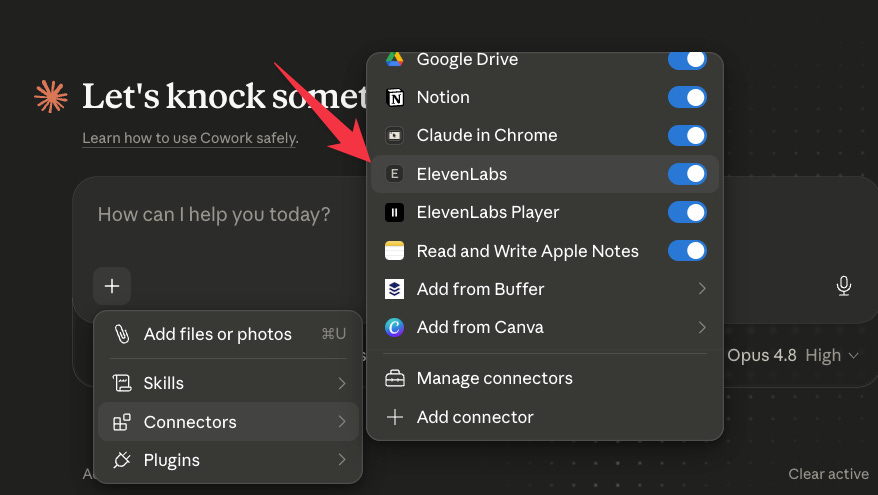
ElevenLabs is useful when you need to do text-to-speech, voice cloning, AI dubbing, and audio generation.
Claude helps you write, structure, rewrite, or adapt the script. ElevenLabs then turns that script into a voice output. Good for videos, tutorials, product demos, explainers, podcast-style content, or social media clips.
To use it, just install the ElevenLabs connector.
NotebookLM is different.
It doesn’t have a native Claude connector, but it can still fit into a useful workflow.
NotebookLM is great at organizing knowledge from your documents and sources. Claude can take that knowledge and turn it into something more actionable: reports, infographics, dashboards, apps, working materials.
Here’s a workaround to connect Cowork with NotebookLM:
Run this prompt in Cowork:
Install this skill :https://github.com/teng-lin/notebooklm-py
I want to use it via CLI
Ask Cowork to turn it into a Skill.
Authenticate your Google account from the terminal with
notebooklm login.Copy the `storage_state.json` pat back into Cowork.
Test the Skill by typing `/notebooklm` and asking Claude to list you
.
Once it works, Cowork can reach your NotebookLM sources.
I tested this with a messy retail sales spreadsheet.
NotebookLM pulled out the five most important insights from the data, with citations back to the source. Then Claude Cowork used those insights to build a one-page infographic app with different visual styles and a PNG export button.
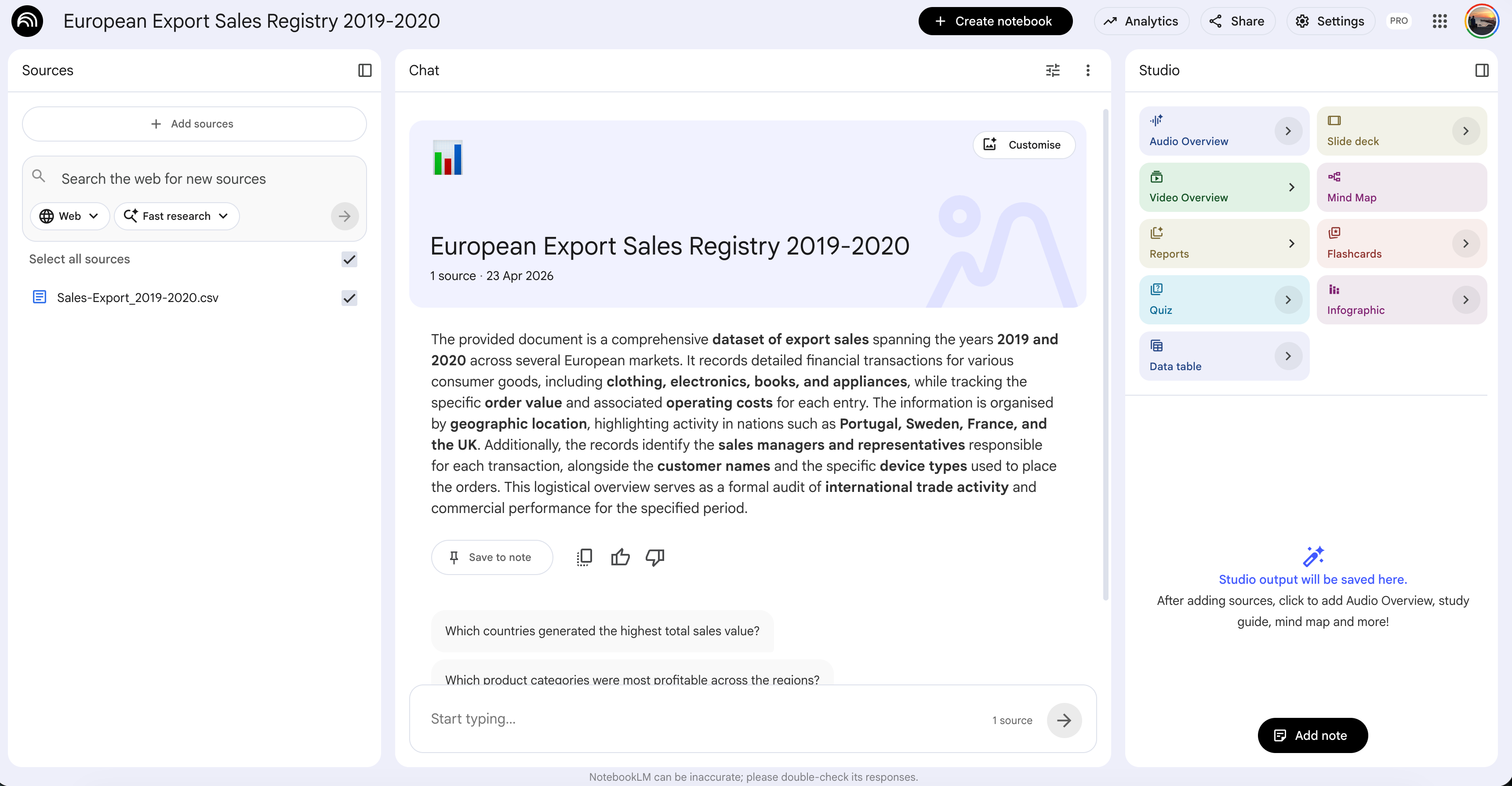
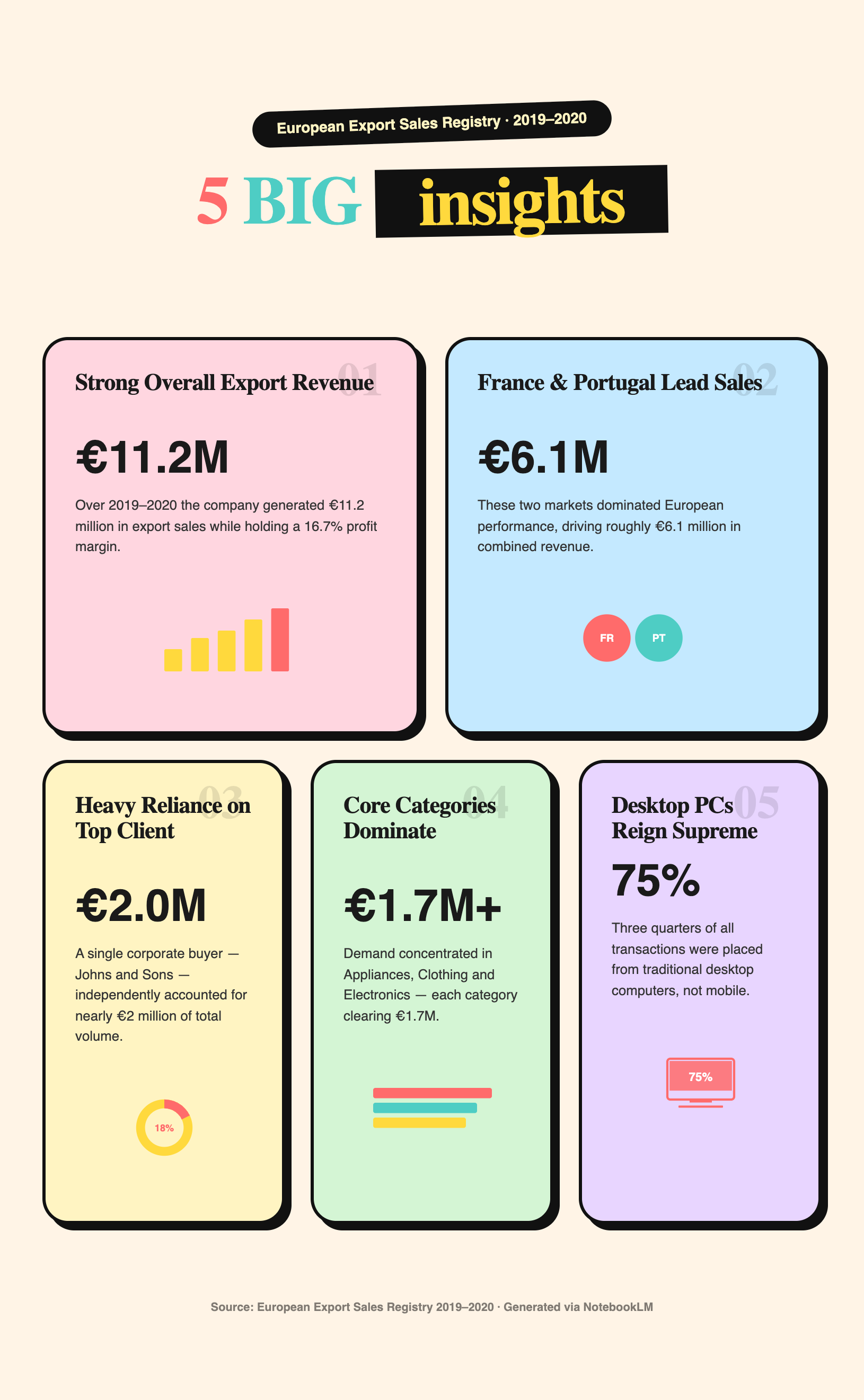
That's the workflow: source material → grounded insights → usable output.
For more, read the complete guide below.
📚 Claude + NotebookLM: Complete guide
7. Claude Cowork scrapes websites reliably
ChatGPT can browse the web and pull information from pages. But web scraping needs more than browsing.
You need fields, filters, edge cases, repeated runs, and structured outputs.
Claude has two ways to handle web scraping.
Option 1: Claude Cowork (the basic way)
Cowork can visit a page, read the content, extract the fields you need, and turn the result into a dataset.
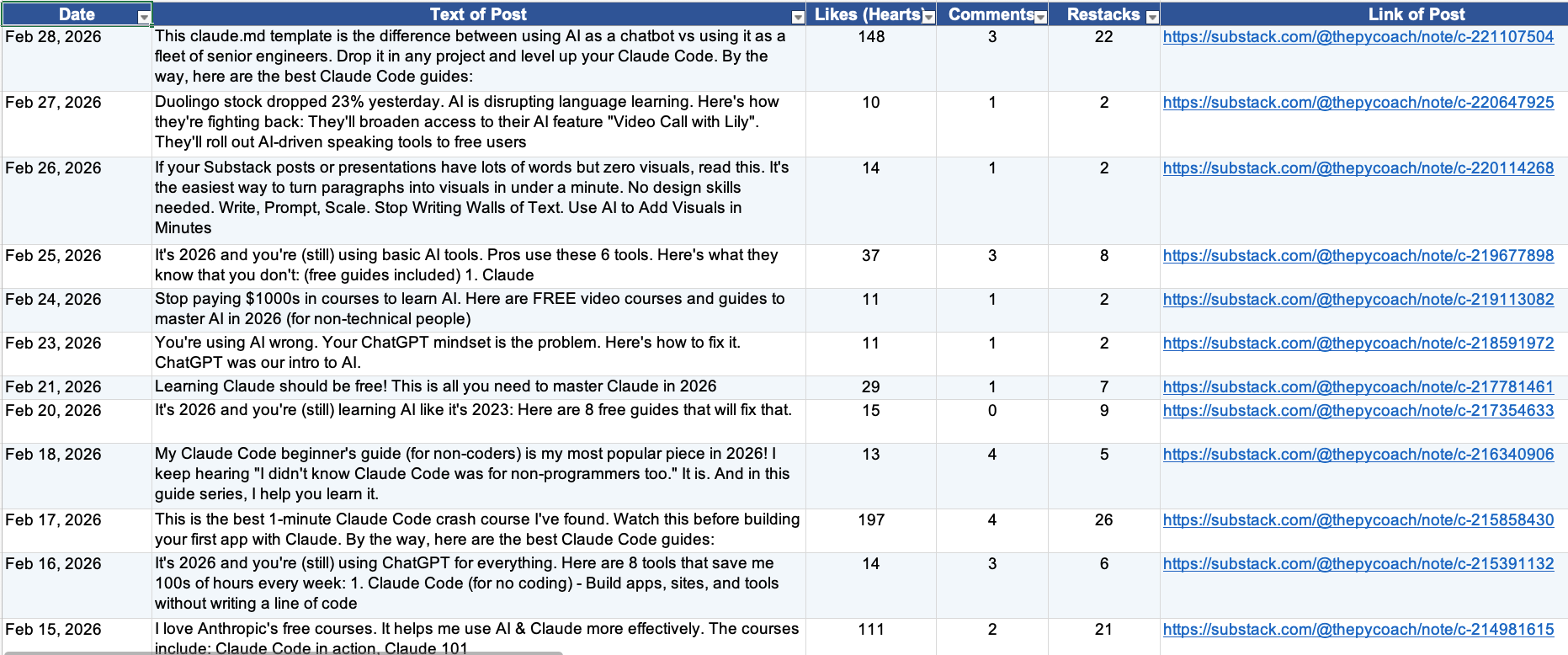
I used it to scrape my own site archive: date, post text, likes, comments, restacks, and post link.
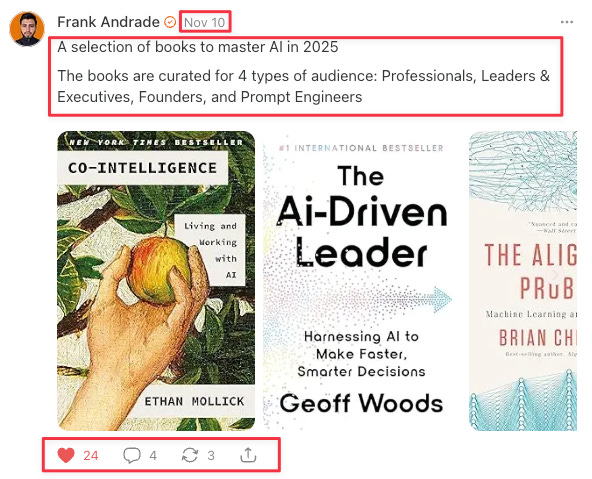
The first run wasn't perfect. I gave Claude feedback and corrected the extraction logic. Once it worked, I scheduled this task to run every month.
Here’s what the output looks like.
Option 2: Claude Cowork + Apify (the method that scales)
Apify gives Claude access to ready-made scrapers for more complex websites and data sources. Better for robust, scalable scraping.
One example: a Reddit Trend Tracker.
Instead of manually checking Reddit to understand what people are talking about, Apify pulls structured data from relevant communities. Cowork then turns that into trends, summaries, or research material.
For more, read my complete Claude + web scraping guide below.
📚 Claude web scraping: Complete guide
Bonus: Claude can generate chats and artifacts
Not every output should stay as text. Sometimes you want something you can open, review, show, or use directly.
Claude can create three useful types of outputs for that: Charts, Artifacts, and Live Artifacts.
Each one solves a different problem.
Charts
Useful when you need to turn information into a cleaner visual: graphs, comparisons, dashboards, visual explanations. For example, you can ask Claude to turn content performance data into an interactive chart.
Use this prompt:
Create an interactive chart from this data.

Data:
- LinkedIn post: 18,000 views, 760 clicks, 120 subscribers
- Substack article: 7,500 views, 980 clicks, 210 subscribers
- X thread: 12,000 views, 430 clicks, 80 subscribers
- YouTube short: 25,000 views, 510 clicks, 95 subscribers
- Carousel: 9,800 views, 690 clicks, 150 subscribers

Make it explorable, not just static.

Include:
- hover details for each content format
- highlighted insights for the best format by metric
- clear labels
- a short explanation of what the chart shows
- toggles to compare views, clicks, and subscribers
Then you get a chart you can explore instead of a flat table:
Artifacts
Useful when the output needs to work like a small tool: a calculator, a dashboard, a page, a comparator, or a simple interface.
Here’s a prompt example:
Build an interactive calculator for estimating article production effort.

Use this case:
- Article type: long-form guide
- Research time: 3 hours
- Writing time: 4 hours
- Editing time: 2 hours
- Visuals: 3 visuals
- Publishing format: Substack + LinkedIn repurpose

It should include:
- editable inputs
- total estimated hours
- difficulty level
- recommendation
- warning if the workload is too high for one day

Make it clean, simple, and easy to use.

Build this as an interactive Artifact.
Make it usable, not just explanatory.
Then Claude creates something you can interact with, not just read:
Live Artifacts
Live Artifacts go one step further.
Useful when you need a tracker, monitor, dashboard, or workspace you can return to inside Claude Cowork. For example, you can create a live AI video radar that tracks videos about a specific topic.
Use this prompt:
Create a live AI video radar inside Claude Cowork.

Goal:
Track recent YouTube videos about AI, Claude, Claude Code, AI productivity, and workflow automation.

Use official or authorized sources when possible, such as:
- YouTube Data API
- channel RSS feeds
- exported CSV files
- manually pasted video links

Track:
- video title
- channel
- publish date
- views
- likes
- comment count
- duration
- topic category
- why it matters
- possible article angle
- possible LinkedIn post idea
- possible X post idea
- next action

Start with these search topics:
- Claude Code
- Claude Artifacts
- Claude Cowork
- AI productivity
- AI agents
- prompt engineering

Make it easy to refresh weekly.

Highlight:
- videos growing fast
- repeated topics across channels
- content gaps I could write about
- videos worth watching first
Then you get a workspace you can reuse, update, and review over time:
For more about charts and artifacts, read my guide below.
📚 Claude Charts, Artifacts: Complete guide
If you found this guide useful, take a moment to share it with others.
It’ll help me keep writing guides like this :)
Thank you for the article.
Very informative.
It could be even better if it appropriately compared Claude Desktop with the Codex Desktop app which is ChatGPTs all in one desktop app offering (not coding like the cli).
That would help people more given the difference from codex desktop app and Claude desktop including workspace, dispatch, connector, skills etc is close to 0 these days.
Unrelated question, are monthly subscriptions cancellable and how? (Easy via Apple but wasn’t sure when done direct). Want to try for a month or twos